

USER EXPERIENCE DESIGN
The free workaround that news publishers don't want you to know about — and it's completely legal
Disclaimer: I want to stress that I do indeed support journalists and online writers. I subscribe (pay for) to three national papers and two Substack accounts.
One of the biggest issues I have with LinkedIn is that the site allows national newspapers (not naming names) to post stories that, when clicked on, display a few paragraphs and then hide the rest of the article behind a paywall. If you're not familiar with the term, a paywall is a gatekeeper that prevents you from reading the full article without subscribing to the publication first.
This is especially frustrating on LinkedIn, where news outlets have the option to remove paywalls and make their shared articles accessible to everyone. Instead, many seem to prioritize profit over engagement, missing the opportunity to gradually draw readers in and encourage subscriptions. In contrast, some websites allow a limited number of free articles before showing a paywall — a strategy I believe is much more effective.
How to get past the paywall
There is nothing illegal about what I'm going to show you. It is a simple browser setting you can change temporarily, and change right back so that all the other sites you visit function properly.
This works on most sites that I have visited, but may not work on every one. Also, I'm going to describe the process for the Google Chrome browser, but I'm pretty sure every browser has this option buried somewhere in the settings, even if the process to access it is a little different.
All you need to do is temporarily disable JavaScript in your browser.
I know there are a lot of people who have probably known this for years, but I just saw it in a YouTube video yesterday.
How to disable JavaScript in Chrome
When you land on an article that is locked behind a paywall, follow these simple steps, and you should be good to go. I'm not going to use any keyboard shortcuts in my explanation, but you can see these in the menus if you want to use them in the future.
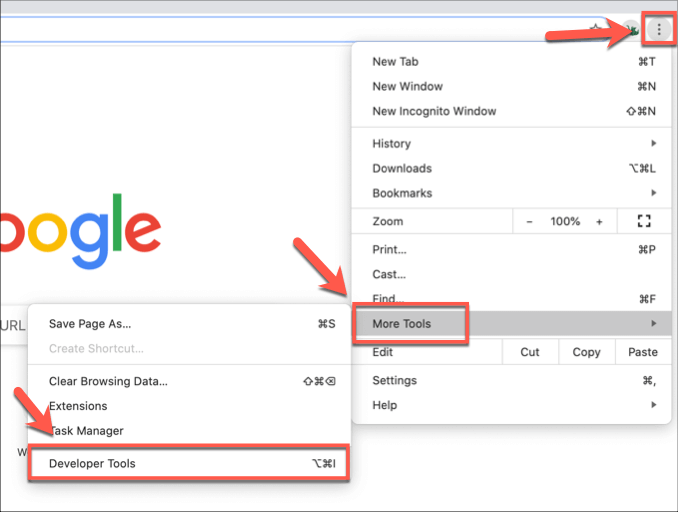
- Click on the three vertical dots in the upper right of the browser toolbar. In UX Design, this is known as a kebab menu, and should not be confused with the meatball menu, which is three horizontal dots.
- Go all the way down to the bottom of the flyout menu, and hover over the More Tools option.
- Next, select Developer Tools from the second flyout menu as shown below.
4. Click on the Settings gear icon in the upper right of the page. This will bring up the Settings options.

5. Now scroll to the bottom of the Settings options, and you'll see the Debugger section. Tick the Disable JavaScript checkbox.
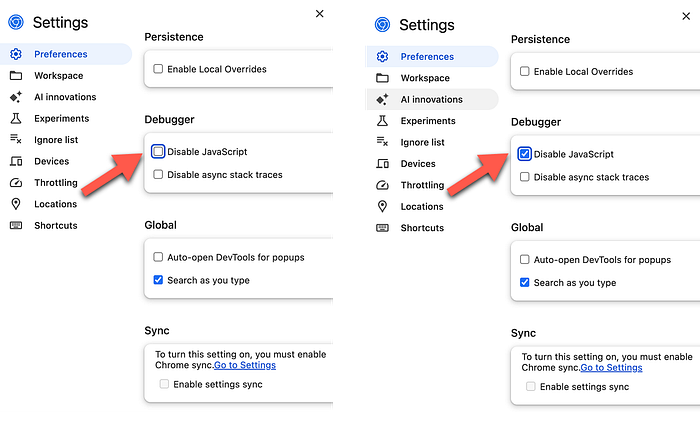
6. Lastly, refresh the page you're on, and you should be able to read the whole article now. You can also close the Settings and Developer Tools windows.
That's it!
As far as I can tell, this has to be done on a case-by-case basis for each article you want to read, as the browser seems to automatically reset when you try to read another article or website.
Happy reading!
Mike Scarpiello 2025