

I have been testing and writing about Apple products for years, and I have reviewed hundreds of apps, dissected every iOS update, and spent embarrassing amounts of time in Settings menus most people don't know exist.
And yet, every few months, I discover something my iPhone could do all along that I immediately wonder how I survived without it.
These aren't buried settings or obscure accessibility features. These are everyday shortcuts hiding in plain sight, waiting to save you time, taps, and frustration. Some of them genuinely changed how I use my phone.
Here are seven of my favorites.
#1 Siri Doesn't Need Your Full Sentence (And Never Did)
We have been trained to talk to Siri like we're dictating a formal letter. Turns out, Siri understands context far better than we give it credit for. When you say a time, it knows you probably want an alarm. When you say a duration, it knows you want a timer. No extra words needed.
So, instead of saying "Hey Siri, set an alarm for 6 AM" or "Hey Siri, set a timer for 15 minutes," you can just say the time. That's it. "6 AM." Done. "15 minutes." Done.
All those full sentences we have been dutifully reciting like Siri would fail us otherwise. You're cutting your voice command in half or maybe more.
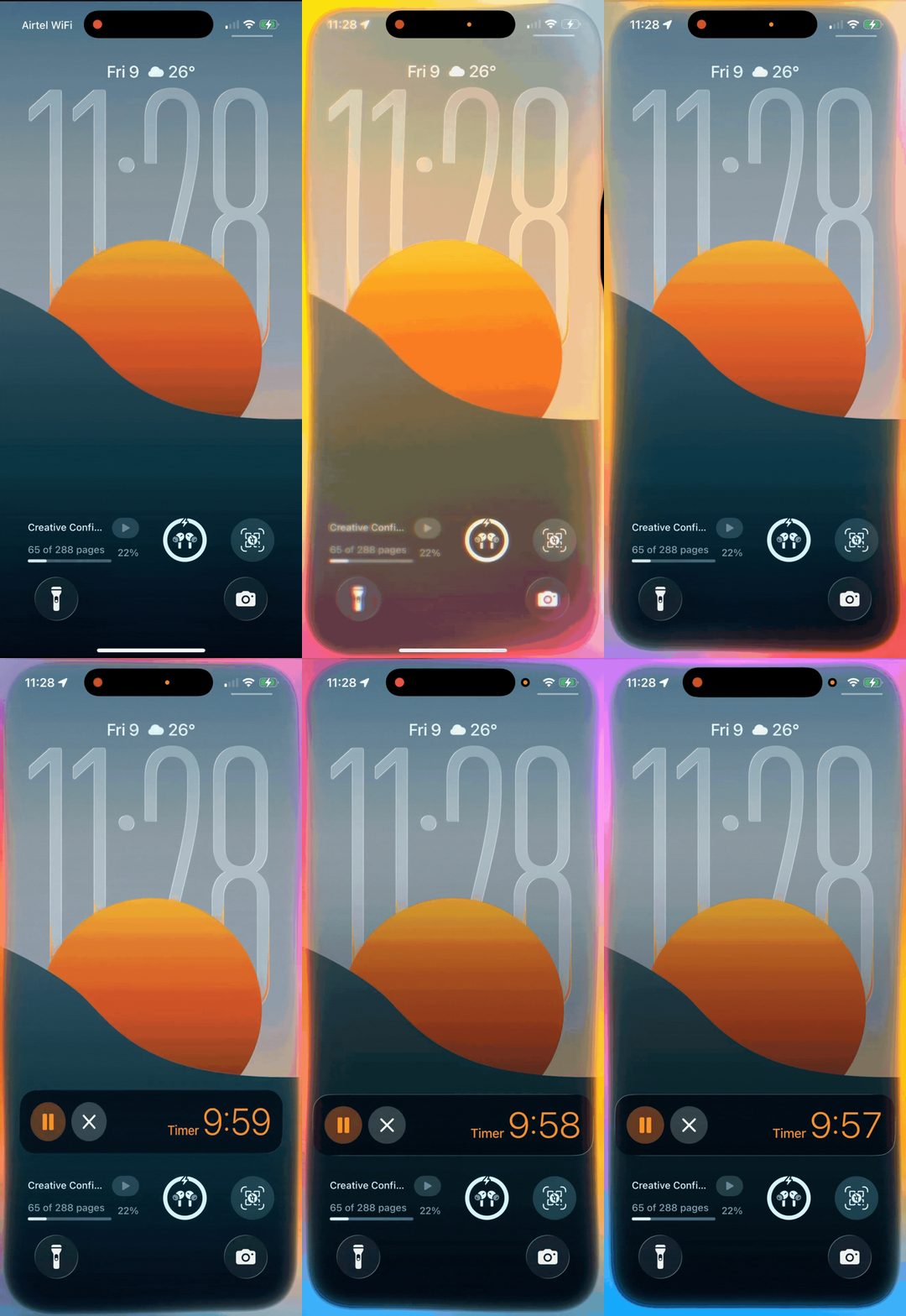
As a heavy timer user who uses timer for basically anything from work sprints to limiting my "quick" social media checks that somehow become 45-minute rabbit holes, I really appreciate this feature.
Now I just mumble "10 minutes" while my eyes are still on my laptop. It sounds small, but when you set 5–10 timers a day, those saved seconds add up. More importantly, it feels natural. Like talking to someone who actually knows you.
#2 Cmd+F Exists on Your iPhone (You Just Didn't Know Where)
Safari has a built-in "Find on Page" feature, but Apple hid it in the one place you'd never think to look — the address bar. When you're on any webpage, tap the address bar and type whatever word or phrase you're hunting for.
After this, scroll to the bottom of the suggestions, and you'll see "On This Page" with the number of matches. Tap it, and Safari highlights every instance on the page.
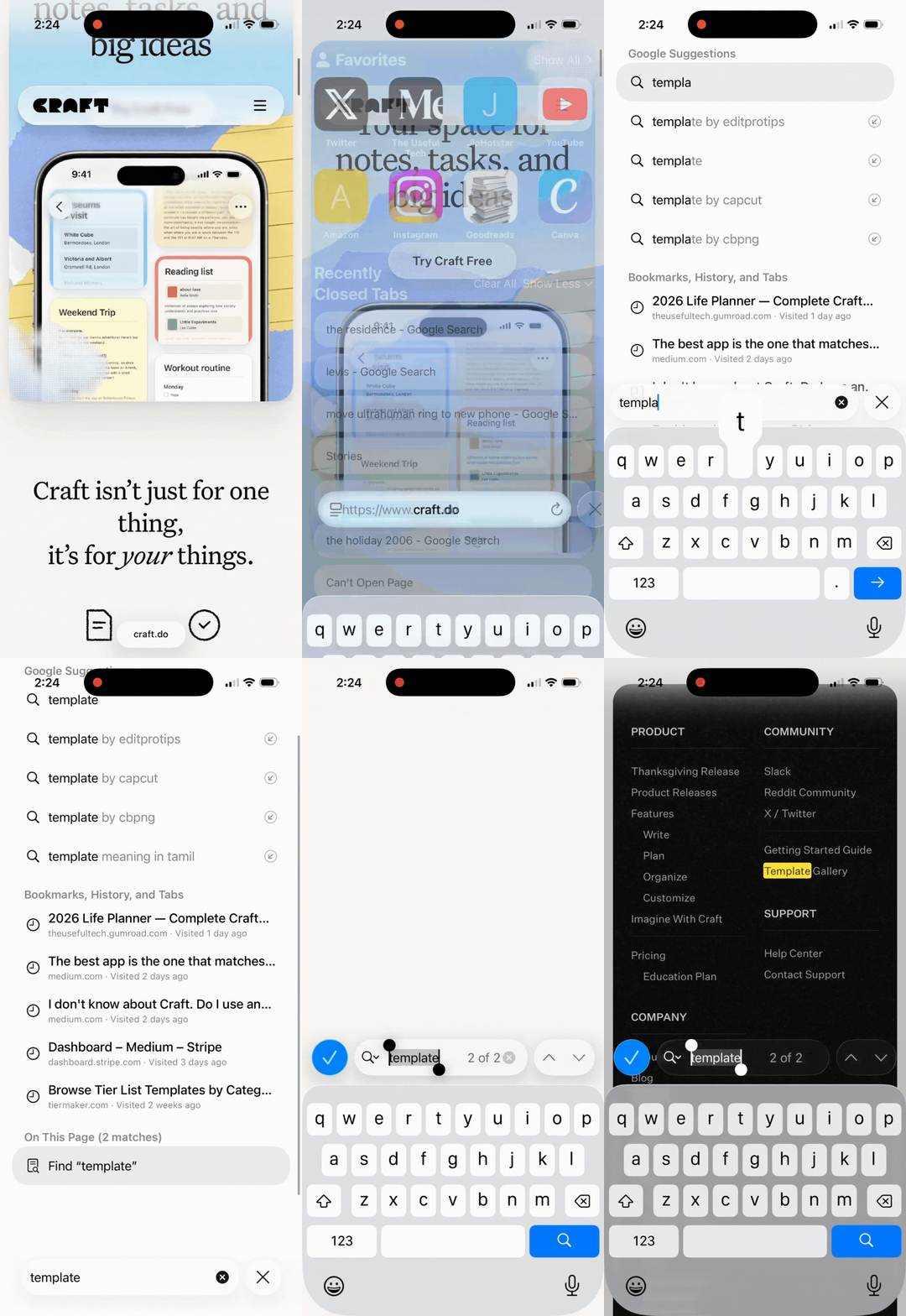
This is literally Cmd+F for your phone, which Desktop users take for granted. If you have been endlessly scrolling and squinting or manually scanning through paragraphs, hoping your eyes catch the right word, or giving up entirely because "it's too hard to find on mobile," you would appreciate this feature.
I research apps constantly on my phone and do things like reading reviews, scanning changelogs, and checking feature lists. When I need to know if an app supports a specific feature, I'm not reading their entire landing page. I type "widget" or "sync" or "offline" into the search bar and get my answer in two seconds. This feature alone has probably saved me hours.
#3 You've Had a PDF Maker This Whole Time
If you ever wanted to turn anything you can share or print into a PDF, here is how you can do it without needing any third-party apps or web tools.
Open the Share menu, tap Print, and then pinch to zoom on the preview image, and it instantly turns into a PDF. You can share it, save it, send it wherever you want.
This is genuinely one of the most unintuitive features Apple has ever shipped, which is probably why almost nobody knows about it. There's no "Convert to PDF" button or any obvious indication that this is possible. You just… pinch, and it works.

If you have been using dedicated apps for converting images into PDF files or just screenshotting and cropping things and emailing them to yourself, hoping for the best, this feature will definitely be useful to you.
I use this literally every day for converting email confirmations into PDFs for my records or turning a webpage article into a clean, shareable document. When I'm working on partnerships, I often need to send media kits or screenshots in PDF format, and this feature makes it instant.
#4 Your Keyboard Is Secretly a Unit Converter
Try to type any measurement on your keyboard, like "5 miles," "200 grams," "72°F," and then highlight it. A small pop-up will appear above the selection showing instant conversions to other units. Miles become kilometers. Fahrenheit becomes Celsius. Cups become milliliters.
Apparently, iOS just knows what units are and recognizes them in any text field, in any app, and offers conversions without you asking. Can't believe I have been using Google or the calculator app for this.
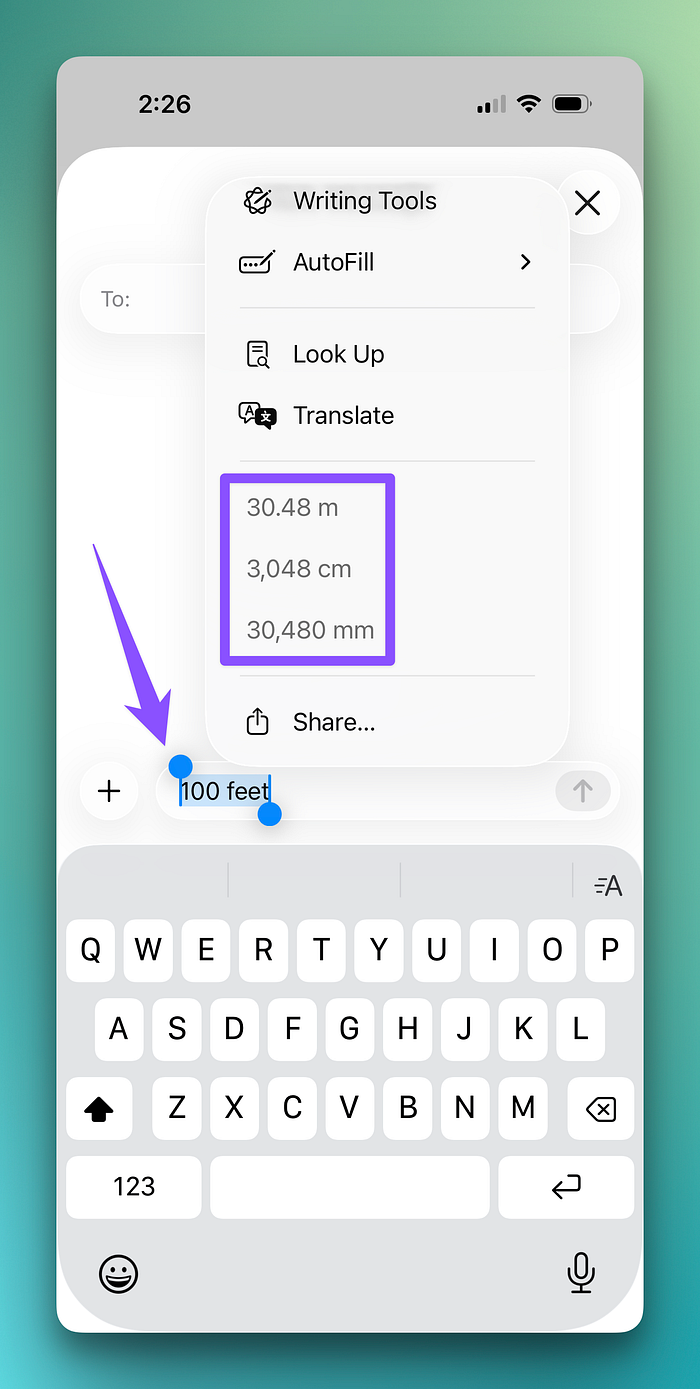
I mostly use it to quickly convert prices from INR to USD or vice versa, and also when reading American tech specs where storage is in ounces, and dimensions are in inches, and I need quick mental context in metric.
#5 Stop Tapping "123" Like It's a Toggle
When typing passwords or anything with mixed letters and numbers (like "s3cur3p4ss"), most people (including me until recently) tap the "123" key, type a number, then tap "ABC" to go back.
But I recently found that you can actually press and hold "123," drag your finger to the number you need, and release. The number registers and the keyboard automatically snap back to letters.
It seems very simple, but it's basically one fluid motion instead of three separate taps, and your finger never leaves the keyboard area. It feels like a cheat code once you get the muscle memory down.
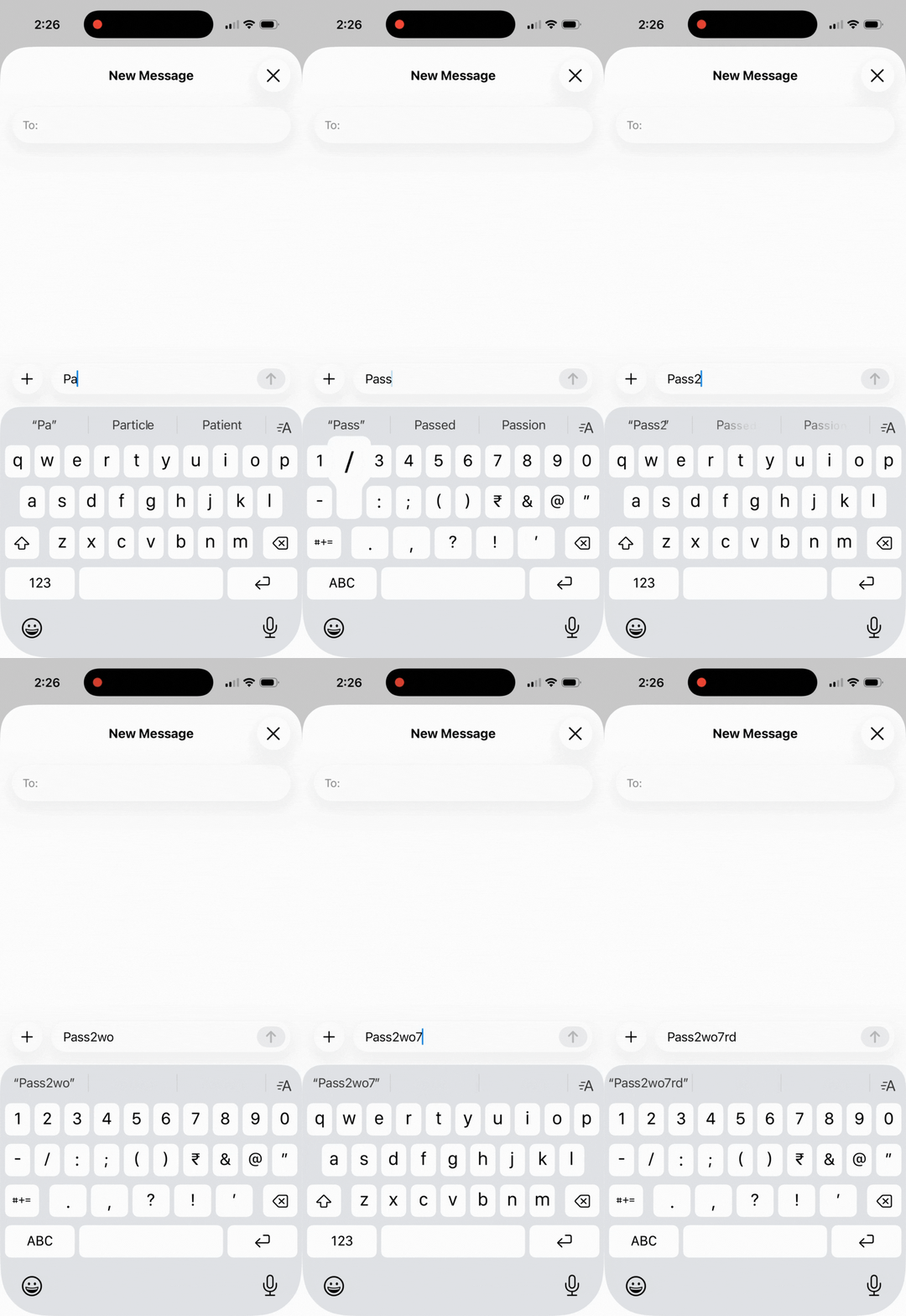
If you have been doing the tap-tap-tap dance between keyboard layouts and are annoyed by the slight pause while you wait for the number keyboard to appear, you will love this feature.
While typing passwords is the obvious use case, I also find myself using this constantly for usernames (so many have numbers), confirmation codes, addresses, and model numbers. Anytime I'm typing something like "iPhone 17 Pro" or "Order #4829," this technique keeps me in flow.
#6 Text Selection Has a Secret Second Level
You probably already know that holding the spacebar turns your keyboard into a trackpad, letting you move the cursor precisely (if not, you're welcome).
But here's the upgrade: while holding the spacebar with one finger (let's say your right thumb), tap the spacebar area with another finger (your left thumb). Now you're in selection mode, and you can drag the cursor to select text with precision.
Selecting text on a phone has always been painful for me because of my fat fingers and the tiny handles. I always end up accidentally selecting too much or too little, and this two-thumb technique gives me desktop-level control over text selection. It's genuinely satisfying once you nail it.
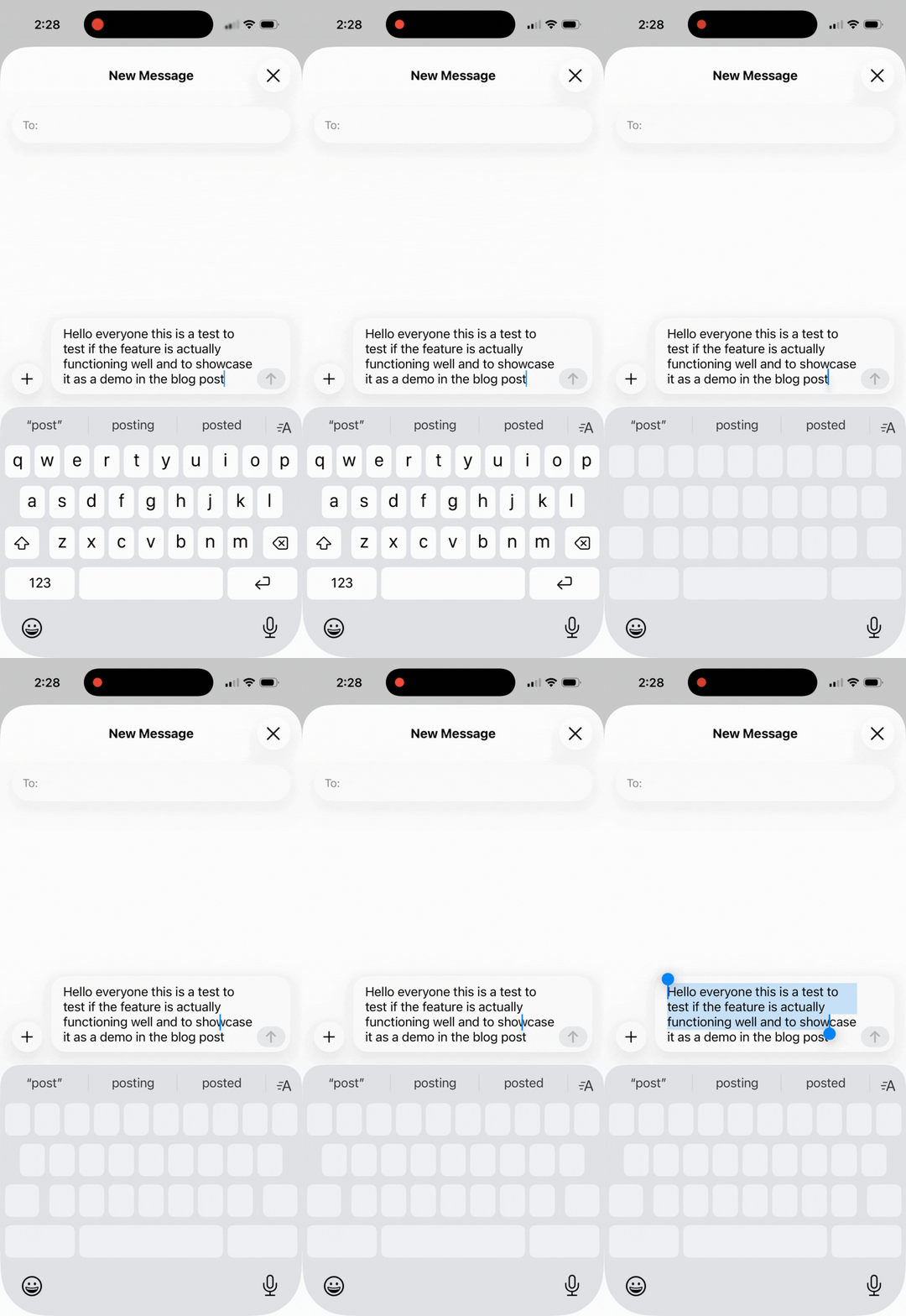
After I started using this feature, I find myself having fewer of those rage-inducing moments when you're trying to select one sentence but keep grabbing the whole paragraph.
I write and edit on my phone more than I probably should, and I am constantly drafting posts, replying to emails, and editing notes.
Before I knew this feature existed, precise text selection was my biggest friction point. Now I can select exactly the phrase I want to cut, copy, or restyle. It took a few tries to get the two-thumb coordination down, but now it's second nature.
#7 Three Fingers = Instant Undo
The old way to undo on an iPhone was shaking your device like you're trying to wake it up from a coma. It was awkward, unreliable, and looked ridiculous in public.
There is actually another subtle, cleaner way to do it, and it needs you to have at least three fingers on your hand. Simply tap anywhere on the screen with three fingers. A small toolbar will now appear at the top of the screen with undo, redo, cut, copy, and paste buttons. Just tap undo to get your text back.
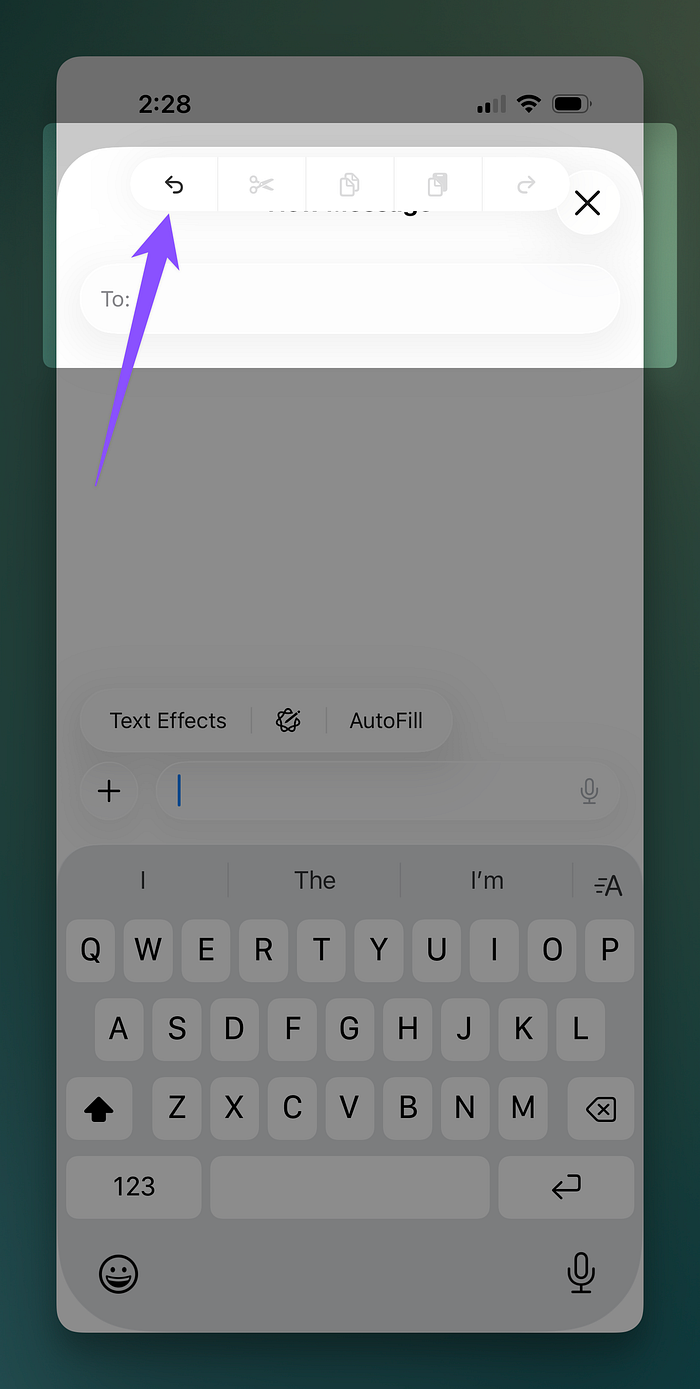
I'm constantly editing, rearranging, and occasionally making aggressive deletions that I immediately regret, and this three-finger tap quickly takes me back to where I was. I also use the cut/copy/paste buttons in the same toolbar, as it's often faster than the traditional highlight-and-menu method.
Once you know this exists, you'll use it daily.
#Bonus: Your Wallpaper Can Change With the Time of Day
Here's something most people don't know exists: iOS Shortcuts can automatically change your wallpaper based on the time.
You don't need to install any third-party app or trigger anything manually; once you set it up, your iPhone just adapts to it.
I got obsessed with this idea a few months ago. Why does my phone look the same at 6 AM when I'm barely awake as it does at 11 PM when I'm winding down? The light around me changes. My energy shifts. But my screen stays frozen in time.
So I built something.
The Daily Shift is a wallpaper pack I designed around this concept — 36 minimal, editorial-style wallpapers divided into six phases of the day. Soft and muted in the early morning. Focused and clear in the afternoon. Warm during golden hour. Deep blues at night.
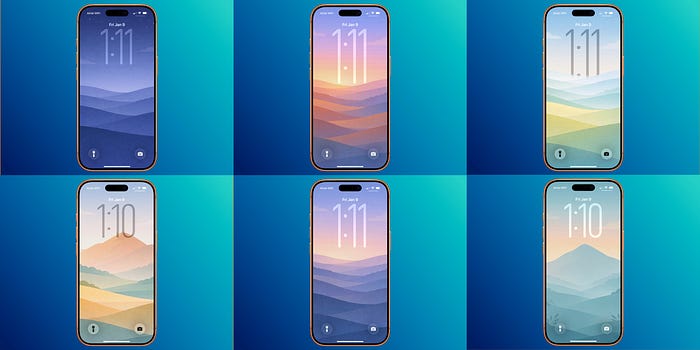
The pack includes an iOS Shortcut that cycles through them automatically. You set it up once (takes five minutes), and your phone handles the rest and automatically changes your wallpaper to something that matches the rhythm of your day.
It's just $7.99 if you want to check it out:
If you're the kind of person who notices these details, and if you've read this far, you probably are, then this might be for you.
The iPhone You Already Own
What fascinates me about these features is that none of them requires a new iPhone. They're not locked behind the latest iOS update or reserved for Pro models. They've been sitting in your pocket for years, waiting to be discovered.
Apple has a weird habit of adding powerful features without making a fuss about them, and most of the time, you either stumble upon them or you live your life without knowing they exist.
Consider this your stumble.
Your iPhone can do more than you think. You just have to know where to look.
Which of these surprised you most? I'm always hunting for more hidden features, so if you know anything that you think most people don't know about, please don't gatekeep and drop it in the comments.
If you enjoy finding these kinds of details and thinking more deliberately about how you use your Apple devices, I have also set up a private Discord space called The Useful Tech.
It is a slow, high-signal space where we discuss Apple workflows, tools, writing, development, and building things more intentionally. The kind of conversations that usually happen in private messages never quite fit into a public post.
It is free to join. You can read, observe, and participate at your own pace.
→ Join The Useful Tech Discord