

If you use Gemini CLI inside real projects, you already know where the friction shows up. You can ask for help, you can request a review, you can describe a deployment, but the moment a task needs your team's exact process, scripts, and templates, you either paste a ton of context or you accept that the model will guess.
Agent Skills change that. Gemini CLI is adding an experimental skills system that lets you plug in focused "expert modes" that only load when they are needed. Instead of turning every prompt into a mini-document, you keep the knowledge in a folder and let the CLI bring it in on demand.
Hi, this is Jannis.
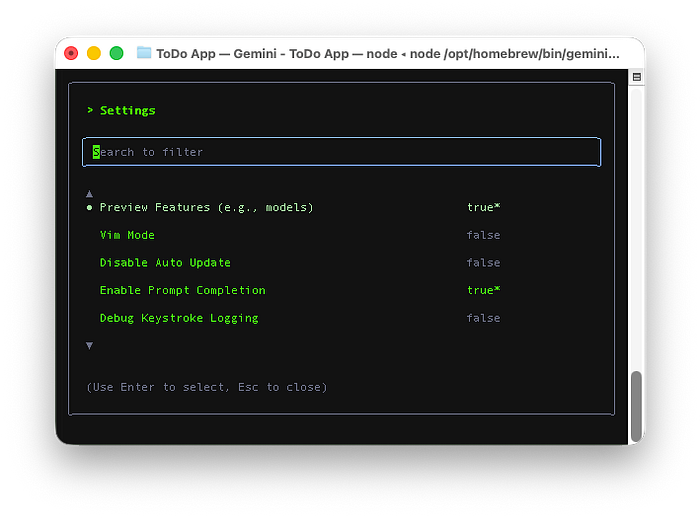
Agent Skills are experimental at the moment and they are enabled through experimental.skills. You can toggle it in the /settings interactive UI by searching for "Skills". Once it is on, Gemini CLI starts looking for skills you have installed and it can use them when your request matches what the skill is meant for.
The key idea is that skills are not the same as your always-on project context. A file like GEMINI.md is your steady background, like "here is how this repo works and what we care about." Skills are the opposite. They are "only load this when the user is doing a specific kind of task."
A Skill Is Basically A Folder With Instructions And Stuff Inside
A skill is a directory that contains a SKILL.md at the top. That file has two parts. The header tells Gemini what the skill is called and what it is for. The rest of the file tells Gemini exactly how to behave when the skill is active.
That is what makes skills useful for teams. You are not relying on someone remembering the perfect prompt. You are giving Gemini a packaged playbook.
A minimal SKILL.md looks like this:
---
name: <unique-name>
description: <what the skill does and when Gemini should use it>
---

<step-by-step instructions for the agent>
The description line is the most important part. Gemini uses it like a label on a toolbox. If your request sounds like that label, the CLI knows which toolbox to pull out.
Skills Keep Your Context Clean and Avoid Token Waste
The best design choice here is that skills do not dump their full content into every session. At session start, Gemini only sees the name and description of each enabled skill.
When you ask for something that matches a skill, Gemini calls a tool named activate_skill. Only then does the CLI bring the full skill instructions into the conversation.
This is the difference between "everything is always loaded" and "load the right thing at the right time." It is also why you can keep lots of skills around without slowing down every session.
Where Skills Live And Which One Wins
Gemini CLI checks three places for skills.
Project skills live in .gemini/skills/ and they are meant to be shared with your team and committed to the repo.
User skills live in ~/.gemini/skills/ and they are your personal set that works across all projects.
Extension skills come bundled inside extensions you install.
If two skills have the same name, the project version wins, then your user version, then the extension version. That is a practical rule. It lets teams override generic skills with repo-specific ones without fighting everyone's local setup.
How You Enable, Disable, And Reload Skills
Inside an interactive CLI session, you can manage skills using /skills.
/skills list shows what the CLI finds.
/skills disable <name> prevents a skill from being used.
/skills enable <name> turns it back on.
/skills reload makes the CLI rescan all skill locations.
From the terminal, the equivalent commands look like this:
gemini skills list
gemini skills enable my-expertise
gemini skills disable my-expertise
By default, enable and disable apply to your user scope. If you want to manage project scope, you can use --scope project.
How Skill Folders Become Useful In Real Projects
Once skills are available, you can treat them like reusable team playbooks.
You can create a code-reviewer skill that always checks the same things, follows your repo conventions, and outputs review feedback in a consistent format.
You can create a deployment skill that pulls in the right checklist, the right scripts, and the right environment notes.
You can create a migration skill that bundles templates and reference files so Gemini does not improvise structure.
The docs recommend a few folder conventions that make this easier. You can keep runnable tools in scripts/, static docs in references/, and templates in assets/. When Gemini activates the skill, it gets a tree view of the folder, so it can see what is available and use it.
The Skills Safety Model Withing Gemini CLI
The CLI is very explicit about access. First it discovers skills and only loads name and description. Then it activates a skill through a tool call. Then you get a consent prompt that shows the skill name, what it is for, and the directory path it will access.
If you approve it, Gemini gets the skill instructions and it gets permission to read files inside that skill folder. It is not a blanket "read my whole machine" situation. It is scoped to that one directory.
To stop retyping or re-explaining your workflows in the future move the important stuff into versioned folders, and let the CLI pull them in only when needed. The power of Skills in Gemini CLI.
If you found this article helpful, A few claps 👏, a highlight 🖍️, or a comment 💬 really helps.
If you hold that 👏 button down something magically will happen, Try it!
Don't forget to follow me to stay updated on my latest posts. Together, we can continue to explore fascinating topics and expand our knowledge.
Thank you for your time and engagement!