

Imagine this: It's 2 AM on a Saturday. You're fast asleep. But somewhere, your Linux machine is quietly waking up, running a backup of every important file, scanning the network for open ports, and going right back to sleep — all without you lifting a finger.
That's the magic of job scheduling in Linux.
Whether you're a sysadmin trying to save time or a hacker automating recon scripts, this is one of the most powerful skills you can learn. Let's break it down — no jargon, no fluff.
The Two Players: at and crond
Linux gives you two main tools for scheduling jobs:
at— for one-time tasks. "Run this script tomorrow at 7 PM." Done. It won't run again.crond— for recurring tasks. "Run this every Monday at 2 AM, forever." This is the one we'll spend most of our time on.
Think of at as setting a single alarm, and crond as setting a recurring alarm on your phone.
cron — Your Tireless Robot Assistant
The cron daemon is a background process that wakes up every minute, checks a schedule file, and runs whatever tasks are due. That schedule file is called the crontab (short for cron table), and it lives at /etc/crontab.
You don't talk to cron directly. You just write your schedule into the crontab file, and cron does the rest — silently, reliably, every single time.
Reading the Crontab: The 7-Field Format
Every line in the crontab follows this format:
MINUTE HOUR DAY-OF-MONTH MONTH DAY-OF-WEEK USER COMMANDHere's what each field means:
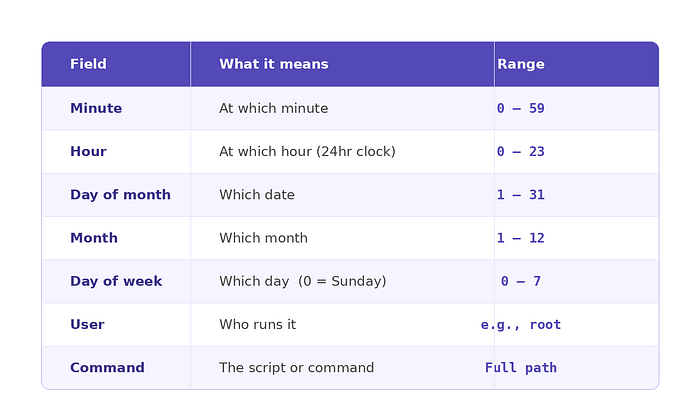
Pro tip: Use
*(asterisk) as a wildcard meaning "every."* * * * *means "every minute of every hour of every day."
Your First Cron Job — A Weekend Backup
Let's say you want to back up your system every Sunday at 2 AM. Here's what you'd add to your crontab:
00 2 * * 0 backup /bin/systembackup.shReading it out loud: "At 00 minutes, 2nd hour, any day of the month, any month, on Sunday (0), run as the 'backup' user, execute /bin/systembackup.sh."
That one line will silently run every single Sunday at 2 AM — whether you're sleeping, traveling, or binge-watching something you shouldn't be.
Getting Specific — Ranges and Lists
Need more control? The crontab syntax is flexible:
Run on the 15th and 30th of every month:
00 2 15,30 * * backup /root/systembackup.sh(Use commas to list specific values)
Run every weeknight (Mon–Fri) at 11 PM:
00 23 * * 1-5 backup /root/systembackup.sh(Use a dash for a range. 1-5 = Monday through Friday)
Run only on weekends in summer (June–August) at 2 AM:
00 2 * 6-8 0,6 user /usr/share/MySQLscanner.shYou can mix ranges and list in the same field.
Editing the Crontab:
Two ways to edit it:
Option 1 — The command way:
crontab -eThis opens the crontab in a text editor and installs it automatically when you save.
Option 2 — Open it directly:
leafpad /etc/crontabJust add your line, save the file, and cron picks it up automatically. No restart needed.
Crontab Shortcuts — Because Typing is Hard
The crontab has built-in shortcuts so you don't have to figure out the exact time fields every time:
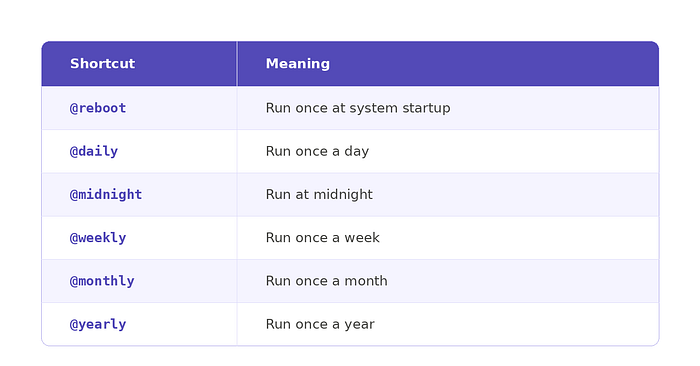
Example: Run the MySQL scanner every night at midnight:
@midnight user /usr/share/MySQLscanner.shClean. Simple. No math required.
The Startup Problem — What Runs When You Boot?
Here's a different scenario: You use Metasploit for penetration testing, and it needs the PostgreSQL database running before it can do anything. Every time you boot your machine, you have to manually start PostgreSQL first.
Annoying, right?
Linux has a solution: rc scripts. When your system boots, the kernel starts a process called init, which runs a bunch of startup scripts from /etc/init.d/rc. These scripts control which services come to life at boot.
Adding Services to Startup with update-rc.d
To make PostgreSQL start automatically every time you boot, just run:
update-rc.d postgresql defaultsThat's it. One command. Reboot, and PostgreSQL is already running — ready and waiting for Metasploit before you've even had your morning coffee.
Want to verify it's running?
ps aux | grep postgresqlIf you see a PostgreSQL process in the output (not just the grep command itself), you're good to go.
Prefer a GUI? Use rcconf
If command-line editing feels uncomfortable, there's a simple graphical tool called rcconf that does the same thing with point-and-click:
apt-get install rcconf
rcconf
A simple checkbox interface appears. Scroll to the service you want (like PostgreSQL), press spacebar to select it, hit Tab to highlight OK, and press Enter. Done. That service will now start automatically on every boot.
Putting It All Together
Here's the big picture:
- Need something to run once in the future? → Use
at - Need something to run on a schedule, repeatedly? → Use
cron+crontab - Need a service to start every time your system boots? → Use
update-rc.dorrcconf
Together, these three tools let you build a system that practically runs itself. For hackers, that means your recon scripts quietly scanning the internet while you're offline. For sysadmins, that means backups running at 2 AM while you're asleep. For everyone, it means less manual work and more time for what actually matters.
The Hacker Mindset:
The real lesson here isn't just the commands — it's the mindset. A skilled hacker or sysadmin doesn't sit around manually running the same script every day. They write it once, schedule it, and let the machine do the rest.
Linux's job scheduling system is essentially a way to clone your attention. You set the rules once, and your system follows them faithfully — every hour, every day, every week — whether you're there or not.
If you found this article helpful and would like to support my cybersecurity learning journey, you can do so here:
You can connect with me on social media platforms.
Linkedin: https://www.linkedin.com/in/nishant-kumar-3a07952b6/
Twitter:https://x.com/BugBugproofmind