


Continuing from Part 2, where we explored vulnerabilities in data access, communication, and server-side logic, this part focuses on client-side weaknesses and insecure data handling within the application.
In this part, we will examine how sensitive information is stored, processed, and exposed on the device, as well as techniques to bypass local security controls.
We will cover:
- Insecure use of SharedPreferences
- Weak protection of local SQLite databases
- Hardcoded secrets and weak cryptographic practices
- Exposure of sensitive information through logs, memory, and clipboard
- Insecure backup configuration
- Bypassing local authentication mechanisms (PIN)
Let's continue with the analysis.
SharedPreferences
A SharedPreferencesobject points to a file containing key-value pairs and provides simple methods to read and write them.
If an application makes use of Shared Preferences, the file is located in its files. The directory of the app is /data/data/com.WaTF.WaTFBank, and it is accessible as a root.
To become root in the emulator either connect to the device with the terminal and execute su command or before connecting start adb with root permissions with adb root.
After connecting to the testing device through terminal, and navigating to the directory, the contents are the following:

In the "shared_prefs" directory the file "SharePref.xml" can be found.

In this case, the data this file saves the following information the "pin", "ip", "accountNo" and "token". The file is used to keep info of the user's session, so that when the app is backgrounded and reopened, it will only ask for the pin, instead of logging in again.
Except of the pin, which is in hashed form, the other values are in plaintext. The pin is the one that the user sets after a successful login.

SQLite Databases
In the same directory as before /data/data/com.WaTF.WaTFBank, there was a directory called "databases", the contents of which are the following.

These are sqlite files. From the names it can be inferred that "FavoriteAccount.db" contains the user's favorite accounts, while the "credentials.db" contains login credentials. To view the contents of these databases, I extracted them from the testing device to the host device and used SQLiteManager.
The "FavoriteAccount.db" can be directly opened and there it's possible to see the contents.

The "credentials.db" however, cannot be directly opened as it is encrypted and it needs a password to decrypt it.

To better understand when is the database created and generally what is going on, a bit of research is done in the code. In the Login class the following parts of the code are found, executing after login.

The plaintext password used for the db file is hardcoded ("P@ssw0rd") and as it can be seen in the code, it is passed to a xor function. In the xor function the key used to xor the password is "k3y".

The result of this xor function then is used as password in writeToCipher method, which writes the credentials in "credentials.db".

With this information it is easy to just recreate the password and then use it. Some ways to do this, could be to:
- use frida and make xor function to print the result,
- use any online xor tool that produces xor of two strings,
- use the apk tool that is provided in the project
With that being said the xor result is the following:

As it can be seen it contains characters that cannot be represented (non-ASCII or control characters), and it's not that straightforward to copy-paste that password and directly work.
The way I did it and worked, was by visiting https://www.dcode.fr/xor-cipher, then filled the password and the key and finally chose to download the output in text file.

Then I copied the result from the text file to the field and opened the database.


As a result the username and the password of the logged in user can be seen.
Sensitive Information Exposed / Leaked
Here I will show some areas that expose information:
- Logs
- Auto-Generated Screenshots
- Input Fields that don't mask data
- App's Memory
- Clipboard
- Keyboard Cache
Let's start!
1. With Logcat in Android Studio, I inspected the app's logs and there I found credentials being exposed.

Then I searched for username and password keywords and found more credentials of successful login attempts.

The code responsible for that is located in Login class.

2. When the app is backgrounded, sensitive information is still exposed.

In such case the backgrounded app screenshot should appear blank, to hide the info.

3. When the pin is inserted in the field it is not masked with asterisks "*" or dots "•" .

4. Another place that information can be found is the app's memory. Sometimes sensitive data handled by the app are kept in the memory, even though they may not be longer needed.
Before dumping the memory I logged in with Emma, then Michael and set the pin to 6547. Then I used Fridump to dump the memory of the app. The following command dumps the memory of WaTF Bank and then extracts the strings of the memory files into a text file ("strings.txt").
python fridump.py -U -s "WaTF Bank"
Next I inspected the extracted strings and there I found credentials, as well as the pin that I set for the account.


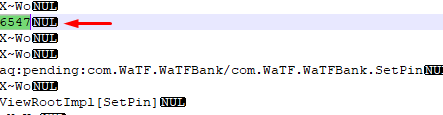
5. Clipboard offers system-wide sharing of data between the apps. However this can be exploited to access sensitive information, for example by a malicious app or an attacker that is monitoring the clipboard.
Here I used Objection toolkit to monitor the clipboard.
First connecting to the device to explore the app is required.
objection --gadget com.WaTF.WaTFBank exploreThen to launch clipboard monitor:
android clipboard monitorRemember that objection requires frida-server running in the target device!
I copied the username and the pin and they were captured as it can be seen below. The password field doesn't allow copying it, but it allows to paste in it. So I wrote and copied the password from another source, then pasted it in the field and it was captured.

6. Sometimes typed sensitive information may be added to the keyboard cache. In order to identify, if an input field allows that, layout definition xml settings should be inspected. Here I won't show any specific example but I will mention how to identify if the keyboard is cached and where to find possible cached data.
In jadx I searched for specific keywords in the resource files. More specifically the android:inputType attribute can be searched to identify input fields of the app. When this attribute has the textNoSuggestions setting in the layout definition xml, the input is not cached.

Another important place to check for any cached data is the corresponding keyboard app's directory. For example, for Google's Gboard app the path is /data/data/com.google.android.inputmethod.latin/files/cache .
Backup Allowed
In the "AndroidManifest.xml" of the app, the application tag has the android:allowBackup setting set to true . This means that it is possible to get a backup of the app including all its files, that potentially include sensitive data.

To take a backup of the app I used adb.
adb backup com.WaTF.WaTFBankThe following message appeared on the emulator (target device). Here I didn't provide any password.

The result of the backup is a backup.ab file. The ab file type is a compressed tar file and in order to unpack it, android backup extractror (abe.jar) tool will be used with the command:
java -jar abe.jar unpack backup.ab application-data.tar
Then tar is opened with WinRAR, and there files of the app can be seen.

Bypassing the Pin Check
Here I will show four ways to bypass the pin check. The first two are based on the shared preferences, the other two make use of frida.
1. In both SetPin and CheckPin classes there is a method that takes the input pin and creates the corresponding hash value. The hash algorithm used here is "md5", which is deprecated and shouldn't be used.

There are also tools that can identify the type of the hash, so it would be still detectable that it's md5. With this information, we can get the pin value of the shared preferences file and crack it. For that job there are many tools here I will use https://crackstation.net/.

So, the pin is "1234".
2. Knowing that md5 is used, it is possible to create the hash of any custom value. Here as an example, I will use the md5 hash value of "0" and replace the current pin in the "SharePref.xml".

To replace it, I created a custom SharePref.xml copying the contents from the original and changed the hash. Next step is to replace the original. To do this I used "adb push" command, to send the file to the corresponding directory of the target device.
Finally, the app needs to be restarted. Once this is done, it is possible to login using "0" as a pin.

3. Here frida will be used to modify the result of the pin check on runtime. This script for frida is provided in the project's files.
Java.perform(function () {
 var c = Java.use('com.WaTF.WaTFBank.CheckPin');
     c.checkPin.implementation = function () {
         console.log('Pin Bypassed!');
         return true;
     };
});
While this script is running, the check can be bypassed just by clicking "Check Pin", providing an empty value or even an empty field.


4. Provided that the pin is four characters, it is possible to also perform a brute force attack that will not take that long to find the pin. Thankfully, there is not any account lockout policy, so we can freely check for values.
The following script is also provided, it finds the pin and passes the check. More specifically, it changes the checkPin implementation to go through all the values from "0" to "9999", and for every value it produces the md5 hash using the method of checkPin. Finally, it calls checkPin to pass the check, if it's passed then the pin is found.
Java.perform(function () {
  var c = Java.use('com.WaTF.WaTFBank.CheckPin');
  c.checkPin.implementation = function () {
    console.log('Hook!!');
    for(var i=0; i<9999; i++){
      var x = this.md5(i+"")
      var result = this.checkPin(x);
      console.log("enter : "  + i);
      if (result){
         console.log("This is a pin!!!")
         return true
      }
     }
     return false
  };
});
In this example, I set the pin to "1234".

Conclusion
In this part, we explored client-side vulnerabilities related to insecure data storage and handling, including the misuse of SharedPreferences, weak protection of local databases, and the presence of hardcoded secrets.
In the final part, we will explore advanced attack techniques, including authentication bypass, debugging abuse, code injection, and application patching.
Thanks for reading, see you in the final part, part 4!😊