

Focus on learning the definition of information gathering for newcomers that want to upgrade their level of understanding and practice it properly.
In web security testing, information gathering is the first vital phase before you do deeper tests such as finding vulnerabilities or exploiting a site. It's like studying a building's layout before checking its doors or windows for weaknesses.
Information gathering help testers understand "what technologies are used?", "what services are exposed?", "what potential weaknesses may exist?".
This phase does not involve exploitation. It is focused on observation and analysis.
What is Information Gathering?
Information gathering is the process of collecting data about a target web application. The purpose is to build an initial understanding of the system.
In OWASP WSTG, this phase includes several activities such as:
- Search engine reconnaissance
- Web server fingerprinting
- Reviewing server metafiles
- Enumerating applications
- Reviewing web content
Each activity helps reveal different types of information.
Why Information Gathering Is Important
Information gathering is important because it prepares testers before they start deeper security testing. It helps them understand how the web application works, what technologies are used, and what parts of the system are exposed.
Without proper information gathering, testers might miss important areas of the application. Some vulnerabilities may stay hidden simply because the tester did not know where to look. Testing can also become inefficient, since time may be spent on the wrong parts of the system.
When reconnaissance is done carefully, it makes the next steps, such as vulnerability analysis and further testing more accurate and more focused.
1. Conduct Search Engine Discovery Reconnaissance
Search engines can contain indexed information about a website. Sometimes, sensitive or internal files are accidentally exposed and indexed.
This is called Google Dorking, it lets you use advanced search operators to dig deeper, uncovering data that's otherwise hidden or difficult to find.
This technique is passive because it does not directly interact with the target server.
Example
Using Google search operators:
site:example.com filetype:pdf
site:example.com intitle:"admin"
site:example.com inurl:backup
These queries may reveal:
- Public documents
- Admin panels
- Backup directories
- Configuration files
If a backup file appears in search results, this indicates information leakage.
See what i'll find just by typing that to the google search. For instance i typed: "mahasiswa site:ubl.ac.id filetype:pdf".

The goal of what i've done just now is to acknowledge the people related to the information i'm searching and what kind of information they might gave me.
Different Google Dorking Techniques
Google Dorking techniques primarily involve using specific search operators. Below are some of the most commonly used methods:
- Filetype: This operator searches for specific file types. For example, `filetype:pdf` would return PDF files.
- Inurl: The `inurl:` operator can be used to find specific words within the URL of a page. For example, `inurl:login` would return pages with 'login' in the URL.
- Intext: With the `intext:` operator, you can search for specific text within the content of a web page. For example, `intext:"password"` would yield pages that contain the word "password".
- Intitle: The `intitle:` operator is used to search for specific terms in the title of a webpage. For example, `intitle:"index of"` could reveal web servers with directory listing enabled.
- Link: The `link:` operator can be used to find pages that link to a specific URL. For example, `link:example.com` would find pages linking to example.com.
- Site: The `site:` operator allows you to search within a specific site. For example, `site:example.com` would search within example.com.
2. Fingerprint the Web Server
Web server fingerprinting is the process of identifying:
- The web server type (Apache, Nginx, IIS)
- The server version
- Operating system indicators
- Technologies used
This information helps testers identify possible known vulnerabilities related to specific versions.
Identity HTTP headers (using curl):
curl -I https://example.comThe goal is to understand the software server and basic config.
Example output:
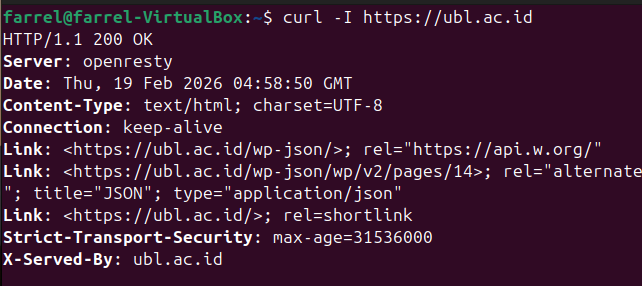
- The server software
This means the website uses OpenResty, OpenResty is built on Nginx, It works as a web server and reverse proxy, The version number is hidden (this is good for security)
- The backend language
The header shows
/wp-json/,This indicates the website uses WordPress, WordPress is built with PHP and usually uses MySQL as its database
So we can assume the Backend language is PHP and Database is MySQL
- Security Configuration
Strict-Transport-Securityis enabled, this means HSTS is active, the site forces HTTPS connections thus improves security.
Another tool example (Using Nmap):
Using Nmap is one of the best tools to helps us understand what is running behind the web app. It supports vulnerability research, giving us a grasp understanding of the service and version to help map possible CVEs. And so to understand the attack surface, giving us a broader view beyond just the website interface.
Nmap helps testers move from "what I see in the browser" to "what is actually running on the server."
In this practice, i'll be using commonly used Nmap Options.
#detect service versions running on open ports.
nmap -sV example.com
#Nmap full TCP port scan (0–65535)
nmap -Pn -sT -sV -p0-65535 example.com

-Pn
Skip host discovery. Treat the target as online and scan directly.

-sT
TCP connect scan. Completes full TCP handshake. Slower but works without root.

-p-
Scan all 65535 ports.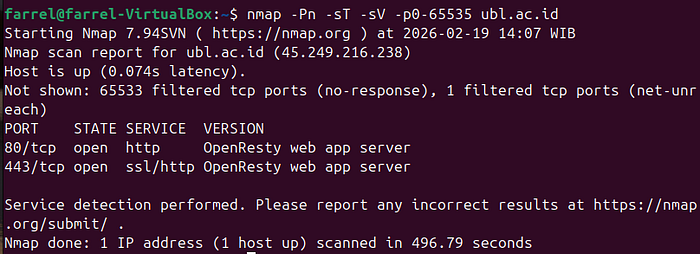
#Check DNS records, Shows which DNS servers are authoritative for the domain (basic detail)
host -t ns example.com

#Check dns detailed information
dig example.com
dig (Domain Information Groper) retrieves detailed DNS information.

#basic dns queries (medium detail)
nslookup example.com

#retrieves Domain registration information (registrar info)
whois example.com
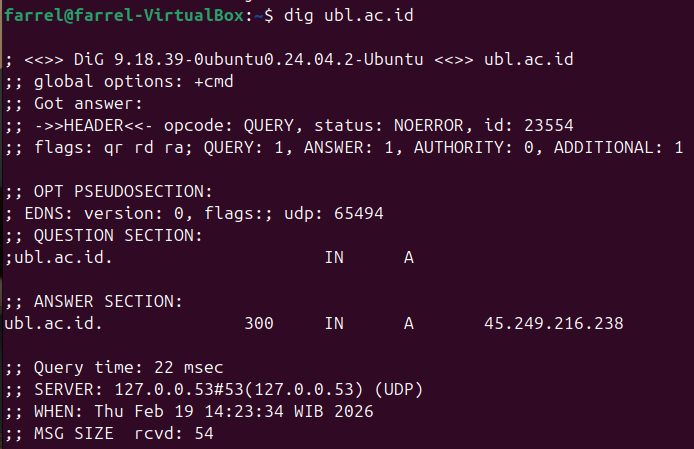
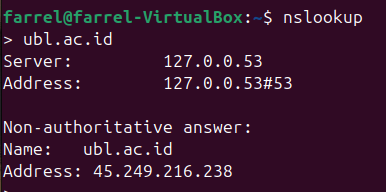
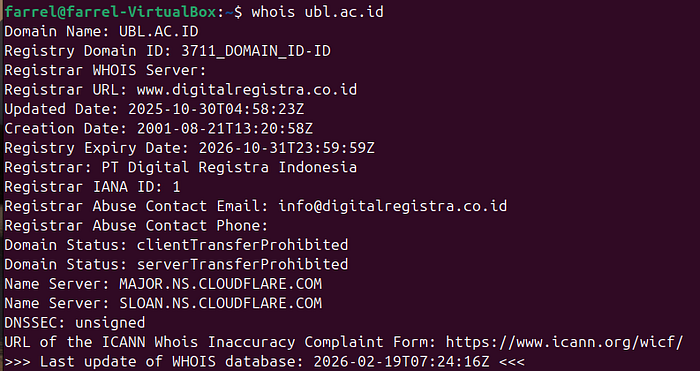
Here are some DNS misconfiguration and it's security impact.
- Zone Transfer Enabled (AXFR)
Entire DNS zone can be downloaded -> Full infrastructure exposure (subdomains, internal hosts).
2. Dangling DNS Records
DNS points to deleted/unclaimed service -> Subdomain takeover
3. Missing SPF/DKIM/DMARC
No email authentication protection -> Email spoofing & phishing
4. Open Recursive Resolver
DNS server answers public recursive queries -> DNS amplification (DDoS abuse)
DNS misconfiguration can create serious security risks because DNS controls how users reach your infrastructure. If configured incorrectly, it can expose internal systems, enable attacks, or leak sensitive information.
3. Review Web Server Metafiles for Information Leakage
Web servers may contain public metafiles that provide technical information.
Common metafiles:
- robots.txt
- sitemap.xml
- security.txt
- .git directories
Example: robots.txt
Accessing:
https://example.com/robots.txtExample content:
I'm trying to see if there's any metafiles in ubl.ac.id website.
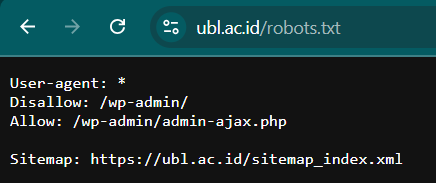
Although this file is meant for search engines, it reveals internal directories.
If sensitive folders appear here, it indicates potential information exposure.
4. Enumerate Applications on the Web Server
Enumeration means identifying:
- Subdirectories
- Subdomains
- Admin interfaces
- CMS platforms
- APIs
The objective is to understand the structure of the application.
Example
I'm using Wappalyzer to identify the technologies used by a website.
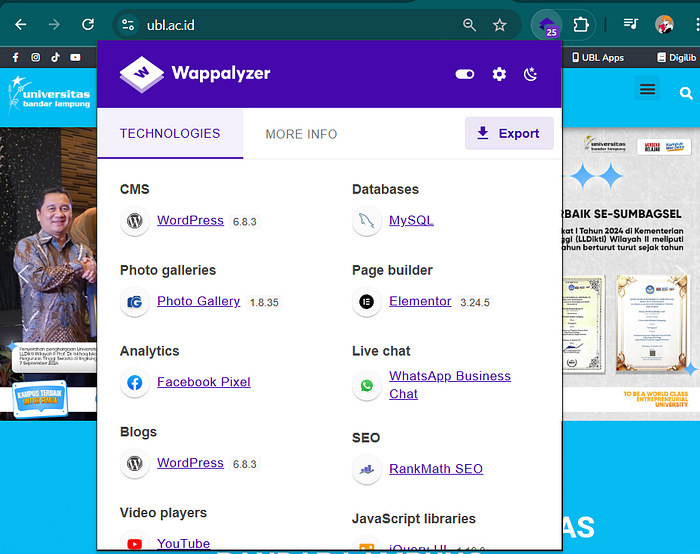
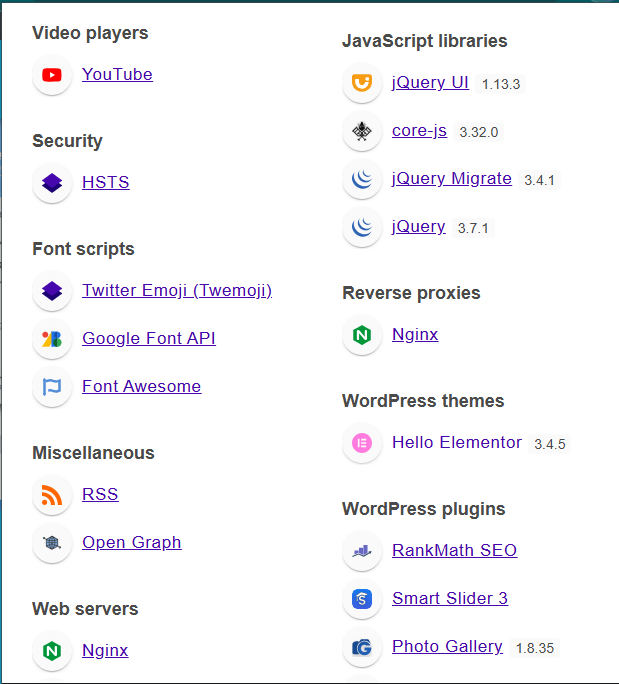
- WordPress WordPress is detected, it means the website uses a CMS (Content Management System). This suggests there may be themes, plugins, and an admin panel. These components can become possible attack surfaces, especially if the version is outdated.
- Rank Math SEO Rank Math SEO is detected, it means the site uses a WordPress plugin. Plugins can introduce vulnerabilities if not updated or properly configured.
- jQuery jQuery is identified, it shows the site uses a JavaScript library. Older versions of jQuery may have known vulnerabilities, such as XSS.
- PHP PHP is detected, it means the backend is built using PHP. This helps testers understand the server-side logic and possible common PHP misconfigurations.
- MySQL MySQL is detected, it means the website uses a MySQL database. This indicates how data is stored and may suggest risks like SQL Injection if the application is not properly secured.
- Nginx Nginx is detected, it means the site uses it as a web server or reverse proxy. This helps identify server configuration, request handling, and possible misconfigurations.
- HSTS (HTTP Strict Transport Security) HSTS is detected, it means the site enforces HTTPS connections. This is a security feature that helps prevent downgrade attacks and man-in-the-middle attacks.
Another example:
dirsearch -u https://example.comThis tool attempts to discover hidden directories.
Enumeration helps testers understand the attack surface.
5. Review Web Page Content for Information Leakage
Reviewing the page source of a website is an important step in the information gathering phase. The objective is to identify information that is not visible in the normal user interface but is still publicly accessible through the browser.
Sometimes sensitive information is visible in:
- HTML comments
- Hidden input fields
- JavaScript files
- Metadata
Example
By using the "View Page Source" feature, testers can examine the underlying HTML, scripts, and metadata of a webpage
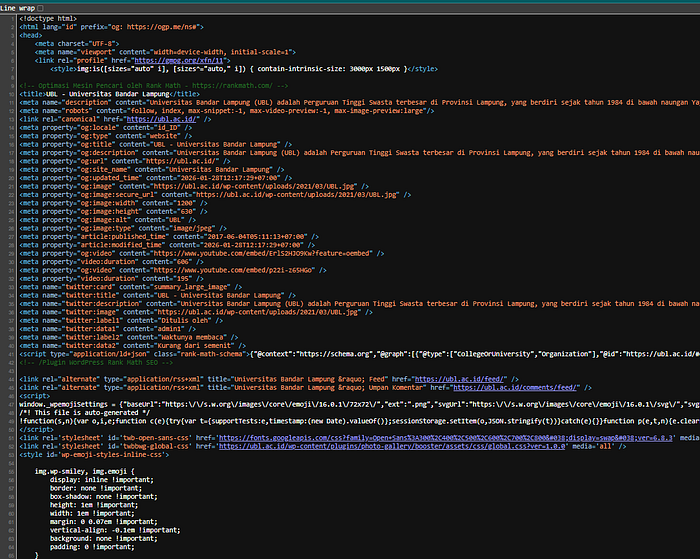
Hidden input fields inside forms may reveal how data is processed on the server. JavaScript files can expose API endpoints, internal routes, or configuration variables. Metadata inside the <head> section may reveal the technologies or versions used by the application.
Viewing page source may show:
<!-- TODO: remove test credentials -->
<input type="hidden" value="internalKey123">
These comments or hidden values should not be publicly accessible.
Even if no critical data is exposed, reviewing page content helps testers understand the system structure and prepares them for deeper analysis in later testing phases.
Even small pieces of leaked information may assist later testing phases.
Sources:
WSTG — Latest — Information Gathering