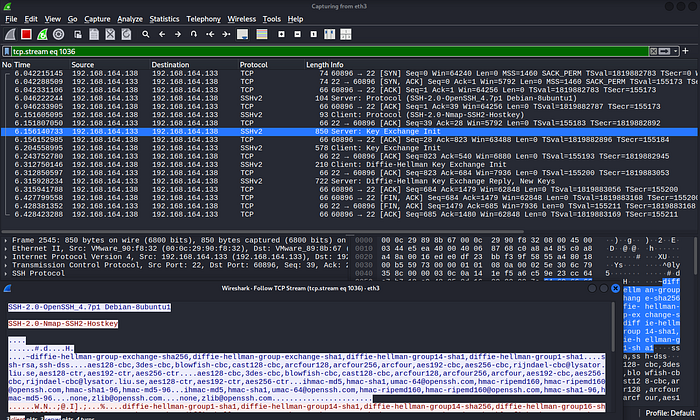

I ran Nmap scans and captured everything in Wireshark simultaneously. Here's exactly what I discovered at byte level — not theory, real packets.
introduction
Most people use Nmap as a black box. They run a command, read the output, and move on. I decided to do something different — I ran every Nmap scan type while capturing traffic in Wireshark simultaneously and watched exactly what happened at packet level.
What I discovered changed how I understand networking and penetration testing permanently. This article is everything I observed — real packets, real sizes, real behavior.
When I ran: nmap 192.168.164.0/24
I expected to see SYN packets immediately. Instead Wireshark showed me something I didn't expect — ARP broadcasts came first.
Phase 1 — ARP Host Discovery: Before sending a single SYN packet, Nmap needs to know which hosts are actually alive. On a local network it uses ARP — not ICMP ping — because ARP cannot be blocked. Every device must respond to ARP or it cannot communicate.
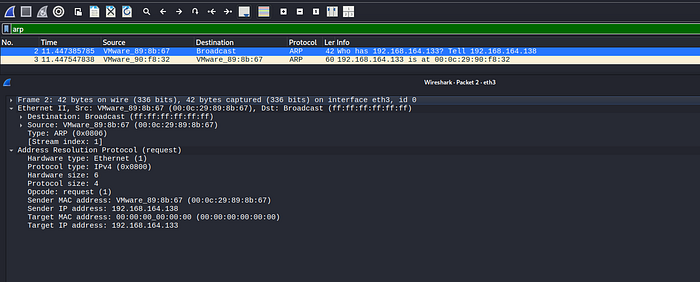
What I saw: Source: Kali MAC → Destination: FF:FF:FF:FF:FF:FF (everyone) "Who has 192.168.164.X? Tell me your MAC" Only alive hosts replied. Dead IPs stayed completely silent.
Why Does This Happen?
On local networks, Nmap first needs to determine whether the host is alive before performing deeper scans.
Instead of relying only on ICMP ping requests, Nmap often uses ARP because ARP works directly on Layer 2 and cannot easily be blocked inside a local network.
This was one of the first moments where I realized:
Nmap is not "just scanning ports." It first builds awareness of the network itself.
Phase 2 — SYN Port Scanning: Only after ARP confirmation did the SYN packets start. SYN-ACK = open, RST = closed, silence = filtered.
Open Port Behavior
When the target port was open:
- Nmap sent a SYN packet
- The target replied with SYN-ACK
- Nmap confirmed the connection state
Wireshark filter:
tcp.flags.syn == 1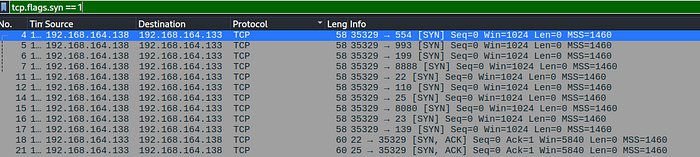
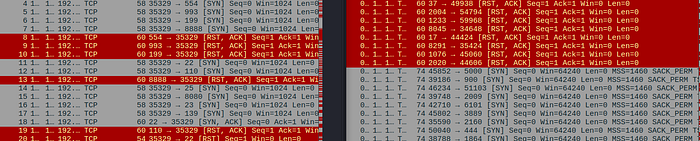
Closed Port Behavior
For closed ports:
- Nmap sent SYN
- Target replied with RST
This is how Nmap identifies closed ports.
Wireshark filter:
tcp.flags.reset == 1
Observation:
Closed ports still respond — but with rejection packets instead of accepting the connection.
Why This Matters
This completely changed how I viewed Nmap.
Before this analysis, I saw scan types as just commands:
nmap -sS
nmap -sT
But after analyzing packets in Wireshark, I started understanding:
- Why scan types behave differently
- How TCP flags influence detection
- Why some scans are stealthier
- How services respond internally
- What IDS/IPS systems may actually detect
Deep Observation — Why SYN Scan Is Considered "Stealth"
One thing I noticed while studying packet behavior is why SYN scans are often called stealth scans.
In a SYN scan:
- Nmap sends SYN
- Target replies SYN-ACK
- Nmap immediately sends RST instead of completing the full connection
Meaning:
- The TCP connection is never fully established
- Some logging systems may record less information
- The scan becomes faster and quieter than a full TCP connect scan
Understanding this at packet level made the concept much clearer than simply reading definitions online.

Phase 3 — Reverse DNS: Nmap then queried my gateway to resolve IPs to hostnames. This is why nmap -n (skip DNS) makes scans faster.
The Packet Size Discovery
This is what surprised me most. I started noticing different packet sizes for different scan types.
I measured them carefully:
-sS SYN packet: 58 bytes -sT SYN packet: 74 bytes SYN-ACK reply: 60 bytes ACK/RST packets: 54 bytes always
Why the difference? I broke it down:
Base packet (no options): Ethernet header = 14 bytes IP header = 20 bytes TCP header = 20 bytes Total = 54 bytes
-sS adds only MSS option = 4 bytes → 58 bytes total -sT adds full OS options = 20 bytes → 74 bytes total
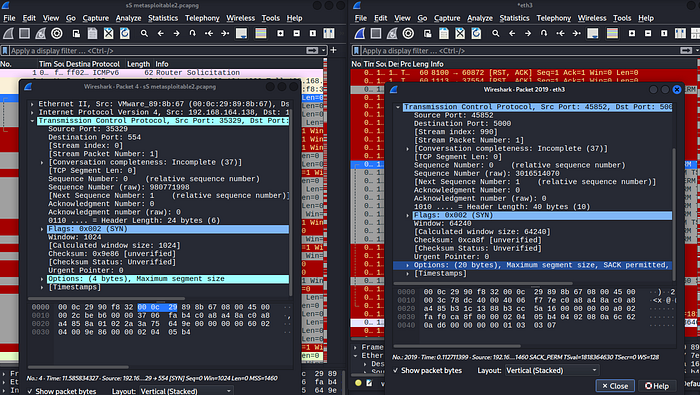
The 20 bytes in -sT are: MSS(4) + SACK(2) + Timestamps(10) + NOP(1) + Window Scale(3)
Why does -sT have more options? Because -sS is Nmap crafting the packet manually (raw socket) with minimal options. -sT asks the operating system to make the connection — the OS adds all its normal TCP options automatically.
This also explains why -sS requires root privileges and -sT doesn't — raw socket creation requires elevated permissions.
MSS vs MTU vs Window Size
I kept confusing these three concepts until I watched them in Wireshark and figured out the difference myself.
MTU (Maximum Transmission Unit): The maximum size of the ENTIRE packet including all headers. Standard Ethernet MTU = 1500 bytes.
MSS (Maximum Segment Size): The maximum size of just the DATA payload inside TCP. MSS = MTU — IP header(20) — TCP header(20) = 1460 bytes. This is why you always see exactly 1460 in Wireshark. Negotiated ONCE during the handshake. Never changes.
Window Size: How many bytes can be in transit simultaneously before the receiver must acknowledge. Changes DYNAMICALLY throughout the connection based on network conditions.
Simple analogy I developed: MTU = total truck length including cab and trailer MSS = just the trailer space (actual cargo) Window Size = how many trucks allowed on the highway at once
TCP Flags — They Don't Add Packet Size
I asked myself: why are RST and RST-ACK both 54 bytes despite having different flags?
The answer: TCP flags live INSIDE the fixed 20-byte TCP header. Setting a flag just flips one bit inside the existing header. Zero extra bytes.
The 6 TCP flags: SYN = initiate connection ACK = acknowledge receipt RST = hard reset (immediate termination) FIN = graceful close PSH = real data here, process immediately URG = urgent data (rarely used)
Memory rule I created: Flags = bits inside header = zero size impact Options = appended after header = real size impact
The PSH flag is important for Wireshark analysis — every packet carrying real application data (banners, HTTP responses, shell commands) has PSH set. Filter: tcp.flags.push == 1 to find all data packets.
What -sV Actually Does (Two Phases)
I assumed -sV just added version info to a normal scan. Wireshark showed me it's actually two completely different phases:
Phase 1 (looks like -sS): 58-byte SYN packets, minimal options, half-open connections. Just finding which ports are open.
Phase 2 (looks like -sT): 74-byte SYN packets, full OS options, complete handshake. Only runs on OPEN ports found in Phase 1. Then sends application-specific probes. Then reads banner from PSH-ACK response. Then RST-ACK to close.
I confirmed this by noticing: - Phase 2 packets had random source ports (OS stack) - Phase 2 packets were 74 bytes not 58 bytes - PSH-ACK packets appeared after handshake - Following TCP stream showed readable banner data
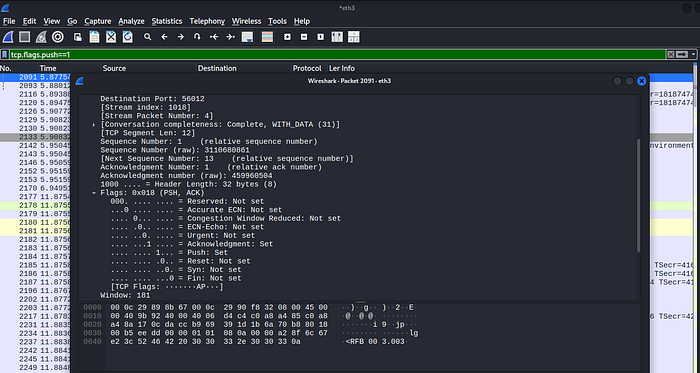
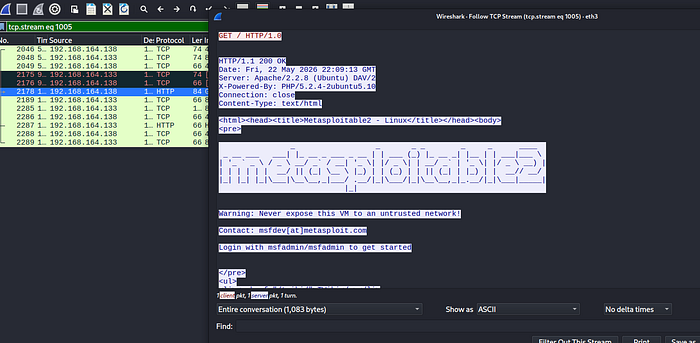
Wireshark also showed Expert Info warning: "SYN packet does not contain SACK PERM option" This is Nmap's fingerprint — missing SACK is unusual for real OS connections and IDS systems detect it.
Scan Types Compared
I observed every major scan type. Here's what each looks like in Wireshark:
-sN (NULL scan): 0x000 — no flags at all — 54 bytes -sF (FIN scan): 0x001 — only FIN flag — 54 bytes -sX (Xmas scan): 0x029 — FIN+PSH+URG — 54 bytes
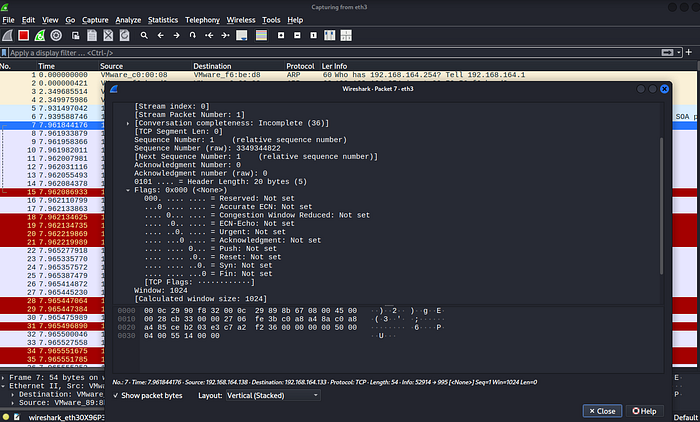
All three produce identical behavior: Closed port → RST response Open port → complete silence
This is RFC 793 behavior — the TCP specification says a port must respond to unusual packets with RST if closed, or drop silently if open.
Three scan types exist because different IDS systems detect different flag patterns — rotating between them evades specific signatures.
Important: None of these work on Windows. Windows sends RST to everything regardless of port state.
- sA (ACK scan): 0x010 — pure ACK — 54 bytes Purpose: NOT port discovery. Firewall mapping. RST back = unfiltered (firewall allows ACK through) Silence = filtered (firewall blocking it) Nmap reports zero open ports — that's correct behavior.
Conclusion:
Running Wireshark alongside Nmap transformed my understanding of network scanning from "commands that do things" to "packets with specific purposes and measurable sizes."
Every scan type has a reason for its packet size. Every option in the TCP header has a specific function. Every flag combination tells a specific story.
The most important thing I learned: tools make complete sense when you watch what they actually send on the wire.
If you want to understand any network tool deeply — run it while Wireshark is capturing. Read the packets. Ask why each one is what it is.
That question — "why is this packet exactly 58 bytes?" — taught me more than any course ever could.