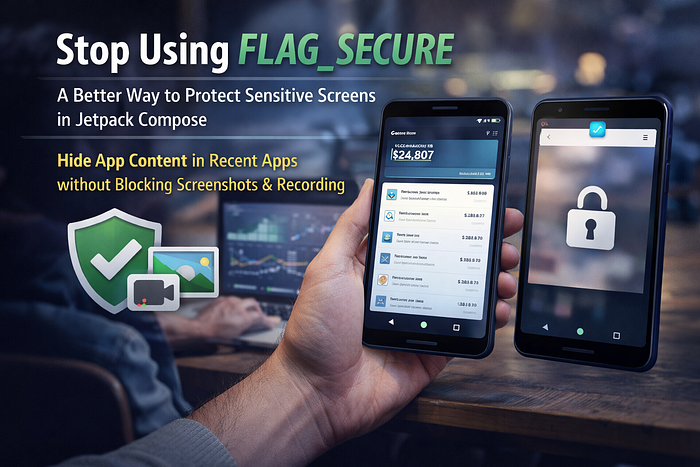

How to hide app content in Recent Apps while still allowing screenshots and screen recording — including edge cases like ModalBottomSheet
If you've ever built a banking app, fintech product, or any app that handles sensitive data, you've probably reached for FLAG_SECURE. It's the go-to Android solution for hiding screen content in the Recent Apps view. But here's the thing — it's a blunt instrument that blocks everything, including screenshots and screen recordings that your users might legitimately need.
In this article, I'll walk you through a smarter, Compose-friendly approach that gives you the best of both worlds: content protection in Recent Apps with full screenshot and screen recording support in the foreground. We'll also tackle the tricky edge case of ModalBottomSheet, which renders in a separate window and breaks most overlay-based solutions.
The Problem with FLAG_SECURE
FLAG_SECURE is the standard way to protect screen content in Android:
window.setFlags(
    WindowManager.LayoutParams.FLAG_SECURE,
    WindowManager.LayoutParams.FLAG_SECURE
)
It does two things:
- Shows a blank/white screen in the Recent Apps thumbnail
- Blocks screenshots and screen recording entirely
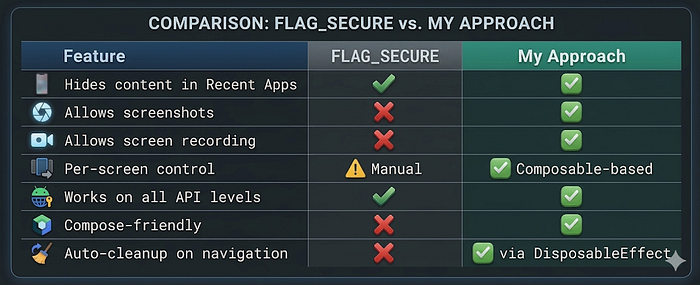
For some use cases, that's fine. But what if your users need to take a screenshot of a transaction confirmation? Or record their screen for a support ticket? FLAG_SECURE makes that impossible.
Here's a quick comparison:
The Approach: Window Focus + Overlay
Instead of using FLAG_SECURE, we use a simple but powerful concept:
Add a full-screen overlay to the Activity, and toggle its visibility based on window focus — not lifecycle events.
The key insight is using onWindowFocusChanged() instead of onPause() or onResume(). Here's why:
onWindowFocusChanged(false)fires before the system captures the Recent Apps thumbnail — giving us enough time to show the overlay.onWindowFocusChanged(true)fires in all return scenarios — including when the user taps the same app in recents without switching to another app (a case whereonResume()doesn't fire).
The Implementation
Our solution consists of three clean, focused components:
1. ScreenSecurityManager — The Brain
A singleton that tracks whether the current screen needs protection and whether an overlay window (like a bottom sheet) is currently visible.
import androidx.compose.runtime.State
import androidx.compose.runtime.mutableStateOf

/**
 * Singleton that manages the security state of the current screen.
 *
 * Tracks two independent states:
 * 1. Whether the currently visible screen requires protection in recents.
 * 2. Whether an overlay window (BottomSheet, Dialog) is currently showing
 *    on top of a secure screen — requiring a fallback to FLAG_SECURE.
 */
object ScreenSecurityManager {

    /** Mutable backing state for screen security status */
    private val _isSecureScreen = mutableStateOf(false)

    /** Observable state indicating if the current screen is marked as secure */
    val isSecureScreen: State<Boolean> = _isSecureScreen

    /** Mutable backing state for overlay window visibility */
    private val _hasOverlayWindow = mutableStateOf(false)

    /**
     * Observable state indicating if an overlay window (BottomSheet, Dialog)
     * is currently visible on a secure screen.
     * When true, the Activity falls back to FLAG_SECURE since the
     * overlay view cannot cover separate window layers.
     */
    val hasOverlayWindow: State<Boolean> = _hasOverlayWindow

    /**
     * Updates the security status of the current screen.
     *
     * @param secure true to mark the screen as secure (will be hidden in recents),
     *               false to allow normal recents preview.
     */
    fun setSecure(secure: Boolean) {
        _isSecureScreen.value = secure
    }

    /**
     * Updates the overlay window visibility state.
     *
     * @param visible true when a BottomSheet or Dialog is showing on a secure screen,
     *                false when it's dismissed.
     */
    fun setHasOverlayWindow(visible: Boolean) {
        _hasOverlayWindow.value = visible
    }
}
Nothing fancy — just a reactive boolean that the Activity observes.
2. MarkAsSecureScreen — The Composable Hook
A drop-in composable that marks any screen as secure.
import androidx.compose.runtime.Composable
import androidx.compose.runtime.DisposableEffect

/**
 * A composable side-effect that marks the current screen as secure.
 *
 * When this composable enters the composition, the screen is marked as
 * secure — meaning it will be covered with a white overlay when the app
 * appears in the recent apps list.
 *
 * When this composable leaves the composition (e.g., user navigates away),
 * the secure flag is automatically cleared via onDispose.
 *
 * This allows screenshots and screen recording while the app is in the
 * foreground, but hides sensitive content in the recent apps view.
 *
 * Usage:
 * ```
 * @Composable
 * fun PaymentScreen() {
 *     MarkAsSecureScreen()
 *     // Your screen content
 * }
 * ```
 */
@Composable
fun MarkAsSecureScreen() {
    DisposableEffect(Unit) {
        // Mark the current screen as secure when it enters composition
        ScreenSecurityManager.setSecure(true)

        onDispose {
            // Clear the secure flag when the screen leaves composition.
            // This ensures non-secure screens won't be unnecessarily hidden.
            ScreenSecurityManager.setSecure(false)
        }
    }
}
The beauty of DisposableEffect here is automatic cleanup. When the user navigates away from a secure screen, onDisposefires and clears the flag — no manual bookkeeping required.
3. MarkSecureOverlayWindow — The Bottom Sheet Handler
This is where things get interesting. Compose's ModalBottomSheet renders in a separate window — meaning our overlay (which lives in the Activity's window) sits below the bottom sheet. The bottom sheet content remains visible in recents even though the main screen is covered.
The fix: when a bottom sheet is visible on a secure screen, we fall back to FLAG_SECURE temporarily.
/**
 * A composable side-effect for bottom sheets and dialogs on secure screens.
 *
 * Problem: ModalBottomSheet in Compose renders in a separate window layer.
 * Our overlay view lives in the Activity's window and cannot cover content
 * in a different window. The bottom sheet content would be visible in
 * the Recent Apps thumbnail even though the main screen is covered.
 *
 * Solution: When a bottom sheet is visible on a secure screen, we signal
 * the Activity to fall back to FLAG_SECURE — which covers ALL windows.
 * The tradeoff is that screenshots are temporarily blocked while the
 * bottom sheet is showing, but this is acceptable since bottom sheets
 * are short-lived UI elements.
 *
 * Usage:
 * ```
 * ModalBottomSheet(onDismissRequest = { showSheet = false }) {
 *     MarkSecureOverlayWindow()
 *     // Bottom sheet content
 * }
 * ```
 */
@Composable
fun MarkSecureOverlayWindow() {
    DisposableEffect(Unit) {
        // Signal that an overlay window is visible on a secure screen
        ScreenSecurityManager.setHasOverlayWindow(true)

        onDispose {
            // Bottom sheet dismissed — revert to overlay-based protection
            ScreenSecurityManager.setHasOverlayWindow(false)
        }
    }
}
4. MainActivity — The Enforcer
The Activity that manages both the overlay and FLAG_SECURE fallback based on the current state.
import android.os.Bundle
import android.view.View
import android.view.ViewGroup
import android.view.WindowManager
import androidx.activity.ComponentActivity
import androidx.activity.compose.setContent

class MainActivity : ComponentActivity() {

    /**
     * A full-screen overlay view that covers the app content with a white
     * screen when the app loses focus and the current screen is secure.
     *
     * Design decisions:
     * - Uses alpha (0f/1f) instead of View.VISIBILITY for faster rendering,
     *   ensuring the overlay appears before the system captures the thumbnail.
     * - Uses Float.MAX_VALUE elevation to stay on top of all Compose content.
     * - Controlled via onWindowFocusChanged which fires early enough to cover
     *   content before the Recent Apps thumbnail is captured.
     *
     * Limitation: This overlay lives in the Activity's window and cannot
     * cover content in separate windows (e.g., ModalBottomSheet). When an
     * overlay window is detected, we fall back to FLAG_SECURE instead.
     */
    private lateinit var blurOverlay: View

    override fun onCreate(savedInstanceState: Bundle?) {
        super.onCreate(savedInstanceState)

        setContent { MyApp() }

        // Initialize the protective overlay — always present, but invisible
        blurOverlay = View(this).apply {
            setBackgroundColor(android.graphics.Color.WHITE)
            alpha = 0f  // Fully transparent by default
            elevation = Float.MAX_VALUE  // Always on top of Compose content
        }

        // Add the overlay on top of the Compose content view
        addContentView(
            blurOverlay,
            ViewGroup.LayoutParams(
                ViewGroup.LayoutParams.MATCH_PARENT,
                ViewGroup.LayoutParams.MATCH_PARENT
            )
        )
    }

    /**
     * Core mechanism for showing/hiding the protective overlay.
     *
     * Why onWindowFocusChanged instead of onPause/onResume?
     *
     * 1. It fires BEFORE the system captures the recent apps thumbnail,
     *    ensuring the overlay is visible in time.
     *
     * 2. It handles ALL return scenarios:
     *    - User opens recents and taps the same app to return
     *    - User switches to another app and comes back
     *    - User dismisses a system dialog (e.g., permission prompt)
     *
     * Note: onResume does NOT fire when returning from recents without
     * switching apps — which is why onWindowFocusChanged is essential.
     *
     * Two protection modes:
     * - OVERLAY MODE (default): Shows a white overlay. Allows screenshots.
     * - FLAG_SECURE MODE (fallback): Used when a BottomSheet/Dialog is visible.
     *   Blocks screenshots but covers ALL window layers.
     */
    override fun onWindowFocusChanged(hasFocus: Boolean) {
        super.onWindowFocusChanged(hasFocus)

        val isSecure = ScreenSecurityManager.isSecureScreen.value
        val hasOverlayWindow = ScreenSecurityManager.hasOverlayWindow.value

        if (!hasFocus && isSecure) {
            if (hasOverlayWindow) {
                // A bottom sheet or dialog is showing on a secure screen.
                // The overlay can't cover separate window layers, so we
                // fall back to FLAG_SECURE which protects ALL windows.
                // Tradeoff: screenshots are blocked while the sheet is visible.
                window.addFlags(WindowManager.LayoutParams.FLAG_SECURE)
            } else {
                // Normal case — use the overlay approach.
                // This allows screenshots while the app is in the foreground.
                blurOverlay.alpha = 1f
            }
        } else if (hasFocus) {
            // App regained focus — remove all protections

            // Clear FLAG_SECURE if it was applied for a bottom sheet
            window.clearFlags(WindowManager.LayoutParams.FLAG_SECURE)

            // Hide the overlay with a small delay to prevent a brief flash
            blurOverlay.postDelayed({
                blurOverlay.alpha = 0f
            }, 100)
        }
    }
}
Usage — Simple and Composable
Basic secure screen.
@Composable
fun PaymentScreen() {
    MarkAsSecureScreen()  // ← One line to protect this screen

    Column(modifier = Modifier.fillMaxSize()) {
        Text("💳 Payment Details")
        Text("Card: **** **** **** 4242")
    }
}
Secure screen with a bottom sheet
@Composable
fun WalletScreen() {
    MarkAsSecureScreen()

    var showBottomSheet by remember { mutableStateOf(false) }

    Column(modifier = Modifier.fillMaxSize()) {
        Text("👛 Wallet Balance")
        Button(onClick = { showBottomSheet = true }) {
            Text("Transaction Options")
        }
    }

    if (showBottomSheet) {
        ModalBottomSheet(onDismissRequest = { showBottomSheet = false }) {
            // Tell the security manager a bottom sheet is visible
            MarkSecureOverlayWindow()

            Column(modifier = Modifier.padding(16.dp)) {
                Text("Send Money")
                Text("Request Money")
                Text("Transaction History")
            }
        }
    }
}
Non-secure screen — no protection needed
@Composable
fun HomeScreen() {
    // No MarkAsSecureScreen() → normal recents preview, no overlay
    Column(modifier = Modifier.fillMaxSize()) {
        Text("🏠 Welcome Home")
    }
}
Why This Works — The Lifecycle Deep Dive
Let's trace what happens in each scenario:
User opens Recent Apps on a secure screen
onWindowFocusChanged(false)firesScreenSecurityManager.isSecureScreenistrueblurOverlay.alpha = 1f— overlay becomes visible immediately- System captures thumbnail → sees white overlay
User returns to the app (same app from recents)
onWindowFocusChanged(true)firesisSecureScreenistrue,hasOverlayWindowistrueFLAG_SECUREis applied → covers all windows including the bottom sheet- System captures thumbnail → sees blank screen
User dismisses the bottom sheet, then opens Recent Apps
MarkSecureOverlayWindow'sonDisposefires →hasOverlayWindow = falseonWindowFocusChanged(false)firesisSecureScreenistrue,hasOverlayWindowisfalse- Falls back to overlay mode → screenshots allowed again
User takes a screenshot while on a secure screen
- App is in foreground,
blurOverlay.alphais0f - No
FLAG_SECUREapplied - Screenshot captures the actual content
User navigates from secure to non-secure screen
MarkAsSecureScreen'sonDisposefires →isSecureScreen = false- If user opens recents now,
isSecureScreenisfalse→ no protection applied
The Failed Approaches (So You Don't Have to Try Them)
Before arriving at this solution, I tried several approaches that didn't work well:
❌ FLAG_SECURE per screen toggle
// Toggling FLAG_SECURE on/off per screen
DisposableEffect(Unit) {
    window.setFlags(FLAG_SECURE, FLAG_SECURE)
    onDispose { window.clearFlags(FLAG_SECURE) }
}
Problem: Blocks screenshots entirely. Can't have both protection and screenshot ability.
❌ Lifecycle-based overlay in Compose
// Using LifecycleEventObserver in a Composable
val observer = LifecycleEventObserver { _, event ->
    when (event) {
        ON_PAUSE -> showOverlay = true
        ON_RESUME -> showOverlay = false
    }
}
Problem: The Compose overlay doesn't render fast enough — the system captures the thumbnail before the recomposition completes.
❌ RenderEffect blur in onPause
override fun onPause() {
    window.decorView.setRenderEffect(
        RenderEffect.createBlurEffect(50f, 50f, Shader.TileMode.CLAMP)
    )
}
Problem: onPause fires too late — the thumbnail is already captured. Also requires API 31+.
❌ View.VISIBILITY toggle
blurOverlay.visibility = View.VISIBLE  // in onPause
blurOverlay.visibility = View.GONE     // in onResume
Problem: VISIBLE/GONE triggers a layout pass which is slower than alpha changes. The overlay may not render in time.
❌ Plain overlay without bottom sheet handling
blurOverlay.alpha = 1f // covers main window onlyProblem: ModalBottomSheet renders in a separate window. The overlay sits below the bottom sheet, leaving its content visible in recents.
Potential Enhancements
Custom overlay design
Instead of a plain white overlay, you could use your app's branding:
blurOverlay = ImageView(this).apply {
    setImageResource(R.drawable.app_logo_splash)
    scaleType = ImageView.ScaleType.CENTER
    setBackgroundColor(Color.parseColor("#1A1A2E"))
    alpha = 0f
    elevation = Float.MAX_VALUE
}
Real blur effect (API 31+)
If you want actual blur instead of a white overlay on supported devices:
override fun onWindowFocusChanged(hasFocus: Boolean) {
    super.onWindowFocusChanged(hasFocus)

    if (!hasFocus && ScreenSecurityManager.isSecureScreen.value) {
        if (Build.VERSION.SDK_INT >= Build.VERSION_CODES.S) {
            window.decorView.setRenderEffect(
                RenderEffect.createBlurEffect(50f, 50f, Shader.TileMode.CLAMP)
            )
        } else {
            blurOverlay.alpha = 1f  // Fallback for older devices
        }
    } else if (hasFocus) {
        if (Build.VERSION.SDK_INT >= Build.VERSION_CODES.S) {
            window.decorView.setRenderEffect(null)
        }
        blurOverlay.postDelayed({ blurOverlay.alpha = 0f }, 100)
    }
}
Final Thoughts
FLAG_SECURE has served us well, but it's an all-or-nothing approach. In today's world where users expect to screenshot confirmations, record bug reports, and share screens during support calls — we need something more nuanced.
The Window Focus + Overlay pattern gives you:
- Content protection in Recent Apps
- Full screenshot and screen recording in foreground
- Per-screen granularity with a single composable line
- Proper handling of ModalBottomSheet edge cases
- Automatic cleanup on navigation
- Works on all API levels
- Clean, testable, Compose-idiomatic code
The only tradeoff is a brief FLAG_SECURE fallback when bottom sheets are visible — but since bottom sheets are temporary UI elements, this is a perfectly acceptable compromise.
The next time you need to protect sensitive screens, think twice before reaching for FLAG_SECURE. Your users will thank you.
If you found this article helpful, give it a 👏 and follow for more Android & Jetpack Compose deep dives!
Have a different approach? Found an edge case? Drop a comment — I'd love to hear about it.