

Introduction
protecting yourself from "infostealers" is a critical procedure that everyone should do, in this writeup i will teach you how most of stealers works and how to defeat them (for windows only).
What is infostealers and what it targets ?
infostealers is a type of "malwares" that steals your data, most targeted is:
- browser saved passwords,cookies,autofill and credit cards
- FTP,SSH Clients
- Discord,Telegram
- Game Launchers
- Crypto Wallets
- Computer Info (Name,IP,Specs,….)
Protecting Chromium Based Browsers
chromium based browsers "User Data" located by default in %localappdata%, for example if stealer wants to target "Brave Browser" he can access your data using "%localappdata%\BraveSoftware\Brave-Browser\User Data"
You can defeat it by changing user data path, How ?
- Create a New Folder (Random Named) in new location
i named it "Brave Data" for the tutorial,you should give it a random name
mkdir D:\BraveData2. changing browser's user data path
right click your browser shortcut in "Target" input add:
— user-data-dir="PathToYourFolder"
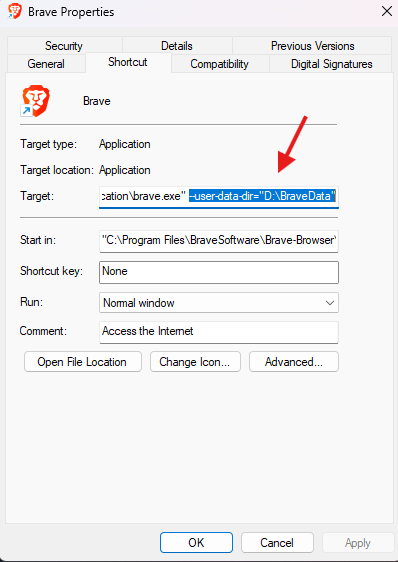
if you have old data just Copy The "User Data" folder to the new path
you need to apply this on the other browsers if already installed
Note: "hackers" can bypass this by reading process arguments.
step 3 partly defeats it
brave.exe 6792 "C:\Program Files\BraveSoftware\Brave-Browser\Application\brave.exe" --type=renderer --user-data-dir="D:\BraveData" --enable-distillability-service --origin-trial-publ...3. for better protection (Optional)
rename browser executable name,right click browser shortcut,click "Open File Location", and rename executable (this is a very good technique,but may cause problems)
Protection Gecko Based Browsers (Firefox,DuckDuckGo,…)
lets assume that you use firefox, your data is located in
%appdata%\Mozilla\Firefox\Profiles\
- copy your profile to another (random) directory, example: "D:\VeryRandom\myprofile"
- righ click your browser shortcut, and add — profile "D:\VeryRandom\myprofile" in "Target" input (as we did in chromium)
Protecting Telegram
- Telegram by default installed in "C:\Users\<user>\AppData\Roaming\Telegram Desktop"
- You can change it to another path during installation, if already installed just move "Telegram Desktop" to another path
- remove registry telegram protocols,this keys reveals telegram path
reg delete HKCU\Software\Classes\tdesktop.tg /f
reg delete HKCU\Software\Classes\tdesktop.tonsite /f
reg delete HKCU\Software\Classes\tg /f
reg delete HKCU\Software\Classes\tonsite /f
Protecting FTP,SSH Clients && Game Launchers
install it in another path (not the default one) during installation
Protecting Software Wallets
use a random path for your wallet*.dat and strong password
Defeating File Keyword & Extension Search
stealers may search on your desktop or the entire drive for a interesting file names or extension, for example:
\*.db,\*.sql\*.config\*.env
Keywords:
password, recovery, secret_key , seed,blablabla….
randomize your file name
passwords.txt -> cheese.txt
Other Important Tips
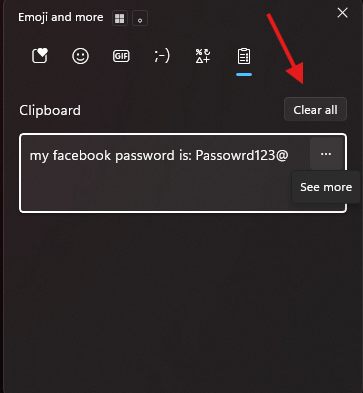
- delete your clipboard regularly (Windows + V) click "Clear all"
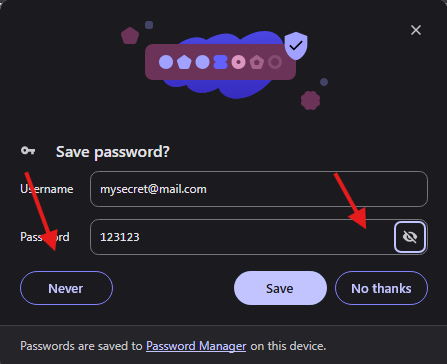
2. please, even if you did the mitigations , don't save your passowrds in browsers, don't click save
if you worry about forgetting your passwords, use a local password manager like KeePassXC
3. try not to install your programs in its default path
4. don't use your real name for computer use a pseudo name
5. don't put important files on desktop
6. don't download cracked games or programs, for games use trusted platforms like (Steam,EpicGames,Riot,…), for programs only download from the original website
7. if you can't leave without crack : ) download an old crack, like 2,3 years ago