Welcome back!
If you haven't gone through the Windows Command Line room yet, start there first — TryHackMe Walkthrough: Windows Command Line. It covers the basics of CMD — system info, networking, file management, and process management. This blog picks up right where that one left off.
CMD is great for quick tasks, but PowerShell is where things get really powerful. It's Microsoft's modern scripting language and command shell — built for automation, system administration, and security work. Whether you're managing Active Directory, hunting for threats, or automating repetitive tasks, PowerShell is the tool you'll reach for.
Let's get into it.
The Room: Windows PowerShell
Path: Cyber Security 101 Room: Windows PowerShell Difficulty: Easy Free to access: No(Premium)
Task 1: Introduction
This is the second room in the Command Line module and focuses entirely on PowerShell — Microsoft's modern, more powerful alternative to CMD
In this room we will cover:
- What PowerShell is and what it can do
- The basic structure of PowerShell's language
- How to run basic PowerShell commands
- How PowerShell is used in cybersecurity
📝 Prerequisite: It's recommended to complete the Windows and Active Directory Fundamentals module and the Windows Command Line room before starting this one. If you haven't covered those yet, check out my previous blogs where I've covered the complete Windows and Active Directory Fundamentals series. For the Command Line room specifically, check out TryHackMe Walkthrough: Windows Command Line.
Task 2: What is PowerShell?
PowerShell is Microsoft's modern command-line shell and scripting language. Unlike CMD, which works with plain text, PowerShell is object-oriented — meaning it works with structured data rather than raw text output. It's built on the .NET framework and is available on Windows, macOS, and Linux.
A Brief History
In the early 2000s, Windows was being used in increasingly complex enterprise environments, but traditional tools like cmd.exe and batch files couldn't keep up. Microsoft needed something more powerful.
Jeffrey Snover, a Microsoft engineer, identified the core problem: Windows used structured data and APIs, while Unix treated everything as text files. This made porting Unix tools to Windows impractical. His solution was an object-oriented shell that combined scripting simplicity with the power of .NET.
PowerShell was released in 2006 and changed how Windows administrators automated tasks. In 2016, Microsoft released PowerShell Core — an open-source, cross-platform version that runs on Windows, macOS, and Linux.
Why Objects Matter In programming, an object is a unit of data with:
- Properties — characteristics (e.g. a file's name, size, creation date)
- Methods — actions you can perform (e.g. copy, delete, move)
When you run a command in CMD, you get back plain text. When you run a cmdlet in PowerShell, you get back an object — with all its properties and methods still intact. This makes it far easier to filter, sort, and manipulate data without having to parse text manually.
That's what makes PowerShell so powerful compared to CMD.
What do we call the advanced approach used to develop PowerShell?
object-orientedTask 3: PowerShell Basics
Launching PowerShell You can open PowerShell in several ways on a Windows machine:
- Start Menu — search for
powershelland click on it - Run Dialog — press
Win + R, typepowershell, hit Enter - File Explorer — type
powershellin the address bar of any folder - Task Manager — File → Run new task → type
powershell - From CMD — type
powershelland press Enter
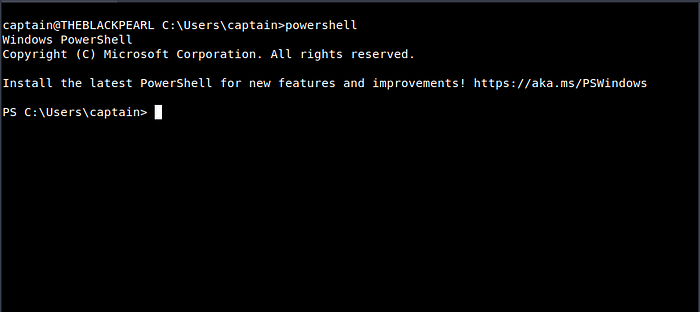
The Verb-Noun Structure Every PowerShell command is called a cmdlet. Cmdlets follow a consistent Verb-Noun naming convention — making them easy to read and understand:
Get-Content— gets the contents of a fileSet-Location— changes the current directory
Essential Cmdlets
Get-Command — lists all available cmdlets, functions, aliases, and scripts in the current session. You can filter by type:
Get-Command -CommandType "Function"Get-Help — shows detailed information about any cmdlet, including usage, parameters, and examples:
Get-Help Get-Date
Get-Help Get-Date -examples
Get-Alias — lists all aliases available in PowerShell. Many familiar CMD commands are aliases here — for example, dir is an alias for Get-ChildItem and cd is an alias for Set-Location. This makes the transition from CMD much easier.
Finding and Installing Modules
PowerShell's functionality can be extended by downloading modules — collections of cmdlets — from online repositories like the PowerShell Gallery.
Find-Module — searches for modules online:
Find-Module -Name "PowerShell*"Install-Module — downloads and installs a module:
Install-Module -Name "PowerShellGet"How would you retrieve a list of commands that start with the verb Remove? [for the sake of this question, avoid the use of quotes (" or ') in your answer]
Get-Command -Name Remove*What cmdlet has its traditional counterpart echo as an alias?
Write-OutputWhat is the command to retrieve some example usage for the cmdlet New-LocalUser?
Get-Help New-LocalUser -examplesTask 4: Navigating the File System and Working with Files
PowerShell uses a single set of cmdlets to handle both files and directories — unlike CMD which has separate commands for each. Here's a quick reference:
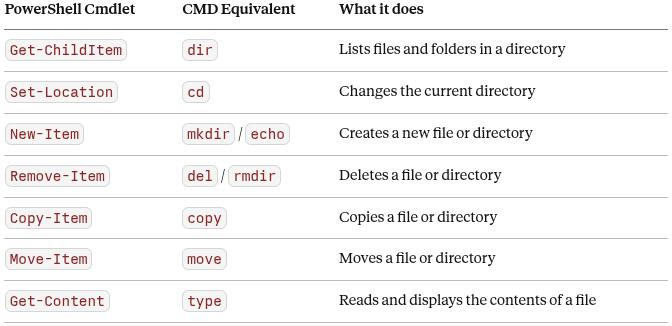
Examples
Listing files in the current directory:
Get-ChildItemNavigating to a different folder:
Set-Location -Path ".\Documents"Creating a new folder and a new file:
New-Item -Path ".\myfolder" -ItemType "Directory"
New-Item -Path ".\myfolder\myfile.txt" -ItemType "File"
Deleting a file and a folder:
Remove-Item -Path ".\myfolder\myfile.txt"
Remove-Item -Path ".\myfolder"
Copying and reading a file:
Copy-Item -Path .\file.txt -Destination .\file-copy.txt
Get-Content -Path ".\file.txt"
What cmdlet can you use instead of the traditional Windows command type?
Get-ContentWhat PowerShell command would you use to display the content of the "C:\Users" directory? [for the sake of this question, avoid the use of quotes (" or ') in your answer]
Get-ChildItem -Path C:\UsersHow many items are displayed by the command described in the previous question?
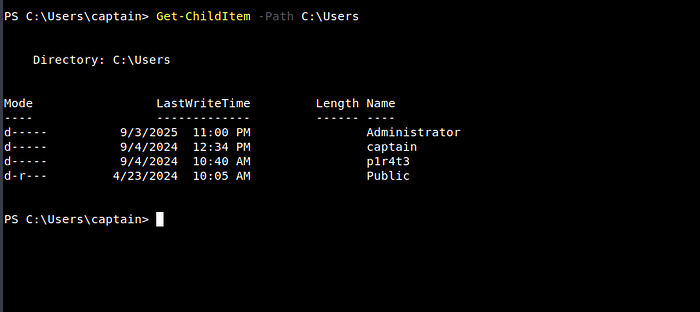
4Task 5: Piping, Filtering and Sorting Data
Piping in PowerShell
The pipe (|) passes the output of one cmdlet as the input to another. What makes PowerShell's piping special is that it passes objects — not just plain text — so all properties and methods are preserved throughout the pipeline.
For example, to list files sorted by size:
Get-ChildItem | Sort-Object LengthFiltering and Sorting Cmdlets
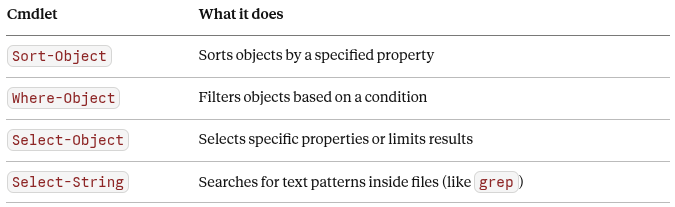
Where-Object — Filtering Results Filter files by extension:
Get-ChildItem | Where-Object -Property "Extension" -eq ".txt"Filter files whose name starts with "ship":
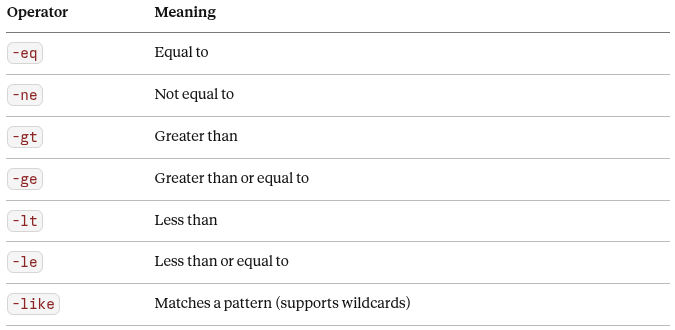
Get-ChildItem | Where-Object -Property "Name" -like "ship*"Comparison Operators
Select-Object — Pick Specific Properties Show only the Name and Length of files:
Get-ChildItem | Select-Object Name, LengthSelect-String — Search Inside Files
Search for a word inside a file (like grep on Linux):
Select-String -Path ".\file.txt" -Pattern "hat"Select-String also supports regular expressions (regex) for complex pattern matching — making it a powerful tool for searching through log files and documents.
How would you retrieve the items in the current directory with size greater than 100? [for the sake of this question, avoid the use of quotes (" or ') in your answer]
Get-ChildItem | Where-Object -Property Length -gt 100Task 6: System and Network Information
PowerShell provides powerful cmdlets for retrieving detailed system and network information — far beyond what CMD's basic commands can offer.
System Information
Get-ComputerInfo — retrieves a comprehensive snapshot of the entire system including OS details, hardware specs, BIOS information, and more. It's a much more detailed version of CMD's systeminfo:
Get-ComputerInfoGet-LocalUser — lists all local user accounts on the system, including their status and description:
Get-LocalUser

Name               Enabled Description
Administrator      True    Built-in account for administering the computer/domain
captain            True    The beloved captain of this pirate ship.
Guest              False   Built-in account for guest access
Network Information
Get-NetIPConfiguration — provides detailed information about network interfaces including IP addresses, DNS servers, and gateway — similar to ipconfig but more structured:
Get-NetIPConfiguration

InterfaceAlias    : Ethernet
IPv4Address       : 10.10.178.209
IPv4DefaultGateway: 10.10.0.1
DNSServer         : 10.0.0.2
Get-NetIPAddress — shows details for all IP addresses configured on the system, including inactive ones and both IPv4 and IPv6:
Get-NetIPAddressFrom a cybersecurity perspective, these cmdlets are invaluable during investigations — quickly pulling system specs, checking user accounts, and understanding the network configuration of a machine without needing to dig through GUI menus.
Other than your current user and the default "Administrator" account, what other user is enabled on the target machine?
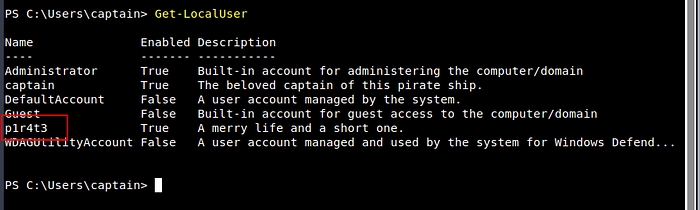
p1r4t3This lad has hidden his account among the others with no regard for our beloved captain! What is the motto he has so bluntly put as his account's description?
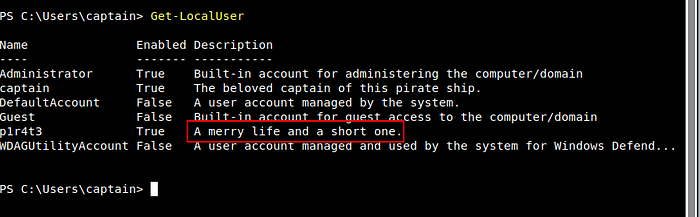
A merry life and a short one.Now a small challenge to put it all together. This shady lad that we just found hidden among the local users has his own home folder in the "C:\Users" directory. Can you navigate the filesystem and find the hidden treasure inside this pirate's home?
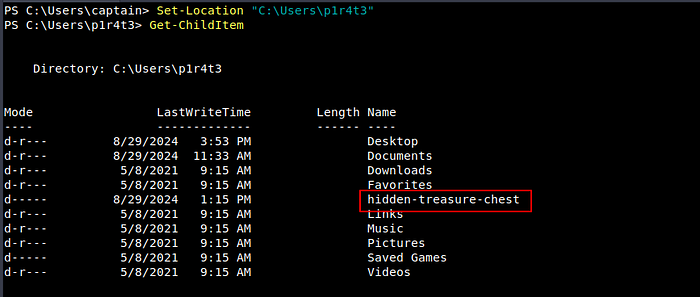
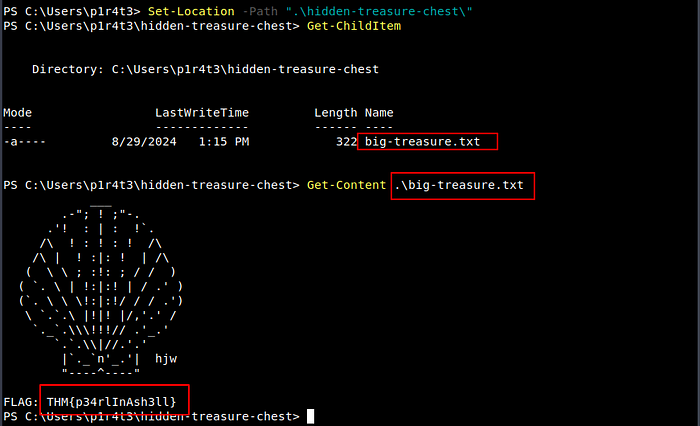
THM{p34rlInAsh3ll}Task 7: Real-Time System Analysis
This task covers cmdlets used for live monitoring and analysis — the kind of tools an incident responder or threat hunter reaches for first.
Get-Process — View Running Processes Lists all currently running processes with CPU and memory usage:
Get-ProcessUseful for spotting unusual or suspicious processes consuming resources on a machine.
Get-Service — View Service Status Lists all services and their current status (Running, Stopped, or Paused):
Get-ServiceForensics analysts use this to hunt for anomalous or malicious services installed on a compromised system.
Get-NetTCPConnection — View Active Network Connections Displays current TCP connections including local and remote endpoints, ports, and the process owning each connection:
Get-NetTCPConnectionThis is one of the most valuable cmdlets during incident response — it can expose hidden backdoors or active connections to attacker-controlled servers.
Get-FileHash — Verify File Integrity Generates a cryptographic hash (SHA256 by default) for a file — used to verify integrity and detect tampering:
Get-FileHash -Path .\file.txtIn threat hunting and malware analysis, file hashes are compared against known threat databases to identify malicious files.
Viewing Alternate Data Streams (ADS) PowerShell can also reveal hidden Alternate Data Streams attached to files — a technique commonly used by attackers to hide data inside legitimate files:
Get-Item -Path "C:\file.txt" -Stream *The output will show the default $DATA stream and any hidden ADS attached to the file. We covered ADS in detail in the Windows Fundamentals 1 blog.
In the previous task, you found a marvellous treasure carefully hidden in the target machine. What is the hash of the file that contains it?

71FC5EC11C2497A32F8F08E61399687D90ABE6E204D2964DF589543A613F3E08What property retrieved by default by Get-NetTCPConnection contains information about the process that has started the connection?
OwningProcessIt's time for another small challenge. Some vital service has been installed on this pirate ship to guarantee that the captain can always navigate safely. But something isn't working as expected, and the captain wonders why. Investigating, they find out the truth, at last: the service has been tampered with! The shady lad from before has modified the service DisplayName to reflect his very own motto, the same that he put in his user description.
With this information and the PowerShell knowledge you have built so far, can you find the service name?

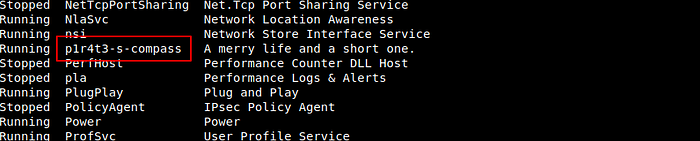
p1r4t3-s-compassTask 8: Scripting
A script is simply a text file containing a series of commands that run automatically — like handing the computer a to-do list. Instead of typing commands one by one, you write them once and run them whenever needed. This saves time, reduces errors, and makes complex tasks manageable.
PowerShell scripting is a deep topic that goes beyond the scope of this room, but understanding its importance across cybersecurity roles is essential.
For Blue Teams — incident responders, malware analysts, and threat hunters use PowerShell scripts to automate log analysis, detect anomalies, extract indicators of compromise (IOCs), and scan systems for signs of intrusion.
For Red Teams — penetration testers and ethical hackers use PowerShell scripts to automate system enumeration, execute remote commands, and craft obfuscated scripts to test a system's defences.
For System Administrators — PowerShell scripts automate integrity checks, enforce security policies, manage configurations, and respond automatically to security incidents across large environments.
Invoke-Command — Execute Commands Remotely
Invoke-Command is one of the most powerful cmdlets in PowerShell. It lets you run commands or scripts on remote machines — making it essential for administrators, security engineers, and penetration testers alike.
Run a script on a remote machine:
Invoke-Command -FilePath c:\scripts\test.ps1 -ComputerName Server01Run a single command on a remote machine without a script:
Invoke-Command -ComputerName Server01 -Credential Domain01\User01 -ScriptBlock { Get-Culture }The -ScriptBlock { } parameter lets you execute any command on a remote system as if you were typing it locally — no scripting knowledge required.
⚠️ Note:
Invoke-Commandis also commonly abused by attackers to execute payloads on target systems. Understanding how it works helps defenders detect and respond to this technique.
What is the syntax to execute the command Get-Service on a remote computer named "RoyalFortune"? Assume you don't need to provide credentials to establish the connection. [for the sake of this question, avoid the use of quotes (" or ') in your answer]
Invoke-Command -ComputerName RoyalFortune -ScriptBlock { Get-Service }Final Thoughts
That's Windows PowerShell done!
PowerShell is one of the most powerful tools available on any Windows system — and now you have a solid foundation to build on. We covered a lot in this room:
- What PowerShell is — object-oriented, cross-platform, and far more powerful than CMD
- Basic cmdlets —
Get-Command,Get-Help,Get-Alias— the building blocks of PowerShell - File system management — creating, copying, moving, and reading files with a single set of cmdlets
- Piping, filtering and sorting — chaining cmdlets together to manipulate data precisely
- System and network information —
Get-ComputerInfo,Get-LocalUser,Get-NetIPConfiguration, and more - Real-time analysis —
Get-Process,Get-Service,Get-NetTCPConnection,Get-FileHash, and ADS detection - Scripting and remote execution — automating tasks and running commands on remote machines with
Invoke-Command
Whether you're on the blue team investigating a compromised machine, on the red team simulating an attack, or an administrator managing a large Windows environment — PowerShell will be in your toolkit. The sooner you get comfortable with it, the more effective you'll be.
Found this useful? Drop a comment below — I'd love to hear how your PowerShell journey is going. Follow me on Medium for more TryHackMe walkthroughs as I continue working through the Cyber Security 101 path. 🚀