

A Single API Request Gave Me an Administrator's Identity in Zendesk. Here's the Full Breakdown.
A Quick Word About Zendesk
If you've ever emailed a company's support team and gotten a ticket number back, there's a decent chance the person on the other end was using Zendesk. It's one of the biggest customer support platforms on the planet — used by thousands of companies to handle tickets, manage agents, automate workflows, and track time.
That last part — track time — comes back later. Keep it in mind.
Bug 1 — "Wait, That Ticket Was Sent By Who?"
The Setup
In Zendesk, tickets can be closed. Once a ticket is closed, agents can create a "follow-up" ticket linked to it. It's a pretty normal feature — customer comes back about an old issue, you spin up a new thread.
When you click "Create a follow-up," the browser sends a POST request to /api/v2/tickets.json with a special parameter called via_followup_source_id. This tells the server: hey, this new ticket is a follow-up to ticket #7 (or whatever).
Normal. Totally normal.
Except I noticed something.
When the server receives that follow-up request, it's so focused on the via_followup_source_id logic that it kind of... forgets to check who's actually supposed to be the author.
What I Did
I logged in as a regular Agent — the lowest rung of the Zendesk ladder. I created a ticket, closed it, then clicked "Create a follow-up" and intercepted the request in Burp Suite.

In the JSON body, I added the Administrator's User ID into three fields that the server really shouldn't let me touch:
{
  "ticket": {
    "via_followup_source_id": 7,
    "submitter_id": [ADMIN_ID],
    "requester_id": [ADMIN_ID],
    "subject": "Urgent Action Required",
    "comment": {
      "html_body": "Please proceed with the refund immediately.",
      "public": true,
      "author_id": [ADMIN_ID]
    }
  }
}
I hit send.
The ticket was created. I opened it.
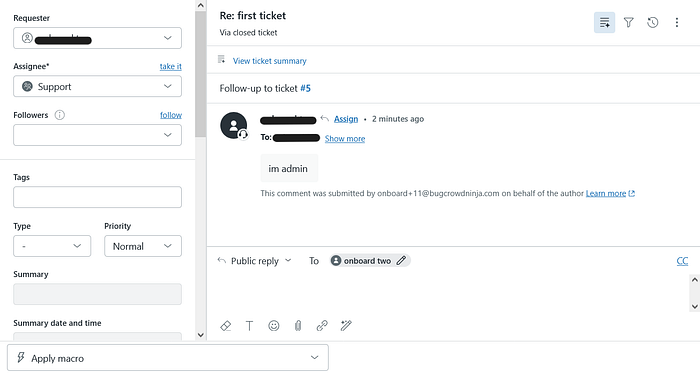
And there it was — the Administrator's name, profile picture, and ID listed as the Requester, the Submitter, and the Comment Author. To anyone reading that ticket — human or machine — the Administrator sent it.
They didn't.
I did.
Why This Matters More Than It Looks
On the surface, you might think: okay, a fake ticket. Whatever.
But Zendesk is built on automation. Companies set up Triggers that say things like:
"If the ticket requester is an Admin → automatically approve the refund request"
"If the comment author is an Admin → skip the security review queue"
By spoofing the Admin ID, I wasn't just faking a message. I was pulling the Admin's automation privileges down to my level — as a regular agent — without ever having their password, their session, or their role.
And the audit log? It shows the Admin did it. The Admin genuinely cannot prove they didn't, because the database says they did. That's a legal and compliance nightmare dressed up as a UX feature.
The Root Cause (For the Devs Reading This)
The via_followup_source_id parameter puts the API into a special creation mode. In that mode, the server wasn't re-validating the identity fields against the authenticated session. It was trusting the client.
The fix is simple: when creating a follow-up ticket, ignore submitter_id, requester_id, and author_id from the request body entirely. Derive them from the session token. The server already knows who's logged in — it just needs to use that information.
Bug 2 — The Time Fraud Bug
The Setup
Zendesk has an official Time Tracking app available on their Marketplace. Companies use it to log how long agents spend on each ticket — especially useful for billing clients, measuring performance, and generating SLA reports.
Administrators can lock the app down. There's a setting called "Edit time submission" — when disabled, agents see no edit button. No way to manually change the time. The admin configures it and moves on, confident the data is accurate.
And it is accurate. On the screen.
What I Did
When an agent saves a ticket update, the browser sends a PUT request to /api/v2/tickets/{ticket_id}.json. Inside that request, buried in a custom_fields array, are two field IDs that store the tracked time in seconds.
I intercepted one of those requests and looked at the payload:
{"id": 33030980213778, "value": "424"},
{"id": 33031001110802, "value": "7650"}
The "no edit" admin setting? It only removed the edit button from the React interface. The API had absolutely no idea that setting existed.
So I made three changes to the request:
- Changed the time values to
7200(2 hours)
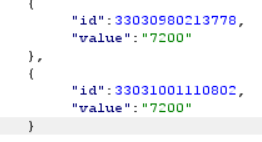
2. Deleted the "updated_stamp" field (this bypasses version conflict checks)
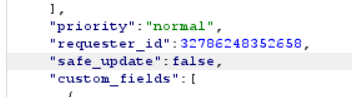
3. Changed "safe_update": true to "safe_update": false
Sent it. Got 200 OK back. Opened the ticket. The time log now showed 2 hours — perfectly clean, no flags, no warnings, indistinguishable from legitimately tracked time.

The Real-World Damage
I know this sounds technical, so let me translate it into something concrete.
A consulting company charges clients based on hours logged in Zendesk. An agent works 10 minutes on a ticket and logs it as 8 hours. At $150/hour, that's $1,200 in fraudulent billing. For a single agent. On a single ticket. Per day.
Scale that across a team of 50 agents and this becomes a financial fraud mechanism that's almost impossible to audit — because the database shows the fake time as the original, legitimate value. There's no diff. No version history. No red flag.
The safe_update: false change is the quiet genius of this exploit. It tells the server "don't worry about conflicts, just write this." Combined with removing the timestamp, the server accepts the new value as ground truth and moves on.
The Root Cause (For the Devs Reading This)
Client-side enforcement is not enforcement. Full stop.
The "disable edit" admin setting needed to exist on the server — a check that says: "before I accept this custom field value, let me verify that the authenticated user has permission to edit time fields."
That check didn't exist. The API accepted whatever the client sent, regardless of what the admin configured in the UI.
Bug 3 — The Terminated Employee Who Wasn't Really Gone
The Setup
This one is my personal favourite, because it exploits something that feels completely safe.
You have an employee. Something goes wrong. You need to cut their access immediately. You log into Zendesk admin, find their account, and click Suspend Access.
The employee gets redirected to the login screen. Their dashboard is gone. You breathe a sigh of relief. The threat is neutralized.
Except there's a ghost in the API.
What I Did
Before being suspended, a user browses tickets normally. During that time, their browser is sending requests to Zendesk's GraphQL API — including one called BFFConvoLogQuery, which fetches the full conversation history for a ticket.
Burp Suite captures all of this.
Then the admin suspends the account. The user is locked out of the UI. But the session cookie — the thing that actually authenticates API calls — is still valid.
I took that captured request:
POST /api/graphql HTTP/2
Host: [target].zendesk.com
Cookie: [Session_Cookie_of_Suspended_User]
{
  "operationName": "BFFConvoLogQuery",
  "variables": {
    "ticketId": "[TARGET_TICKET_ID]",
    "privacyFilter": "ALL"
  }
}
Replayed it in Burp Repeater.
200 OK.
Full conversation log. Ticket messages. Internal comments. Customer PII. Everything — returned perfectly, for an account that the admin believed was fully locked down.
Why This Is the Scariest of the Three
The other two bugs require an attacker to take action. This one is dangerous precisely because the admin thinks they've already stopped the attacker.
The terminated employee is suspended in the UI. The admin closes the incident ticket. The security team stands down. And in the background, that same employee is quietly reading internal conversations through an API endpoint that never got the memo.
The technical reason is straightforward: the BFFConvoLogQuery GraphQL resolver checks whether the token is valid (not expired, correct signature). It does not check whether the user is suspended. Those are two different things, and the resolver only asks the first question.
One extra database lookup — WHERE user_id = X AND is_suspended = false — would have closed this completely.
So What Do All Three Have in Common?
I've been thinking about this a lot, and it really comes down to one sentence:
The server trusted the client to tell the truth.
In Bug 1, the server trusted the client to provide the correct author. In Bug 2, the server trusted the UI to enforce the admin's settings. In Bug 3, the server trusted the token without asking whether the person behind it was still welcome.
Every single one of these had a simple server-side fix. And every single one was a gap that only showed up when someone (me, in this case) decided to look at the API instead of the screen.
The Part Where I Tell You What to Look For
If you're hunting on enterprise SaaS platforms, here's what these bugs taught me:
Look at follow-up and re-open flows. They're edge cases. Developers build them quickly and often don't think about relaxed validation states.
Look at third-party marketplace apps. They inherit the main API but have their own permission model — and that model often only exists in the UI.
Look at GraphQL resolvers one at a time. Authorization in GraphQL is granular. One resolver might be perfect. The one next to it might be completely open.
Test API access immediately after suspension/deactivation. Don't assume the UI action propagates to the API. Test it yourself.
A Final Thought
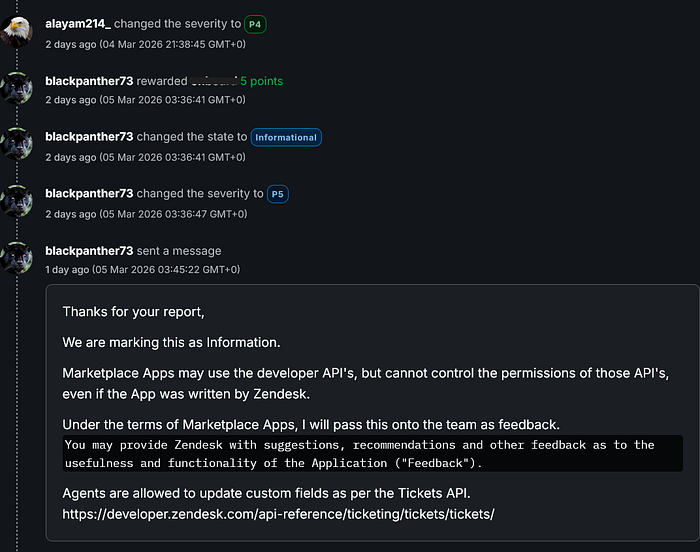
These bugs were marked not applicable. That stings a little, I won't lie. But I learned more from hunting these three than I did from a lot of findings that did get rewarded.


Happy hunting. 🙂
Questions? Thoughts? Disagree with my analysis? Find me and let's talk.
bug bounty · zendesk · web security · appsec · business logic · idor · graphql · bugcrowd