Imagine you're trying to send a letter to your friend Alice, who lives in a massive, bustling high-rise called The Internet Tower.
Getting the letter to the building's front lobby is only half the battle. Once the mail carrier arrives, they need to know exactly which apartment Alice lives in, and how she wants her mail delivered. Does it get slipped under the door? Handed to her with a signature? Dropped off at the service elevator?
In the world of computer networking, this high-rise is a server (or any computer). The building's street address is its IP address. And those individual apartment doors? Those are Ports.

If you've ever glanced at a list of network ports and felt your eyes glaze over — TCP, UDP, HTTP, SMTP — take a deep breath. Today, we're taking a gentle, guided tour of The Internet Tower. By the time you finish this article, you'll know exactly who lives behind the most important doors in networking, and you'll finally understand what those acronyms actually mean.
The Delivery Methods: TCP vs. UDP
Before we walk down the hallway and start knocking on doors, we need to understand how the mail carriers work. In networking, data travels in tiny packages called packets, and they're delivered by one of two main services: TCP or UDP.
- TCP (Transmission Control Protocol) is like Certified Mail. The carrier knocks, waits for someone to answer, hands over the package, and gets a signature. If a piece is missing, they go back and fetch it. It's incredibly reliable — but a little slower because of all the double-checking. (You'll find TCP used for web browsing, email, and file transfers, where accuracy matters more than raw speed.)
- UDP (User Datagram Protocol) is like a paperboy tossing a newspaper onto your porch. He drives by, chucks the paper, and speeds off. He doesn't wait to see if it landed in the bushes or if your dog got to it first. It's blazing fast, but there's no delivery guarantee. (Perfect for live video streaming, online gaming, and quick voice calls, where a lost packet here and there is less important than keeping things moving.)

With those two mail carriers in mind, let's step into the building and meet its residents.
🌐 The Public Lobby: Web Browsing Doors
When you open Chrome, Safari, or Firefox, you're walking right through the most popular public entrances of the server building.
Port 80 — HTTP (Hypertext Transfer Protocol)
Think of the public bulletin board in the lobby. Anyone can read what's posted, and anyone standing nearby can look over your shoulder.
Likewise, HTTP Handles standard web browsing. But because everything is sent in plain text, it's rarely used today for anything sensitive.
Pro tip: Sometimes, for testing or alternate routes, building managers use Port 8080 as an extra door for HTTP traffic.
Port 443 — HTTPS (HTTP Secure)
Now think of a VIP soundproof reading room with tinted glass.
Likewise, HTTPS is the encrypted version. When you see that little padlock icon in your browser, you're talking through Port 443. Even if someone intercepts the data, it looks like scrambled nonsense to them.
Pro tip: Sometimes, for alternate routes, Port 8443 is used as an extra door for HTTPS traffic.

✉️ The Post Office Wing: Email Services
Email isn't a single door. Sending mail and picking up mail are handled by completely different departments.
Port 25 — SMTP (Simple Mail Transfer Protocol)
Imagine the outbox chute and the mail trucks departing the building.
Similarly, SMTP is all about sending emails — from your device to the server, and between servers.
Secure version: Port 465, often called SMTPS.
Port 110 — POP3 (Post Office Protocol 3)
Now imagine a PO Box where you go to take your mail home.
Similarly POP3 is used for receiving emails. POP3 downloads the message to your specific device — like your phone — and usually deletes it from the main server afterward.
Secure version: Port 995.
Port 143 — IMAP (Internet Message Access Protocol) Think of a magical mirror that lets you read your mail at the post office without ever taking it home.
Like POP3, IMAP is used for receiving emails, but unlike POP3 it leaves everything on the server and syncs across all your devices. Read a message on your phone, and it instantly shows as "read" on your laptop.
Secure version: Port 993.

📦 The Loading Dock: File Transfers
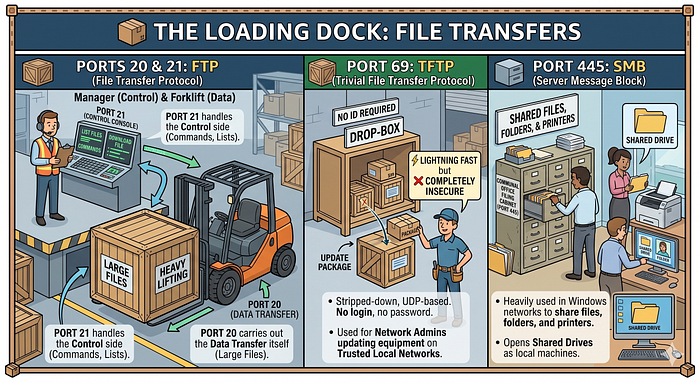
When serious heavy lifting is needed — like moving large files — we head to the building's loading dock.
Ports 20 & 21 — FTP (File Transfer Protocol) Imagine Port 21 as the loading dock manager giving orders ("grab that crate"), while Port 20 is the forklift doing the actual heavy lifting.
In practice, FTP splits its work into two channels. Port 21 handles the control side — sending commands like "list files" or "download this" — while Port 20 carries out the actual data transfer itself.
Port 69 — TFTP (Trivial File Transfer Protocol) Picture a self-serve drop-box that doesn't require any ID.
That's TFTP: a stripped-down, UDP-based version of FTP. There's no login and no password. It's lightning fast but completely insecure, which is why it's mostly used by network administrators updating equipment on trusted local networks.
Port 445 — SMB (Server Message Block) Think of the communal office filing cabinet.
SMB is used heavily in Windows networks to share files, folders, and even printers across the network. It's what lets you open a colleague's shared drive as if it were sitting right on your own machine.
🛠️ The Utilities & Management Office
Behind the scenes, the building needs a whole lot of invisible infrastructure to keep running. Visitors never see these doors, but without them the building would crumble.
Port 53 — DNS (Domain Name System)
Think of DNS as the building directory or phonebook in the lobby.
Computers only speak in IP addresses (like 142.250.185.46), but humans prefer names (like google.com). DNS quietly translates the friendly name into the machine-friendly number. Every time you click a link, you're knocking on Port 53.
Ports 67 & 68 — DHCP (Dynamic Host Configuration Protocol)
Picture a leasing agent handing out temporary key cards. That's DHCP.
When your phone connects to a Wi‑Fi network, DHCP automatically assigns it a temporary IP address so it can join the building. Port 67 handles the server side, while Port 68 handles the client side.
Port 123 — NTP (Network Time Protocol)
Imagine the grand clock in the lobby that everyone synchronizes their watches to.
NTP ensures all computers on a network agree on the exact time. You'd be amazed how many technical headaches crop up just because a server's clock is five minutes off.
Port 161 — SNMP (Simple Network Management Protocol)
Think of the building inspector making rounds.
SNMP lets IT administrators monitor the health of network devices, check how much bandwidth is being used, and spot failing equipment before things go boom.

🔐 The Staff-Only VIP Entrances: Remote Access
Sometimes the landlord needs to fix the plumbing from a completely different city. That's where these secure, staff-only entrances come in.
Port 22 — SSH (Secure Shell)
Picture an armored, underground tunnel leading straight into the server room.
SSH allows administrators to log into a remote computer securely and type commands. Everything is heavily encrypted, making it ideal for managing a web server on the other side of the world.
Port 23 — Telnet
Imagine shouting your password through a megaphone in a crowded street.
That's Telnet, the granddaddy of remote access. It does what SSH does, but sends everything in plain, readable text. Wildly insecure and mostly retired today, you'd only encounter it in old textbooks or very isolated, trusted lab networks.
Port 3389 — RDP (Remote Desktop Protocol)
Think of a robotic avatar that you control from a distance.
Instead of a text terminal, RDP gives you a full visual desktop. You can use your mouse and keyboard at home to control a computer sitting in an office miles away.
Port 1194 — OpenVPN
Visualize a private, invisible bridge stretching from your house directly into the building.
OpenVPN creates a secure Virtual Private Network tunnel, shielding your internet traffic from prying eyes as if you were physically inside the building's private network.

🗄️ The Basement Archives: Databases
Finally, deep in the cool, humming basement, we find the massive databases that store all our user profiles, passwords, and application data.
Port 3306 — MySQL
Picture a friendly, hardworking archivist in the basement who keeps track of everything.
MySQL is the widely-used open-source database that powers a huge slice of the web — from WordPress blogs to bustling e-commerce sites.
Port 5432 — PostgreSQL
Now imagine a meticulous master librarian with an eye for detail and advanced organizational skills.
PostgreSQL is a powerful, advanced relational database known for its rock-solid reliability and rich feature set.
These doors are rarely exposed to the public; they're meant to be talked to only by other applications inside the building.

Why Should You Care About These Doors?
Imagine leaving every single apartment door in a high-rise unlocked. Chaos! A security nightmare.
In the networking world, firewalls are the building's security guards. A smart firewall administrator locks down almost every port by default. They only unlock the specific doors that are absolutely necessary (like Port 443 for a secure website), while keeping dangerous or sensitive entry points (like Port 22 or 3389) tightly restricted to a handful of trusted people.

So the next time you see a network error, or you're trying to configure your home router, just picture The Internet Tower. You're not dealing with abstract magic; you're simply figuring out which apartment door you need to knock on — and whether you're using the right mail carrier to get there.

Enjoyed this tour? Tap the clap button and help a friend move into The Internet Tower by sharing this guide with them.