
We click on hundreds of links every day — in emails, on social media, and through messaging apps. Most of the time, we don't give them a second thought. But for cybersecurity professionals, a URL is more than just a shortcut to a website; it's a roadmap that can reveal the hidden intentions of an attacker.
Let's pull back the curtain and look at how to effectively analyze URLs to stay one step ahead of threats.
1. The Anatomy of a Link: Breaking it Down
Before we can spot a "bad" link, we need to understand what a "good" one looks like. Think of a URL as a physical mailing address. If any part of the address looks suspicious, the package might be trouble.
Take this example: https://www.example.com/products?id=123&category=shoes#reviews
- Scheme (https): The protocol. It tells the browser how to communicate with the server.
- Domain (example.com): The human-readable name of the server. This is the most critical part to verify!
- Path (/products): The specific "room" or file on that server.
- Query Parameters (?id=123&category=shoes): These are key-value pairs used for filtering or customization. Attackers often hide malicious payloads here.
- Fragment (#reviews): An internal page anchor. It doesn't get sent to the server but tells the browser where to scroll.
2. The Secret Language: URL Encoding
Have you ever seen a URL filled with symbols like %20 or %3F? That's Percent Encoding. It's necessary because URLs can only handle alphanumeric characters and a few special symbols.
However, attackers love encoding because it helps them hide malicious scripts from the naked eye. For example:
- %20 is a space.
- %3c is a
<symbol. - %3e is a
>symbol.
By encoding a script, an attacker might try to execute a Cross-Site Scripting (XSS) attack or SQL Injection right inside the URL. If you see a long string of hex codes (like %3cscript%3e), it's time to be suspicious.
3. The Art of the Redirect: Digital Bait-and-Switch
Redirects aren't always bad — they help move users to new pages. But they are also a favorite tool for phishers. There are three main types to watch for:
- Permanent (301): "We've moved here forever."
- Temporary (302): "We're here for now, but come back to the original link later."
- Meta Refresh: That annoying "You will be redirected in 5 seconds" message.
Pro Tip: To spot a malicious redirect, you can use the "view-source" feature in your browser or tools like wget and curl. Look for JavaScript commands like window.location.replace or obfuscated code blocks that try to whisk you away to a different domain than the one you clicked.
4. The "Trusted" Mask: Shorteners and Cloud Platforms
Attackers often hide behind the reputation of big brands. By using URL shorteners (like Bitly) or hosting files on Google Drive, Dropbox, or AWS S3 buckets, they bypass security filters.
Why does this work? Because these domains have a "good reputation." Most email filters won't block a link to a legitimate AWS bucket or a Discord CDN link, even if the file inside is malicious.
Always ask: Why is this person sending me a shortened link? Does it make sense for this file to be hosted on a public cloud platform?
5. How to Investigate Like a Pro
If you come across a suspicious link, don't just click it to see where it goes! Use these steps to analyze it safely:
- Check the Reputation: Use tools like Virus Total or Talos Intelligence, to see if the domain is already flagged across multiple vendors or has any suspicious indicators.
- DNS & WHOIS: Check when the domain was registered. Utilize CentralOps for looking up these details. It has a lot more functionalities available for you to explore. Example: A "Microsoft" login page hosted on a domain registered yesterday is a massive red flag.
- TLS/SSL Check: For HTTPS sites, look at the certificate. If the "Common Name" doesn't match the site, walk away. (Check Linux tools at the end)
- Analyze the Response: Use Urlscan.io which is a free, cloud-based website scanner and URL analysis tool that acts as a "sandbox for the web" to detect malicious sites. You can analyze http transactions just like the browser developer tools or download a HAR (HTTP Archive) trace for more details. A screenshot of the landing page is also provided. Another similar tool is from Cloudflare which can be used to analyze URLs.
- Using Linux for analysis
For cybersecurity professionals, the Linux command line is an essential environment for analyzing URLs safely and efficiently. These tools allow you to inspect headers, track redirects, and verify certificates without the risks associated with opening a suspicious link in a standard web browser.
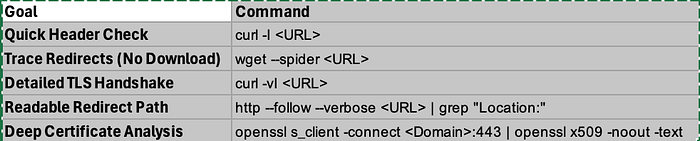
Here is a summary of the key Linux commands for effective URL analysis:
1. Using curl (Client URL)
curl is a versatile tool for transferring data. In URL analysis, it is primarily used to peek at headers and connection details.
- Fetch HTTP Headers Only:
curl -I <URL>Use this to see server information, status codes, and content types without downloading the actual page content. - Check TLS/SSL Details:
curl -vI <URL>The-v(verbose) flag provides a detailed look at the TLS handshake, including cipher suites and certificate validity.
2. Using wget
wget is a powerful tool for retrieving content. It is particularly useful for identifying how a server responds to a request.
- View Server Response Headers:
wget --server-response <URL>This displays the HTTP headers sent by the server alongside the download process. - The "Spider" Mode (No Download):
wget --spider <URL>This "crawls" the URL to check if the resource exists and follows any redirects, but it does not save any files to your system. This is a safer way to map a redirection chain.
3. Using http (HTTPie)
HTTPie is a modern, user-friendly alternative to curl that provides color-coded, formatted output, making it easier to read complex data.
- Follow Redirects with Color-Coded Output:
http --follow <URL>Automatically follows redirects and presents the data in a clean, readable format. - Isolate Redirection Paths:
http --follow --verbose <URL> 2>&1 | grep "Location:"By combining verbose output withgrep, you can quickly extract only the "Location" headers to see exactly where a malicious link is trying to send you.
4. Using openssl
When you need to verify the identity of a server, openssl allows you to inspect the underlying security certificates.
- Fetch and Read SSL Certificates:
openssl s_client -connect <Domain>:443 | openssl x509 -noout -textThis command connects to the server and pipes the certificate into a readable text format. You can use this to check the "Issuer," "Subject," and "Validity Period" to spot fraudulent certificates.
Summary Table
Some Visual Examples:



Another popular URL attack employs QR codes and popularly known as Quishing. Analysts may use CyberChef to decode QR code images and act on the embedded URL.
Cyber threats evolve every day, but the fundamentals of URL analysis remain a powerful defense along with end-user awareness.
Thanks for reading!