
Whether you're a system administrator, a cybersecurity analyst, or someone simply curious about Linux, one of the first and most important concepts to understand is the Linux file system.
Unlike Windows, where files are organized under different drive letters like C: or D:, Linux uses a single hierarchical tree structure that starts at the root directory /. Everything, files, directories, devices, and even temporary system information, is part of this tree.
Understanding the Linux file system helps you:
- Navigate more efficiently through the command line
- Secure systems properly by knowing who has access to what
- Troubleshoot errors faster by interpreting logs and paths
- Avoid critical mistakes, like deleting system files or misconfiguring user permissions
In this blog, we'll break down the Linux file system step by step from the basic hierarchy to real-world tools and use cases. You'll walk away with not only a clear map of how Linux stores data but also practical skills to manage it effectively.
What Is a File System?
A file system is the method an operating system uses to organize, store, retrieve, and manage data on a storage device, like a hard disk, SSD, or USB drive.
At its core, the file system acts like a digital filing cabinet. It keeps track of:
- File names
- Directory structures
- Metadata (such as permissions and timestamps)
- The actual physical location of file data on disk
2. The Linux Filesystem Hierarchy
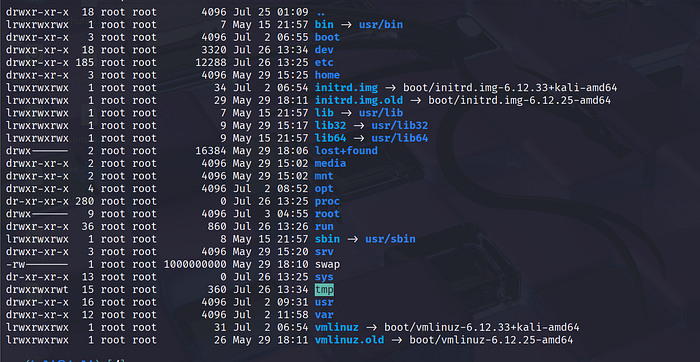
The Linux filesystem is organized in a hierarchical structure, starting from the root directory /, which acts as the parent for all other files and directories. This organization ensures logical grouping of system files, user data, and application binaries. Here's a breakdown of some of the most critical directories:
/ (Root)
The top-most directory. Every other file and directory stems from here. It's the base of the filesystem.
/bin
Short for "binaries." This contains essential user commands such as ls, cp, mv, and rm, which are required for system boot and repair.
/boot
Houses the files needed for booting the Linux OS, like the Linux kernel (vmlinuz), and bootloader configurations like GRUB.
/dev
Contains device files. These are not actual files but interfaces to system devices like hard drives (/dev/sda), USB devices, and virtual devices.
/etc
Stores system-wide configuration files and scripts. Files like /etc/fstab, /etc/hosts, and /etc/passwd live here.
/home
Each user gets a directory under /home, e.g., /home/jav. This is where personal files, configurations, and downloads are stored.
/lib and /lib64
Contain shared library files needed by binaries in /bin and /sbin. They are similar to .dll files in Windows.
/media and /mnt
Used for mounting external storage like USB drives, CD-ROMs, or network shares. /media is dynamically managed, while /mnt is often used manually by admins.
/opt
Reserved for optional software or third-party applications not managed by the OS package manager.
/proc
A virtual filesystem providing runtime system information (e.g., /proc/cpuinfo, /proc/meminfo). It doesn't hold real files but represents kernel data structures.
/root
The home directory for the root (superuser) account. Not to be confused with /.
/run
A temporary filesystem (tmpfs) for system processes since the last boot. Holds runtime data like process IDs and sockets.
/sbin
Contains system binaries — programs intended for system administration (e.g., iptables, fsck, reboot). These require elevated privileges.
/srv
Stands for "service." Stores data for services like FTP, HTTP, or other servers running on the machine.
/sys
Like /proc, it's a virtual filesystem providing system and hardware info, particularly from the sysfs interface.
/tmp
A space for temporary files used by applications. It's often cleared on reboot.
/usr
Contains user applications and utilities. Subdirectories include:
/usr/bin: non-essential user binaries/usr/lib: libraries for/usr/bin/usr/share: shared data files/usr/local: for locally installed software
/var
Stores variable data like logs, caches, and spool files. For example:
/var/log: system logs/var/spool: queues for print jobs or mail/var/cache: application cache data/var/tmp: temporary files that are preserved between reboots
Understanding File Permissions
In Linux, every file and directory has associated permissions that control who can access or modify them. These permissions are divided into three categories:
- User (Owner)
- Group
- Others
Each category can have the following permissions:
- Read (r) — View the contents of a file
- Write (w) — Modify the file
- Execute (x) — Run the file as a program
For example:
-rwxr-xr--This means:
- The owner has full permissions (read, write, execute)
- The group has read and execute permissions
- Others have only read permission
Understanding permissions is essential for maintaining system security and preventing unauthorized access.
Basic Commands to Navigate the File System
To work effectively with the Linux file system, you need to be familiar with some basic commands:
pwd– Displays the current directoryls– Lists files and directoriescd– Changes the current directorycp– Copies files or directoriesmv– Moves or renames filesrm– Deletes files or directoriesmkdir– Creates a new directorytouch– Creates a new empty file
These commands form the foundation of interacting with the Linux environment.
Conclusion
The Linux file system is designed to be structured, consistent, and efficient. While it may seem complex at first, understanding its hierarchy and organization makes it much easier to navigate and manage.
By learning how directories are structured, how permissions work, and how to use basic commands, you build a strong foundation for working with Linux systems, whether for system administration, development, or cybersecurity.
With practice, navigating the Linux file system becomes second nature, and it opens the door to deeper understanding and control over the system.