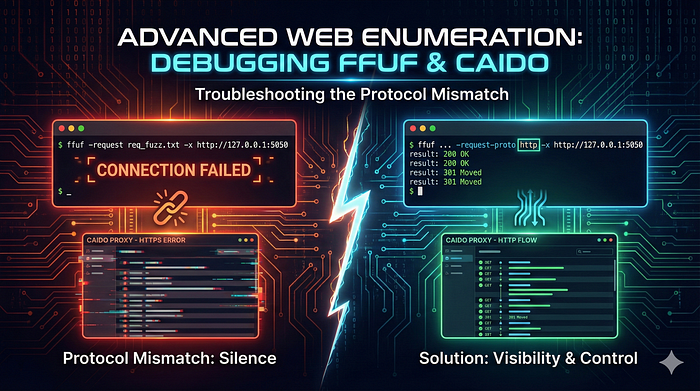

In the world of web application security penetration testing, directory enumeration (or "brute-forcing") is a foundational step. Tools like gobuster and ffuf are incredibly fast at discovering hidden paths.
However, speed sometimes comes at the cost of visibility. When your automated tools aren't returning results, or you suspect a WAF is interfering, how do you debug the traffic between your tool and the target?
This article walks through an advanced enumeration scenario. We will use the blistering fast ffuf for discovery and tunnel its traffic through Caido, a lightweight, modern alternative to Burp Suite, to troubleshoot a common protocol mismatch issue.
The Scenario
We have a target web server located at http://192.135.5.6. Our goal is to enumerate directories on this server. We want to use a prepared raw HTTP request file for maximum control over headers, and we want to proxy the traffic to see exactly what's happening on the backend.
Prerequisites and Setup
Before we begin, let's define our target.
Target IP: 192.135.5.6
Optional: DNS Resolution If you prefer working with a hostname instead of an IP, or if the application relies on a specific Host header, add an entry to your /etc/hosts file.
Note: You need root privileges for this.
sudo sh -c 'echo "192.135.5.6 test.com" >> /etc/hosts'Step 1: The New Kid on the Block — Installing and Configuring Caido
While Burp Suite is the industry standard, Caido is gaining traction for being lightweight and efficient. We will use it today to inspect our ffuf traffic.
- Download Caido: Head over to the official Caido website and download the appropriate package for your Linux distribution (e.g., the
.debfile for Debian/Kali/Ubuntu). - Install: Navigate to your download folder and install the package:
cd ~/Downloads sudo dpkg -i <package-name>.deb- Launch: Start Caido from your terminal:
caidoCaido will launch in your browser. You can log in or continue as a guest. Crucially, you must create a new project to start working.
The Important Configuration Twist
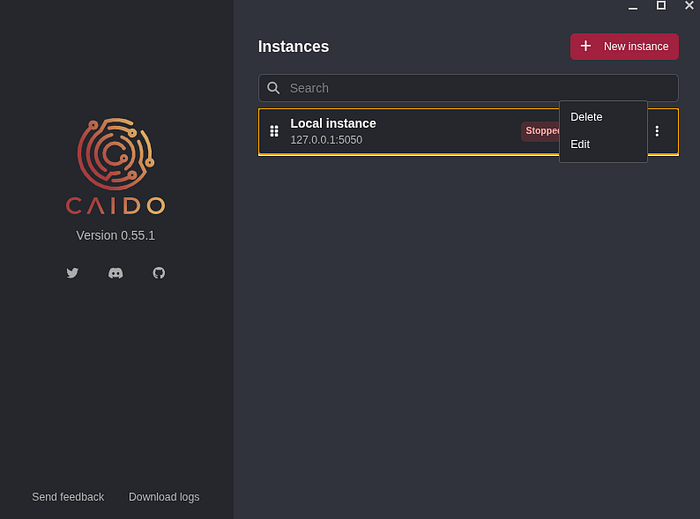
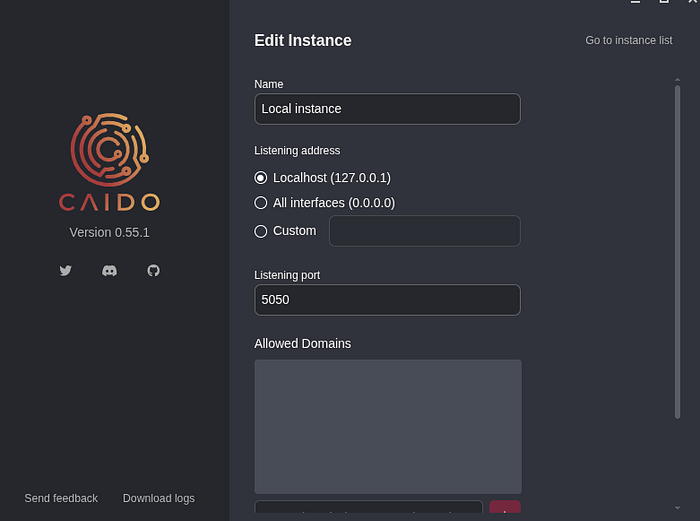
By default, proxies often listen on port 8080. Since we might have Burp Suite running already, let's configure Caido to listen on a different port to avoid conflicts.
- In the Caido interface, go to the Settings (gear icon) or the Listeners section.
- Edit the default listener.
- Set the binding IP to
127.0.0.1and change the Port to5050.
Step 2: Preparing the Attack Vector (The Raw Request)
For advanced enumeration, we often prefer using a raw request file over simple command-line arguments. This allows us to inject cookies, custom authentication headers, or specific User-Agents easily.
We will use Burp Suite quickly just to capture a valid baseline request to our target, though you could craft this manually.
- Fire up Burp Suite and ensure FoxyProxy (or your browser settings) is pointing to Burp.
- Navigate to
http://192.135.5.6. - In Burp, go to the Proxy > HTTP History tab.
- Right-click the request to
/and select Copy to file.
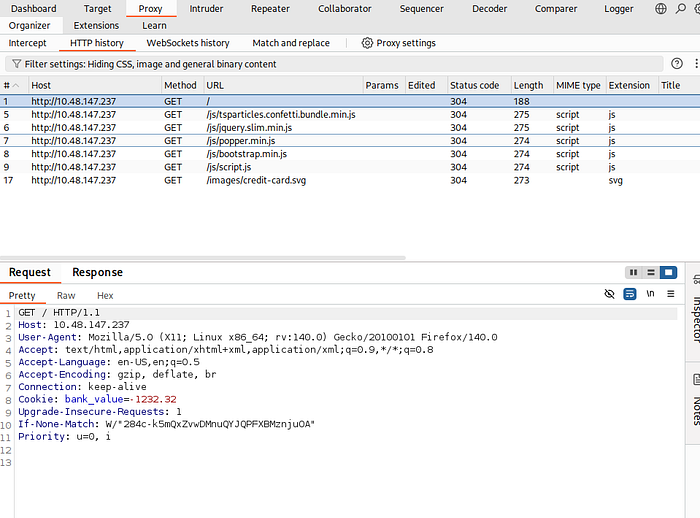
req_fuzz.txt templateSave the file as req_fuzz.txt.
Now, we need to tell ffuf where to inject our wordlist. Open the file in a text editor like vi or nano.
vi req_fuzz.txtLocate the first line and change the path from / to /FUZZ. Your file should look something like this:
GET /FUZZ HTTP/1.1
Host: 192.135.5.6
User-Agent: Mozilla/5.0 (X11; Linux x86_64; rv:102.0) Gecko/20100101 Firefox/102.0
Accept: text/html,application/xhtml+xml,application/xml;q=0.9,image/avif,image/webp,*/*;q=0.8
Accept-Language: en-US,en;q=0.5
Accept-Encoding: gzip, deflate
Connection: close
Upgrade-Insecure-Requests: 1
Be sure there is a blank line at the end of the file.
Step 3: The First Attempt (And the Silent Failure)
Now we have our wordlist ready (we'll use a standard dirb list) and our request template ready. Let's run ffuf and proxy it through our newly configured Caido instance on port 5050.
We use the -x flag in ffuf to define the upstream proxy.
ffuf -request req_fuzz.txt -w /usr/share/wordlists/dirb/common.txt -x http://127.0.0.1:5050The Result: You run the command, and… silence. ffuf might show a flood of errors, timeouts, or simply no valid results.
If you look at the Caido dashboard, you might see the requests coming in from ffuf, but they show no responses, or connection errors.
What went wrong? This is exactly why we use a proxy. We need to troubleshoot the connection between the tool and the target.
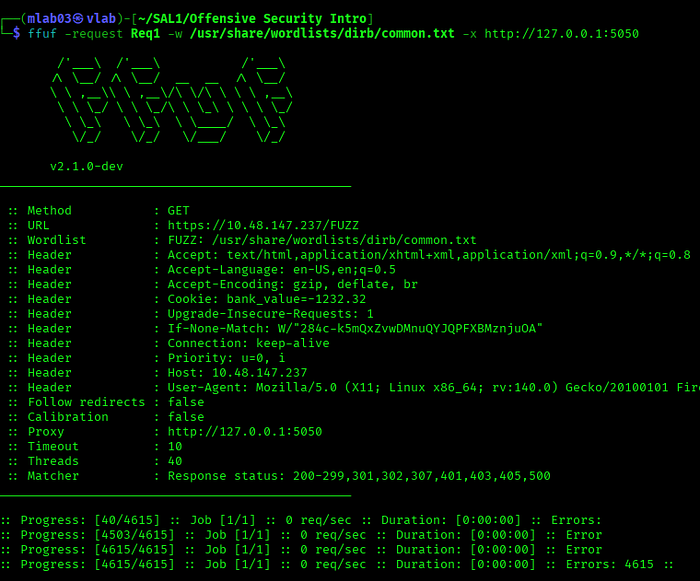
ffuf runs without results because Caido is attempting an HTTPS handshake on an HTTP targetStep 4: Debugging the Protocol Mismatch
The issue lies in how ffuf interprets raw request files when combined with a proxy.
By default, when you provide a raw request, ffuf tries to determine if the target is HTTP or HTTPS based on the contents of that request file or its initial connection attempt.
However, when we sandwich Caido in the middle, Caido is receiving a plain HTTP request from ffuf, but it needs to know how to forward it to the final destination 192.135.5.6.
In many configurations, proxies might default to trying an HTTPS connection for security if not explicitly told otherwise. Our target is explicitly http://192.135.5.6. Caido is trying to handshake via SSL with a non-SSL server, and the connection dies.
We need to tell ffuf explicitly: "Even though you are talking to a proxy, the final destination protocol is HTTP."
Let's check the ffuf help to find the right flag:
ffuf -h | grep -i protoYou will see the following output:
-request-proto Protocol to use along with raw request (default: https)Aha! The default protocol for raw requests is HTTPS. That's our culprit.
Step 5: The Successful Enumeration
Now that we've identified the problem using our proxy visibility and the help docs, let's fix the command. We need to append -request-proto http.
ffuf -request req_fuzz.txt -w /usr/share/wordlists/dirb/common.txt -x http://127.0.0.1:5050 -request-proto httpRun the command again.
The Result: Success!
- Your terminal should light up with discovered directories (200 OK, 301 Redirects, etc.).
- If you look at Caido now, you will see a beautiful stream of HTTP requests with corresponding responses from the server.

-request-proto http flag forces the correct protocol, populating the results in both the terminal and Caido.We now have a working, proxied, advanced enumeration setup. We can use Caido to inspect the exact headers being sent, analyze response sizes, and see how the server reacts to specific payloads in real-time.
Conclusion
Automated tools like ffuf are powerful, but when they fail silently, they can be frustrating.
By integrating a proxy like Caido into your workflow — even just for automated tasks — you gain the visibility needed to troubleshoot complex connectivity issues. Don't just run the tools; understand how they communicate. In this case, a single protocol flag made the difference between total failure and a successful engagement.