
Linux is one of the most powerful and widely used operating systems in the world. From servers to cybersecurity tools like Kali Linux, Linux dominates the tech industry.
If you're starting your journey in Linux, cybersecurity, or DevOps, mastering Linux basic commands is the first and most important step.
Let's break them down in a simple and practical way 👇
If you are a member, please continue, otherwise, read the full story here.
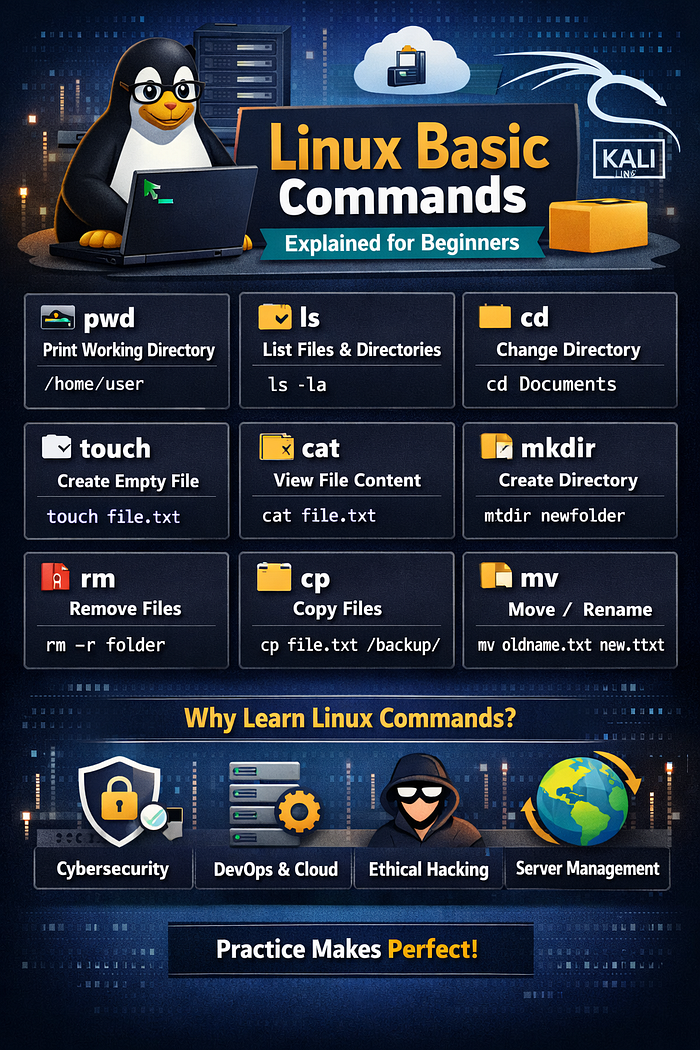
📂 1️⃣ pwd — Print Working Directory
Purpose: Shows your current directory path.
pwd📌 Example Output:
/home/user/DocumentsThis helps you know where you are inside the Linux file system.
📁 2️⃣ ls — List Files & Directories
Purpose: Displays files and folders.
lsUseful variations:
ls -l     # Detailed list
ls -a     # Show hidden files
ls -la    # Detailed + hidden
💡 Hidden files start with . (dot)
📂 3️⃣ cd — Change Directory
Purpose: Navigate between directories.
cd DocumentsSpecial shortcuts:
cd ..      # Move one directory back
cd ~       # Go to home directory
cd /       # Go to root directory
📄 4️⃣ touch — Create Empty File
Purpose: Creates a new empty file.
touch file.txt📘 5️⃣ cat — View File Content
Purpose: Displays file content.
cat file.txtYou can also combine files:
cat file1.txt file2.txt📁 6️⃣ mkdir — Create Directory
Purpose: Creates a new folder.
mkdir newfolderCreate multiple directories:
mkdir folder1 folder2❌ 7️⃣ rm — Remove Files & Directories
Purpose: Deletes files or folders.
rm file.txtDelete folder:
rm -r foldername⚠️ Be careful! Deleted files cannot be recovered easily.
📑 8️⃣ cp — Copy Files
Purpose: Copies files.
cp file1.txt file2.txtCopy to directory:
cp file.txt /home/user/Documents/🔁 9️⃣ mv — Move or Rename Files
Purpose: Moves or renames files.
Rename file:
mv oldname.txt newname.txtMove file:
mv file.txt Documents/🔍 🔟 find — Search Files
Purpose: Searches for files.
find . -name "file.txt"Search from root:
find / -name "config.txt"🚀 Final Thoughts
Linux may look scary at first, but once you understand the basic commands, it becomes extremely powerful.
Start practicing daily:
- Create files
- Move folders
- Delete test directories
- Search files
Practice is the key 🔑