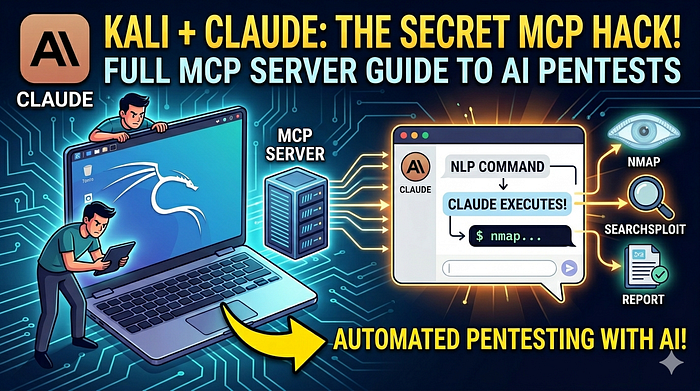

Embarking on the journey of transforming an AI from merely a text-based conversationalist to a functional security analyst was no small feat. This blog post chronicles our efforts in building a seamless connection between Claude Desktop and Kali Linux, the industry-standard operating system for penetration testing. Along the way, I encountered numerous challenges, including network timeouts, library incompatibilities, and the intricacies of system automation. Join me as we explore the steps taken to create a powerful tool that bridges the gap between AI capabilities and cybersecurity expertise.
The Value Proposition: Why Give an AI Kali Linux?
Most LLMs are "brains in a vat" — they can tell you how to run an Nmap scan, but they can't actually see the results. By connecting Claude to Kali Linux via the Model Context Protocol (MCP), you move from "static advice" to "active assistance."
The benefits include:
- Real-time Analysis: Claude can run a scan, interpret the results, and immediately suggest the next command.
- Safety & Context: You maintain control over the environment while the AI handles the syntax and data parsing.
- Workflow Acceleration: Complex multi-step reconnaissance (Nmap -> Gobuster -> Nikto) can be automated through natural language.
1. Understanding the Architecture
To make this work, I had to coordinate three distinct layers. Think of it like a translator sitting between a boss and a worker.
- The Client (Claude Desktop): The "Boss" on your Mac. It sends instructions.
- The MCP Bridge (
mcp-server): The "Translator." It lives on the Kali machine. It listens to Claude and converts requests into a format the Kali API understands. - The Backend API (
kali-server-mcp): The "Worker." This is a Flask-based service running on port 5000 that actually executes the Linux commands (likenmap) and returns the raw data.
2. The Initial Struggle: Network & Installation
My first hurdle was simply getting the software onto the machine. Kali is a "rolling release," meaning packages move fast.
The Mirror Timeout
During sudo apt install mcp-kali-server, we hit a dead mirror (mirror.us.cdn-perfprod.com).
- The Fix: We ran
sudo apt update. This refreshed the package list and forced the system to find a healthy, responsive mirror (kali.mirror.rafal.ca). - Lesson: In Kali, if a download fails, don't just retry — refresh the sources first.
SSH Configuration
To allow Claude on your Mac to talk to Kali securely, set up an SSH alias. Instead of typing ssh kali@10.53.120.12 -i ~/.ssh/id_rsa, and edit the Mac's ~/.ssh/config:
Host kali
    HostName 10.53.120.12
    User kali
    IdentityFile ~/.ssh/id_rsa
This allow us to use the simple command ssh kali throughout the rest of the setup.
3. The Compatibility War: Pydantic 2.10
This was the most significant technical roadblock. The mcp-kali-server package was built using FastMCP, which relied on older versions of the Pydantic library. Kali's latest updates pulled in Pydantic 2.10, which introduced strict "type annotation" rules that broke the server.
The Error
The server crashed with: pydantic.errors.PydanticUserError: A non-annotated attribute was detected: result = typing.Dict[str, typing.Any].
The Manual Patch
Since we couldn't wait for an official package update, we had to "hotfix" the library core. We edited /usr/lib/python3/dist-packages/mcp/server/fastmcp/utilities/func_metadata.py and changed:
return create_model(model_name, result=annotation)
to
return create_model(model_name, result=(annotation, ...))
Adding (annotation, ...) tells Pydantic that result is a required field with a specific type, satisfying the new strict validation requirements.
4. Automation: The Systemd Service
Initially, we had to run two commands manually in separate terminals:
kali-server-mcp(The Backend)mcp-server(The Bridge)
To make this "permanent," I created a systemd service and chose to only put the Backend API into the service.
Why this way?
- The API (
kali-server-mcp) needs to stay alive 24/7 on Port 5000 so it's ready to work. - The Bridge (
mcp-server) is better handled "on-demand" by Claude via SSH. If the bridge crashes or Claude disconnects, it doesn't take down the whole API.
The Service File (/etc/systemd/system/kali-mcp.service)
We used ExecStartPre to ensure that if a "ghost" process was already holding Port 5000, it would be killed before the new one started:
[Service]
ExecStartPre=/usr/bin/bash -c "/usr/bin/fuser -k 5000/tcp || true"
ExecStart=/usr/bin/kali-server-mcp --port 5000
Restart=always
5. Connecting Claude to the Lab
The final step happened on the Mac. We updated the Claude Desktop configuration file to point to the Kali box.
File Path: ~/Library/Application Support/Claude/claude_desktop_config.json
{
  "mcpServers": {
    "kali-linux": {
      "command": "ssh",
      "args": ["-t", "kali", "mcp-server"]
    }
  }
}-t: This was crucial. It forces a pseudo-terminal, which Python needs to handle the input/output stream between the two machines.
In conclusion, with your Kali lab now set up for persistence and automation, you can seamlessly enhance its capabilities. In next post I will guide you through process of adding a custom tool, such as a specific Python exploit script, to the Kali MCP server. Stay tuned!
#CyberSecurity #EthicalHacking #KaliLinux #AI #AIAgents #Automation #NetworkSecurity #PenetrationTesting #DevSecOps #AIinCybersecurity#LLM #ClaudeAI #OpenAI #TechInnovation #SecurityEngineering #sdntechforum
🙏 Thank you 🙏 for being a part of the SDNTechForum community! 💖🤖💖
For further reading, explore my in-depth analysis on Medium and YouTube.
Follow me on: | LinkedIn | X | YouTube | Medium