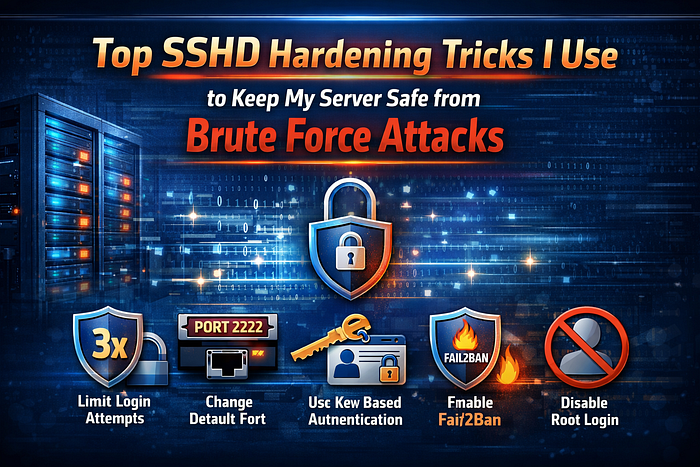

The moment you expose your server to the internet with a public IP, if you check the /var/log/auth.log file, you will be in a complete panic within a moment. Numerous bots and attackers will start brute-forcing your server to gain access. This is very alarming if your server is not protected with proper SSHD hardening, as attackers might compromise your system at any moment. Fortunately, there is an exact sshd_config hardening process you can apply to every new server to make brute-force attacks a non-issue. Here are nine straightforward steps to lock down your server.
Warning: Always keep a backup SSH window open for your server. Never forget to test the configuration with the sshd -t command before applying changes to avoid getting locked out.
1. Change the Default Port
The single biggest drop in noise. Automated scanners and attackers almost exclusively target port 22. So, if you move to a high, non-standard port that will eliminate almost ~99% of bot traffic overnight.
# /etc/ssh/sshd_config
Port 2222 # Pick anything from 1024–65535
Remember to update your firewall rules and use ssh -p <your_port> user@host going forward.
2. Disable Root Login
Never allow direct root SSH access. That's like opening your server's main door to the attackers. If an attacker gets in, they can do almost anything on your servers. You may want them to at least need to escalate privileges separately. Always log in as a regular user and then use sudo.
PermitRootLogin noIf you still really need direct root ssh login then you can use the config mentioned below to strictly enforce key based login for the root user
PermitRootLogin prohibit-passwordTip: Always confirm you have sudo access before disabling root login.
3. Enforce Key-Based Authentication (No Passwords)
Password auth is a significant attack surface. So, you should kill it entirely. SSH keys are the minimum bar. Then you can also pair with a strong passphrase on the key itself. You can apply the following settings to enforce strict key based access on your server and restrict password based logins.
PasswordAuthentication no
PubkeyAuthentication yes
AuthenticationMethods publickey
ChallengeResponseAuthentication no
UsePAM yes
What is does?
PasswordAuthentication no completely disable password based authentication
PubkeyAuthentication yes only allowed key based authentication
AuthenticationMethods publickey enforce key based authentication method only
ChallengeResponseAuthentication no disables keyboard interactive authentication
UsePAM yes enables pluggable authentication module
4. Restrict Which Users Can SSH
Whitelist the exact users (or groups) that need SSH access. It can significantly reduce the attack surface since only users you explicitly allow can now login. Everyone else is denied at the sshd level even if they have valid credentials.
AllowUsers <your_username_here> <anotheruser>Or by group:
AllowGroups sshusersIf you use the AllowGroups directive then you can add any user to the sshusers group
sudo usermod -aG sshusers <youruser>5. Limit Authentication Attempts per Connection
Reduce how many tries an attacker gets before the connection is dropped.
MaxAuthTries 3
LoginGraceTime 20
MaxStartups 10:30:60
What it does?
MaxAuthTries 3 will drop the connection after the failure attempt count reach to 3
LoginGraceTime 20 will disconnect if not authenticated within 20 seconds
MaxStartups will throttle unauthenticated connection attempts
6. Disable Features You Don't Use
Every enabled feature is a potential attack vector. Disable anything you don't actively need.
X11Forwarding no
AllowTcpForwarding no # unless you need SSH tunneling
AllowAgentForwarding no
PermitTunnel no
GatewayPorts no
PermitEmptyPassword no
IgnoreRhosts yes
7. Enforce Strong Ciphers and Key Exchange Algorithms
Strip out legacy ciphers. Attackers can downgrade your connection to weak crypto if you leave old algorithms enabled.
KexAlgorithms curve25519-sha256,diffie-hellman-group16-sha512
Ciphers aes256-gcm@openssh.com,chacha20-poly1305@openssh.com
MACs hmac-sha2–256-etm@openssh.com,hmac-sha2–512-etm@openssh.com
HostKeyAlgorithms ssh-ed25519,rsa-sha2–512
8. Use tools like fail2ban or Crowdsec
Even with all the above, bots will keep trying. fail2ban watches your auth logs and auto-bans IPs after repeated failures. Pair it with the custom port from tip #1.
If you need to setup fail2ban then I have covered it in a separate article here: Guide to Secure Your Self-Hosted Stacks like Nginx, SSH, & Vaultwarden with Fail2ban
# /etc/fail2ban/jail.local
[sshd]
enabled = true
port = 2222    # Mention your ssh port here
filter   = sshd
logpath  = %(sshd_log)s
backend  = %(sshd_backend)s
maxretry = 3
bantime = 3600 # ban for 1 hour. You can also increase it
findtime = 600
About crowdsec I will cover it on a separate article.
9. Restrict SSH Access at the Firewall Level
If you connect from a static IP or a VPN, whitelist that IP in your firewall. This is the hardest gate of all, the port never even responds to unauthorized sources.
# UFW example
ufw allow from 203.0.113.10 to any port 2222

# iptables example
iptables -A INPUT -p tcp — dport 2222 -s 203.0.113.10 -j ACCEPT
iptables -A INPUT -p tcp — dport 2222 -j DROP
Apply the Changes
Always test your config before reloading because one syntax error locks you out:
sudo sshd -tIf the above command didn't show any error then run the following command to reload your sshd config
sudo systemctl reload sshdFinal Thoughts
None of these tricks is a silver bullet on its own, but defense in depth is the main goal. My standard stack for any new VPS:
- Move SSH off port 22
- Keys only, no passwords
- Whitelist users
- fail2ban or crowdsec watching auth logs
- Firewall IP allowlist if feasible
With all of this in place, brute-force attacks become background noise that you never have to think about again.