June 3, 2026
OverTheWire Bandit Walkthrough — Level 13 → 14 | 30-Day Cybersecurity Learning Journey (Day 13)
Using an SSH private key instead of a password to authenticate and why key-based authentication is the standard for secure remote access…

William | Cybersecurity & SOC Analyst
6 min read
Using an SSH private key instead of a password to authenticate and why key-based authentication is the standard for secure remote access across every professional Linux environment.
Introduction
Day 13. Bandit Level 13 to Level 14. Every level up to this point has ended with a password. This one does not. There is no password for Level 14. Instead there is a private SSH key sitting in the home directory and that key is the credential. The challenge is understanding what that means, how to use it and why this authentication method is significantly more secure than any password.
This level introduces SSH key-based authentication, the method used across cloud infrastructure, production servers, CI/CD pipelines and remote administration tools as the professional standard. Passwords can be guessed, phished or leaked. A private key that never leaves the machine it was generated on cannot be attacked in any of those ways.
By the end of this article you will know how to retrieve a private SSH key, save it securely on your local machine and use it to authenticate to a remote server without a password.
Level Objective
The password for the next level is stored in /etc/bandit_pass/bandit14 and can only be read by user bandit14. For this level, you don't get the next password, but you get a private SSH key that can be used to log into the next level. The commands suggested by OverTheWire include ssh, scp, chmod and cat. The official page also notes to read the error messages carefully as they are informative.
Approach
I logged in using the password retrieved from the previous level:
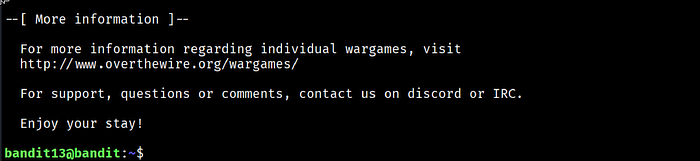
ssh bandit13@bandit.labs.overthewire.org -p 2220ssh bandit13@bandit.labs.overthewire.org -p 2220The banner loaded and ended with "Enjoy your stay!" and the prompt changed to bandit13@bandit:~$.
I ran ls -la and the home directory contained two notable files: HINT and sshkey.private. Both were owned by bandit14 with group bandit13 and permissions -rw-r-----. The sshkey.private file was 1679 bytes. I read it with cat to view its contents:
cat sshkey.privatecat sshkey.privateThe output began with -----BEGIN RSA PRIVATE KEY----- and ended with -----END RSA PRIVATE KEY-----. This is a standard RSA private key in PEM format. The entire key block needed to be copied and saved to the local machine before it could be used for authentication.
I opened a new terminal on my local Kali machine and created a new file using nano, pasting the full private key content into it and saving it as sshkey.privatessh:
nano ~/sshkey.privatesshnano ~/sshkey.privatesshBefore using the key, the file permissions needed to be set correctly. SSH refuses to use private key files that are accessible to other users on the system:
chmod 600 ~/sshkey.privatesshchmod 600 ~/sshkey.privatesshI then used the key to authenticate directly as bandit14 from my local machine:
ssh -i ~/sshkey.privatessh bandit14@bandit.labs.overthewire.org -p 2220ssh -i ~/sshkey.privatessh bandit14@bandit.labs.overthewire.org -p 2220The connection succeeded without prompting for a password. Once logged in as bandit14 I read the password from the system password file:
cat /etc/bandit_pass/bandit14cat /etc/bandit_pass/bandit14The password for Level 14 printed to the terminal.
Commands Used
# Connect to the Bandit server as bandit13 using the Level 13 password
ssh bandit13@bandit.labs.overthewire.org -p 2220
# List the home directory to find available files
ls -la
# Read the private key file to view its contents
cat sshkey.private
# On local machine: save the key content using nano
nano ~/sshkey.privatessh
# Set correct permissions on the saved key file
chmod 600 ~/sshkey.privatessh
# Use the private key to authenticate directly as bandit14
ssh -i ~/sshkey.privatessh bandit14@bandit.labs.overthewire.org -p 2220
# Read the Level 14 password from the system password file
cat /etc/bandit_pass/bandit14
# Connect to the Bandit server as bandit13 using the Level 13 password
ssh bandit13@bandit.labs.overthewire.org -p 2220
# List the home directory to find available files
ls -la
# Read the private key file to view its contents
cat sshkey.private
# On local machine: save the key content using nano
nano ~/sshkey.privatessh
# Set correct permissions on the saved key file
chmod 600 ~/sshkey.privatessh
# Use the private key to authenticate directly as bandit14
ssh -i ~/sshkey.privatessh bandit14@bandit.labs.overthewire.org -p 2220
# Read the Level 14 password from the system password file
cat /etc/bandit_pass/bandit14Command Breakdown
cat sshkey.private Reads and displays the full RSA private key. The -----BEGIN RSA PRIVATE KEY----- header and -----END RSA PRIVATE KEY----- footer confirm this is a PEM format private key. The entire block including both headers must be copied exactly when saving it locally.
nano ~/sshkey.privatessh Opens the nano text editor to create a new file on the local machine. The full private key content is pasted in and saved. The filename can be anything meaningful. Using a clear name like sshkey.privatessh makes it easy to identify later.
chmod 600 ~/sshkey.privatessh Sets the file permissions to read and write for the owner only, with no access for group or others. SSH will refuse to use a private key file that has overly permissive settings and will display an "Unprotected private key file" warning. Running chmod 600 before using the key prevents that error.
ssh -i ~/sshkey.privatessh bandit14@bandit.labs.overthewire.org -p 2220 Connects to the Bandit server as bandit14 using the private key file for authentication. The -i flag specifies the identity file. No password prompt appears because the key handles the authentication cryptographically.
cat /etc/bandit_pass/bandit14 Reads the password file for bandit14 which is only accessible by that user. This file holds the traditional password for the level which is needed to carry forward.
Lesson Learned
The main technical takeaway is that SSH key-based authentication replaces the password exchange entirely. When you connect with a private key the server checks whether your key mathematically matches the public key it holds in ~/.ssh/authorized_keys. No password travels across the network. No credential can be intercepted in transit. That property is why key-based authentication is the standard across every serious infrastructure environment.
The chmod 600 step is not optional and it is not bureaucratic. SSH enforces strict permission checks on key files as a security requirement. If the file is readable by other users on the system it could be copied and used to impersonate the legitimate owner. The permission check is SSH protecting you from a configuration mistake that would undermine the entire security model.
The HINT file in the home directory is also worth noting. OverTheWire placed it there as support material for this level. On a real system, finding an unexplained file alongside a private key in a home directory would be an immediate investigation trigger.
ssh -i keyfile user@host -p PORT— connect using a specific private key filechmod 600 keyfile— set correct permissions on a private key before usechmod 400 keyfile— read-only alternative that is equally acceptable for SSHssh-keygen -t rsa -b 4096— generate a new RSA key paircat ~/.ssh/authorized_keys— view which public keys are authorised on a system
🔴 SOC Analyst Insight
SSH key management is a critical area during cloud and infrastructure security investigations. When an attacker gains initial access to a Linux system, adding their own public key to ~/.ssh/authorized_keys on a privileged account is one of the first persistence techniques they use. This gives them a backdoor that survives password resets and most standard remediation steps because it completely bypasses password authentication.
# Check all authorised SSH keys across user home directories for unauthorised entries
find /home /root -name "authorized_keys" -exec cat {} \; 2>/dev/null
# Check all authorised SSH keys across user home directories for unauthorised entries
find /home /root -name "authorized_keys" -exec cat {} \; 2>/dev/nullThe command above reads every authorized_keys file found across home directories and the root account. During a compromise investigation this output should be compared against a known-good baseline. Any public key that does not belong to a legitimate user or service account is an immediate indicator of persistence. This Bandit level teaches the mechanics of key-based authentication from the user side. Understanding it from the attacker side is what makes the authorized_keys audit meaningful.
Key Takeaway
SSH key-based authentication is not an advanced topic reserved for senior engineers. It is the standard method of remote access across cloud infrastructure, production servers and DevOps pipelines and every security professional needs to understand how it works operationally. Knowing how to retrieve a private key, save it correctly, set the right permissions and authenticate with it are skills that apply directly to daily operations and incident response. The level today introduced all four steps clearly. The concept behind them is one of the most important in this series.
30-Day Cybersecurity Learning Journey — Progress
🟢 Open Day — Setup & Series Introduction  | OverTheWire Bandit
✅ Day 0.   — Bandit Level 0               | First Login
✅ Day 1.   — Bandit Level 1 → 2           | Special Characters
✅ Day 2.   — Bandit Level 2 → 3           | Spaces in Filenames
✅ Day 3.   — Bandit Level 3 → 4           | Hidden Files
✅ Day 4.   — Bandit Level 4 → 5           | File Types
✅ Day 5.   — Bandit Level 5 → 6           | find with Properties
✅ Day 6.   — Bandit Level 6 → 7           | find across Filesystem
✅ Day 7.   — Bandit Level 7 → 8           | grep
✅ Day 8.   — Bandit Level 8 → 9           | sort and uniq
✅ Day 9.   — Bandit Level 9 → 10          | strings and grep
✅ Day 10.  — Bandit Level 10 → 11         | base64
✅ Day 11.  — Bandit Level 11 → 12         | ROT13 and tr
✅ Day 12.  — Bandit Level 12 → 13         | hexdump and compression
✅ Day 13.  — Bandit Level 13 → 14         | SSH keys  ← today
⬜ Day 14.  — Bandit Level 14 → 15         | coming next
🟢 Open Day — Setup & Series Introduction | OverTheWire Bandit
✅ Day 0. — Bandit Level 0 | First Login
✅ Day 1. — Bandit Level 1 → 2 | Special Characters
✅ Day 2. — Bandit Level 2 → 3 | Spaces in Filenames
✅ Day 3. — Bandit Level 3 → 4 | Hidden Files
✅ Day 4. — Bandit Level 4 → 5 | File Types
✅ Day 5. — Bandit Level 5 → 6 | find with Properties
✅ Day 6. — Bandit Level 6 → 7 | find across Filesystem
✅ Day 7. — Bandit Level 7 → 8 | grep
✅ Day 8. — Bandit Level 8 → 9 | sort and uniq
✅ Day 9. — Bandit Level 9 → 10 | strings and grep
✅ Day 10. — Bandit Level 10 → 11 | base64
✅ Day 11. — Bandit Level 11 → 12 | ROT13 and tr
✅ Day 12. — Bandit Level 12 → 13 | hexdump and compression
✅ Day 13. — Bandit Level 13 → 14 | SSH keys ← today
⬜ Day 14. — Bandit Level 14 → 15 | coming nextFollow along with the series as I document each level, command and lesson learned.
A password can be guessed, phished or leaked. A private key that never leaves your machine cannot.