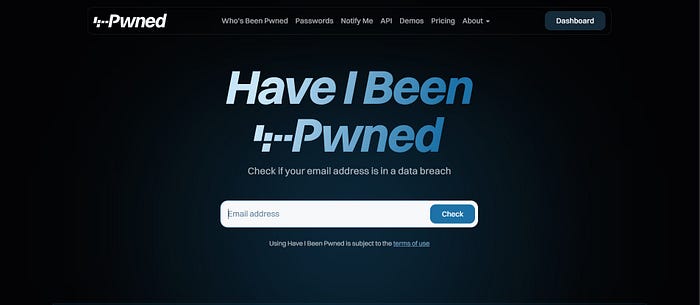
What Have I Been Pwned Is
Have I Been Pwned (often called HIBP) is a free online tool that lets you check if your personal online information has been exposed in known data breaches. It shows whether your email address, phone number, or passwords have appeared in leaked databases that were stolen or leaked by hackers.
The site was created in 2013 by Troy Hunt, a well‑known cybersecurity expert, because he saw that many people had no idea when their data was compromised and needed a simple way to find out.
Key Concepts You Should Know First
What does "pwned" mean?
In hacker slang, "pwned" is a variation of "owned." It means your data was compromised or taken by unauthorized parties in a breach.
What is a data breach?
A data breach is when a company's or service's database of user information is accessed or stolen by hackers. This can include emails, passwords, phone numbers, addresses, and other personal details. Afterwards, this stolen data can be posted online or sold in hacker communities.
How the System Works
Here's how Have I Been Pwned collects, stores, and provides breach information.
1. Collecting Breach Data
HIBP gathers breach data from many sources:
- Publicly released breach databases
- Data dumped on paste sites and forums
- Contributions from security researchers
The system continuously updates its database so it includes the latest known leaks.
The database now includes billions of compromised accounts from many data breaches.
Some breaches are sensitive and not publicly listed unless you subscribe to notifications.
2. Making the Data Searchable
All of the breach records HIBP collects are organized so the site can quickly match an email address or password to entries in the database.
The site focuses on email addresses, phone numbers, and passwords:
- Email or phone check: You type in your address or number and the service looks for matches across the stored breach data.
- Password check: Instead of sending your password to the server, a privacy‑preserving method (called k‑anonymity) checks whether the password appears in breach lists without revealing the full password to the site.
This avoids storing or exposing your data during the check.
3. Showing the Results
After you enter your email or phone number:
- If the system does not find your info in any breach, you see a message saying it's not found in any known leaks.
- If it finds matches, the site gives you a list of breaches where your data appeared. This may include:
- The name of the breach
- When it happened
- What types of data were exposed
- How many accounts were affected
This helps you see which breaches affected you.
Optional Monitoring and Alerts
You can sign up with your email so HIBP will notify you automatically if your address shows up in future breaches.
This gives you a chance to act quickly to protect your accounts if new leaks include your data.
What You Can Do After You Find You Are Pwned
If the tool shows your info was found in a breach it's important to reduce risk:
Change your password
- Use a strong, unique password for that account
- Do not reuse the same password on other sites
Turn on two‑factor authentication (2FA) This adds another layer of login protection beyond a password.
Consider a password manager This helps create and store unique passwords for all your accounts.
Privacy and Safety
Some people wonder if the site stores the emails you check. According to discussions and FAQs, HIBP does not store the email addresses you search once the check is done.
For passwords, the site uses a method to check them without revealing them to the server, making it safer to check if a password has been exposed.
Why This Matters
Data breaches are common. Research shows billions of accounts have been compromised over the years. Knowing when your info has been leaked helps you take action before attackers misuse it.
Without checking services like HIBP, most people would never know their personal data is circulating online.
The goal is to help you see where your personal details have been compromised so you can secure your accounts and prevent identity theft or unauthorized access.
If you want, I can also write a step‑by‑step walkthrough of how to use the site with screenshots or examples. Just let me know.
write a step‑by‑step walkthrough of how to use the site with screenshots or examples.
Here's a step‑by‑step walkthrough of how to use Have I Been Pwned to check if your email or password has been compromised. Since I can't include screenshots directly, I'll explain each step in detail so you can easily follow along:
Step 1: Go to the Website
- Open your browser and go to Have I Been Pwned.
- You'll see a simple homepage with a search box and a message: "Have I Been Pwned?"
Step 2: Enter Your Email or Phone Number
- On the homepage, you'll find a box labeled "Enter an email address" or "Enter a phone number."
- Type the email address or phone number you want to check into this box.
- Example:
- Enter your email:
youremail@example.com - Or, if checking a phone number, enter it like this:
+1-123-456-7890
4. Press "pwned?" to begin the search.
Step 3: Review the Results
- If your email or phone number hasn't been involved in any breaches, you'll see a message like:
- "Good news — no pwnage found!"
2. If it has been compromised, you will see a list of breaches. The details may include:
- Name of the breach: For example, "Adobe," "LinkedIn," or "Yahoo!"
- When the breach happened: You'll see a date like "July 2020."
- Types of data exposed: This can include email addresses, passwords, names, phone numbers, etc.
- Number of accounts affected: For example, "150 million accounts."
Step 4: Understand the Severity of the Breach
- Look at the data types exposed. If passwords were leaked, it's particularly important to change your password immediately.
- For sensitive data, like phone numbers or personal addresses, consider whether to contact your bank or service provider if it's a financial service or a high-risk site.
Step 5: Take Action
- If your email or phone number was pwned, here's what you can do:
- Change your password: Especially if it was part of a breach involving passwords.
- Enable two‑factor authentication (2FA): This adds an extra layer of protection to your accounts.
- Check for phishing or fraud: Be on alert for suspicious emails, messages, or calls.
2. Tip: If you reuse the same password on multiple sites, change those passwords as well to avoid further risk.
Step 6: Set Up Notifications (Optional)
- If you want to receive alerts about future breaches:
- Scroll to the top of the page and click on "Notify Me".
- Enter your email address to sign up for breach alerts.
2. You'll be notified if your email address shows up in any new breaches in the future.
Step 7: Use the Password Checker (For Passwords)
- If you want to check if your password has been exposed, click on the "Passwords" tab at the top of the page.
- Type your password in the search box. (The password is hashed before it's checked, so it's not shared with the server.)
- Click "pwned?" to check.
- Note: It's a good idea to use a strong, unique password for every service you use. If your password has been exposed, make sure to change it right away.
Step 8: Keep Your Information Safe
After using the tool:
- Monitor your accounts regularly for any suspicious activity.
- Use a password manager to keep track of your passwords securely.
- Avoid reusing passwords across different sites.
Additional Features
- Have I Been Pwned API: Developers can integrate the service into apps for automated breach monitoring. (Check the API section on the site for more details.)
- Download the Data: If you're interested in the data breaches, you can also download large datasets that include breach information for research or analysis.