
Introduction
If you're working in application security or doing bug bounty hunting, you probably find yourself constantly switching between tools. Burp Suite is great for manual testing, while OpenCode shines when it comes to automation and AI-assisted workflows.
But what if you could make them work together?
In this write-up, I'll show you how to connect OpenCode to Burp Suite using the MCP (Model Context Protocol). The setup is actually pretty straightforward, and once it's done, it unlocks some really powerful automation possibilities.

1. Install Burp Suite and OpenCode
First, make sure both tools are installed on your system:
- Burp Suite (Community or Professional)
- OpenCode
Nothing complicated here — just install them as you normally would and make sure both are up and running.
2. Install the MCP Server Extension
By default, Burp Suite doesn't expose MCP functionality, so we need to install an extension.
- Open Burp Suite
- Navigate to Extensions → BApp Store
- Search for MCP Server
- Click Install
Once installed, Burp will be able to act as an MCP server.
3. Enable MCP Server in Burp
After installing the extension:
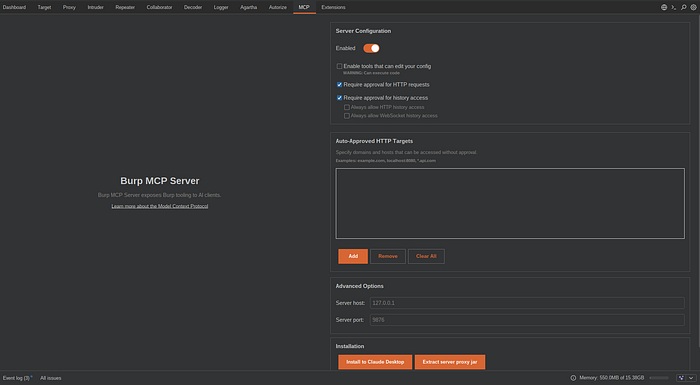
- Go to the MCP tab inside Burp
- Enable the server by turning on the toggle
You'll see some configuration values like:
- Server Host → usually
127.0.0.1 - Server Port → usually
9876
👉 Keep these values in mind — we'll use them in OpenCode.
4. Configure OpenCode
Now we need to tell OpenCode how to communicate with Burp.
On Linux, navigate to ~/.opencode/. If an opencode.json file already exists, edit it as shown below. If not, create a new file named opencode.json and add the following configuration.
opencode.json:
{
  "$schema": "https://opencode.ai/config.json",
  "mcp": {
    "burp": {
      "type": "remote",
      "url": "http://127.0.0.1:9876"
    }
  }
}
5. Verify the Connection
Once everything is set up:
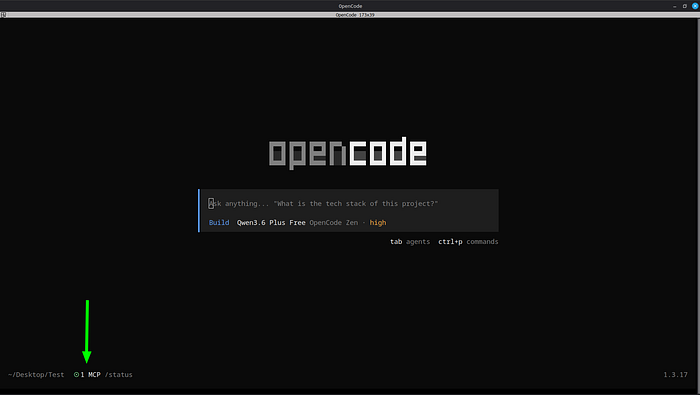
- Restart OpenCode (if needed)
- Make sure Burp MCP Server is still enabled
If everything is configured correctly, OpenCode should now be able to communicate with Burp Suite.
Conclusion
That's it — you've successfully connected OpenCode with Burp Suite using MCP.
This setup allows you to combine Burp's powerful testing capabilities with OpenCode's automation and AI workflows, which can seriously level up your bug bounty or application security process.