June 2, 2026
Understanding the Burp Suite Proxy: The Feature That Changes How You See Websites(#3)
Most people think using a website is simple.

Disaster
4 min read
You open a browser.
Visit a website.
Click a button.
Get a response.
End of story.
Or is it?
What if I told you that every click, login, search, and purchase creates a conversation between your browser and a server?
And what if you could pause that conversation, inspect it, modify it, and then decide whether to let it continue?
That's exactly what the Burp Suite Proxy does.
And once you understand it, you'll never look at websites the same way again.
The Internet Is One Giant Conversation
Imagine you're sending a letter.
Normally the process looks like this:
You
 ↓
Post Office
 ↓
Recipient
You
↓
Post Office
↓
RecipientThe letter goes directly to its destination.
You don't stop it.
You don't inspect it.
You don't modify it midway.
Web browsers work similarly.
When you visit a website:
Browser
 ↓
Website
Browser
↓
WebsiteYour browser sends requests.
The website sends responses.
Everything happens automatically.
Most users never see any of it.
What Happens When You Click Login?
Suppose you visit:
https://example.com/loginhttps://example.com/loginYou enter:
Username: john
Password: mypasswordUsername: john
Password: mypasswordAnd click:
LoginLoginBehind the scenes your browser might send something like:
POST /login HTTP/1.1
Host: example.com
username=john
password=mypasswordPOST /login HTTP/1.1
Host: example.com
username=john
password=mypasswordThe server processes it and replies:
HTTP/1.1 200 OK
Welcome JohnHTTP/1.1 200 OK
Welcome JohnThis entire exchange happens in milliseconds.
You only see:
Login SuccessfulLogin SuccessfulYou never see the actual conversation.
Why Is This a Problem for Security Researchers?
Imagine trying to inspect a package after it has already been delivered.
Impossible.
The same issue exists with web traffic.
Security researchers need to know:
- What data is being sent?
- What headers exist?
- What cookies are being used?
- What APIs are being called?
- What parameters can be modified?
Without visibility, testing becomes guesswork.
Enter Burp Suite Proxy
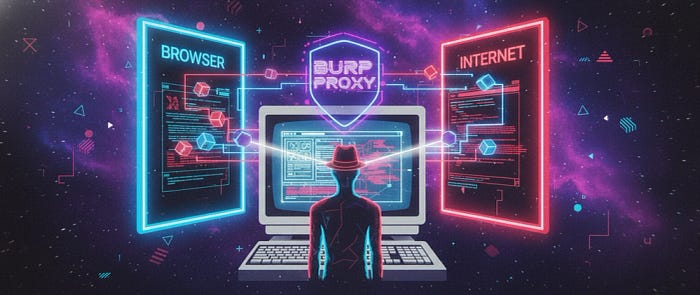
Burp places itself between your browser and the website.
Instead of:
Browser
 ↓
WebsiteBrowser
↓
WebsiteYou now have:
Browser
↓
Burp Suite
↓
WebsiteBrowser
↓
Burp Suite
↓
WebsiteEvery request passes through Burp first.
Every response comes back through Burp.
Now you can see everything.
Think of Burp as a Security Checkpoint
Imagine a highway.
Normally:
Car ─────────► DestinationCar ─────────► DestinationNobody stops the vehicle.
Nobody checks what's inside.
Now imagine a checkpoint.
Car
↓
Checkpoint
↓
DestinationCar
↓
Checkpoint
↓
DestinationThe checkpoint can:
✓ Inspect
✓ Record
✓ Modify
✓ Block
✓ Allow
That's exactly what Burp does for web traffic.
A Real Example
Let's visit:
https://example.com/searchhttps://example.com/searchSearch for:
laptoplaptopWithout Burp:
Browser
 ↓
Website
Browser
↓
WebsiteEverything happens invisibly.
With Burp:
Browser
 ↓
Burp
 ↓
Website
Browser
↓
Burp
↓
WebsiteBurp captures:
GET /search?q=laptop HTTP/1.1
Host: example.com
GET /search?q=laptop HTTP/1.1
Host: example.comNow you can see the request.
But here's where things get interesting.
What If We Change the Request?
Instead of:
q=laptopq=laptopChange it to:
q=mobileq=mobileOr:
q=adminq=adminOr:
q=testq=testThen send it.
You're now actively testing how the application behaves.
This is the foundation of web application security testing.
How Burp Captures Traffic
Burp works as a Proxy Server.
By default it listens on:
127.0.0.1:8080127.0.0.1:8080Meaning:
IP Address : 127.0.0.1
Port       : 8080
IP Address : 127.0.0.1
Port : 8080127.0.0.1 means:
"This computer."
So your browser sends traffic to Burp running on your machine.
Burp then forwards the traffic to the website.
Configuring Burp with Chrome
Now let's connect Burp to a browser.
Step 1: Open Burp Suite
Launch Burp Suite.
Create:
Temporary ProjectTemporary ProjectChoose:
Use Burp DefaultsUse Burp DefaultsStart Burp.
Step 2: Verify Proxy Listener
Navigate to:
Proxy → OptionsProxy → OptionsYou should see:
127.0.0.1:8080127.0.0.1:8080If present, Burp is ready.
Step 3: Configure Browser Proxy
In Chrome:
Settings
↓
System
↓
Open Your Computer's Proxy Settings
Configure:
Proxy Address:
127.0.0.1
Port:
8080
Proxy Address:
127.0.0.1
Port:
8080Save.
Now Chrome sends traffic through Burp.
Why Websites Suddenly Stop Loading
Most beginners panic here.
They configure the proxy.
Open Google.
Nothing loads.
Why?
Because Burp is intercepting traffic.
Go to:
Proxy
 ↓
Intercept
Proxy
↓
InterceptYou'll see:
Intercept is ONIntercept is ONEvery request is waiting for your approval.
Click:
ForwardForwardTraffic continues.
Mystery solved.
HTTPS Will Break Initially
Modern websites use HTTPS.
The browser expects trusted certificates.
Burp generates its own certificate to inspect encrypted traffic.
Without installing Burp's certificate you'll often see:
Your connection is not privateYour connection is not privateor
Certificate ErrorCertificate ErrorThis is normal.
We'll cover certificate installation in detail in the next chapter.
For now just understand:
HTTPS
+
Proxy
=
Certificate RequiredHTTPS
+
Proxy
=
Certificate RequiredThe Easier Method: Burp's Built-In Browser
Recent versions of Burp include their own browser.
This is the easiest option for beginners.
No manual proxy configuration.
No browser settings.
No confusion.
Launching Burp Browser
Inside Burp:
Proxy
 ↓
Intercept
↓
Open BrowserProxy
↓
Intercept
↓
Open BrowserOr:
Proxy
 ↓
Open Browser
Proxy
↓
Open Browser(depending on Burp version)
A Chromium-based browser opens automatically.
Everything is already configured.
Burp and the browser work together immediately.
Opening Websites in Burp Browser
Simply enter a URL:
https://google.comhttps://google.comor
https://portswigger.nethttps://portswigger.netJust like a normal browser.
Except now every request is visible inside Burp.
This is why many professionals use Burp Browser during assessments.
Less setup.
Fewer issues.
Faster testing.
Which Method Should Beginners Use?
Option 1:
Chrome + Manual ProxyChrome + Manual ProxyAdvantages:
✓ Learn how proxies actually work
✓ Understand browser configuration
✓ Better networking knowledge
Option 2:
Burp BrowserBurp BrowserAdvantages:
✓ Faster setup
✓ Fewer certificate issues
✓ Beginner-friendly
Recommendation:
Start with Burp Browser.
Then later learn manual proxy configuration.
Understanding both approaches is valuable.
What the Proxy Tab Actually Does
The Proxy tab is responsible for:
✓ Capturing requests
✓ Capturing responses
✓ Viewing traffic
✓ Intercepting traffic
✓ Modifying traffic
✓ Forwarding traffic
Every other Burp tool depends on traffic first passing through the Proxy.
Which is why many professionals call it:
The heart of Burp Suite.
Common Beginner Mistakes
Forgetting Intercept Is On
Most common issue.
Traffic appears broken.
In reality Burp is waiting for you to click:
ForwardForwardWrong Port Number
Burp default:
80808080Using the wrong port prevents communication.
Ignoring HTTPS Certificates
Without Burp's certificate:
HTTPS traffic may fail.
This is expected.
Thinking Burp Is Broken
In most cases:
Burp isn't broken.
The browser simply isn't configured correctly.
Always verify:
127.0.0.1
8080
127.0.0.1
8080first.
Key Takeaways
✓ Browsers normally communicate directly with websites
✓ Burp inserts itself between the browser and the server
✓ This allows visibility into requests and responses
✓ Burp acts as a proxy server
✓ Default listener is 127.0.0.1:8080
✓ You can configure Chrome manually
✓ You can use Burp Browser for easier setup
✓ Every major Burp feature depends on the Proxy
✓ Understanding the Proxy is understanding Burp itself