
Okay so if you've been following along, I've already written about timestomping and time manipulation from a forensics angle — both for Linux and Windows.
Links below if you missed those:
Linux:
Windows:
But today I want to talk about something a little different.
- What if you didn't have to go full forensics mode to catch this?
- What if Windows logs already told you everything you needed?
Spoiler: they do. If they're still there
— — — — — — — — — — — — — — — — — — — — — — — — — — — — — — — — — — — — — —
First — Why Does System Time Even Matter?
Let me set the scene.
Timestomping and clock manipulation are some of the oldest anti-forensic tricks in the book. The idea is simple — if you can control what time the system thinks it is, you can control what timestamps get written to files, logs, and artifacts.
Need a document to look like it was created last week? Roll the clock back, create the file, roll it forward. Done.
Now here's something interesting that doesn't get talked about enough — this technique isn't just about covering tracks after the fact. There's actually a documented attack where pushing the system clock forward can be used to evade certain EDR alerts. Let that sink in. Time manipulation as an active evasion technique, not just a cleanup step.
This is why, starting with Windows 10, Microsoft restricted system time changes to administrators only. Regular users can be granted the right explicitly, but by default — they can't touch the clock. That was a genuinely good security win.
— — — — — — — — — — — — — — — — — — — — — — — — — — — — — — — — — — — — — —
Windows Time Service — The Baseline You Need to Know
Before you go hunting for suspicious time changes, you need to understand what normal looks like. Windows runs the Windows Time Service by default. It connects to external NTP servers at regular intervals and makes small automatic adjustments to keep things accurate. These normal adjustments get logged too — so not every time-related event you see is an attacker.
Here's how you tell the difference:
- NTP automatic adjustments → logged under the SYSTEM or LOCAL SERVICE account, small time deltas, svchost.exe process
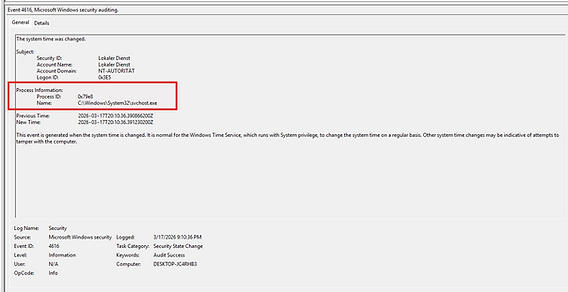
- User-initiated changes → logged under an actual user account, usually much larger time jumps, and on Windows 10+ you'll see SystemSettingsAdminFlows.exe as the process — because admin rights are required and that's the process that handles it
That process name is actually a really clean indicator. If you see a time change event and the process is SystemSettingsAdminFlows.exe tied to a user account? That's a human doing it, not the system.
— — — — — — — — — — — — — — — — — — — — — — — — — — — — — — — — — — — — — — — — — — — — — — — — — -
The Event IDs You Actually Need
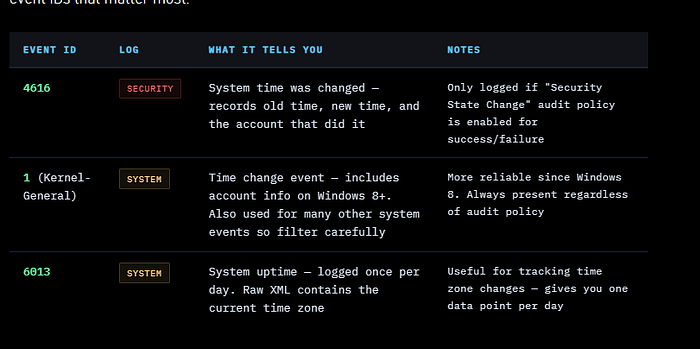
Let's get to the practical part. There are two main places Windows records time changes and two event IDs that matter most.
— — — — — — — — — — — — — — — — — — — — — — — — — — — — — — — — — — — — — —
The Audit Policy Catch — Read This Carefully
Here's something that catches a lot of people out.
Event ID 4616 in the Security log is genuinely the most readable and informative event for time changes — but it only gets written if the Security State Change audit policy is enabled. If it's not turned on, you won't see it. Period.
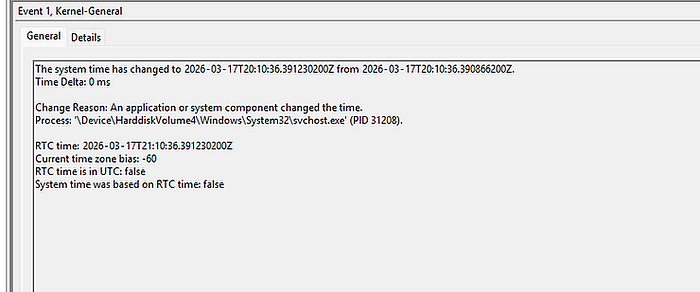
This is why Event ID 1 in the System log matters so much. It doesn't depend on your audit policy. Since Windows 8, it reliably records time changes including the responsible account. It's noisier — Event ID 1 is used for a lot of things — but it's always there.
Lesson: check your audit policy. If Security State Change isn't enabled for success events, fix that now, before you need it.
— — — — — — — — — — — — — — — — — — — — — — — — — — — — — — — — — — — — — —
The Time Zone Problem — And a Clever Trick
Here's something that gets almost no attention — detecting time zone changes is actually harder than detecting clock changes.
Some Windows versions will log a time zone change in the System log with Event ID 1, but here's the bizarre part — they won't tell you what time zone was selected. Just that something changed. Not great.
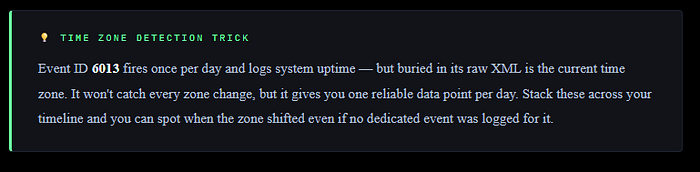
Remember Event ID 6013 — the daily system uptime event? If you look at the raw XML of that event, it contains the current system time zone. So while you won't catch every time zone change in real time, you get one snapshot per day embedded in an event that fires automatically. Stack those up over time and you can track zone drift across a timeline.

— — — — — — — — — — — — — — — — — — — — — — — — — — — — — — — — — — — — — —
Putting It Together — What to Look For
When you're investigating a potential time manipulation incident, here's the mental checklist:
Start with Event ID 4616 in the Security log if your audit policy is enabled. It's clean, readable, and tells you exactly what changed.
Look at the account name — if it's a user account and not SYSTEM, that's your first flag. Then check the process — if you see SystemSettingsAdminFlows.exe, a human touched the clock.
Cross-reference with Event ID 1 in the System log. You should see matching entries.
If you see an Event ID 1 time change but no corresponding 4616, that tells you the audit policy wasn't enabled — important context for your investigation.
Then go pull the Event ID 6013 entries across the relevant time window and check the raw XML for time zone values.
If the zone is shifting around, that's another red flag.
The size of the time change matters too. A few seconds or minutes? Probably NTP drift correction. Ten days backwards? Someone did that on purpose.
— — — — — — — — — — — — — — — — — — — — — — — — — — — — — — — — — — — — — —
The Hard Truth — Logs Have Limits
I want to be straight with you here. All of this only works if the logs are still there.
A smart attacker who knows what they're doing will clear the event logs. If that happens, Windows log analysis won't save you — you need to fall back on the traditional digital forensics approach I covered in the previous articles. Filesystem metadata, $MFT analysis, prefetch, shellbags — the full toolkit.
Logs are fast and accessible. Forensics is thorough.
Use both. And if you find cleared logs, that itself is a significant indicator — Event ID 1102 (Security log cleared) or Event ID 104 (System log cleared) will tell you someone tried to clean up.
— — — — — — — — — — — — — — — — — — — — — -Dean — — — — — — — — — — — — — — — — — — — — — — — — — — — -