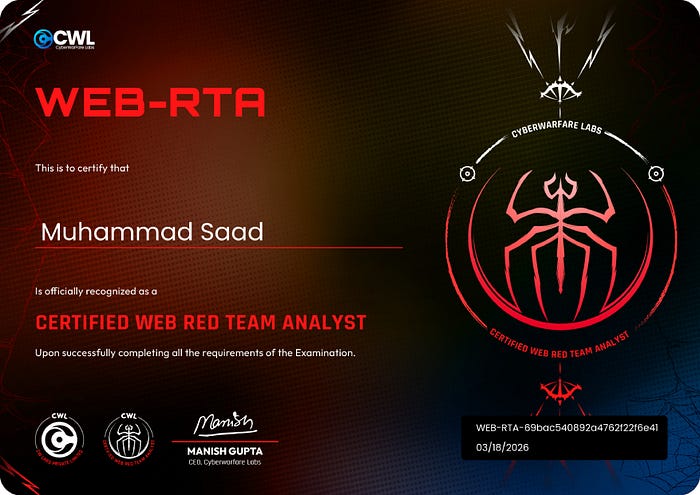

Assalāmu Alaikum. In this article, I will share how I passed the WEB-RTA exam by CWL. Instead of a detailed step-by-step walkthrough, I will guide you through each question and provide helpful tips to increase your chances of passing the exam.
Check my acheivement: https://labs.cyberwarfare.live/credential/achievement/69bac540892a4762f22f6e41
Certified Web Red Team Analyst (Web-RTA) Certificate:
Web Red Team Analyst (Web-RTA) course delivers a comprehensive, hands-on education in modern web application security, blending core theory with practical attack and defense techniques. Learners will study common vulnerabilities drawn from the OWASP Top 10 and the WSTG, gain practical experience with industry-standard tooling and practice safe exploitation in controlled lab environments. Emphasis is placed on diagnosing authentication and authorization weaknesses, input‑validation and injection flaws, server‑side risks (SSRF, deserialization, file inclusion), and on chaining multiple issues to simulate real-world penetration tests. By the end of the course participants will be able to assess web apps and demonstrate proof‑of‑concept exploit paths in a safe manner.
Overveiw
I purchased the Web-RTA certification during a Happy New Year sale for $9 (the regular price is $49). It took me about one month to complete the course content.
After finishing the course, I began the 30-day practical lab, which consists of 16 questions that must be solved to earn the certificate.
Note: If you're unable to solve all 16 questions within the 30 days, you can restart the lab. There are no exam attempts required for this certification — it's entirely practical-based.
Exam Writeup
The starting 4 Questions are reserch base you can do them yourself
Q5) What is the role allocated to the unauthenticated users in WebApp 01?
After spending quite some time enumerating the web application, I eventually discovered the /dashboard directory through fuzzing. When I accessed it, I noticed that unauthenticated users were assigned the username "anonymous." This indicates that the role allocated to unauthenticated users is anonymous.
Q6) What is the endpoint where the events are available in WebApp 01? E.g: /abc?
The endpoint is the same directory discovered in the first question. This directory is where all events are displayed on the screen. However, since the anonymous user does not have any associated events, none are shown when accessing it without authentication.
Q7) What is the name of the event visible to authenticated users in WebApp 01?
A JWT token is assigned to the unauthenticated user anonymous. This token can be viewed in the Storage section of the browser's DevTools or intercepted using Burp Suite. After decoding the token, the payload contained the values sub=anonymous and role=anonymous. By modifying both values to represent an authenticated user and sending the modified token back with the request, I was able to access the authenticated user dashboard. From there, the event visible to authenticated users could be identified.
Q8) What is the username of the admin user in WebApp 01?
The admin username can be identified on the same page where the "anonymous" username was previously displayed. By accessing the authenticated user dashboard, the admin username becomes visible on the screen in that section.
Q9) What is the absolute path of the file which contains the string flag (present in the local filesystem) in WebApp 01?
This part is particularly interesting because the goal is to retrieve the flag. First, navigate to login.php and perform a classic SQL injection (Boolean-Based Blind) using the username obtained from Q8 (e.g., admin' OR 1=1--). This allows you to authenticate as the admin user.
Once authenticated, go to the events section and attempt to update an event. Here, you can perform a basic XXE (XML External Entity) injection to read files from the local filesystem. By injecting a malicious XML payload, you can reveal the contents of /etc/passwd, which contains the flag.
Q10) Which is the value of the flag in WebApp 01?
The flag is the complete value starting from the keyword flag until the end. Be careful not to include any extra characters like a dot (.) at the end.
Q11) What is the internal URl for fetching secrets in WebApp 01?
From the dashboard, navigate to the Check Outage section where two options are available: "Check Our Status" and "Fetch Status." When clicking "Check Status," the application returns status information that appears to be generated from an internal service running on http://127.0.0.1:8000/health.
This indicates that the application is retrieving data from an internal network endpoint. By supplying the internal address http://127.0.0.1:8000/ to the fetch functionality, it is possible to trigger a Server-Side Request Forgery (SSRF).
However, the request may initially be blocked due to WAF filtering. To bypass this restriction, the URL needs to be URL-encoded, including encoding the dots (.) in the address. Once properly encoded, the server can successfully fetch the internal status information.
Q12) What is the encoded data (with the label "hidden in layers") returned by the successful exploitation of a vulnerability which allows attackers to reach internal URLs in WebApp 01?
After successfully exploiting the SSRF vulnerability and fetching the internal status, a response is returned from the internal service. In this response, you will notice hex‑encoded data labeled "hidden in layers." This encoded value appears on the screen after the internal request is successfully processed and is the data required to answer the question.
Q13) What is plaintext version of hidden in layers in WebApp 01?
The value labeled "hidden in layers" is encoded and must be decoded to reveal the plaintext. First, take the hex‑encoded data obtained from the previous step and decode it using CyberChef.
The decoding recipe used was: From Hex → From Base64
After applying these two decoding steps, the plaintext value will be revealed, which is the answer to this question.
Q14) What is the endpoint where WebApp 02 has login page configured? E.g: /abc/def
This task was quite interesting and required some logical thinking. It actually took me about two days to figure it out. The clue to this question can be found in the flag obtained from Q10.
By analyzing the flag, you can identify the relevant path components. Following that hint, first navigate to /client, and then proceed to the login page. Combining these results in the endpoint, which is where the login page for WebApp 02 is configured.
Q15) What is the Client ID allocated to the exfiltrated credentials (obtained from hidden in layers) in WebApp 02?
Now that you have identified the endpoint where the login page of WebApp 02 is configured (from Q14).
Next, use the credentials obtained after decoding the "hidden in layers" data from Q13 to log in. Once authenticated, the application reveals the Client ID associated with those credentials.
Q16) What is Bob's Credit Card number?
After successfully logging in as a client, examine the URL parameters. You will notice a parameter such as scope=read, which indicates that your current permissions only allow read access.
By modifying this parameter from read to admin and then clicking the Allow button, the application proceeds to the next step where it asks for a 3‑digit OTP (One-Time Pin) associated with the Client ID.
Capture this request using Burp Suite and send it to Intruder. Then perform a simple numeric brute-force attack using a number list ranging from 000 to 999. Monitor the responses carefully and look for a successful response (HTTP 200) or a different response size/content compared to the others. This will help identify the correct OTP, allowing you to proceed and reveal the Bob's credit card number.
Thank you for reading. I hope you enjoyed this story and found it helpful.😊