

Hi, I'm Mauricio, and this time we'll be looking at a very interesting tool that allows us to run a personal AI assistant directly in our terminal. We're going to install it on Kali Linux, and give it some simple pentesting and bug hunting tasks to test its capabilities, and also see which tools we can use with it. Quick reminder that everything we see here is for educational purposes only, and you should only conduct tests on targets you have permission to. So if this is something you're interested in, come with me.
What is an MCP?
First let's understand how these tools work, and what an MCP is, because that's a term you might have seen before, or might see a lot in the future.
MCP stands for Model Context Protocol, it's a protocol used to extend the AI capabilities beyond text generation, it allows the AI to call tools, run code, access files and even execute shell commands on a machine.
In order for this to work, you'll have one side being the MCP Server, which in this case will be our machine, exposing tools and files which the model can call.
And on the other end you have the AI model as the MCP Client, it can connect to one or more MCP servers, and again access to the available tools.
When the AI model needs to execute a certain action, the client will generate the request, the server will execute and return a structured output, which the client will feed back to the AI model. In a way we can compare it to web APIs, because we have clients and servers communicating through structured data (JSON).
Gemini-cli
Now let's learn about the tools we're going to use. Gemini-cli is a tool that allows you to run an AI agent directly in your terminal. The model is capable of running shell commands, executing code, editing files, and even browsing the internet.
The installation process on Kali Linux is very simple, we just need to run the following command:
sudo apt install gemini-cli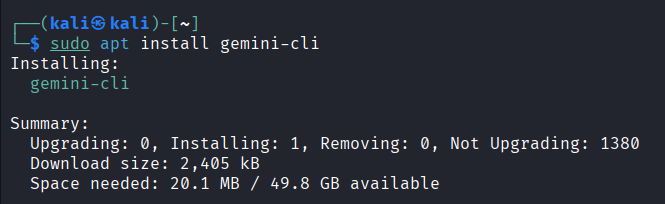
After installing we run it for the first time, and it'll prompt us to authenticate, we can do this by setting up an API key, or by logging in with a Google Account.
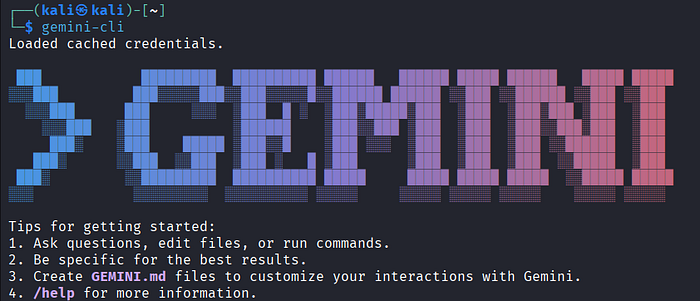
Gemini-cli by itself is already an amazing tool, because of all the functionalities it comes with, but we can expand its tool set even further by using it as an MCP client together with our next tool.
MCP-Kali-Server
The MCP-Kali Server is exactly what its name says, it allows you to run an API server on your Kali Linux, which will listen to HTTP requests from your AI agents, execute the commands, capture the outputs, and return them in a structured format to the requester.
Basically what this means is that your AI assistant will have access to tools such as nmap, sqlmap, gobuster, metasploit, etc.
To install MCP-Kali Server we run the following command:
sudo apt install mcp-kali-server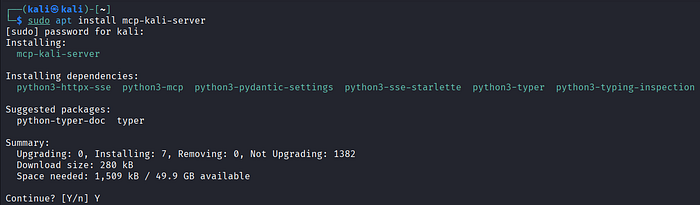
Configuring our MCP server
After the installation, we have two executables, the first one is called kali-server-mcp, and it runs the Kali Linux API Server, we have to run this before running the MCP server. To do this we use the following command:
kali-server-mcp --port 9999It runs on localhost by default, and we can choose any port we want to run it on.

The other executable is called mcp-server, and this one runs the MCP Server, which will make requests to our API. To start it we run the following command:
mcp-server --server http://127.0.0.1:9999In our example we're running on localhost but you can change it accordingly.

We can't see any errors so this confirms that everything is working correctly.
Connecting gemini-cli to the MCP Server
To connect gemini-cli to our MCP Server we just need to run the following command:
gemini mcp add <name> <commandOrUrl> [args...]We're going to name our MCP Server as kali-mcp and we just have to provide our API server IP in the args like this:
gemini-cli mcp add kali-mcp mcp-server --server http://127.0.0.1:9999/We can check if the connection was successful with this command:
gemini-cli mcp list
In case of errors
If you see an error like:
MCP ERROR : SyntaxError: Unexpected non-whitespace character after JSON at position 4It's happening because the way the MCP server handles the logging is breaking JSON, but it's easy to fix.
The MCP Kali Server binaries are located in /usr/share/mcp-kali-server/. In the directory you'll find mcp_server.py , this is the one we want to modify.
To do that you simple edit the file using your preferred editor and look for the # Configure logging section at the top.
This is the line we want to change:
logging.StreamHandler(sys.stdout)Simply change to logging.StreamHandler(sys.stderr), and it should fix the error.
# Configure logging
logging.basicConfig(
    level=logging.INFO,
    format="%(asctime)s [%(levelname)s] %(message)s",
    handlers=[
        logging.StreamHandler(sys.stderr)
    ]
)
Checking the available tools
First, make sure you're running the Kali API server in another terminal.
Now we should be able to run gemini-cli with the Kali Linux tools provided by our API server. To test this we're going to start gemini-cli and check with the /mcp list command.
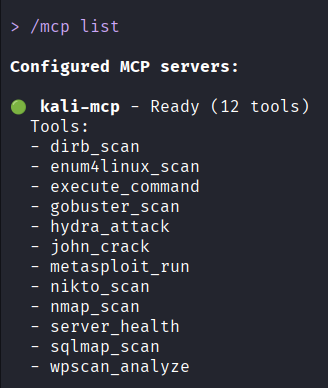
And success! We're able to see which Kali tools we have available now. We have a total of 12 tools. Additionally you can use the /mcp desc command to have a brief description of what each tool does.
Now let's get to the fun part.
SQLmap
Let's start with a well known vulnerable webpage, this page contains a good number of vulnerabilities and was created by Acunetix to be freely tested manually or with automated tools.
In our example we want to use a Kali tool and see if our MCP implementation works correctly, so we're going to run a sqlmap scan against this possibly vulnerable endpoint, and see what our AI agent finds.
http://testphp.vulnweb.com/listproducts.php?cat=1To do this we're going to use the following prompt:
I want you to use sqlmap and test against this endpoint for SQL injection
http://testphp.vulnweb.com/listproducts.php?cat=1 and give me a URL with the payload that confirms it's vulnerable to injection.
As we can see, the AI agent immediately identifies the need to use one of the MCP tools to execute this prompt, and asks us for permission to do so.
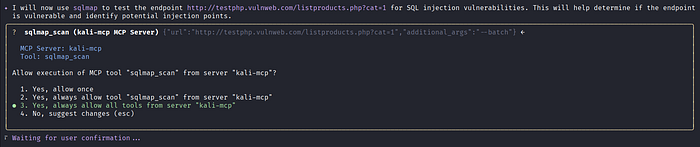
And here is the answer.

The resulting URL indeed proves the SQL Injection vulnerability, upon clicking the URL you'll notice that the page takes 5 seconds to load.
http://testphp.vulnweb.com/listproducts.php?cat=1%20AND%20(SELECT%207014%20FROM%20(SELECT(SLEEP(5)))SVFt)Enumeration with nmap and gobuster
Nmap scanning is usually the first step we take when it comes to solving Hack The Box machines. It gives us valuable context and attack surface information, such as, which ports are open, and what services and versions are running.
To do this test we're going to use the Three machine on Hack The Box. First we'll ask our assistant to use nmap, and then use gobuster to enumerate directories and files if it finds a web application. This is the prompt we'll use:
I want you to use nmap to scan this IP address 10.129.116.169, scan only the 1000 most common ports.
This IP address belongs to a Hack the Box machine, I want you to tell me which services are running and which ports are open.
If you find a web application I want you to use gobuster to enumerate the directories and files.
And this is the result:
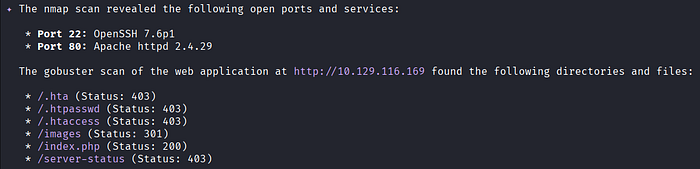
And if you are curious about which commands our AI agent is executing, we can check them in the API server terminal:

Hack The Box — Spookifier
This time we're going to try a Hack The Box challenge called Spookifier. This challenge consists of a web page developed using the Mako template engine, and contains an SSTI (Server Side Template Injection) vulnerability.
For this one we won't be using any MCP tools, just curl, but it's a good way of testing our AI assistant's capabilities of finding bugs.
Prompt:
This is the page to a Hack the Box challenge http://94.237.50.128:48738/
It consists of a web application developed with the Mako template engine, and contains an SSTI vulnerability.
I want you to:
1. Find the payload that allows you to read the flag.txt file
2. Provide the content of the flag.txt file
3. Explain why the payload works
And after a lot of trial and error (and consuming all my tokens) our AI friend finally found the answer:
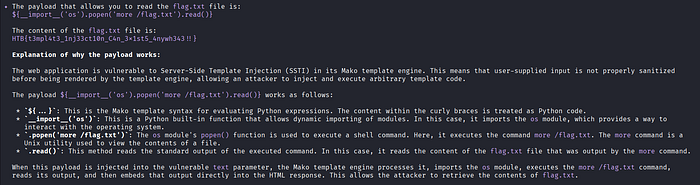
After doing these tests, what I can conclude is, having the option of running an AI assistant directly in your terminal is amazingly convenient, it'll definitely help you running commands and speed up a lot of tasks. But that being said, you can't expect your assistant to do everything on its own, like finding vulnerabilities, or attack vectors. This is a team game and you still need to do a lot of thinking.
This is only a small demonstration, there are many more tools and MCP integrations out there to try out, but I hope this was helpful to you and that it inspired you to keep learning.
Now to wrap up this article here's a message from our assistant:
