
📱 What is XAMARIN?
Xamarin was an open-source framework from Microsoft that allowed developers to build native iOS, Android, and Windows applications using a single C# and .NET codebase. It provided tools and libraries to extend the .NET platform for cross-platform mobile development, enabling significant code sharing (up to 90%) across different operating systems.
✨ Key Features
- Single Technology Stack Developers could use a single language, C#, and the .NET framework, eliminating the need to learn platform-specific languages like Java/Kotlin (Android) or Objective-C/Swift (iOS).
- Native Performance and UI Xamarin apps compiled to native code, delivering performance and a user experience (UX) that was nearly indistinguishable from apps built with native tools.
- Code Sharing It enabled developers to write business logic, database access, and network communication code once and share it across all platforms, which accelerated the development process and simplified maintenance.
- Integration with Visual Studio Acquired by Microsoft in 2016, Xamarin was integrated into Visual Studio IDE, providing a comprehensive toolset for building, testing, debugging, and deploying apps.
- Access to Native APIs Xamarin provided C# bindings to native Android and iOS APIs, allowing access to hardware features like camera or GPS.
🏗️ Xamarin's Architecture
- Android Xamarin integrates with Android and Java namespaces through .NET bindings, operating within the Mono execution environment alongside Android Runtime (ART). Managed Callable Wrappers (MCW) and Android Callable Wrappers (ACW) enable communication.
- iOS Applications run under the Mono runtime, utilizing full Ahead-of-Time (AOT) compilation to convert C# into ARM assembly, running alongside the Objective-C Runtime.
⚙️ .NET Runtime and Mono Framework
The .NET framework includes assemblies, classes, and namespaces for application development, with the .NET Runtime managing code execution. It offers platform independence and backward compatibility. The Mono Framework is an open-source version of the .NET framework, initiated in 2005 to extend .NET to Linux, now supported by Microsoft and led by Xamarin.
🔄 Evolution to .NET MAUI
Xamarin Support officially ended on May 1, 2024. Xamarin is no longer supported or updated by Microsoft. See the Xamarin support policy (https://dotnet.microsoft.com/en-US/platform/support/policy/xamarin) for details.
.NET MAUI is the evolution of Xamarin. Forms and uses the latest technologies for building native apps on Windows, macOS, iOS, and Android, abstracting them into one common framework built on .NET, allowing developers to write one C# codebase.
📦 Xamarin / .NET MAUI Platforms
🍎 iOS with .NET MAUI
.NET developers have complete access to iOS APIs from C#. Create native user interfaces by taking advantage of .NET MAUI's cross-platform UI framework that renders native UIKit controls. Leverage APIs like Touch ID, ARKit, CoreML, and many more from C#!.
🤖 Android with .NET MAUI
- Use the full power of the Android SDK to build apps for any Android platform. With C#, developers can develop for any Android device, including phones, tablets, and more.
- Leverage any Android API directly from C#, including Android support libraries and Google Play services. Building stunning user interfaces with .NET MAUI's cross-platform framework that renders native Android controls.
⚡ JIT vs AOT Compilation
Android
Android supports Just-In-Time (JIT) and Ahead-Of-Time (AOT) compilation, with a Hybrid AOT mode for optimal execution speed. Full AOT is exclusive to Enterprise licenses (only for old Xamarin.Android). In .NET MAUI 9 / .NET Android, AOT is available to all developers — no enterprise license required.
iOS
iOS solely employs AOT compilation due to Apple's restrictions on dynamic code execution.
🔎 Decompilation of Xamarin Assemblies
Decompilation transforms compiled code back into source code. In Windows, the Modules window in Visual Studio can identify modules for decompilation, allowing for direct access to third-party code and extraction of source code for analysis.
📦 DLL Storage Evolution (IMPORTANT SECTION)
1. Old Xamarin.Android (pre .NET 6)
In old Xamarin android application's, DLLs were stored as individual loose files directly inside the APK under assets/assemblies/::
assets/assemblies/MyApp.dll
assets/assemblies/Xamarin.Forms.Core.dll
assets/assemblies/Mono.Android.dll
2. .NET MAUI 8 / .NET 7–8 era
Loose DLLs replaced with a compressed assembly blob:
assets/assemblies/assemblies.blob     <= all DLLs packed together
assets/assemblies/assemblies.manifest <= name =>offset index
3. .NET MAUI 9 (.NET 9)
In .NET MAUI 9, the blob format moved out of assets/ entirely. All DLLs are now embedded inside an ELF shared library named libassemblies.<arch>.blob.so, sitting in lib/ alongside the other native libraries:
lib/arm64-v8a/libassemblies.arm64-v8a.blob.soKey Details
Inside that .so file, there is a non-standard ELF section called payload, which holds the assembly store. The XABA magic number (0x41424158) identifies it as a .NET MAUI 9 assembly store. To get the DLLs out we now need llvm-objcopy to dump the payload section first, then parse the store format — a much higher bar than just unzipping. But thanks to "Michał Walkowski", who created a wonderful script which automates the multiple manual steps to get the .dll file for further analysis.
Refer for detailed manual steps: https://mwalkowski.com/post/decompiling-an-android-application-written-in-net-maui-9-xamarin/
Why Pentesting Xamarin Applications Matters?
Cross-platform frameworks like Xamarin simplify development, but they often introduce security blind spots, such as:
- Shared business logic reused across platforms
- Centralized authentication flows
- Common cryptography libraries
- Integrated API clients
- Reuse of insecure code patterns
⚠️One vulnerability = affects all platforms (A vulnerability in shared code may compromise both Android and iOS versions simultaneously)
🚨 Common Vulnerabilities
- Weak or no obfuscation
- Hardcoded API keys
- Backend endpoints exposed
- Unencrypted SQLite DBs
- No certificate pinning
- Code sharing misuse between platforms
- Logic leaks due to reusable services
These vulnerabilities are multiplied because they affect every platform the app supports.
🧪 Hands-on Reverse Engineering
🤖 Android Applications
Scenario 1: Identifying and reversing the classic XAMARIN (Xamarin.Android (pre .NET 6)) Application
- Navigate to the URL below, download, and set up the "apktool_x.x.x.jar" file.
https://github.com/iBotPeaches/Apktool/releases2. Use the following apktool command to decompile the application:
apktool d com.targetapp.apk3. Use the following apktool command to decompile the application:
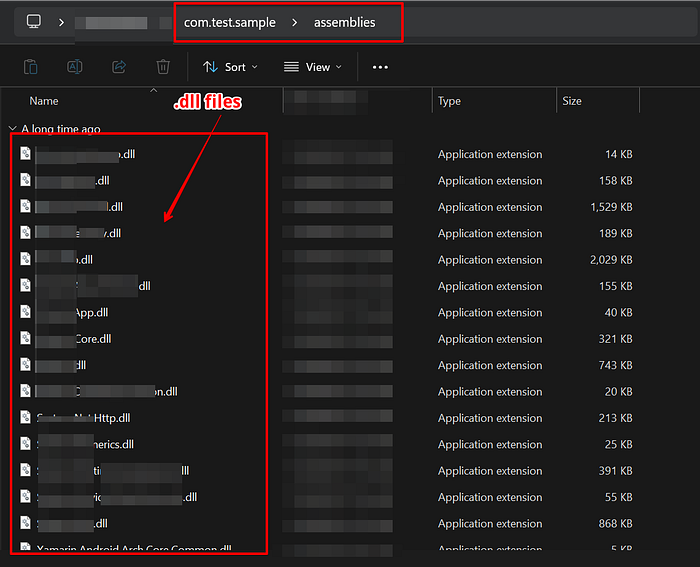
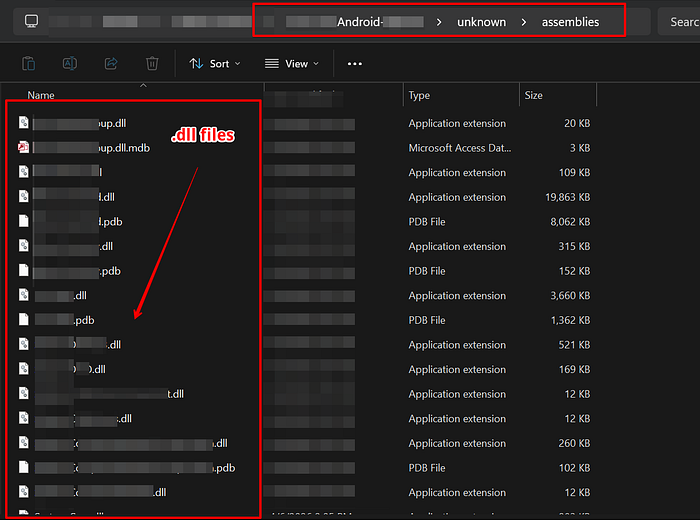
4. Navigate to the path mentioned below and observe that multiple ".dll" files are present.
{Decompiled Content of .apk file}\com.targetapp\assemblies\

                             OR

{Decompiled Content of .apk file}\com.targetapp\unknown\assemblies

                             OR

{Decompiled Content of .apk file}\com.targetapp\assets\assemblies\
Note: The unknown\assemblies path is what you'd see if apktool failed to decode the assets — it's not the standard reliable path.
5. Download the latest version of "dnSpy" from the URL below:
https://github.com/dnSpy/dnSpy/releases/6. Extract the folder and install "dnSpy" on the system.
7. Launch the "dnSpy" application on the system, click on "File -> Open" and select all the unpacked .dll files, and open them.
8. In the "dnSpy" tool, under "Assembly Explorer," navigate through all files.
9. In the "dnSpy" tool on the right-hand side section, observe that the application source code is not obfuscated and displays the entire source code in plaintext.
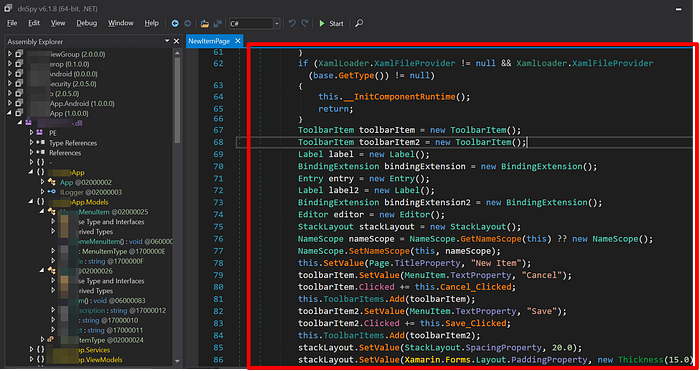
Note: Not showing any sensitive logic here, the motive is to showcase the way to reverse engineer the app.
Scenario 2: Identifying and reversing the XAMARIN (.NET 6–8 / MAUI 7–8) Application:
- Navigate to the URL below, download, and set up the "apktool_x.x.x.jar" file.
https://github.com/dnSpy/dnSpy/releases/2. Use the following apktool command to decompile the application:
apktool d com.targetapp.apk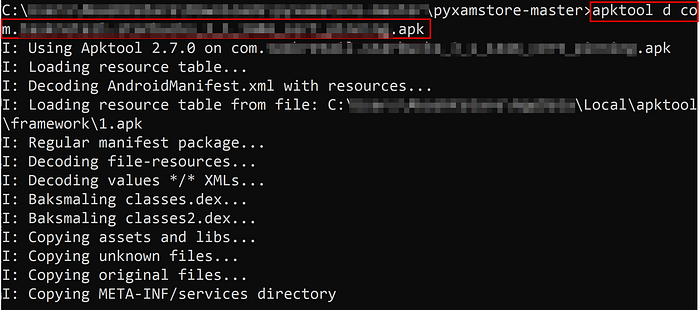
3. Navigate to the below-mentioned path and observe that "assemblies.blob" & "assemblies.manifest" files are present.
{Decompiled Content of .apk file}\com.targetapp\unknown\assemblies

                                 OR

{Decompiled Content of .apk file}\com.targetapp\assets\assemblies
Note: The unknown\assemblies path is what you'd see if apktool failed to decode the assets — it's not the standard reliable path.
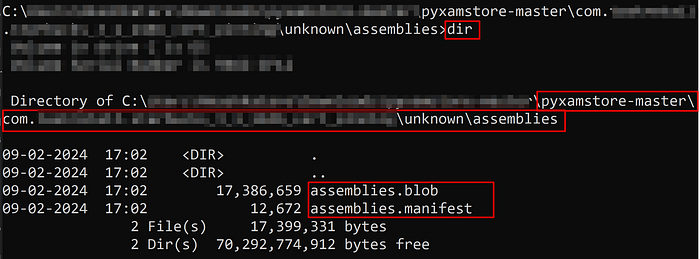
4. Download and set up "pyxamstore" from the URL below and extract the downloaded zip file:
https://github.com/dnSpy/dnSpy/releases/5. Open the Command Prompt in the same folder where you extracted the files.
6. Enter the below-mentioned command in the command prompt and observe that the "pyxamstore" will unpack the Xamarin .dll files:
pyxamstore unpack -d "yourapp\unknown\assemblies"
7. Navigate to the "out" folder created under the same "pyxamstore" folder and observe that all .dll files have been unpacked successfully.
8. Download the latest version of "dnSpy" from the URL below:
https://github.com/dnSpy/dnSpy/releases/9. Extract the folder and install "dnSpy" on the system.
10. Launch the "dnSpy" application on the system, click on "File -> Open" and select all the unpacked .dll files, and open them.
11. In the "dnSpy" tool, under "Assembly Explorer," navigate through all files.
12. Once the .dll files are loaded, you will be able to see that the application source code is not obfuscated and displays the entire source code in plaintext.
Note: You will be able to see the source code in dnSpy as shown in Scenario 1.
Scenario 3: Identifying and reversing the .NET MAUI 9 Application:
- Navigate to the URL below and download the "apktool_x.x.x.jar" file.
https://github.com/iBotPeaches/Apktool/releases/2. Use the following apktool command to decompile the application:
apktool d com.targetapp.apk3. Look for the "libassemblies.arm64-v8a.blob.so" file in the extracted application folder.
{Extracted Content of .apk file}\com.targetapp\lib\arm64-v8a\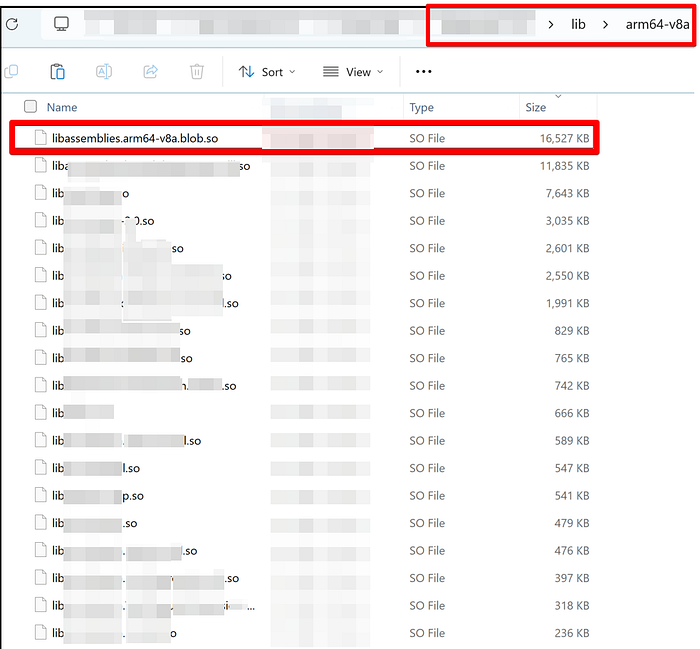
4. Open the Kali Linux Machine, open the terminal, and enter the following command:
git clone https://github.com/mwalkowski/pymauistore.git5. Navigate to the directory mentioned below in the terminal and install dependencies using pip:
cd pymauistore
pip install -r requirements.txt
6. Enter the below-mentioned command to extract the embedded DLLs from a libassemblies.arm64-v8a.blob.so file:
python pymauistore.py libassemblies.arm64-v8a.blob.so output_dir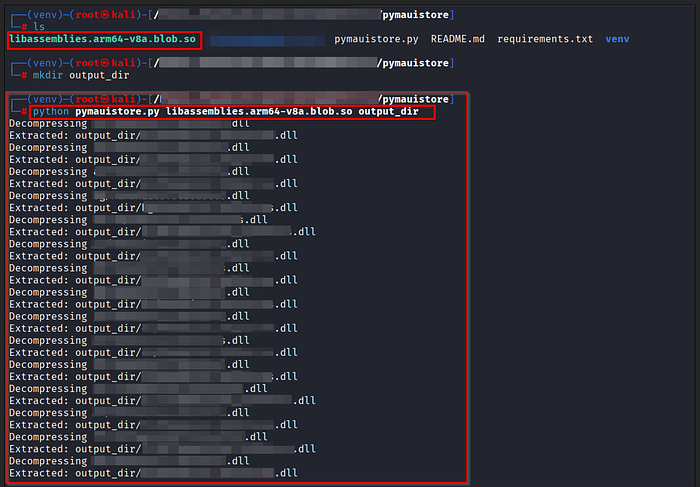
7. Navigate to the output_dir folder and observe that all the embedded DLLs are extracted successfully.
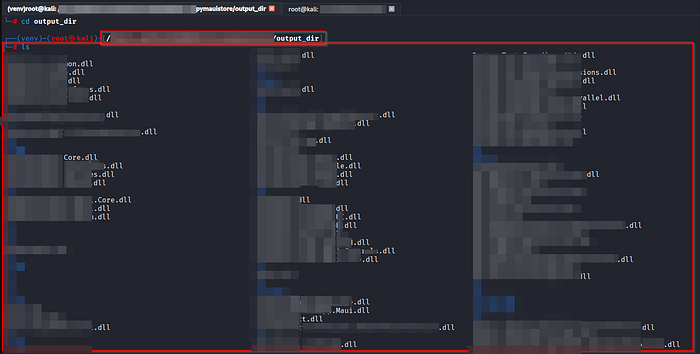
8. Navigate to the URL below and download the dnSpy tool:
https://github.com/dnSpy/dnSpy/releases/9. Extract the "dnSpy-net-win64.zip" folder and launch the "dnSpy" application.
10. Launch the "dnSpy" application on the system, click on "File -> Open" and select all the unpacked .dll files, and open them.
11. In the "dnSpy" tool, under "Assembly Explorer," navigate through all files.
12. Once the .dll files are loaded, you will be able to see that the application source code is not obfuscated and displays the entire source code in plaintext.
Note: You will be able to see the source code in dnSpy as shown in Scenario 1.
🍎 iOS Application:
Scenario 1: Identifying and reversing the XAMARIN iOS Application:
- Download the "targetapp.ipa" file on your host machine.
- Rename the ".ipa" file to ".zip" file.
- Extract the contents of the .zip file and navigate to the path mentioned below, and look for the presence of .dll files:
{Extracted Content of .ipa file}\targetapp\Payload\targetapp.app\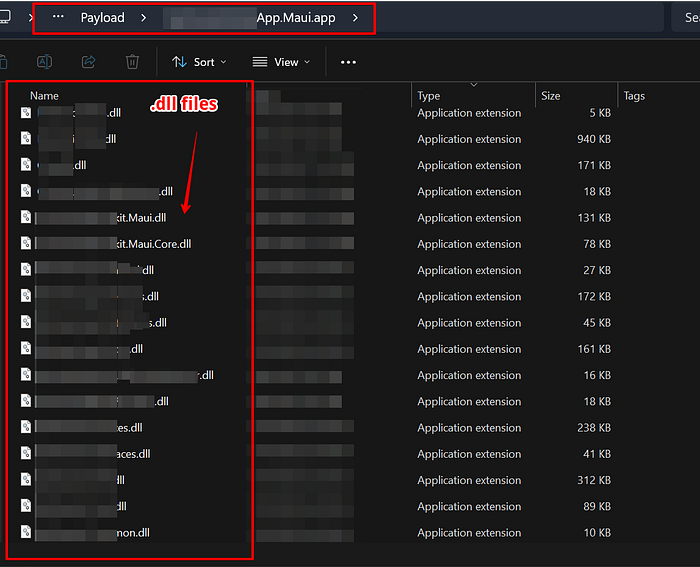
4. Navigate to the URL below and download the dnSpy tool:
https://github.com/dnSpy/dnSpy/releases/5. Extract the folder and install "dnSpy" on the system. 6. Launch the "dnSpy" application on the system, click on "File -> Open" and select all the .dll files, and open them. 7. In the "dnSpy" tool, under "Assembly Explorer," navigate through all files. 8. Once the .dll files are loaded, you will be able to see that the application source code is not obfuscated and displays the entire source code in plaintext.
Note: You will be able to see the source code in dnSpy as shown in Scenario 1.
And with that, we've reached the end of this blog. Thank you so much for taking the time to read it — your engagement truly means a lot! Your applause and support are always appreciated. If you found this article helpful or thought-provoking, I'd love to hear your thoughts in the comments below. Feel free to share it with others who might benefit, and don't forget to follow for more insights and updates!
If you enjoyed this piece, I'd be grateful for your clap! Your support helps me keep creating more content like this. Thank you again for reading — I look forward to continuing the conversation with you!!!