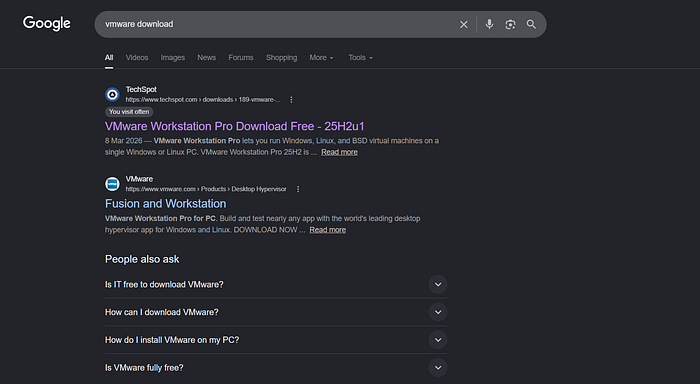
Step 1: Go to chrome and search for vmware download.
Step 2: Click on the TechSpot.
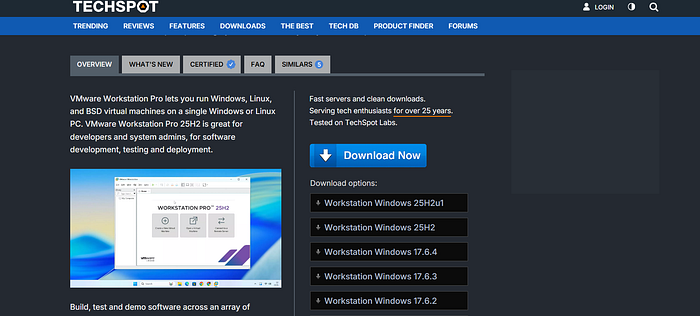
Step 3: There is download options, then click on the first option(latest version).
Step 4: Go to your pc download and install the vmware from downloads.
After the installation we have to install kali linux.
Step 5: So go to browser, then type "kali.org"
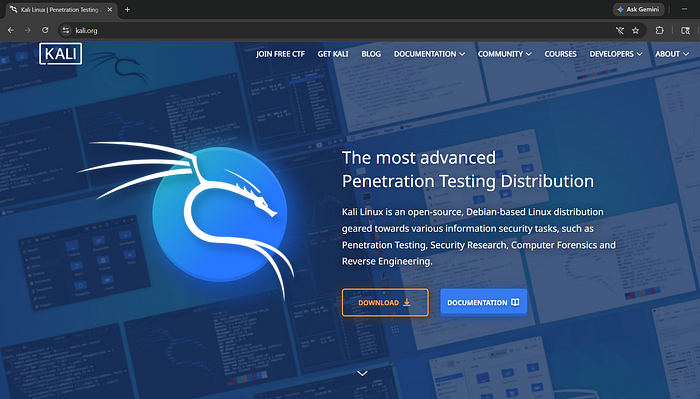
Step 6: Then choose download option.
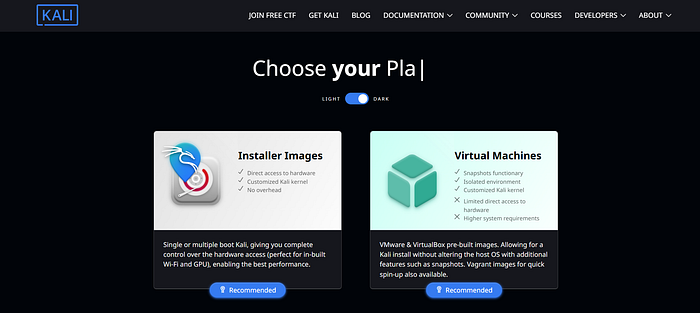
Step 7: Choose virtual machines.
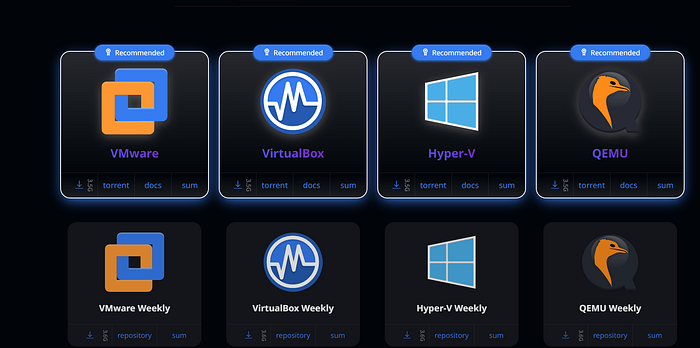
Step 8: Download the VMware.
Step 9: After the download. Go to downloads and extract the zip file that is downloaded.
Step 10: Then open VMware, select open a virtual machine.
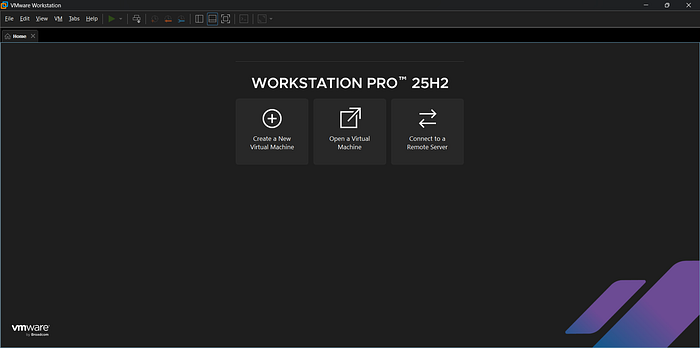
Step 11: Then select the extracted file. Power on this virtual machine
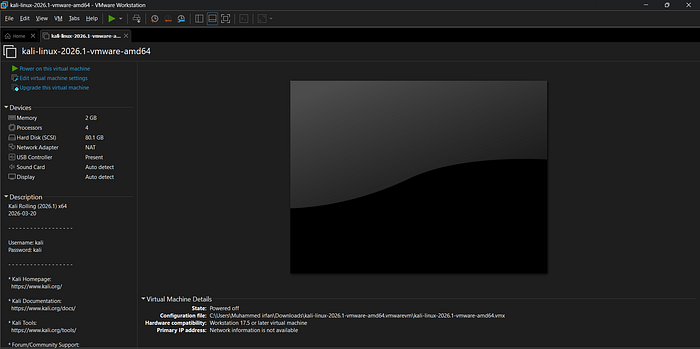
Step 12: If the mouse pointer doesn't work in kali. Do this thing in the vmware because there will be compatibility issues in the vmware. So do these steps to avoid that issue. (Optional)
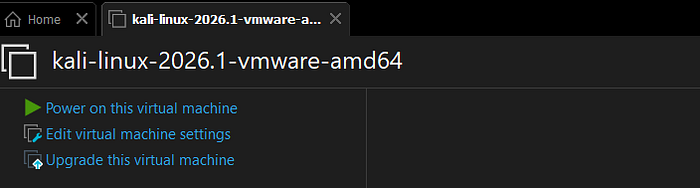
Use Upgrade this virtual machine.
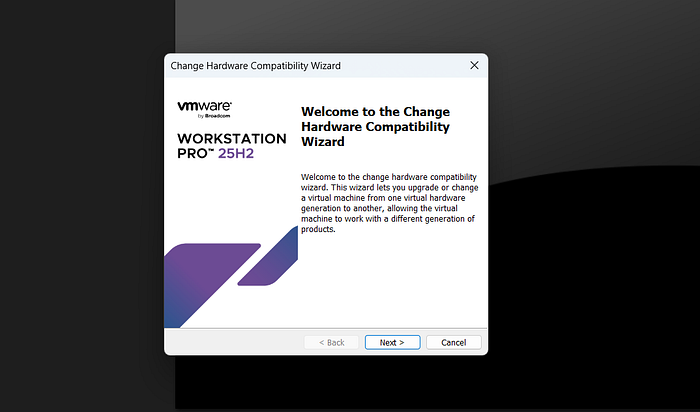
As we can see select next.
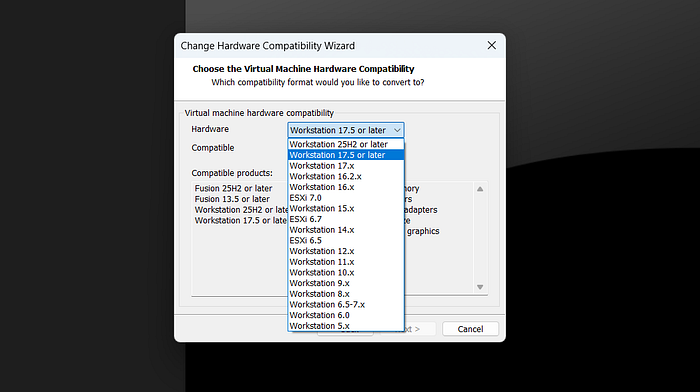
Now go to hardware and select the second option "Workstation 17.5 or later". Then click next and finish. Now we can use the kali without any mousepointer issues.