Advanced Networking & Security
Today, we look at the "Walls" of the computer. In a IT office, security is often tight. You need to know why a specific app is blocked or if a PC has been compromised by a "backdoor."
We will use netsh advfirewall and powershellto scan for open ports.
1. netsh advfirewall: The "Guard at the Gate"
The Windows Firewall is a "Filter." It looks at every packet and asks: "Are you on the guest list?"
- Check Firewall Status:
netsh advfirewall show allprofilesThis tells you if the Firewall is ON or OFF for Domain, Private, and Public networks.
- The "Emergency" Stop:
netsh advfirewall set allprofiles state offOnly do this for 10 seconds to test if the Firewall is the reason an app isn't working. Turn it back on immediately (state on) or you will get fired for leaving the PC open to hackers!
Opening a Specific Port
Scenario: A company uses a special accounting software that needs Port 1433 (SQL Server) to talk to the database.
- Action:
netsh advfirewall firewall add rule name="SQL_Port" dir=in action=allow protocol=TCP localport=1433- netsh: Short for "Network Shell." It is a command-line tool used to configure and monitor Windows network components.
- advfirewall: Tells
netshyou want to work specifically with the Advanced Firewall settings. - firewall: Targets the firewall management sub-module within the Advanced Firewall.
- add rule: The specific instruction to create a new entry in the firewall's list of allowed or blocked traffic.
- name="SQL_Port": This is the "nickname" for the rule. It helps you find, edit, or delete the rule later. You can name it anything.
- dir=in: Short for Direction=Inbound. It means the rule applies to traffic coming from the outside world into your computer.
- action=allow: Tells the firewall to let this traffic through (rather than blocking or "dropping" it).
- protocol=TCP: Specifies the communication "language" being used. Transmission Control Protocol is the standard for most database and web traffic.
- localport=1433: This is the specific "room number" on your computer. 1433 is the default port used by Microsoft SQL Server.
2. Port Scanning (The "Security Check")
How do you know if a port is open without downloading "hacking" tools? We use PowerShell.
- The Command:
Test-NetConnection -ComputerName 192.168.1.10 -Port 3389Why use it? If you are trying to use Remote Desktop (RDP) and it fails, run this.
- If
TcpTestSucceeded : True-> The network is fine; the user's password is the problem. - If
False-> The Firewall or the Router is blocking you.
3. arp -a: Finding "Imposters" on the LAN
Scenario: The office internet is slow. You suspect someone plugged in a "Personal Router" or a "Hidden Laptop" that shouldn't be there.
- The Command:
arp -a - What it does: Shows the ARP Table (The map of IP addresses to MAC addresses).
- Look at the list of IPs.
- If you see an IP like
192.168.1.55but no one has a PC at that desk, look at its Physical Address (MAC). - Google the first 6 digits of the MAC (e.g.,
00:1A:2B). It will tell you the manufacturer (e.g., "TP-Link" or "Xiaomi"). Now you know what device to look for in the office!
Use Cases:
Case A: The "Blocked" Website
Scenario: A user says they can't reach a specific work site.
Run :
nslookup work-site.comThe Result: If it returns 0.0.0.0, someone has blocked it at the DNS level or in the Hosts file.
The Fix:
C:\Windows\System32\drivers\etc\hostsOpen it with Notepad. If you see the website name there, delete the line!
Hosts file
it's is a plain text operating system file that maps hostnames (like example.com) to IP addresses, acting as a local, manual alternative to the DNS system. It is used to override DNS, block specific websites, or redirect domains for local development. Because it is checked first, it takes precedence over network-based DNS.
- Function: It serves as a local "phonebook" for the internet, mapping domain names to IP addresses.
- Usage: Common uses include blocking malicious sites, testing new website locations before DNS updates, and local development.
127.0.0.1 vs. 0.0.0.0:
127.0.0.1is used to specifically bind to the internal loopback interface only.0.0.0.0is used to bind to all available interfaces, including the loopback, physical Ethernet, and Wi-Fi adapters.- When you want a service to be accessible only on the host machine, you bind it to
127.0.0.1. When you want it accessible to other devices on the network or the internet, you bind it to0.0.0.0
loopback
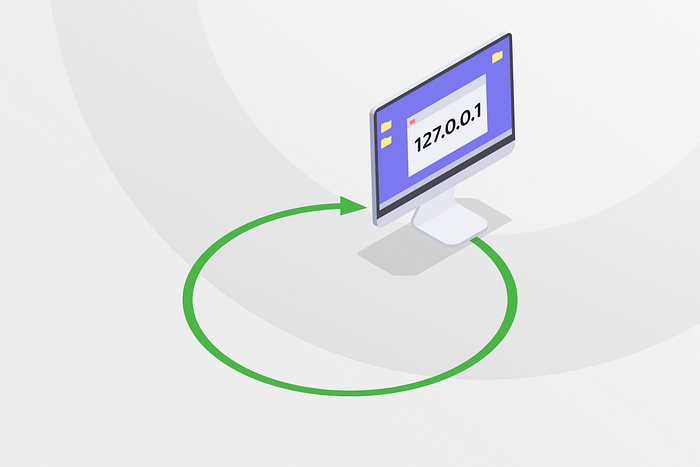
a method that sends a signal or data back to its sender, acting as a self-test or internal loop. It is primarily used for debugging, testing network interfaces, and allowing applications to communicate with themselves.
Examples:
- Networking Diagnostics: Verifying that the TCP/IP stack is functioning correctly.
- Software Development: Testing applications by allowing them to communicate with a local server.
- Audio Production: Routing internal audio from applications to an input, useful for streaming.
Why 0.0.0.0 is used instead of 127.0.0.1?
Although both can be used for blocking, 0.0.0.0 has become the modern standard for several reasons:
- Faster Failure: When a browser tries to connect to 0.0.0.0, most modern operating systems recognize it as an invalid destination immediately and refuse the connection. With 127.0.0.1, the OS actually attempts to "loop back" and find a service on your own machine.
- Avoiding Local Conflicts: If you are running a local web server (like for development), mapping a blocked ad to 127.0.0.1 might cause your browser to actually load your own local website instead of the ad. This can lead to slow page loads, broken layouts, or unnecessary "404 Not Found" errors in your logs.
- Reduced Resource Usage: Connecting to 127.0.0.1 requires the network stack to process the request and wait for a response (or a timeout). 0.0.0.0 is often dropped instantly by the TCP stack, saving those tiny amounts of CPU and memory.
The "Binding" vs. "Connecting" Confusion
The confusion usually comes from how the same address is used in two different contexts:
- Binding (Listening): A server listens on
0.0.0.0to say, "I will accept incoming traffic from any physical wire plugged into this computer." - Connecting (Destination): A client (like a browser) uses
0.0.0.0to say, "Send this data to the address 0.0.0.0." Because RFC 1122 prohibits 0.0.0.0 as a destination on a real network, the request is effectively "blackholed" before it ever leaves your computer.
Summary:
Feature      | 127.0.0.1 (Localhost)                      |  0.0.0.0 (Unspecified)
---------------------------------------------------------------------------------------------------
Purpose      | Connect to "myself."                       |  "No particular address."
---------------------------------------------------------------------------------------------------
Block Method | Loops back to your machine.                |   Fails immediately as invalid.
---------------------------------------------------------------------------------------------------
Speed        | Slightly slower (checks for local services)|  Slightly faster (instant error).
---------------------------------------------------------------------------------------------------
Risk         | May accidentally hit your local web server |   Safer; won't connect to anything.
Case B: The "Server is Invisible"
Scenario: You set up a new File Server, but no one can see it on the network.
- Action:
netsh advfirewall firewall set rule group="File and Printer Sharing" new enable=YesThis command is used to enable the built-in Windows rules that allow your computer to share files and printers with others on the same network.
- netsh: The Network Shell command-line utility used for configuring network settings in Windows.
- advfirewall: Specifies that you are targeting the Advanced Firewall settings.
- firewall: Focuses the command on managing specific firewall rules.
- set rule: Indicates you want to modify properties of one or more existing rules rather than creating a new one.
- group="File and Printer Sharing": Selects a pre-defined collection of rules that Windows uses to manage file and printer sharing. Using a group name allows you to enable multiple related rules (like SMB for file sharing and spooler for printing) all at once.
- new: A keyword used to signal that the parameters following it contain the updated values you want to apply to the selected rules.
- enable=Yes: The specific update being made, which activates (enables) all the rules within the specified group
4. netstat -ab: Finding the "Spy"
we used netstat -ano. Now, we add -b.
- The Command:
netstat -ab - The Difference: It doesn't just show the PID; it shows the actual name of the .exe file that owns the connection.
- Use Case: You see an active connection to an IP in Russia.
netstat -abtells you:[cheap_vpn.exe]. Now you know exactly what to uninstall.
Storage Management & Partitioning
In an IT shop, you will constantly deal with "Storage Nightmares." A user's C: drive is full, a USB stick is "Write Protected" and won't format, or a new Hard Drive is plugged in but "doesn't show up in My Computer."
we use diskpart. This is the most dangerous and powerful tool in Windows. One wrong command can delete an entire drive, so we use it with extreme caution.
1. diskpart: The "Architect" of the Drive
Unlike the "Disk Management" window (which often freezes), diskpart works at the hardware level.
- To Open: Type
diskpartin an Admin CMD. (The prompt changes toDISKPART>).
The "Map" Command: list disk
- This shows every physical drive. Disk 0 is usually your Windows drive. Disk 1 is usually your USB or second drive.
The "Selection" (CRITICAL): select disk 1
- NEVER run a command until you have selected the right disk. Check the size (GB) to be 100% sure it's the USB, not your Windows drive!
2. The "Emergency" USB Fix (The "Clean" Command)
Scenario: A USB stick has a "Shortcut Virus" or is "RAW" and Windows says "Unable to format."
diskpart
list disk -> Identify the USB (e.g., Disk 2).
select disk 2
cleanclean:To "Factory Reset" a corrupted USB or HDD.- What it does: It wipes the Partition Table (the brain) of the USB. It becomes "Unallocated Space."
create partition primary
format fs=ntfs quick
assign
Result: The "broken" USB is now brand new
create partition primary
- create: The action command to build a new structure on the disk.
- partition: Specifies that you are creating a division on the physical drive.
- primary: Defines the partition type. A "primary" partition is the main type that can hold an Operating System (like Windows) and is recognized by the BIOS/UEFI as a bootable location.
format fs=ntfs quick
- format: The command to set up a file system so Windows can store and retrieve files.
- fs=ntfs: Short for File System = New Technology File System. This is the standard file system for modern Windows drives, supporting large files and advanced security permissions.
- quick: Tells Windows to skip checking every "sector" for errors and simply wipe the file index. This takes seconds, whereas a "full" format can take hours.
assign
- assign: This command tells Windows to give the new partition a Drive Letter (like
D:orE:). Without this step, the drive is ready, but it won't show up in File Explorer because it doesn't have a "name" yet.
3. "Shrinking" the C: Drive (The "Backup" Trick)
Scenario: A user has one giant C: drive (500GB). You want to split it into C: (OS) and D: (Data) so if Windows crashes, their data is safe on D:.
list disk
select disk 0
list partition
select partition 3
shrink querymax
shrink desired=50000
create partition primary
format fs=ntfs quick label="Data"
assign letter=D
shrink an existing partition and create a new one from the resulting free space.
select disk 0
- select: Sets the "focus" on a specific object so subsequent commands apply to it.
- disk: Specifies that the object type is a physical hard drive.
- 0: The identification number of the drive .
list partition
- list: Tells DiskPart to display a summary.
- partition: Shows all divisions (volumes) currently existing on the selected disk.
select partition 3
- select: Moves the focus to a specific partition.
- partition: Specifies the object type.
- 3: The number of the specific partition you intend to modify (shrink).
shrink querymax
- shrink: The command to reduce a volume's size and create unallocated space.
- querymax: A diagnostic parameter that returns the maximum amount of space (in MB) that can be taken from the partition without moving unmovable files. It does not actually perform the shrink.
shrink desired=50000
- shrink: Executes the actual size reduction.
- desired=: Specifies the exact amount of space you want to reclaim.
- 50000: The amount in Megabytes (MB), which is 50 GB.
create partition primary
- create: Instruction to build a new structure.
- partition: The object being built.
- primary: The partition type that can hold an operating system or standard data. Since no size is specified, it will use all the newly created unallocated space.
format fs=ntfs quick label="Data"
- format: Prepares the partition for file storage.
- fs=ntfs: Sets the File System to NTFS.
- quick: Skips the sector-by-sector error check to finish in seconds.
- label=: Assigns a name to the drive as seen in File Explorer.
- "Data": The actual name (Volume Label) given to the drive.
assign letter=D
- assign: link the partition to a specific access point.
- letter=: Specifies that a drive letter is being chosen.
- D: The specific letter assigned.
Use Cases:
Case A: The "Hidden" Recovery Partition
Scenario: An old laptop has a 20GB "Recovery" partition from the factory that the user doesn't want. You want that space back.
- Action: In
diskpart, select that partition and typedelete partition override. - Result: It forces Windows to delete a "protected" system partition so you can merge the space into C:.
These commands are used to force the removal of "stubborn" partitions and unlock write-protected disks.
delete partition override
- delete: The core command to remove a structure from the disk.
- partition: Specifies that you are targeting a specific division of space on the disk.
- override: A powerful parameter that forces the deletion of partitions that Windows usually protects. This includes Recovery, OEM, or EFI system partitions that would otherwise trigger an error saying they are "protected" or "in use".
How to merge again after deletion?
Once a partition is deleted, it becomes unallocated space. To "merge" it back into an existing partition:
- Adjacent Space: The unallocated space must be immediately to the right of the partition you want to expand.
- Using Diskpart:
- list volume
select volume [number](select the partition you want to grow).extend(this adds all adjacent unallocated space to that volume).
3. Using Disk Management: Right-click the partition you want to keep and select Extend Volume.
Case B: The "Read-Only" USB Lock
Scenario: A user says, "I can't delete files from my USB, it says it's write-protected."
select disk [USB_Number]attributes disk clear readonly- Result: This removes the software "Lock" that Windows sometimes accidentally puts on drives.
attributes disk clear readonly
- attributes: The command used to view or change the properties of the selected object.
- disk: Targets the properties of the entire physical drive rather than a single volume.
- clear: Instructs DiskPart to remove (turn off) a specific attribute.
- readonly: The specific flag that prevents writing to the disk. Clearing this "unlocks" a drive that is write-protected, allowing you to format it or save new files.
4. compact: The "SSD Savior"
If you are working on a cheap laptop with a tiny 64GB or 128GB SSD, use this command to save space without deleting files.
compact /compactos:alwaysThis command enables a Windows feature that compresses system files and preinstalled applications to save disk space. It is designed to help Windows fit on smaller drives (like 32GB or 64GB SSDs).
compact: This is the primary command-line tool for managing NTFS file system compression./compactos: This specific switch targets the Operating System binaries (the core files Windows needs to run) rather than just standard user files or folders.:always: This parameter tells Windows to compress all OS binaries immediately and keep the system in this "compact" state until an administrator manually changes it.
Key Effects:
- Space Savings: It typically frees up 2GB to 4GB of storage by compressing core system files.
- Performance Trade-off: Because files are compressed, your CPU has to do a little extra work to "unzip" them as they are being used. On modern computers, this impact is usually negligible, but on very old hardware, it might slightly slow down boot times or app launches.
- Update-Friendly: Unlike older compression methods, Windows Update is designed to work with Compact OS, replacing compressed files with updated ones as needed without breaking the system.
Wiping First (clean) or Formatting (format) !?
Wiping the partition table with the clean command is like demolishing a crumbling building before rebuilding, whereas formatting is just repainting the walls.
Here is why you wipe first when a drive shows "No Media" or "Unknown":
1. Corrupt Partition Tables
When a drive shows "No Media," Windows often can't see where the partition starts or ends because the Master Boot Record (MBR) or GUID Partition Table (GPT) is corrupted. You can't format a partition if Windows doesn't believe one exists.
2. Low-Level vs. High-Level
- Format: Only clears the "index" (the Table of Contents) within an existing partition. If the partition itself is broken, the format will fail with an error like "Windows was unable to complete the format."
- Clean: Wipes the hidden configuration data at the very beginning of the disk. This forces Windows to treat the drive as "Brand New/Uninitialized," removing any software-level glitches or "ghost" partitions that were blocking a standard format.
3. Clearing "No Media" Flags
"No Media" usually means the hardware is there, but the logical structure is missing or says there's 0 bytes available. By using clean, you reset the disk's logical identity, allowing you to manually define its size again with create partition primary.
"wipe it first because formatting requires an existing, healthy partition. If the partition table is corrupt, formatting will fail. Wiping (cleaning) removes the corruption entirely, allowing to build a fresh, stable partition from scratch."
In the context of storage, an "index" is essentially a map or a table of contents that the operating system uses to find your files. You are right to ask — because "formatting" is often described as "clearing the index," but there are actually two different layers of "indexes" involved:
1. The File System Index (e.g., MFT in NTFS)
This is the most common use of the word "index" when talking about formatting.
- What it is: A hidden database created inside a partition (like the Master File Table for NTFS or the File Allocation Table for FAT32).
- What it does: It stores every file's name, size, and exactly which physical "blocks" on the disk hold the actual data.
- When you format: A "Quick Format" simply deletes this index and creates a brand-new, empty one. The actual data (your photos, docs, etc.) is still sitting on the disk, but since the "map" is gone, Windows sees the space as empty and ready to be overwritten.
2. The Partition Table (The "Master Index")
This is the index that the clean command targets.
- What it is: A tiny piece of data at the very beginning of the physical disk (using standards like MBR or GPT).
- What it does: It tells the computer how the entire physical drive is divided up (e.g., "Drive C starts at block 100 and ends at block 500").
- The "No Media" Connection: If this master index is corrupted, Windows doesn't even know where the partition starts, so it can't find the File System Index mentioned above. This is why a standard format fails — it's trying to edit a map inside a room it can't even find.
Why you "Clean" (Wipe the Partition Table) first:
Imagine a library (your USB drive):
- The Partition Table is the sign on the front door saying "History Section is on Level 1."
- The File System Index is the catalog inside that section telling you which shelf has which book.
- Formatting is like clearing out the catalog and putting a new blank one on the desk.
- Cleaning (
clean) is like tearing down the "History Section" sign entirely.
If the sign on the front door is broken or says "Level 0" (which doesn't exist), you can't even get to the desk to fix the catalog. By wiping the partition table first, you fix the "front door" issue so you can successfully build a new section and a new catalog.
Note: Don't confuse this with Windows Search Indexing, which is a separate service that scans your existing files to make them searchable by keyword. When people talk about "formatting an index," they almost always mean the Master File Table (MFT).
The "Crime Scene" Investigation (BSOD & Logs)
In an IT environment, you will eventually face a computer that keeps restarting or crashing with a Blue Screen of Death (BSOD).
Instead of guessing, you will learn to read the Minidump — the "Black Box" of the computer that records exactly what was happening the second it crashed.
1. Enabling the "Black Box" (Minidumps)
Before you can investigate, you must ensure Windows is actually saving the evidence. Many systems are set to "Automatic," but for IT support, you want a specific file format.
- The Setting: Use the Advanced System Settings to configure dump files.
- Press Win + R, type
sysdm.cpl, and go to the Advanced tab. - Under Startup and Recovery, click Settings.
- Change "Write debugging information" to Small memory dump (256 KB).
- Ensure the directory is set to
%SystemRoot%\Minidump(usuallyC:\Windows\Minidump).
2. Using BlueScreenView: The Professional Eye:
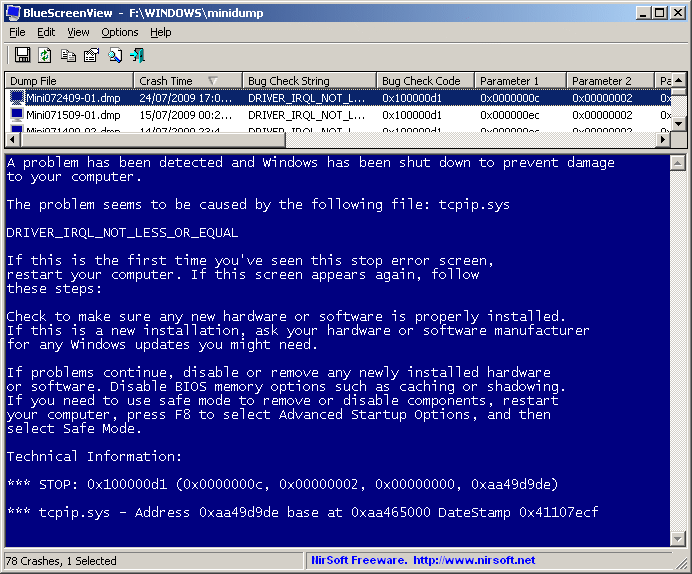
Analyzing raw dump files is for developers, but for IT support, BlueScreenView from NirSoft is the fastest way to find the culprit.
- How it works: It scans your
Minidumpfolder and displays a list of all recent crashes. - The "Pink" Highlight: The program highlights specific drivers in pink that were active at the exact moment of the crash.
- The Detective Move: Look at the "Caused By Driver" column. If you see
nvlddmkm.sys, it's an NVIDIA graphics issue. If you seenetio.sys, it's a network driver problem.
3. Common "Stop Codes" and Their Meanings
Stop Code  |      Translation       |       Most Common Fix
--------------------------------------------------------------------------------
0x0000000A | IRQL_NOT_LESS_OR_EQUAL | Update your Drivers (especially WiFi/GPU).
--------------------------------------------------------------------------------
0x00000050 | PAGE_FAULT_IN_NONPAGED_AREA  | Faulty RAM or HDD corruption.
--------------------------------------------------------------------------------
0x0000007B | INACCESSIBLE_BOOT_DEVICE | HDD is dying or BIOS settings changed.
--------------------------------------------------------------------------------
0x00000124 | WHEA_UNCORRECTABLE_ERROR | Hardware failure or overheating (CPU/GPU).
--------------------------------------------------------------------------------
0x00000133 | DPC_WATCHDOG_VIOLATION | SSD driver issue or firmware update needed.
Use Cases:
Case A: The "Random" Office Crash
Scenario: A laptop in the accounting department crashes twice a week at random times.
- Open BlueScreenView.
- You see multiple crashes caused by
ntoskrnl.exe. - The Diagnosis: This is often RAM instability.
- The Fix: Run Windows Memory Diagnostic (
mdsched.exe) or replace the RAM stick.
Case B: The "New Printer" Crash
Scenario: A user says the computer blue-screens every time they try to print.
- Check the Minidump. It shows
hp_laserjet.sys(or similar) in the "Caused By Driver" field. - The Fix: Use Device Manager to "Roll Back" the driver or download a "Legacy" driver from the manufacturer's site.
Case C: The "Ghost" Reboot
Scenario: A user says, "My PC just restarts sometimes; there's no blue screen."
- Windows is often set to "Automatically Restart" on failure.
- The Fix: In the same Startup and Recovery settings as step 1, Uncheck "Automatically restart".
- Result: Now the PC will stay on the Blue Screen so you can actually read the error code.