
Welcome back to the Cybersecurity 101 Pathway series! In Windows Fundamentals Part 1, we covered the desktop, the file system, user account control, the control panel, settings, and the task manager.
This writeup covers the Windows Fundamentals 2 room on TryHackMe. This module provides an overview of essential utilities available within the Windows operating system and different methods to access them, including System Configuration, Computer Management, and the Registry Editor.
Room Link: Windows Fundamentals 2
Difficulty: Info
Type: Walkthrough
Subscription: Free
Task 1: Introduction
This module focuses on utilities that allow you to configure and troubleshoot the Windows operating system. To follow along, launch the virtual machine provided in the room. You can access it via the in-browser view or Remote Desktop using the credentials below:
- Machine IP: MACHINE_IP
- User: administrator
- Password: letmein123!
(No answer needed)
Task 2: System Configuration
The System Configuration utility (MSConfig) is designed for advanced troubleshooting, primarily to help diagnose startup issues.
To open it, press Windows Key + R to open the Run prompt, type msconfig, and press Enter. The utility has five tabs:
- General: Select startup modes (Normal, Diagnostic, Selective).
- Boot: Define boot options for the OS.
- Services: List all services configured for the system. A service is a special type of application that runs in the background.
- Startup: Manage startup items (Note: In Windows 10/11, this redirects to Task Manager).
- Tools: A list of various diagnostic tools and their launch commands.
Question 1: What is the name of the service that lists Systems Internals as the manufacturer?
To find this, open msconfig via Run:

Then Navigate to the Services tab. To filter the list effectively, check the box labeled "Hide all Microsoft services". Look through the remaining list for the manufacturer "Systems Internals".
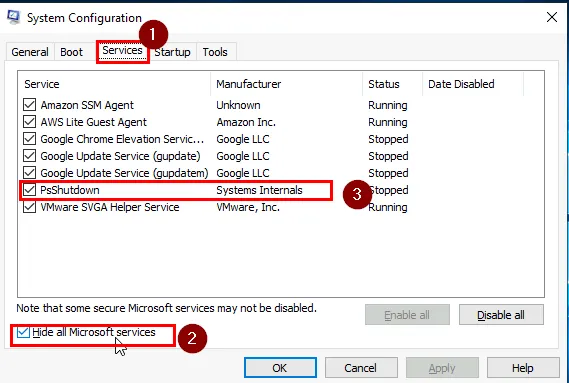
Answer: PsShutdown
Question 2: Whom is the Windows license registered to?
Navigate to the Tools tab, select About Windows, and click Launch.
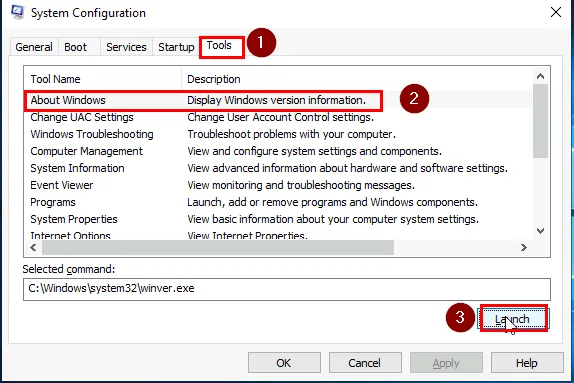
The pop-up window will display the licensing information.
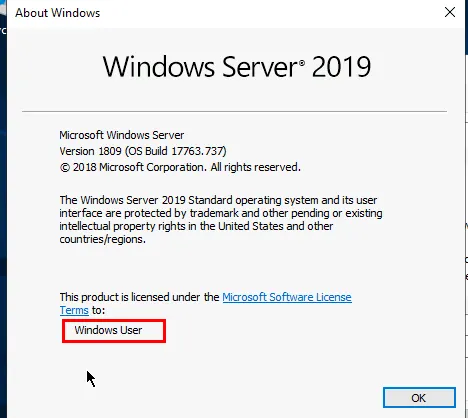
Answer: Windows User
Question 3: What is the command for Windows Troubleshooting?
In the Tools tab, highlight Windows Troubleshooting and look at the "Selected command" field at the bottom.
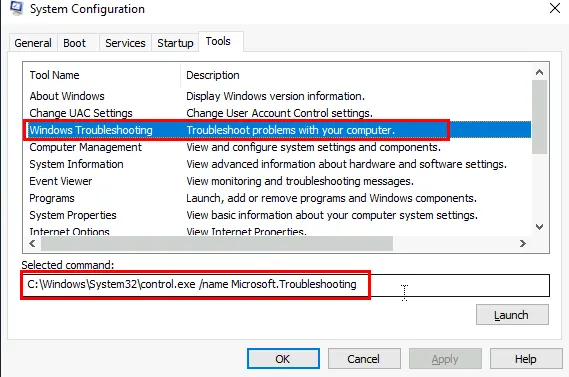
Answer: C:\Windows\System32\control.exe /name Microsoft.Troubleshooting
Question 4: What command will open the Control Panel? (The answer is the name of .exe, not the full path)
Based on the command structure seen in the previous question (control.exe), we can deduce the executable name.
Answer: control.exe
Task 3: Change UAC Settings
User Account Control (UAC) is a security feature that prevents unauthorized changes to the operating system. The Change UAC Settings tool allows you to adjust the notification level.
You can modify this by moving the slider from "Always notify" to "Never notify" (not recommended for security).
Question 4: What is the command to open User Account Control Settings? (The answer is the name of the .exe file, not the full path)
You can find this by looking at the Tools tab in System Configuration and selecting "Change UAC Settings".
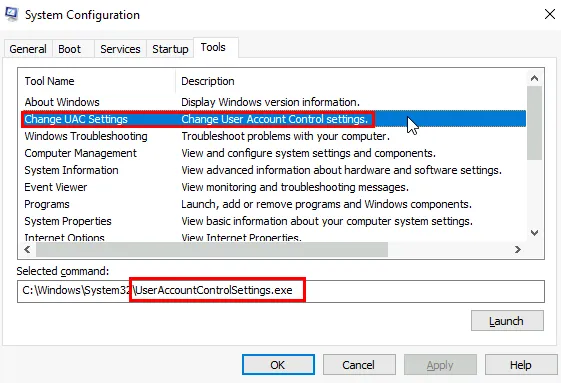
Answer: UserAccountControlSettings.exe
Task 4: Computer Management
The Computer Management (compmgmt.msc) utility is a console that consolidates several administrative tools into a single window. It is divided into three primary sections: System Tools, Storage, and Services and Applications.
System Tools
- Task Scheduler: Create and manage automated tasks (e.g., running a script at login).
- Event Viewer: View system event logs (Application, Security, System, etc.) to audit activity or diagnose errors.
- Shared Folders: View folders shared on the network and user sessions.
Storage
- Disk Management: Perform advanced storage tasks like shrinking partitions or assigning drive letters.
Services and Applications
- Services: Manage background services (Start, Stop, Restart).
- WMI Control: Configure Windows Management Instrumentation.
Question 5: What is the command to open Computer Management? (The answer is the name of the .msc file, not the full path)
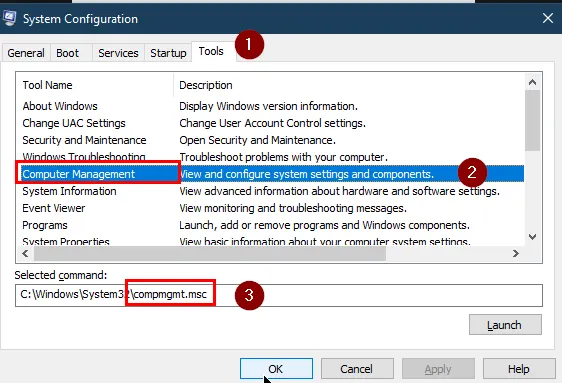
Answer: compmgmt.msc
Question 6: At what time every day is the GoogleUpdateTaskMachineUA task configured to run?
Open Task Scheduler > Task Scheduler Library. Select GoogleUpdateTaskMachineUA and look at the Triggers tab or the description.
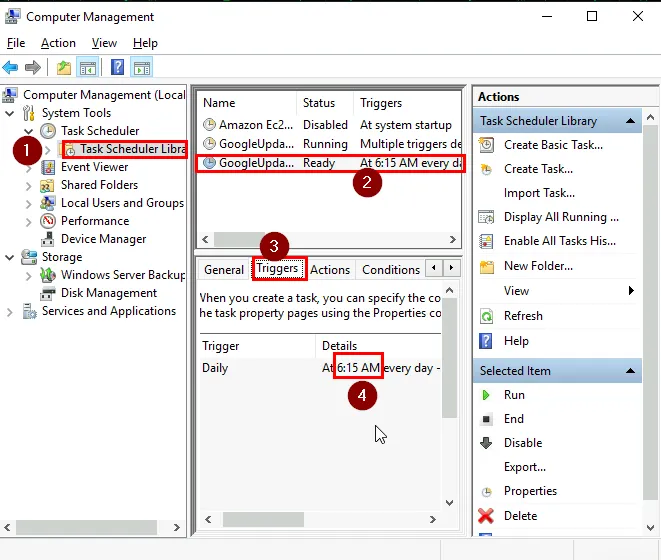
Answer: 6:15 AM
Question 7: What is the name of the hidden folder that is shared?
Navigate to System Tools > Shared Folders > Shares. Hidden shares usually end with a $ sign, but we are looking for a specific hidden folder shared for this exercise.
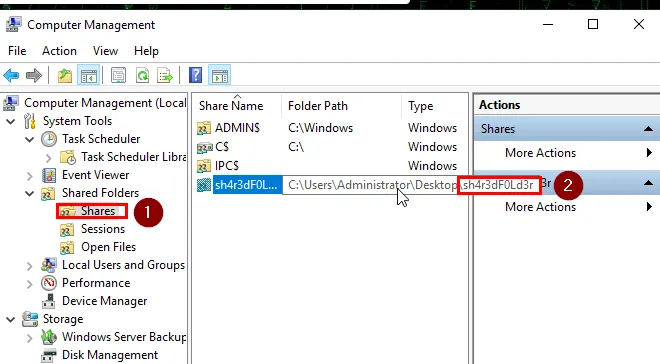
Answer: sh4r3dF0Ld3r
Task 5: System Information
The System Information (msinfo32) tool gathers comprehensive details about your hardware, system components, and software environment.
- System Summary: Displays OS name, version, processor, and BIOS info.
- Hardware Resources: Details on I/O, IRQs, and memory addresses.
- Software Environment: Lists drivers, running tasks, and Environment Variables.
Environment Variables store OS data like file paths (e.g., %windir% or %SystemRoot%).
Question 8: What is the command to open System Information? (The answer is the name of the .exe file, not the full path)
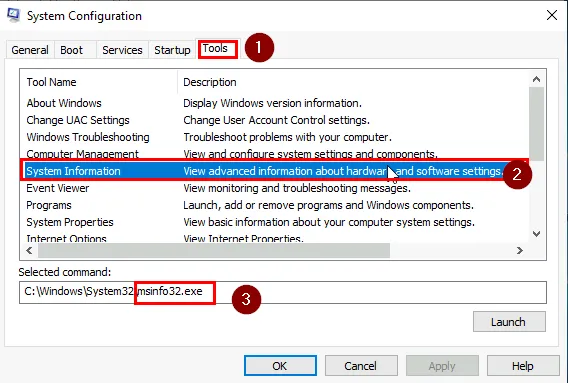
Answer: msinfo32.exe
Question 9: What is listed under System Name?
Check the System Summary main page for the "System Name" entry.
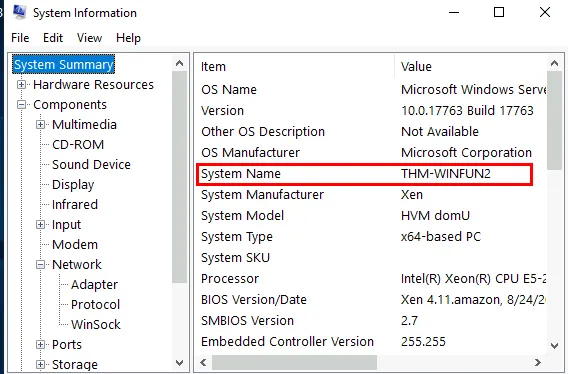
Answer: THM-WINFUN2
Question 10: Under Environment Variables, what is the value for ComSpec?
Navigate to Software Environment > Environment Variables. Locate ComSpec to see the path to the command prompt executable.
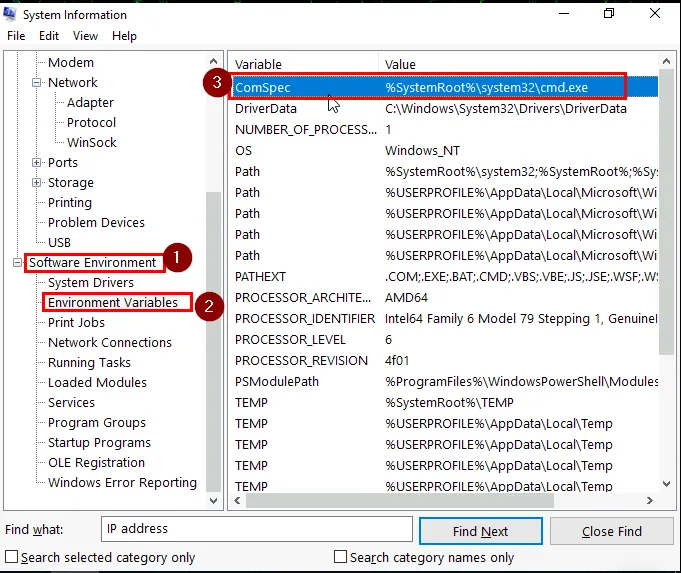
Answer: %SystemRoot%\system32\cmd.exe
Task 6: Resource Monitor
Resource Monitor (resmon) offers real-time monitoring of system resources, providing more granular detail than Task Manager. It allows you to inspect:
- CPU: Usage per process.
- Memory: Physical and committed memory breakdown.
- Disk: Read/write speeds and active files.
- Network: Active TCP connections and listening ports.
Question 11: What is the command to open Resource Monitor? (The answer is the name of the .exe file, not the full path)

Answer: resmon.exe
Task 7: Command Prompt
The Command Prompt (cmd.exe) is the command-line interpreter for Windows. While MSConfig and other GUI tools are helpful, knowing command-line basics is essential for cybersecurity.
Key commands used in this task:
hostname: Outputs the computer name.whoami: Outputs the current user.ipconfig: Shows network address settings.netstat: Displays network connections and protocol statistics.net help: Retrieves help manuals for net commands (e.g.,net help user).
Question 12: In System Configuration, what is the full command for Internet Protocol Configuration?
Looking back at the Tools tab in MSConfig, find "Internet Protocol Configuration" and check the command.
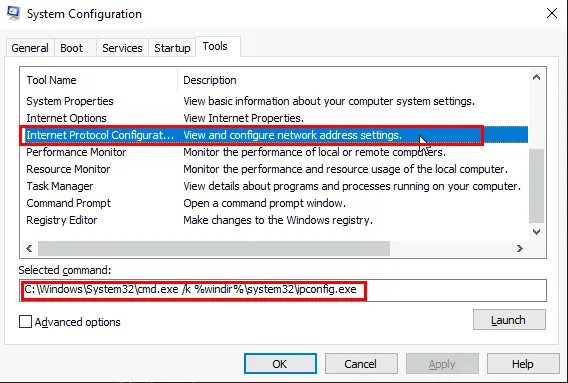
Answer: C:\Windows\System32\cmd.exe /k %windir%\system32\ipconfig.exe
Question 13: For the ipconfig command, how do you show detailed information?
Running ipconfig /? shows the help menu. The flag for "all" information (including MAC address, DNS, etc.) is /all.
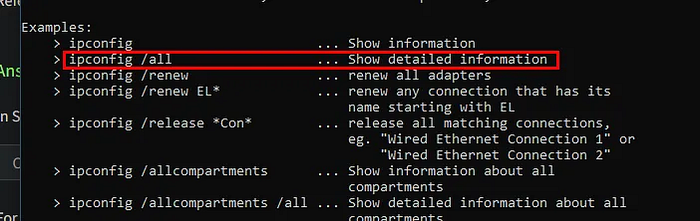
Answer: ipconfig /all
Task 8: Registry Editor
The Windows Registry is a central hierarchical database that stores configuration settings for the system, users, and applications. It is critical for the OS operation.
Common root keys include:
HKEY_CURRENT_USER(Settings for the logged-in user)HKEY_LOCAL_MACHINE(Settings for the computer, applying to all users)
Warning: modifying the registry incorrectly can cause system instability.
Question 14: What is the command to open the Registry Editor? (The answer is the name of the .exe file, not the full path)
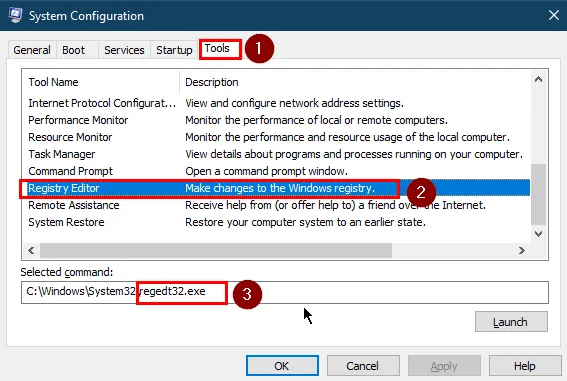
Answer: regedt32.exe
(Note: regedit.exe is also commonly used, but the room accepts the older executable name found in MSConfig tools).
Conclusion
In this room, we explored several built-in Windows utilities that go beyond the basic interface. We used System Configuration (MSConfig) as a hub to discover tools like the Registry Editor, Resource Monitor, and Computer Management. Mastering these tools allows you to diagnose issues, manage permissions, and inspect system behavior — skills that are foundational for any defensive security role.
Many of these tools can be launched via the Run prompt (Win + R) or directly from the Start Menu, saving you time during an investigation.
Stay tuned for the next installment in the Cybersecurity 101 Pathway!
Next Up: Windows Fundamentals Part 3.
Kudos to you for completing the tasks and reaching the end of the walkthrough.

I hope you found this write-up and guide easy to follow.
Share your thoughts and feedback in the comment section, and stay tuned for more!
Thank you for reading! Happy hacking!