
Most content out there about phishing email analysis only scratches the surface. You get the typical "check if the sender looks suspicious" or "don't click unknown links" type of advice which sure, is fine for your average office worker. But if you are trying to break into a SOC Analyst role or you are already in one and want to sharpen your process, that surface level stuff is not going to cut it. You need the full breakdown from a hands on keyboard perspective.
As someone who has spent years conducting technical interviews for cybersecurity positions and building out security teams, I can tell you first hand that phishing email analysis is one of the most common technical scenarios I throw at candidates during interviews. It is not a trick question. It is not meant to stump you. It is genuinely one of the most fundamental tasks you will be doing on day one of a SOC Analyst role, and if you cannot walk me through your process in a structured and logical way, that tells me a lot about your readiness for the position.
So let me walk you through the entire phishing email analysis workflow from start to finish, the same way I would expect an analyst on my team to handle it. I also wrote a full 30 page guide that goes significantly deeper than what I can cover in a single article, which I will mention toward the end for anyone who wants the complete deep dive.
Rule Number One: Do Not Touch It
Before we get into any of the technical stuff, this needs to be said and I will keep hammering this home. Do not click anything. Do not download the attachment. Do not forward the email to your buddy to take a look at. Do not interact with it at all.
In a SOC environment you are going to have a tool that lets you view the email and all of its artifacts without actually opening it on a live machine. Whether that is Microsoft Defender, Proofpoint, Abnormal Security, or whatever your shop uses, you should be pulling the raw email data from there. If you are practicing on your own, you can view email headers and source code in most email clients without clicking anything dangerous.
The first thing you do before anything else is create your incident ticket. Document the basics: who reported it, when, what the subject line is, and start building your case. This might sound tedious but trust me, auditors will come through and if your tickets are empty or half baked, that is going to come back on you and your manager is going to hear about it.
Step One: Crack Open the Headers
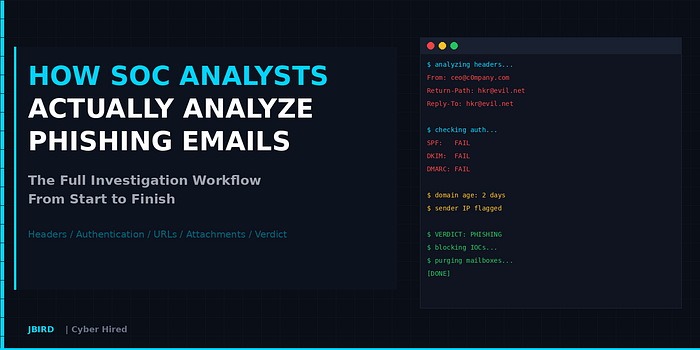
The email headers are where the real story lives. Every email carries metadata that tells you exactly where it came from, how it traveled across the internet, and whether the sender is actually who they claim to be. Most email clients have a "Show Original" or "View Message Source" option that reveals the raw headers.
There are a handful of header fields that you need to check every single time:
The From field is obvious but also the most commonly spoofed. The display name might say "Microsoft Security Team" but the actual email address could be something like support@micros0ft-security.net. Always look at the actual address, not just the name that shows up in the inbox.
The Return-Path is the envelope sender, and this is what gets checked during SPF validation. If this is a completely different domain from the From address, that is worth flagging immediately.
The Reply-To field is a big one. If someone sends you an email from one address but wants your reply to go to a completely different address, ask yourself why. Attackers do this constantly because they want to capture responses at their own infrastructure while making the original email look legitimate.
The Received headers tell you the path the email took across mail servers. These stack in reverse order, so you read them bottom to top. The very bottom Received header is the originating server. That is the IP address you want to investigate. If the email claims to be from a major corporation in New York but the originating IP traces back to a VPS provider in a completely different part of the world, that is a strong indicator of spoofing.
There are well over 20 header fields that can come up during an investigation and I obviously cannot cover all of them in a single article. I covered the critical ones here but fields like X-Mailer, MIME-Version, X-Spam-Status, Content-Type, and the Microsoft specific headers like X-Forefront-Antispam-Report are all worth understanding as well. I broke down every single one of them in the full guide I put together on this topic, which I will link at the end.
Step Two: SPF, DKIM, and DMARC
This is where I see a lot of candidates and even some working analysts fall short. Understanding email authentication protocols is not optional in this line of work. These three protocols work together to verify whether an email is actually from who it says it is from, and knowing how to interpret their results is critical.
SPF stands for Sender Policy Framework. It is basically a DNS record that lists which IP addresses are allowed to send email on behalf of a domain. When a receiving mail server gets an email, it checks if the sending server's IP is on that list. If it is, SPF passes. If not, it fails. The catch is that SPF only checks the envelope sender domain (the Return-Path), not the From address the user actually sees. So an attacker can pass SPF for their own malicious domain while spoofing the visible From address.
DKIM stands for DomainKeys Identified Mail and it adds a cryptographic signature to the email. The domain owner signs outgoing emails with a private key, and the public key is published in DNS. The receiving server uses that public key to verify the signature, confirming the email was not tampered with in transit. The key field to look at is the d= value in the DKIM-Signature header, which tells you which domain actually signed the email. Similar to SPF, DKIM alone does not verify that the signing domain matches the visible From address.
DMARC is what ties it all together. DMARC checks for alignment, meaning it verifies whether the domain used in SPF or DKIM actually matches the From address the user sees. If at least one of them passes and aligns, DMARC passes. If neither aligns, DMARC fails. DMARC also tells the receiving server what to do with emails that fail: either monitor them (p=none), quarantine them, or reject them outright.
All three of these results show up in the Authentication-Results header, which is the single most important header for determining sender legitimacy. When you see dmarc=fail in that header, that should immediately raise your alertness level.
Here is the thing that trips people up though. Just because SPF, DKIM, and DMARC all pass does not automatically mean the email is safe. An attacker who registers their own phishing domain and properly configures authentication will pass all three checks. Authentication passing for a malicious domain is still a malicious domain. This is why you do not stop your investigation after the authentication check.
I am giving you the high level overview here but there is a ton more depth to each of these. The difference between SPF hard fail and soft fail, what each individual DKIM signature field means, how DMARC alignment actually works at a technical level, and how to manually query these records yourself using nslookup or dig. I covered all of that in detail in the guide because it is the kind of stuff that comes up in interviews and is genuinely hard to keep straight without something to reference.
Step Three: Investigate the Sender
Now you need to dig into the actual domain and IP that sent the email. Even if the authentication checks passed, you want to know who is behind the sending infrastructure.
Run a WHOIS lookup on the sender's domain. Check when it was registered. If the domain is less than 30 days old and is being used to send emails impersonating a major brand, that is about as red flag as it gets. Check the registrar information and see if anything looks off.
For the originating IP address from the Received headers, check it against AbuseIPDB to see if it has been reported for malicious activity. Run it through VirusTotal for reputation data. Geolocate it and see if it makes sense in context. If the claimed sender is a US based company but the IP belongs to a budget hosting provider in a region known for phishing infrastructure, document that.
Look at the domain itself for signs of typosquatting. Attackers love to register domains that are nearly identical to legitimate ones. Think micros0ft.com instead of microsoft.com, or paypa1.com instead of paypal.com. Sometimes they will use subdomains to create the illusion, like login.microsoft.attacker-domain.com. At a quick glance in your inbox, that might look like a Microsoft URL when in reality the actual domain is attacker-domain.com.
Step Four: URL and Link Analysis
Phishing emails almost always include a malicious link. Your job is to find every single URL in the email, including ones hidden behind buttons, embedded in images, and even buried in the footer or unsubscribe section. Attackers have gotten creative and some will even embed QR codes in the email body to bypass traditional URL scanning tools.
Do not click any of these links. Defang them first by replacing https with hxxps and wrapping the dots in brackets. Then submit them to tools like VirusTotal and URLScan.io. URLScan is particularly useful because it will actually take a screenshot of the landing page and show you the full redirect chain without you having to visit it. If the URL leads to a page that looks like a Microsoft or Google login page but is hosted on a completely unrelated domain, you have confirmed credential harvesting.
Watch out for URL shorteners like bit.ly and tinyurl. Always expand shortened URLs before analysis. Also watch for open redirect abuse where attackers use a legitimate site's redirect functionality to bounce users to a malicious destination. Something like a Google redirect URL pointing to a phishing page is designed to look trustworthy at first glance.
If you need to see what happens when someone actually clicks the link, use a sandbox like Any.Run. It lets you interact with the URL in a controlled environment and records everything that happens, including redirects, page loads, and any scripts that execute.
Step Five: Attachment Analysis
If the email has an attachment, you need to handle it carefully. Never open it directly on your workstation. Here is the process:
First, hash the file. Generate the SHA256 hash without opening the attachment and check it against VirusTotal. If the hash matches a known malicious file, you have your answer immediately.
If the hash is unknown, submit it to a sandbox for detonation. Any.Run and Hybrid Analysis both have free tiers that let you upload files and watch what happens when they are executed in a controlled environment. You will see if the file phones home to a command and control server, drops additional payloads, or tries to steal credentials.
For Office documents specifically, be aware of macro-enabled formats like .docm and .xlsm. Even legacy .doc and .xls formats can carry macros. Tools like olevba (part of the oletools Python package) let you extract and analyze macro code without opening the document. Since Microsoft started disabling macros by default for files downloaded from the internet, attackers have shifted to other techniques like OneNote files, ISO/IMG disk images, and HTML smuggling, so stay current on the latest delivery mechanisms.
Step Six: Make Your Call
After you have gone through all of these steps, it is time to determine your verdict. You are looking at the totality of evidence, not any single indicator in isolation.
If you have multiple strong indicators like authentication failures, a newly registered sender domain, confirmed malicious URLs or attachments, and social engineering tactics in the body, that is confirmed phishing. Block everything, purge the email from all recipient mailboxes, and if anyone clicked or entered credentials, that becomes a priority incident with password resets and account reviews.
If the signals are mixed or inconclusive, do not close it as benign just to clear your queue. Escalate it. Document what you found, what you could not determine, and pass it up to a senior analyst or your Tier 2 team.
One of the biggest mistakes I see junior analysts make is not checking whether other people in the organization received the same email. A single phishing email is one thing, but if 50 people got the same message, you are dealing with a campaign and the response needs to scale accordingly. Use your email admin tools to search for the subject line, sender address, or attachment hash across all mailboxes.
Step Seven: Document Everything
I know I already said this but it is worth repeating because it really is that important. Every investigation needs proper documentation. Your ticket should include the full sender information, authentication results, all IOCs you identified (defanged), your analysis summary, your verdict with justification, every action you took with timestamps, and whether any users were impacted.
This is not just about covering yourself for auditors. Good documentation helps the rest of your team learn from your investigations. It feeds your threat intelligence. And months down the line when a similar campaign hits, having well documented past incidents makes it drastically easier to recognize the pattern and respond faster.
The Interview Angle
I mentioned at the top that phishing email analysis comes up constantly in SOC Analyst interviews. If you are preparing for one, here is what I am looking for when I ask you to walk me through your process.
I want to see structure. I want to hear that you have a repeatable workflow that starts with preservation and triage and works through headers, authentication, sender investigation, URL analysis, attachment analysis, verdict, response, and documentation. If you just jump straight to "I would check if the link is suspicious" without any mention of headers or authentication, that tells me you are missing foundational knowledge.
I also want to see that you understand prioritization. If a user tells you they already clicked and entered their password, I want to hear "contain first" before "investigate." Force the password reset, check for unauthorized access, and then continue your analysis. Containment before investigation in an active compromise scenario shows maturity and readiness.
And honestly, it is completely fine to not know every single tool or protocol by heart. If you tell me "I would check the SPF results in the Authentication-Results header and if I was unsure about what I was seeing, I would use MXToolbox to manually look up the domain's SPF record to verify" that shows me you know the concepts and have the resourcefulness to figure it out. That is what I am hiring for.
Wrapping It Up
Phishing email analysis is one of those skills that looks straightforward on paper but has a surprising amount of depth once you get into it. The difference between a good analyst and a great one is having a structured, thorough process that catches the things others miss. Whether you are already working in a SOC or you are trying to land your first cybersecurity role, getting this workflow down cold will serve you well.
This article covered the workflow at a high level but if you want the full deep dive, I put together a 30 page Phishing Email Analysis Guide on my Gumroad that goes significantly further than what I could fit into one post. It has the complete technical breakdown of every SPF, DKIM, and DMARC result type with analyst interpretation tables, a full email header field reference covering 20+ fields, a master list of 30+ free investigation tools organized by category, a common phishing indicators table with confidence levels, three interview scenario walkthroughs based on the exact questions I ask when hiring SOC Analysts, and a printable investigation checklist. I built it because this is the kind of resource I wish existed when I was coming up, and it is $1.99 Phishing Email Analysis Cheat Sheet.