


I spend an unhealthy amount of time on my Mac, and it is basically where I live in the mornings.
So, I feel a bit embarrassed every time I discover an app I haven't come across before, much like finding out your closet has a hidden compartment after years of living in your house.
You're like Why hasn't anybody told me about this before? That's pretty much how I felt when I discovered each of the ten apps on this list.
These are apps that actually add some cool new features to my Mac, making it more efficient and solving problems that I didn't even know could be solved.
So, even though I am a bit disappointed that I didn't find them earlier, I am happy that I have at least done so now, and I am excited to share them with you and explain how I plan to use them.
Let's get started!
#1 DockDoor
I am tired of the way Mac handles app or window switching and how the dock deals with it when multiple windows of the same app are open.
Whether you use the Alt+Tab app switcher or hover over an app icon on the dock, there is no way to know or switch between multiple windows of an app. For some reason, macOS doesn't want to display window previews of apps.
As someone who has multiple windows open in Chrome, Safari, Craft, etc, at all times, I would prefer it if I were able to view a quick preview of the open windows to switch to the right one, instead of using the window switching shortcuts multiple times.
That's why I was happy when I discovered an app called DockDoor. The app basically adds Windows OS style window previews and app switcher to macOS, showing you little previews when you hover over an app icon on the dock or when using the shortcut Opt + Tab, which is just like Cmd + Tab but with, you guessed it, window previews.
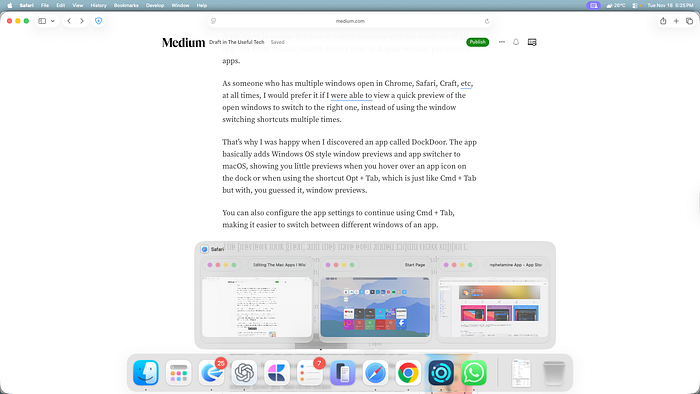
You can also configure the app settings to continue using Cmd + Tab, making it easier to switch between different windows of an app.
The previews look great, and they have even added Liquid Glass support. The app also provides options to customize the look of the window previews, including adjusting their width, height, and even which traffic light buttons they should disappear.
I wish I had found this app much earlier, because it would have saved me a lot of frustration in figuring out which of the 10 open windows in Safari has the tab I'm looking for.
#2 Rcmd
This is probably the simplest app in this list, but it also has the potential to save you a lot of time. It is basically trying to eliminate the need for Cmd + Tab to cycle through apps, and instead uses the Cmd key on the right side of your keyboard to quickly switch to a particular app.
Let me explain.
Let's say you have 10 apps open, which is typically how many I have open at a given time, and you want to switch to Safari from Finder. Typically, you would either move your cursor and click on the app icon on the dock, or hit Cmd + Tab multiple times to switch to the desired app.
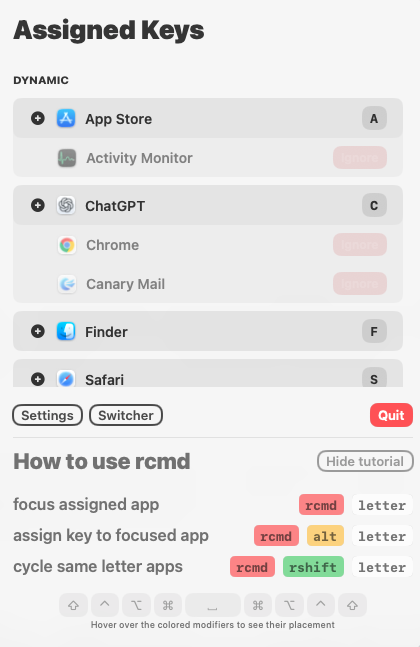
With Rcmd, the app lets you assign a custom shortcut to each app or use the first letter of the app name as the shortcut, and when you want to switch to the app, let's say Safari, you just hit the right Cmd key + S and you will be instantly switched to Safari.
And if you have multiple apps with the same starting letter in their name open, you just press the shortcut key combination again to switch between them.
Yes, it is a very simple concept, but over time, it saves you a lot of time and makes your workflow feel more efficient.
#3 LookAway
I always had a problem with staring at my screen for too long, especially late into the night, and then complaining in the morning that I didn't get a proper sleep.
It's not that I do this on purpose; sometimes, I am just deep into some interesting work or even a funny bunch of episodes of Modern Family, and I just lose track of time and forget to give my eyes the break they deserve.
Beyond just straining your eyes and affecting your sleep, continuously staring at your screen without taking sufficient breaks could also negatively impact your productivity.

The LookAway app aims to solve this by subtly nudging you to take breaks in regular intervals based on your configurations. You can set up the app to alert you every 30 minutes or 1 hour (I have set it to 45 minutes since I feel like it is a nice middle ground), and then you can also configure the break duration between 20 to 60 seconds.
The app also has a posture reminder, which again, reminds you at preconfigured intervals to adjust your posture. The ideal time is to set the reminders to come in every 10 minutes, at least for me, because I often tend to default to a hunchback position, especially if no one is around.
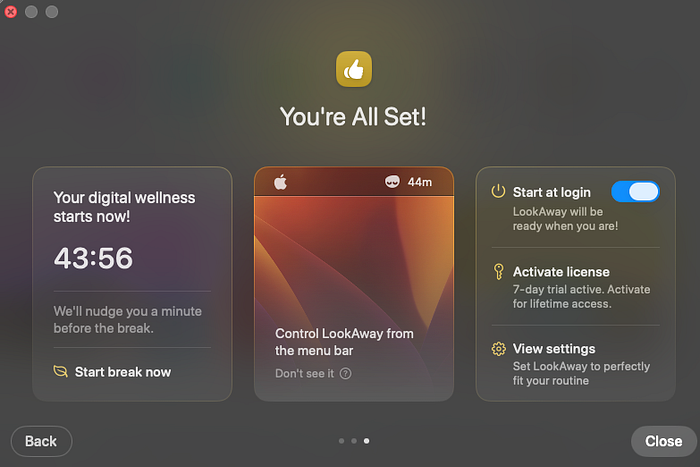
It's a nice little way to stand up and stretch, and walk around every once in a while instead of sitting glued to your laptop all the time mimicking Quasimodo.
#4 NotchNook
NotchNook for Mac is kind of like what the Dynamic Island was supposed to be on the iPhone. Even though the Dynamic Island in iOS is cool, it's mostly just an information-displaying area with very few interactive functionalities.
Even if you don't have the latest MacBook with a notch, the NotchNook app adds one there, which acts as a Dynamic Island, displaying information related to media and letting you control it.
But where the app really gets useful is, it also lets you add any shortcut actions to quickly trigger them, and also comes with a mirror, which basically opens your webcam in a pop-up window if you want to quickly check yourself out before a call.
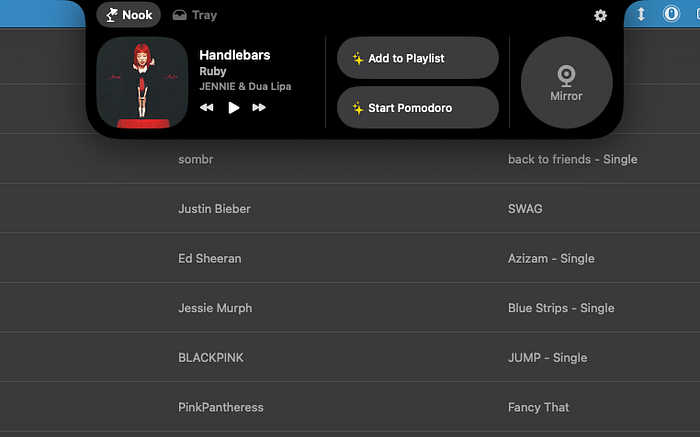
Despite all the smooth animations and media control capabilities, my favorite part of the NotchNook app is the second section of it called the Tray. It is exactly what it sounds like and lets you add any file you want to the tray and then quickly access them from any app you want, instead of jumping to the Finder every time.
Another cool thing about the app is that it lets you drop any file you want and then directly triggers the AirDrop option to share it. It's much faster, and more importantly more cooler looking than the traditional way of saving files.
#5 Shareshot
As someone who takes a lot of screenshots (at least 50 in a day) for my blogs and social media posts, I appreciate any app that makes the process as efficient as possible while also making my screenshots attractive instead of a boring block of screen.
While I appreciate using CleanShot X as my primary app for taking, editing, and managing screenshots, it doesn't have one crucial thing I need to share pretty-looking screenshots of apps on my social media accounts. The ability to add a screenshot to an iPhone, Mac, or Apple Watch frame.
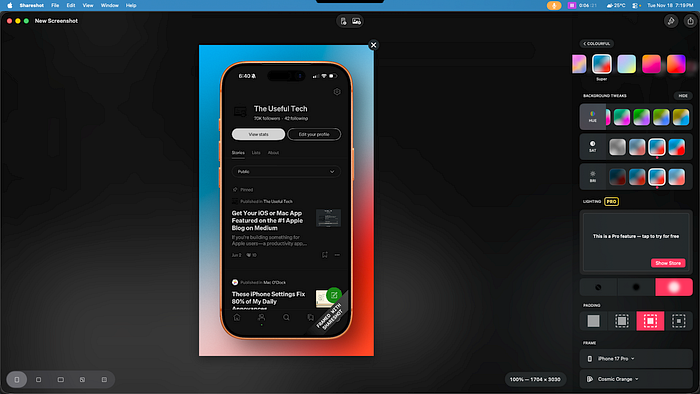
So, when I was looking for apps that could help me with this, I came across Shareshot, which was exactly what I needed. The best part about the app is that you don't have to dig through a list of available frames; the app automatically chooses one based on the aspect ratio of your screenshots.
If you have the pro version of the app, you can also customize the background lighting effects and remove the watermark added to the final screenshots.
If your work also involves dealing with a lot of screenshots, then Shareshot is a great app to have.
#6 Launchy
I am someone who likes to keep things organized, whether it is my real-life desktop or the virtual one on my Mac. So, naturally, I don't like to clutter my dock with every app I will ever use and limit it to only the ones I use a hundred times in a day.
However, the challenge is I have over 100 apps installed on my Mac (yes, I have a problem, and no, I am not going to do anything about it), and it quickly becomes an uphill struggle every time I want to find an app when I barely remember its name, but I just know the app icon.
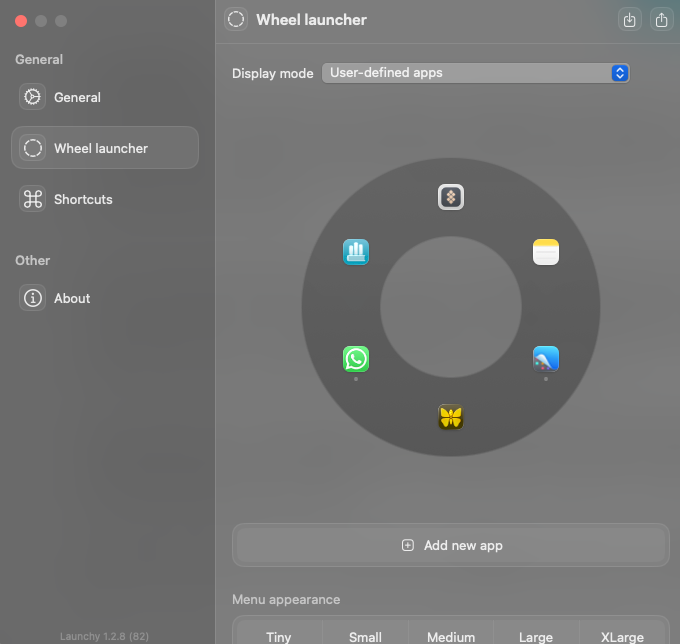
This is where the Launchy app comes in handy, because it allows you to add all the apps you regularly use to a radial menu, which can be triggered with the shortcut opt + cmd.
After this, just hover over the radial to highlight the app you want to open it. You can also customize the wheel launcher to modify its size, whether or not the app names should be displayed, the distance between the apps, etc. It also allows you to reconfigure the trigger screenshot and switch between different sets of apps.
Overall, it is a fun and quick way to launch your most-used apps without adding them all to your dock and cluttering your desktop.
#7 Amphetamine
Even though I have seen Amphetamine mentioned in a few blog posts or YouTube videos over the years, I never really tried it out because I thought I didn't have any use for it, especially since I always use my Mac connected to the charger and to an external monitor.
However, recently I switched from my iPhone 13 Pro Max to an iPhone 17 Pro (follow my blog to check out upcoming posts about this transition), and this means instead of having a separate lightning cable, I can use a single USB-C cable to charge both my iPhone and Mac.
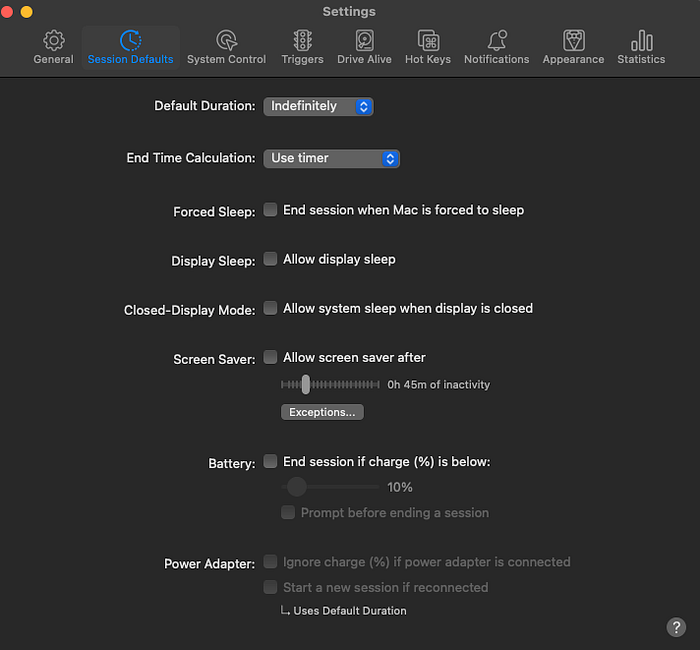
While it seemed like a convenience at first, I realized that my Mac would automatically go to sleep whenever I removed the charging cable to charge my iPhone. This was very annoying because I use my Mac in clamshell mode, and I need it not to turn off when I am using it.
So, when I was researching ways to make this happen, that's when I came across Amphetamine again, and I finally had a use for it. The app does exactly what I was looking for, and keeps my Mac wide awake, just like me, even after unplugging it.
I know it's a very niche use case, and most people might have separate cables to charge their devices, but for me, it was a very useful app, because it meant I didn't have to buy one more adapter to charge my new iPhone. If you also have the same problem, just install Amphetamine, and ensure you disable the 'Closed-Display Mode' option.
Putting this list together made me realize how many clever and useful Mac apps are still out there, sometimes hiding in plain sight. While I still wish someone had told me about these apps much earlier, I am happy that I can be that person to you.
If you use a bunch of productivity apps on your Mac or iPhone, you know how quickly the costs add up.
That is why I started using Setapp. It gives you access to 200+ premium Mac and iPhone apps under one simple plan for $9.99 a month.
You can try it free for a month using my affiliate link and see if it actually fits your workflow. I have discovered some amazing apps there that I would have never found otherwise. Plus, if you sign up through my affiliate link, it supports my blog too.