

Who's the real badass? Batman. But when it comes to using their Apple products, it's me who's it.
<Self drum rolls> 🥁
My Shortcuts app recently hit 100 shortcuts, each of which I use at least once every week. Almost half of them, I downloaded or created myself only after iOS 26.
Why such a sudden surge?
Thanks to the Use Model block that's powering up my shortcuts with AI — short for Apple Intelligence. It's not artificial, it's Apple.
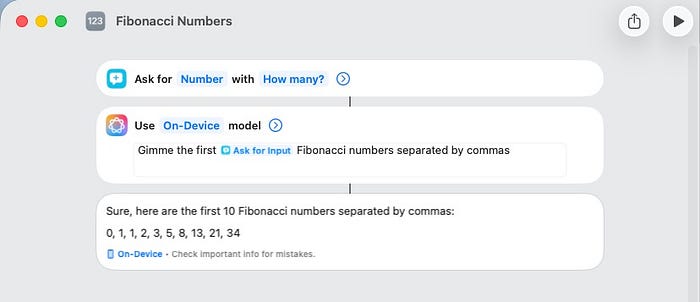
Below are 11 of the shortcuts I'm using everyday (or almost everyday) on my iPhone & Mac.
#1. Tally Counter
I bet you've never seen a shortcut like this. No, not that nobody's made a Tally Counter before — but nobody's made it this way (i think)
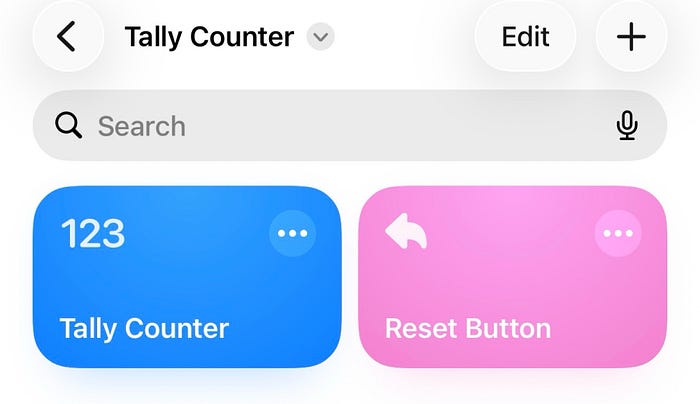
- Click on the shortcut and its name becomes Ƈ'.
- Click again. 2
- Again. 3
- 4, 5, 6, 7, …
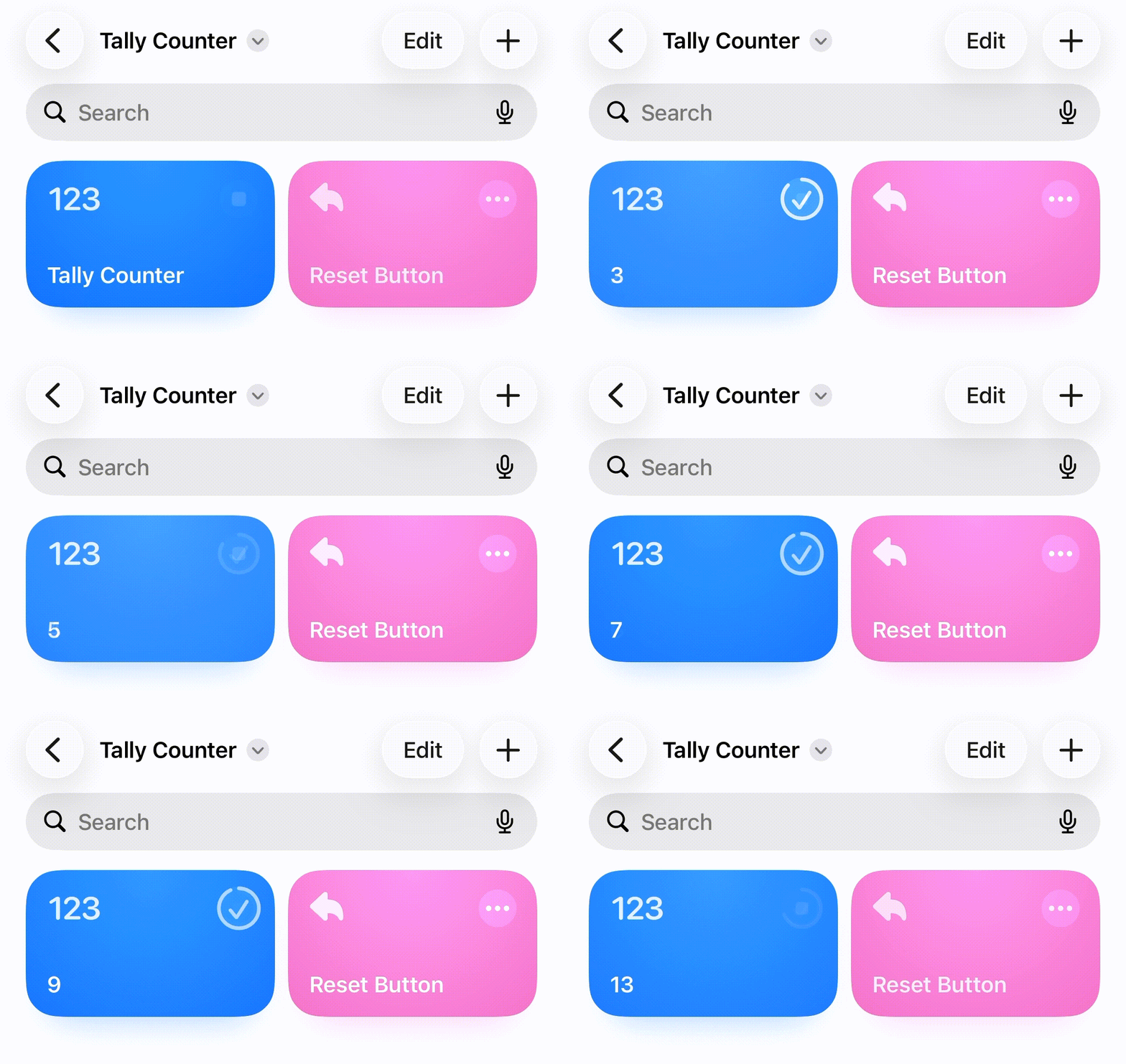
Keep clicking that way like Hulkbuster hits Hulk on the face. It can count till infinity.
Once you're done counting, click the Reset Button to change the original shortcut's name back to Tally Counter.
"But it's annoying to open Shortcuts every time I wanna tally stuff"
Just add it to the Home Screen. No, not this way ↓
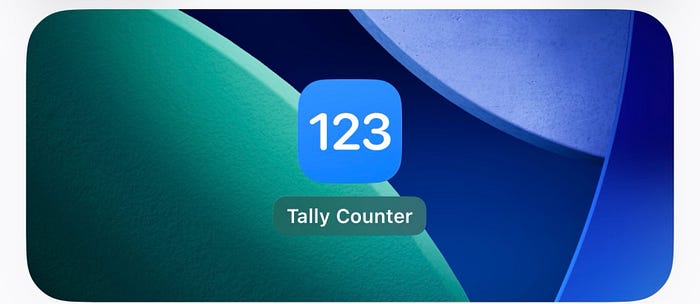
This wouldn't update the shortcut's name in real-time upon pressing — defying the whole point of a tally counter.
Add it as a widget. Keep both the shortcuts for easy access.
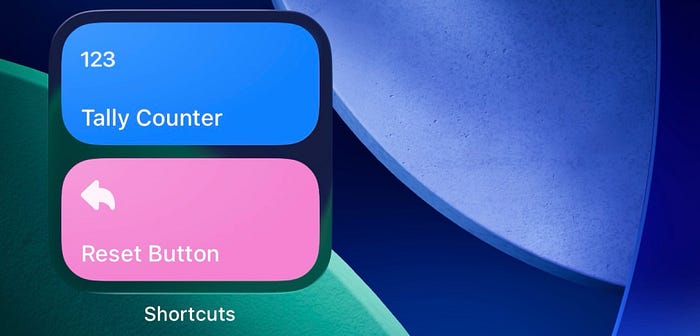
You can use the shortcut to log daily water intake, count people entering a supermarket (if you're an employee at the gate), etc.
You could also set an automation to run the tally shortcut every midnight to count habit streaks — the reset button is for when you make an oopsie.
Your shortcuts:
Make sure to add them in a separate folder and not along with your other shortcuts.
#2. App Settings
What's the shortest complete sentence in English? Go.
And the shortest GAME CHANGER shortcut is this ↓
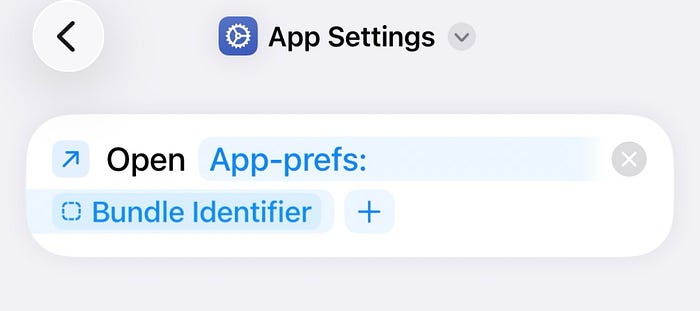
Just. One. Step. And a game changer.
WhaTF does it do?
Say you wanna open the settings page of the app currently open. Isn't it a hassle to go to Settings < Apps < app_name?
This one-step shortcut makes it two-step.
Here's how.
Add the shortcut to the Control Center (must). Now keep the app open (the app whose settings page you wanna access) and trigger the shortcut from the Control Center.
And watch it open the app's settings page.
Now, if you're as curious as me when I was 5, you'll try this shortcut from the Home Screen to see what happens. Try it.
Don't read what's below.
Ah, you read it. So, spoiler: It opens the Settings app.
#3. Packing List AI
Inspired by Stephen Robles on YTVacations are AMAZING!! Huh, but there's just one part I hate — Packing 😩
I hate using my little brain to think and pack clothes based on how long the trip is, and what gear I'm gonna use there.
If only I were a billionaire, I'd have a home wherever I go. Then, either I won't pack a thing, or my assistant does it all.
Now, for the rest of us, here's a shortcut that uses AI to give a preliminary idea of what all we need to pack.
It's just for inspiration and not the exact list to pack. So have a pinch of salt ready.
Once you launch it, it begins by asking you:
- Where are you going?
(Example answer: Barbados) - How long will you be there?
(Example answer: 2 weeks) - Special activities planned?
(Example answer: Jungle safari) - Any additional information?
(Example answer: I easily catch cold and we're carrying our 6-month old with us) - Suitcase, backpack, or both?
It then automatically creates a Reminders list with the items it thinks you'll need.
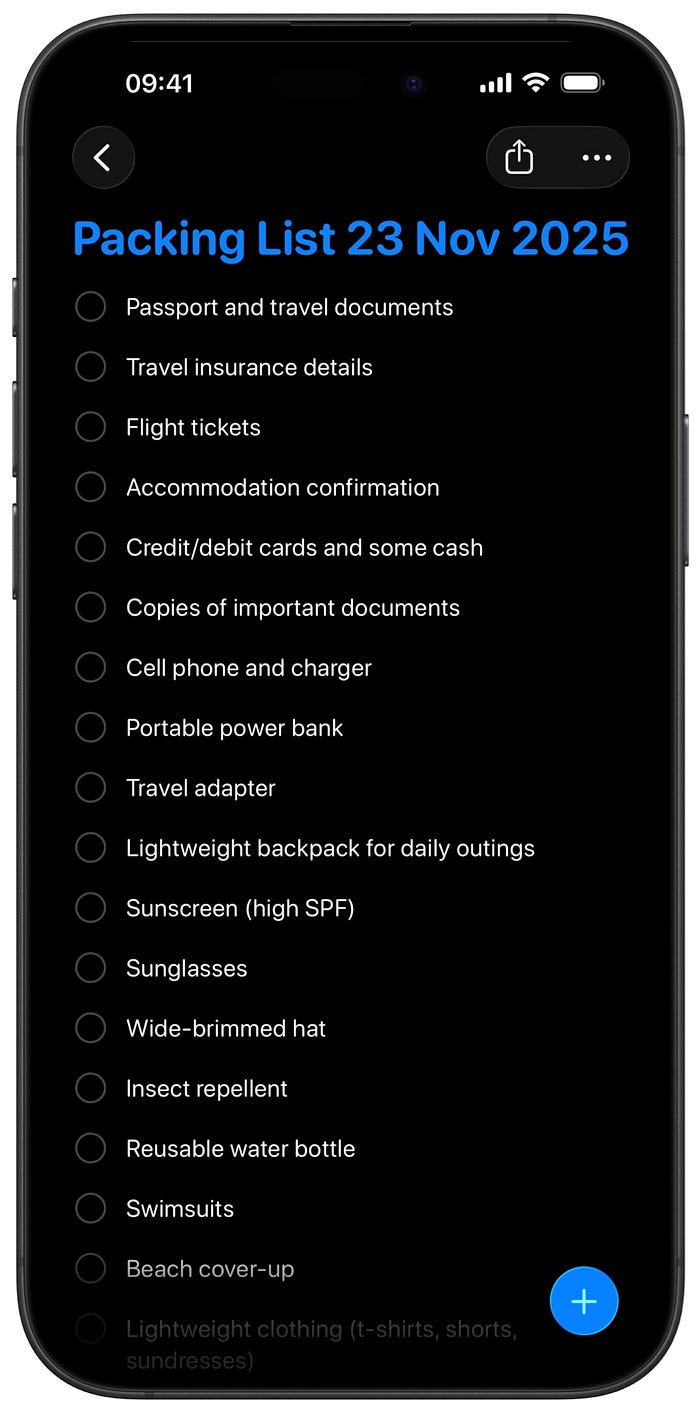
Keep the list open while you pack, and you know — tap the circle to check an item off.
#4. Mark Parking Spot
Again, I love shopping. But sadly, everyone does.
🚙🚙🚙🚙🚙🚙🚙🚙🚙🚙🚙🚙🚙🚙🚙🚙🚙🚙🚙🚙🚙🚙🚙🚙🚙🚙🚙🚙🚙🚙🚙🚙🚙🚙🚙🚙🚙🚙🚙🚙🚙🚙🚙🚙🚙🚙🚙🚙🚗🚙🚙🚙🚙🚙🚙🚙🚙🚙🚙🚙🚙🚙🚙🚙🚙🚙🚙🚙🚙🚙🚙🚙🚙🚙🚙🚙🚙🚙🚙🚙🚙🚙🚙🚙🚙
Most of the times, I'd remember where I parked the car. But sometimes, my reels-inflicted dopamine-to-the-brim brain fails to recall it.
That's why I got a dedicated AirTag for the car. Ah, once it even helped find the car when it was stolen. Anyways, that's a story for another day.
If you don't have an AirTag, don't worry. Apple put a secret feature to mark and return to the exact spot you parked your car.
Where in the iOS is it?
In one of the least used apps by many — Shortcuts.
As you run this shortcut, it asks you if you want to
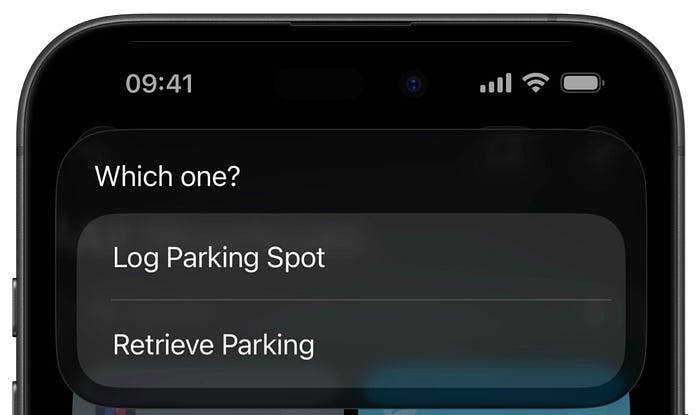
- Log Parking Spot Do this as soon as you exit your car (and don't do it again later, as it would overwrite the previous spot).
- Retrieve Parking Do this while exiting the store to get walking directions back to your car.
Easy 🫛y.
#5. Downloads Folder
I'm a fan of Batman. 🦇 And there's a fan of Downloads on my Mac.
Yup, fan of Downloads. Perplexed? I meant this:
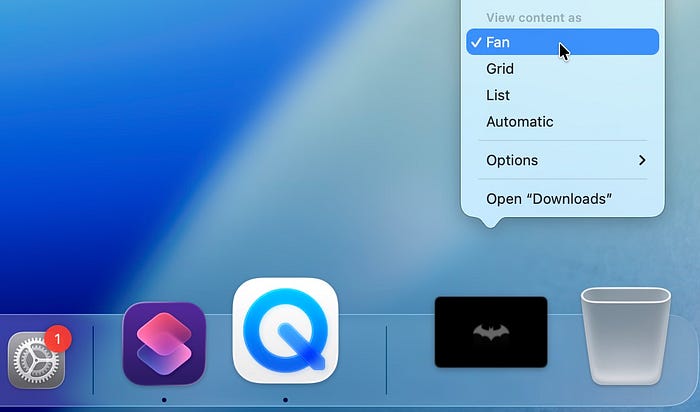
I download tons of files everyday — like mockups, Unsplash images, and Batman comics.
I got so used to having Downloads folder on my Mac's Dock (and on iPadOS 26) that I wanted it badly on my iPhone Dock too.
iPhone Dock? Yup, this:
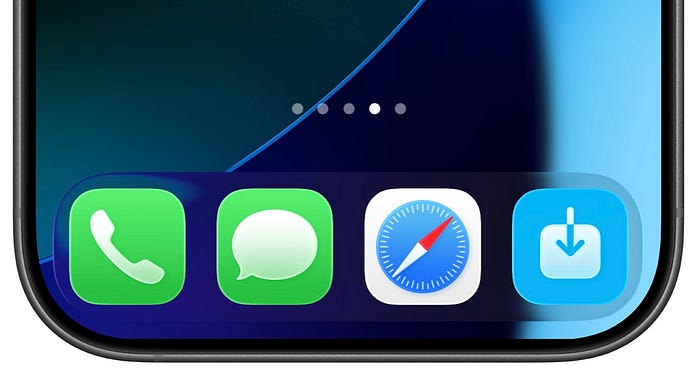
The icon that's to the extreme right is an alias to Downloads folder.
If you want it too, add this shortcut to the Home Screen and drag it to the Dock. However, as this is a workaround but not a native iOS offering, you won't have that "Fan" effect.
#6. Cellular Wi-Fi Toggle
These were all the iPhones I've ever owned:
- iPhone 16 Plus: My current one
- iPhone 14 Pro & Pro Max both: Call me a spendthrift because then I was
- iPhone 12: Bought it to test 5G
- iPhone XR ↓
When I got the iPhone 12, I thought I'd start using 5G right away. But little did I know my network provider Jio had to roll it out too.
Jio took its sweet time and rolled it out after I bought the iPhone 14 Pros. So that iPhone 12 purchase was a total waste.
Now, ironically even as I have 5G accessible, I'm defaulting to 4G LTE coz 5G's being such a battery hogger and iPhone batteries aren't prepared for it yet.
And wherever there's Wi-Fi, I'm switching to it instead of using cellular data.
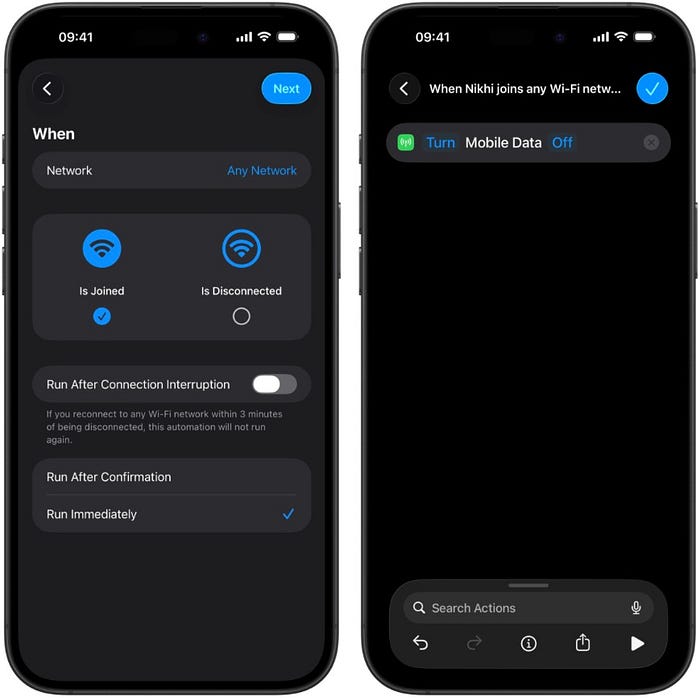
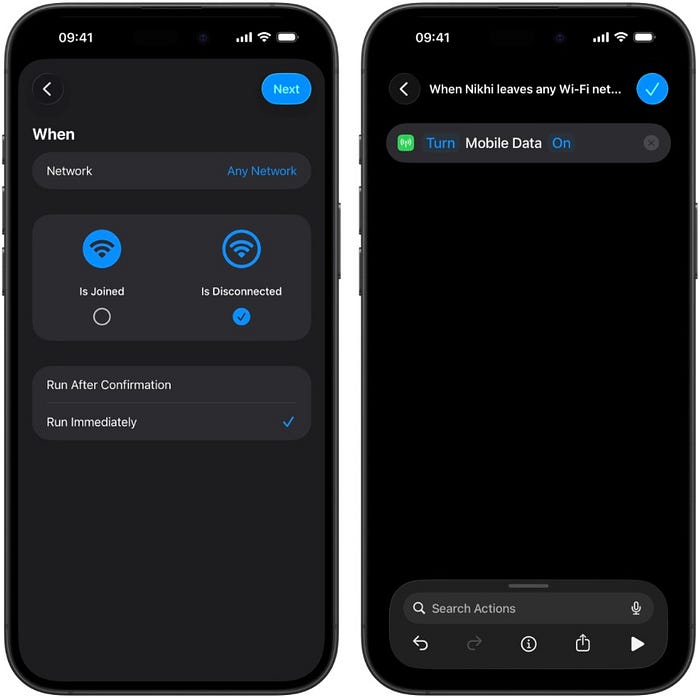
But it's such a headache to remember to turn off cellular data every time I connect to Wi-Fi, and then turn it back on when I disconnect.
So I'm using these two simple automations that do that chore for me:
#7. Automatic Screenshots Renamer
It's 2025 — the era of AI. And if your screenshots still have that old-school names like "Screenshot 2007–01–09 at 09:41:00", you might need to upgrade.
Not your Mac, but your workflow.
There's a whole slew of screenshots piling up on your Mac-hine and when you finally take time to delete a few to save space, you'd only know what's in one once you open it.
It's such a time waste to open each one and then think if you should delete it or no.
How about we use AI to automatically rename a screenshot — as soon as it's taken — based on what's in it?
It is possible! — thanks to Apple Intelligence and Shortcuts Automations on Macs with macOS 26.
Gif ↓
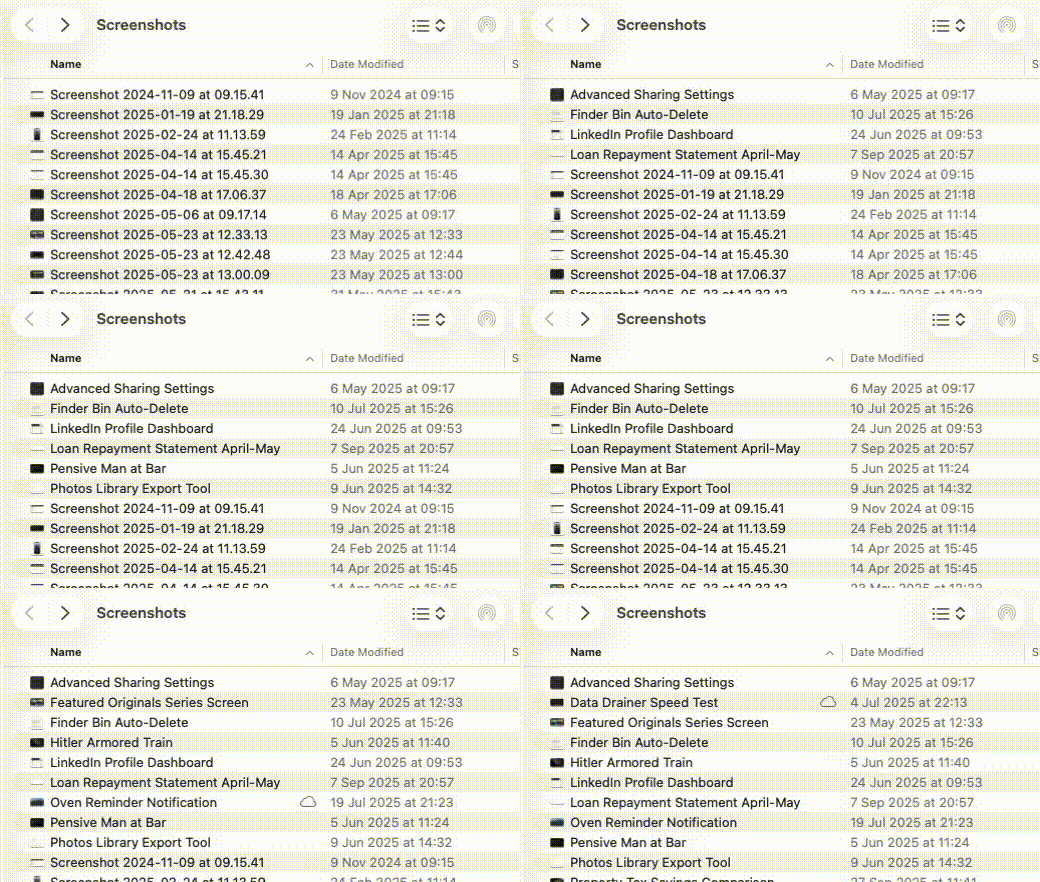
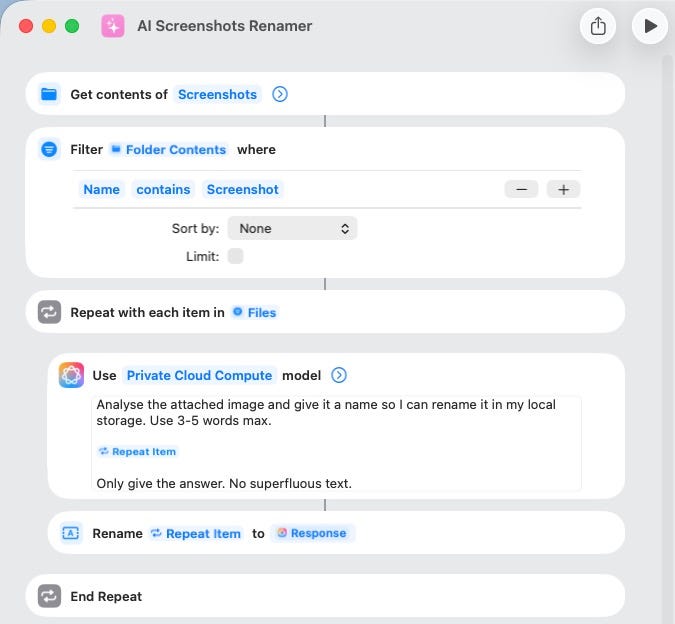
I'll explain you the process. Once you set that up, whenever you capture a screenshot, Apple Intelligence will step in, analyze the image, and rename it based on that in 3–5 words.
- Use ⌘⇧5 and click 'Options' to know/set a folder as your default screenshots folder
- Open Shortcuts < Automation < ➕
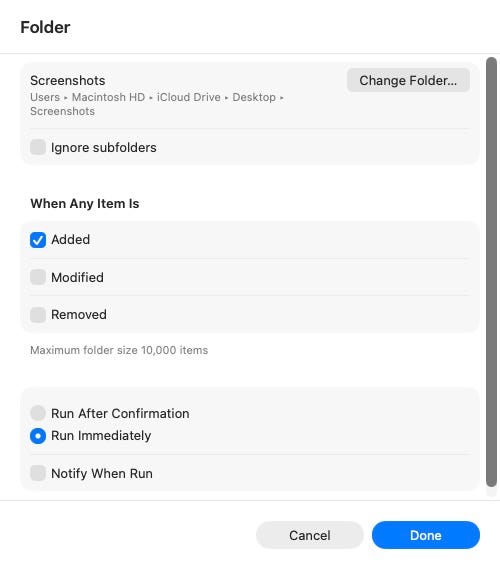
- Click 'Folder' and set the automation to run immediately whenever a file is added to it
- Set the automation to run this shortcut ↓
#8. Where do I stream it?
Inspired by Stephen Robles on YTNo, I'm asking. Where do I stream it?
That 2002 movie I watched in 2008 and remembered it just today in 2025 while my iPhone is charging.
There are dozens of streaming apps (god, subscriptions!) and it's such a hassle to know which movie's in which service — especially when I return back from prison-with-jailer-called-boss in the evenings, exhausted.
Here's a shortcut that took off some burden — Where do I stream it?
Simply run it and type in the movie name you're thinking of (say Spider-Man). It shows a list of matching results showing the movie name, year of release, and plot.
Click on the right movie and it lists all the streaming services where you can watch it, along with the subscription, rent, or buying price.
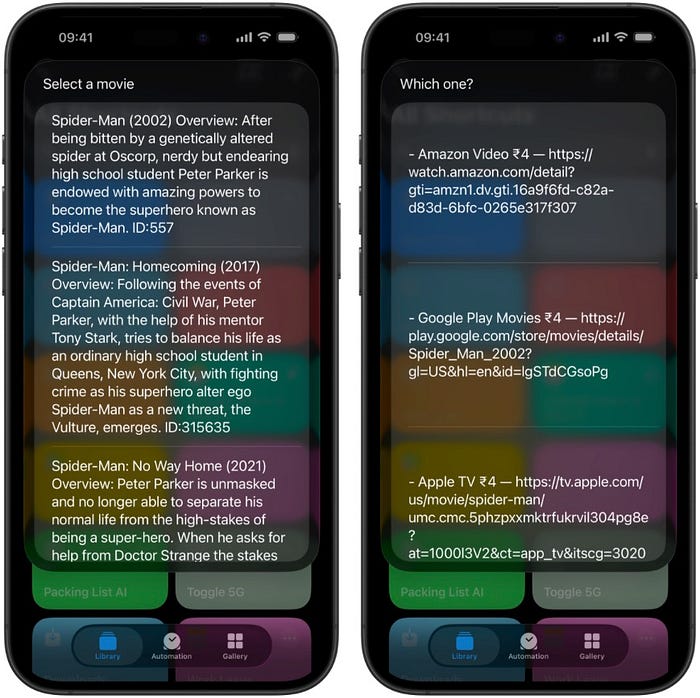
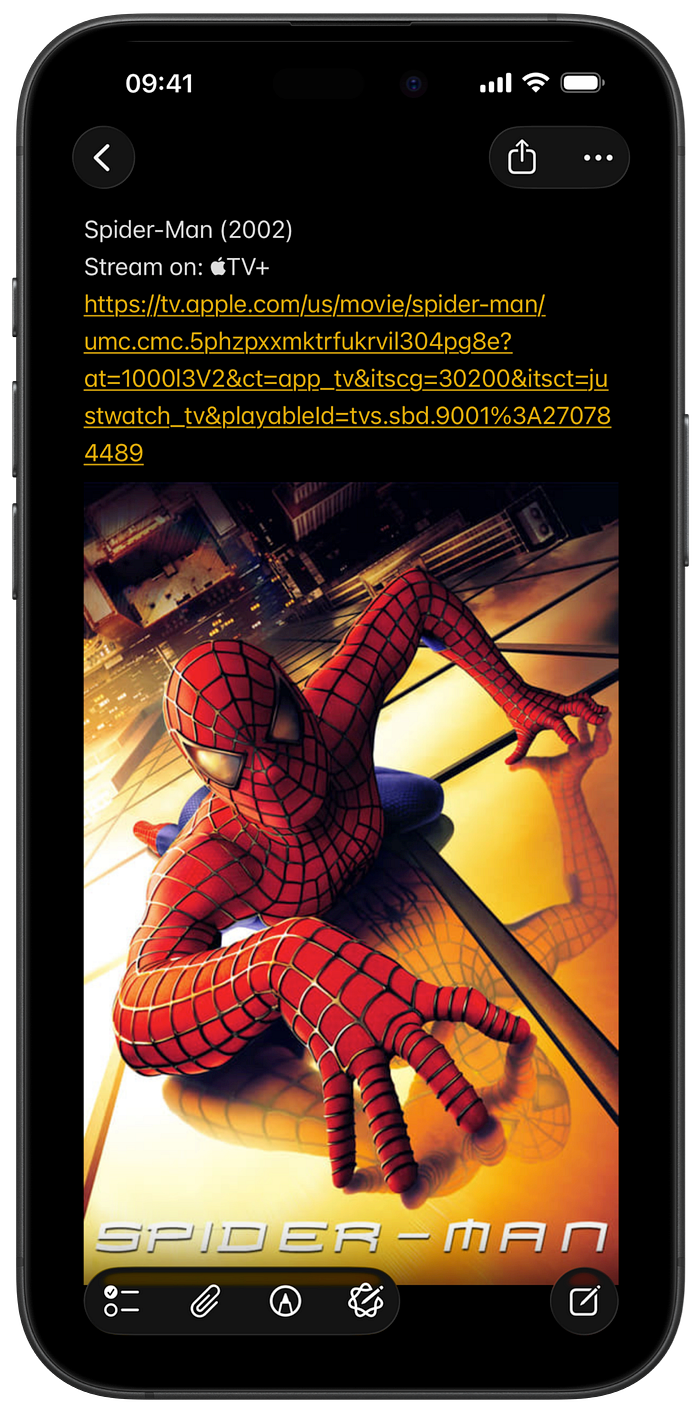
Tap on the service you prefer and it quickly creates a note titled the movie name — adding the streaming link and movie poster below.
#9. Chat with Blog
I'm getting married soon (🥳).
Now I need to pause investing in stocks and start with safe instruments (like bonds) — so my money's parked safe for our new house rent advance and appliances.
But, where do I invest?
I googled for the best safe options and found a blog explaining all the ones available.
It's too long I'm too lazy to read it. I just wanted concisely – the options available, their potential returns, and taxation.
So I shared the page with "Chat with Blog" shortcut, typed my query, and it used the blog's text as context to answer it.
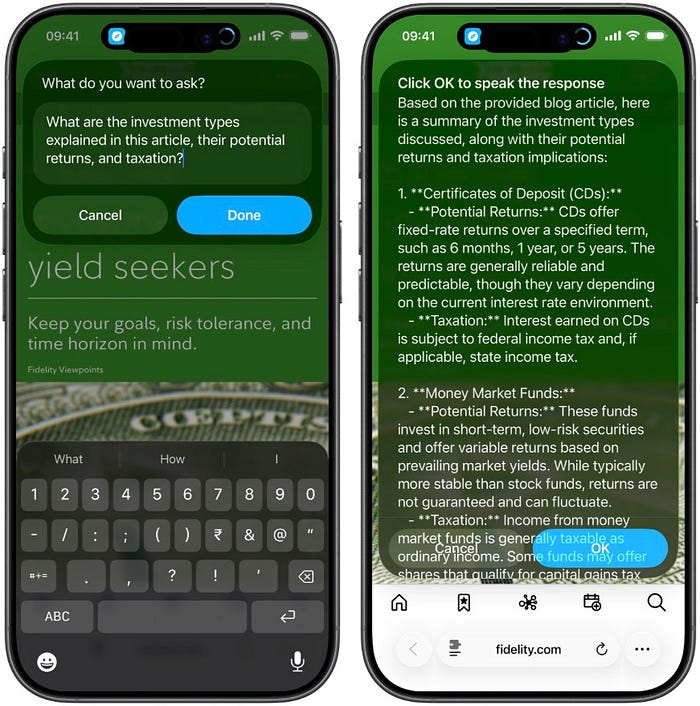
Best part, I can click OK to have the response spoken out.
#10. Clamshell mode on battery
Apple's a $4T company and that largely boils down to its focus on UX. However, there are a few (just a few) things they do, perhaps deliberately, that just create an egregiously bad UX.
Why? Maybe for free publicity by haters.
• The M4 Mac mini's power button is placed at the rear, making it inconvenient to power on/off for every session.
• MacBooks cannot be used in clamshell mode unless they're plugged in.
• You can't share an iPad's screen with a second display while the lid's closed on a Magic Keyboard.
• The Magic Mouse 2's charging port is located on the bottom surface, making it unusable while plugged in.
• AirPods Max cannot be turned off entirely. Rather, can only be put in ultra-low-power deep sleep mode by placing them back in their bra case.
All of these lack a workaround. Oh, except for the clamshell mode annoyance.
I'm not suggesting you a $5 app like Clapet, no. I'm saving you money by suggesting this Terminal trick.
Run this command ↓
sudo pmset -b sleep 0; sudo pmset -b disablesleep 1and your Mac won't automatically sleep when the lid's closed — regardless of whether it's plugged in or not, even in clamshell mode. (Replace the 1 with 0 to revert back to default.)
Let's automate to run this every time you connect an external display.
- Open Shortcuts < Automation < ➕
- Click Display < Is Connected < Run Immediately
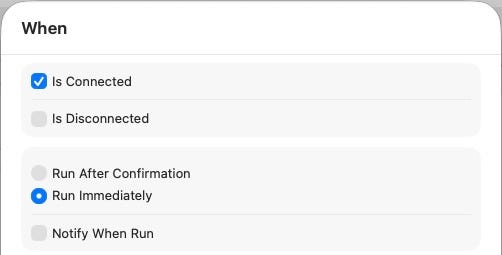
- Set the automation to run this shortcut ↓
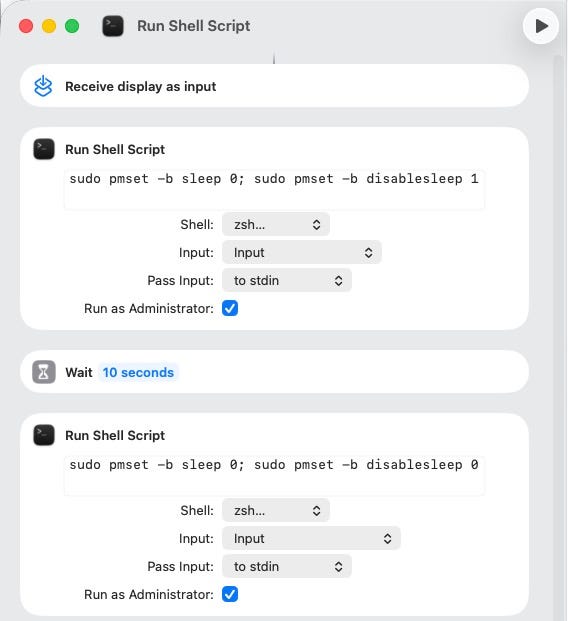
What will happen now?
Upon connecting to an external display, the automation runs command #1 (which prevents sleep), waits 10 seconds, and then runs command #2 (which allows sleep).
Now, when you connect your Mac to an external display when it's not plugged in, make sure to close the lid within that 10 secs to keep clamshell mode active without needing to plug in.
Clamshell mode won't turn off when the second command runs (magic!).
#11. Open External Drive
You connect external drives to Mac to "access them", right? — Or anything else?
To access them.
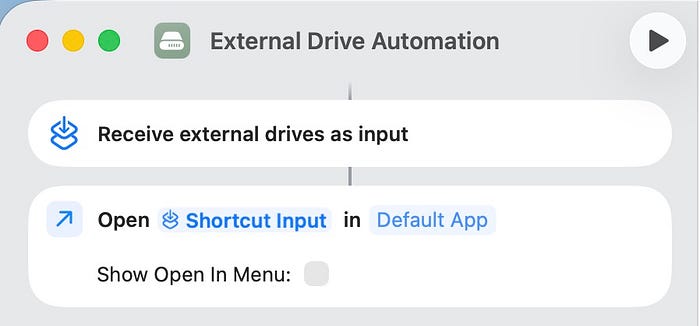
Then why not have the drive folder open automatically as you plug it in?
Do what's below and that will happen.
- Open Shortcuts < Automation < ➕
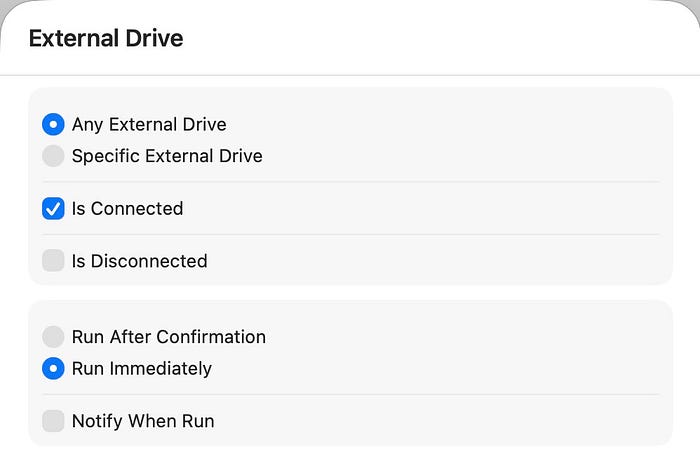
- Click External Drive
- Set the automation to run Immediately when Any External Drive connects
- Create a New Shortcut ↓
Loved it? For more useful Apple Shortcuts, read these →
Finally,
If you love exploring new iOS & Mac apps (like me), consider subscribing to Setapp. You'll get access to a curated collection of 240+ amazing apps for just $9.99 a month, which rather cost hundreds of dollars if purchased individually.
- Use my affiliate link to start your Setapp journey! (It's free for 30 days)
- Get my free list of 100+ Ultimate macOS Apps on Setapp here.