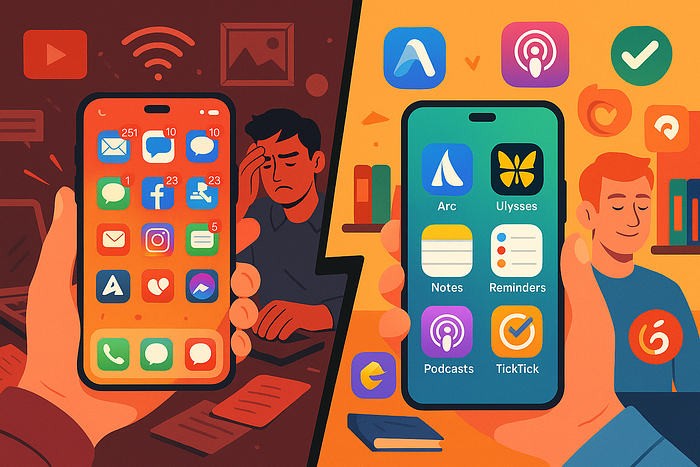


My iPhone is an integral part of my daily life. For years, I used it just like most iPhone users do: trapped in the quotidian cycle of doomscrolling, photo-taking, and endless video consumption.
But over the years, I have fine-tuned and configured my iPhone so it can actually help me live my life better, rather than just being a hindrance as a time-wasting rectangle. That incipient realization that my iPhone was quietly dictating how I spent my time finally pushed me to change the way I use it.
In this post, I'll share the various apps, settings, widgets, and options I have set up and configured in my iPhone to make it a valuable part of my life.
Let's get to it.
I am structuring this post to follow my daily routine, clearly showing how I use my iPhone throughout the day, from the moment I wake up till I go to sleep at night. This way, I can show exactly how my iPhone helps me to live my life better on a typical day.
Morning — Starting my day right (6:30 am — 9:30 am)
Let me start by walking you through my morning routine, the apps, and the options I have set up on my iPhone to get me through it as efficiently as possible.
Waking Up — Clock, Health, Apple Music, Sleep Focus
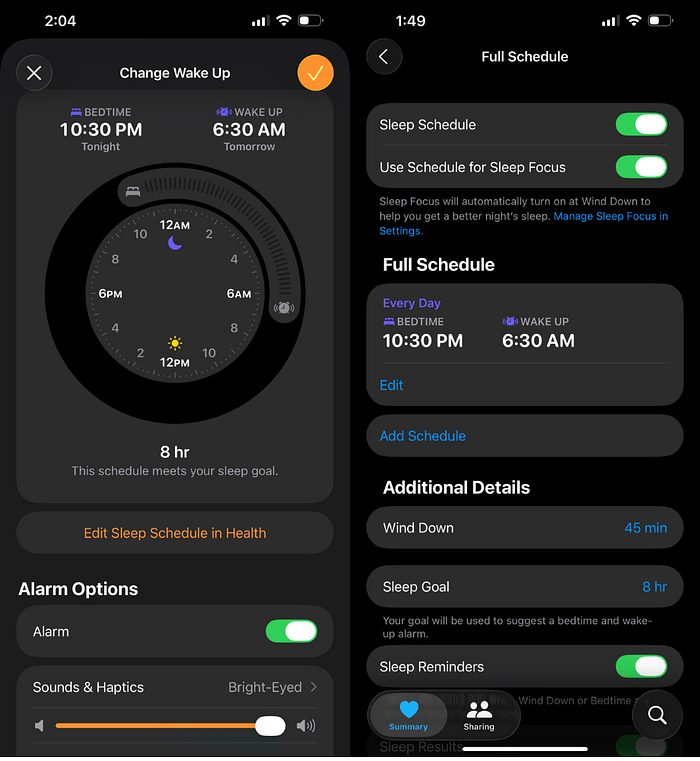
Like most people, the first app I use on my iPhone in the morning is the Clock app. I have set up a bedtime schedule in the Health app to automatically start at 10:30 pm and end at 6:30 am.
During this time, my Sleep Focus mode will be active, allowing only calls or messages from my favorite contacts, ensuring I won't be interrupted by unnecessary calls or notifications while sleeping.
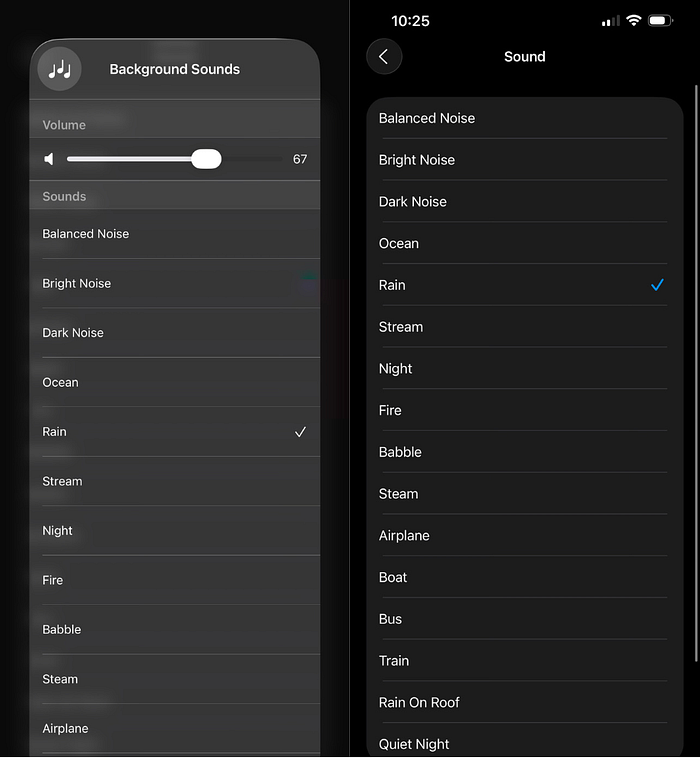
Also, sometimes if I find it difficult to fall asleep at night, I either use the background-sound features built into iOS to help me fall asleep, or I use an Apple Music playlist specifically designed to help people sleep.
You can ask Siri to play Sleep sounds, and she will understand what you mean. I mostly listen to these on my AirPods, but I sometimes use my HomePod as well.
The Sleep Schedule option in the Health app also lets you configure a Wind Down schedule, and I have set mine to start 45 minutes before my actual bedtime, giving me enough time to finish my night routine.
You can also set it up to send you a reminder so that you can plan your night accordingly. This is especially useful if you wear your Apple Watch to bed, as it reminds you to charge it if the battery is too low to last through the night.
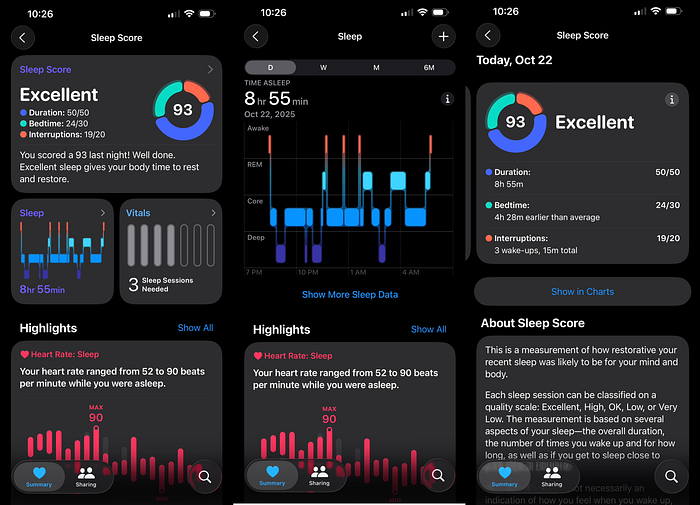
Once I dismiss the morning alarm, I can also see a summary of my last night's sleep in the Health app, with details on how long I actually slept and how much time I spent in each sleep cycle.
It also gives you insights into how your heart rate and other health metrics were throughout the night, helping you understand the quality of your sleep and take any corrective measures if required for the upcoming day, like not drinking caffeine before bed or spending a couple of hours playing games on your iPhone way past your bedtime.
Planning my Day — Calendar, Notes, Reminders, Craft
Once I freshen up, I check my Calendar and Reminders to see if there are any critical tasks I need to take care of today. I use the Reminders app for a wide range of personal tasks, such as reminding myself of people's birthdays, bills to pay, subscriptions to cancel, and even to water my plants.
I also use the 'Repeat reminder' feature frequently, setting it to send the same reminder every hour until I complete the task and then delete it. This is particularly helpful for time-sensitive tasks like paying a bill, which I might forget or ignore if I only get a single reminder. Yes, I basically annoy myself into getting the work done. It's my own mildly masochistic productivity hack.
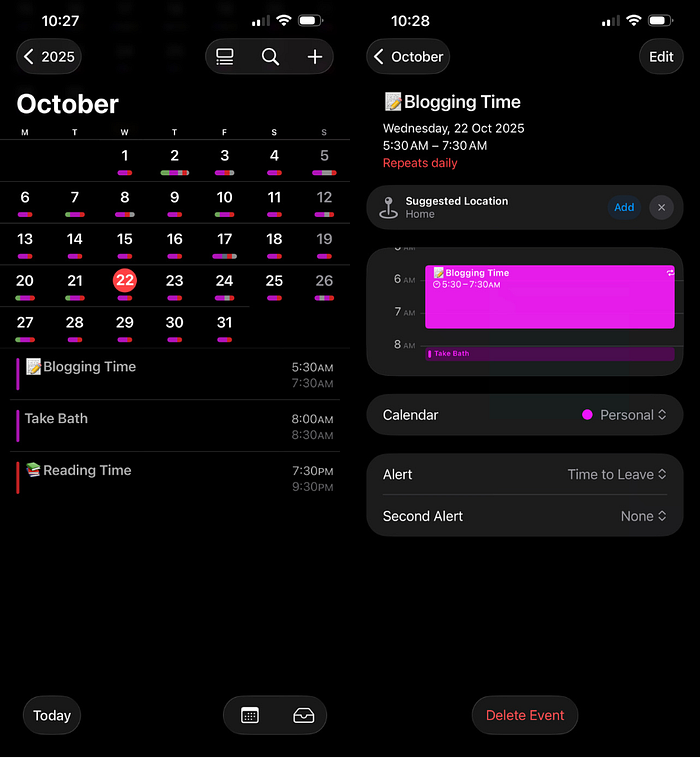
After checking my tasks for the day, I open Craft or the Notes app to jot down any thoughts or plans. Most of the time, this involves a content idea or something I plan to work on later.
Craft has a daily note feature: a new note is automatically created each day, and whatever you write on the page is added to the calendar view, allowing you to quickly pick any day and revisit the notes from that day. This is really useful when you want to check what you were working on last Tuesday, randomly.
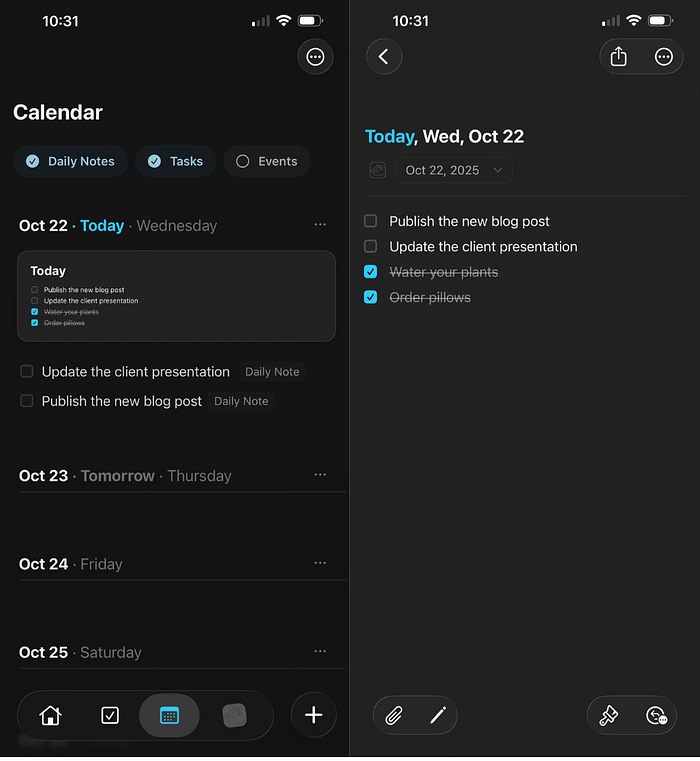
I have also added this page as a widget to my home screen, so whenever I think of something during the day, I can tap it and start writing.
A Little Bit of Physical Activity — Fitness, Health App, Stress Watch, Gentler Streak, Journal
Whenever I am in the mood for a quick morning walk, which is about 3 or 4 days a week, I use an app called Gentler Streak to track my activity stats.
The beauty of this app is that, instead of requiring you to maintain a streak by doing a physical activity every single day of the week, it encourages you to also take breaks or rest days based on your activity in the previous few days.
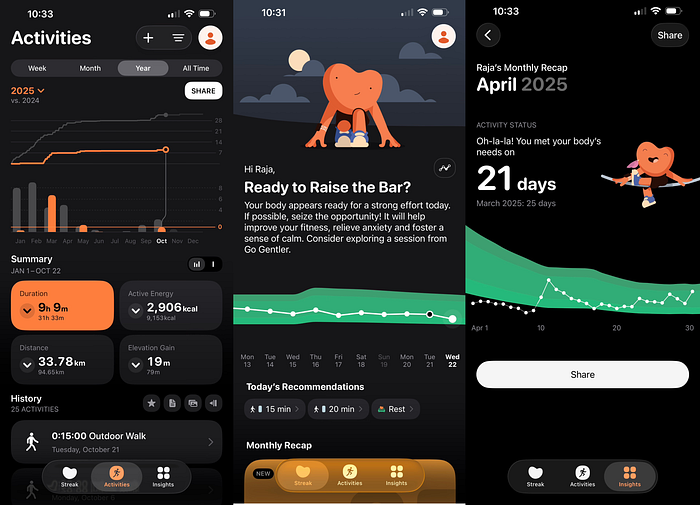
I also like the nice little stat it shows after a walking session, letting you know how many calories you have burnt, like a banana or a large burrito from Taco Bell. This helps you easily estimate how much effort you have put in.
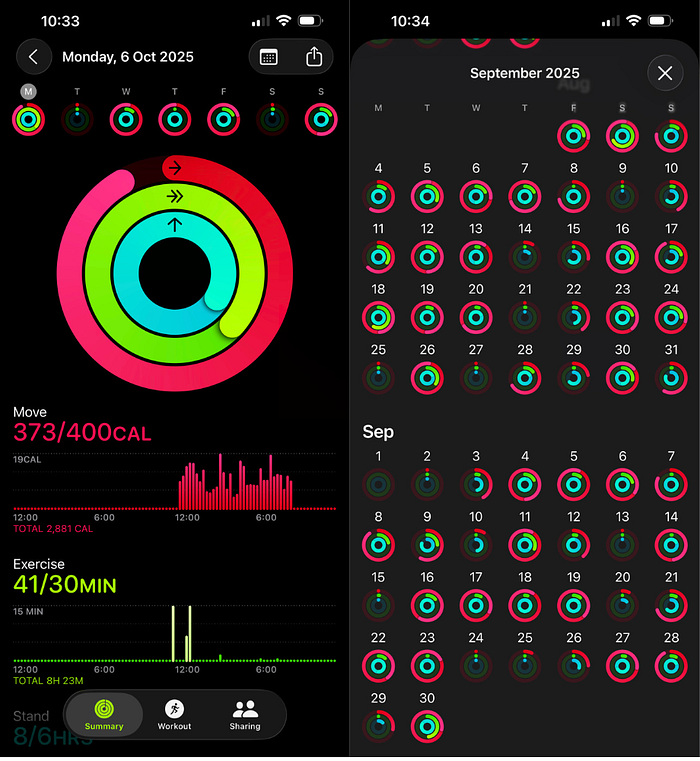
Of course, I also use the Health app and the Fitness app on my iPhone to track metrics like my heart rate and cardio fitness levels, and compare my progress to that of my fitness enthusiast/psycho Apple Watch-owning friends, who are almost always ahead of me for some reason.
I have also recently started using a new app called Stress Watch for both physical and mental wellness purposes. The app uses the Apple Watch to track your Heart Rate Variability, which is basically the time between consecutive heartbeats to determine your stress levels throughout your day.
So, if your HRV is high, it indicates that your stress levels are normal; if it's low, the opposite. I have set up the mine to send me an hourly alert and added the Stress Watch widget to my Apple Watch face to monitor my stress levels throughout the day.
I have noticed that my stress levels are higher than usual during midday. When I get this alert, I try to do something relaxing, such as sitting alone in a room without my phone or writing in my notebook, which usually calms me down.
The app also provides you with handy insights into your HRV and stress level trends, helping you identify when you are more stressed and avoid such activities for a while.
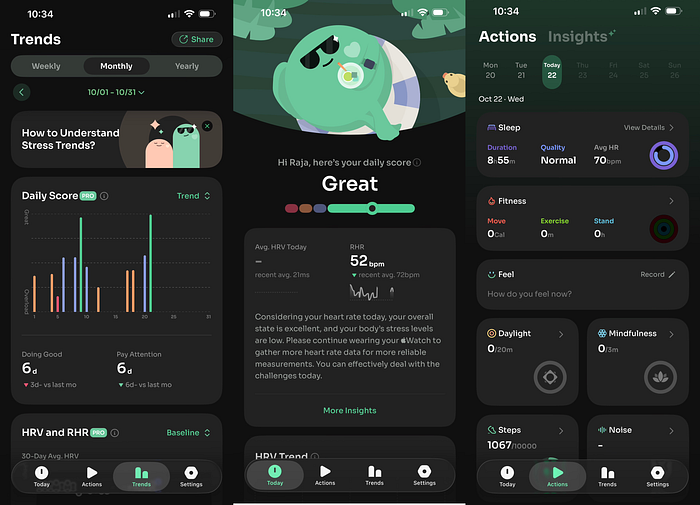
Stress Watch also lets you log your current mood and write down how you feel in its built-in journal. This helps you correlate your stress levels with specific activities.
I also sometimes use the Apple Journal app to jot down how I am feeling at random times during the day, and I enjoy going through these in my free time to see how my state of mind was at different times.
Although I've recently been preferring to write in my physical notebooks more, despite the lack of privacy and the difficulty of quickly searching for something, it is more enjoyable and relaxing than typing on my iPhone.
Improving my hydration and my knowledge — Waterllama, Headway
I know it sounds absurd that you need an app to remind you to drink water, but I have tried living without it for years, and I have definitely noticed I drink more water ever since I started using the Waterllama app.
Partly because the app sends me smart reminders throughout the day to drink water, and partly because I don't want to miss out on my streak. I really love the cute characters the app rotates through every day, which fill up with water whenever you log how much water you drank.
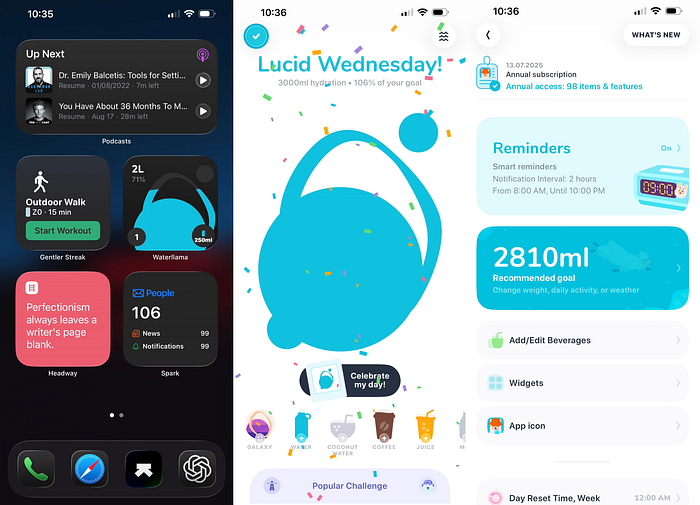
I have added the Waterllama widget to my home screen and the complication to my Apple Watch face, ensuring I never forget to drink water and log my intake.
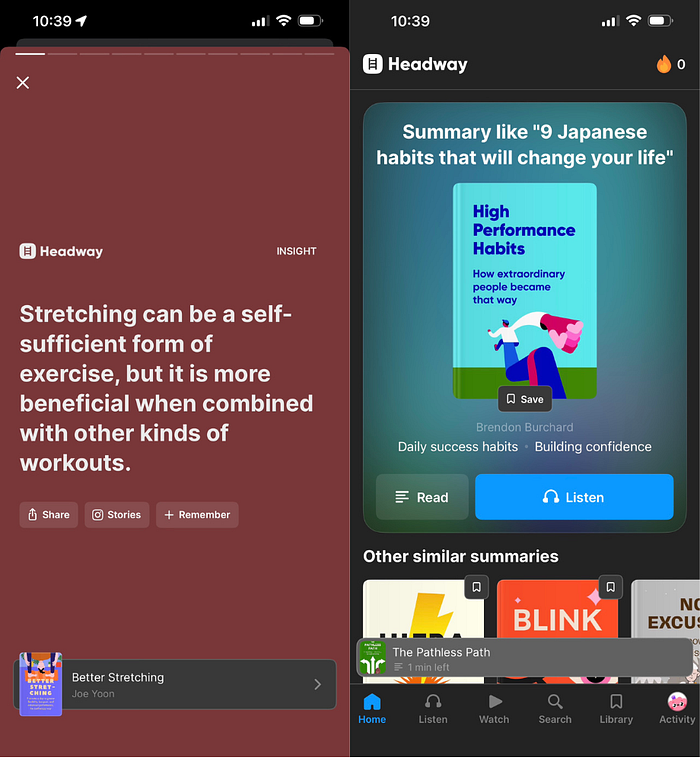
Another widget I have added to my home screen is from an app called Headway. The widget cycles through multiple motivational and insightful quotes throughout the day, drawn from popular self-help, productivity, business, and other non-fiction books.
You can also click on the widget to read the full summary of the book from which the quote is from. It's a nice way to get random bursts of motivation and gain some knowledge whenever you unlock your iPhone.
A Typical Workday With Improved Productivity and Focus (9:30 AM to 6:30 PM)
Eliminating noise with DND Mode + Downtime + Notifications configurations
One of the best things you can do on your iPhone to ensure you don't get distracted by it when you are trying to focus on something is to put it in Do Not Disturb Mode. But don't just stop there; you can also configure it to allow calls or notifications from specific people or apps, ensuring you don't miss important updates or calls.
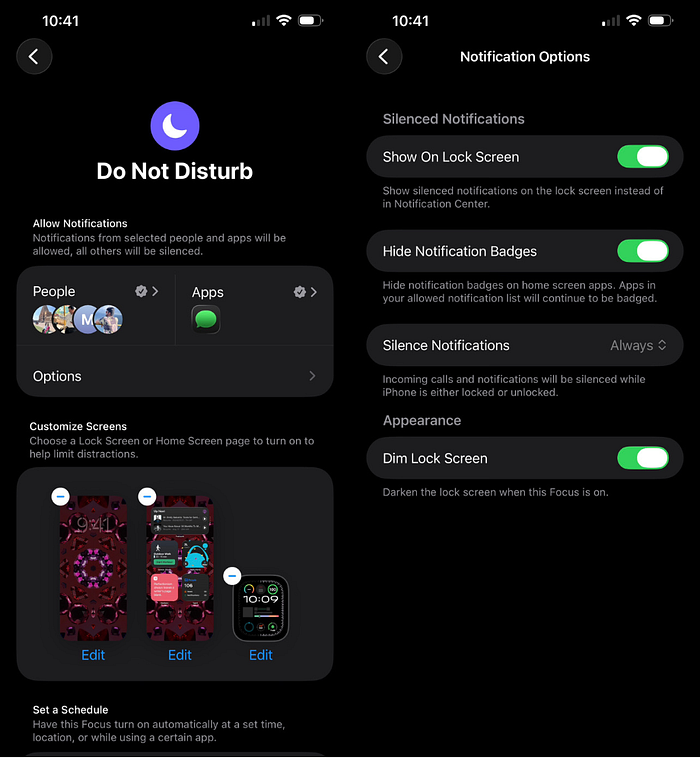
I also have a separate focus mode on my iPhone called Work that automatically activates when I reach my office. This mode allows only calls and notifications from work-related apps, such as Outlook and Slack, while muting all distracting notifications from Instagram, WhatsApp, Reddit, etc.
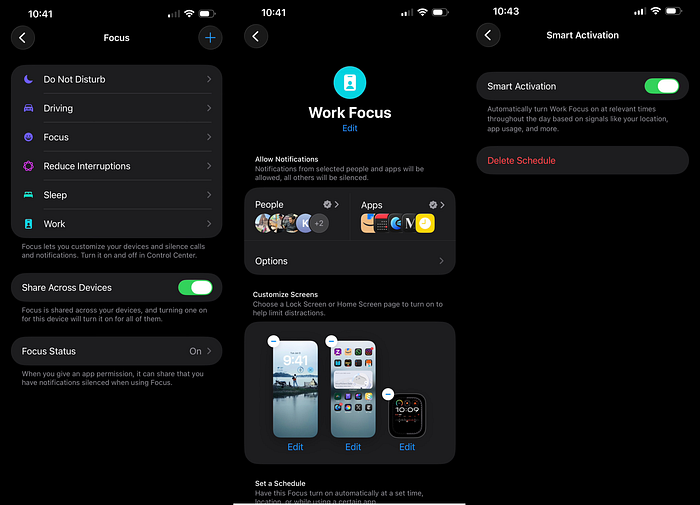
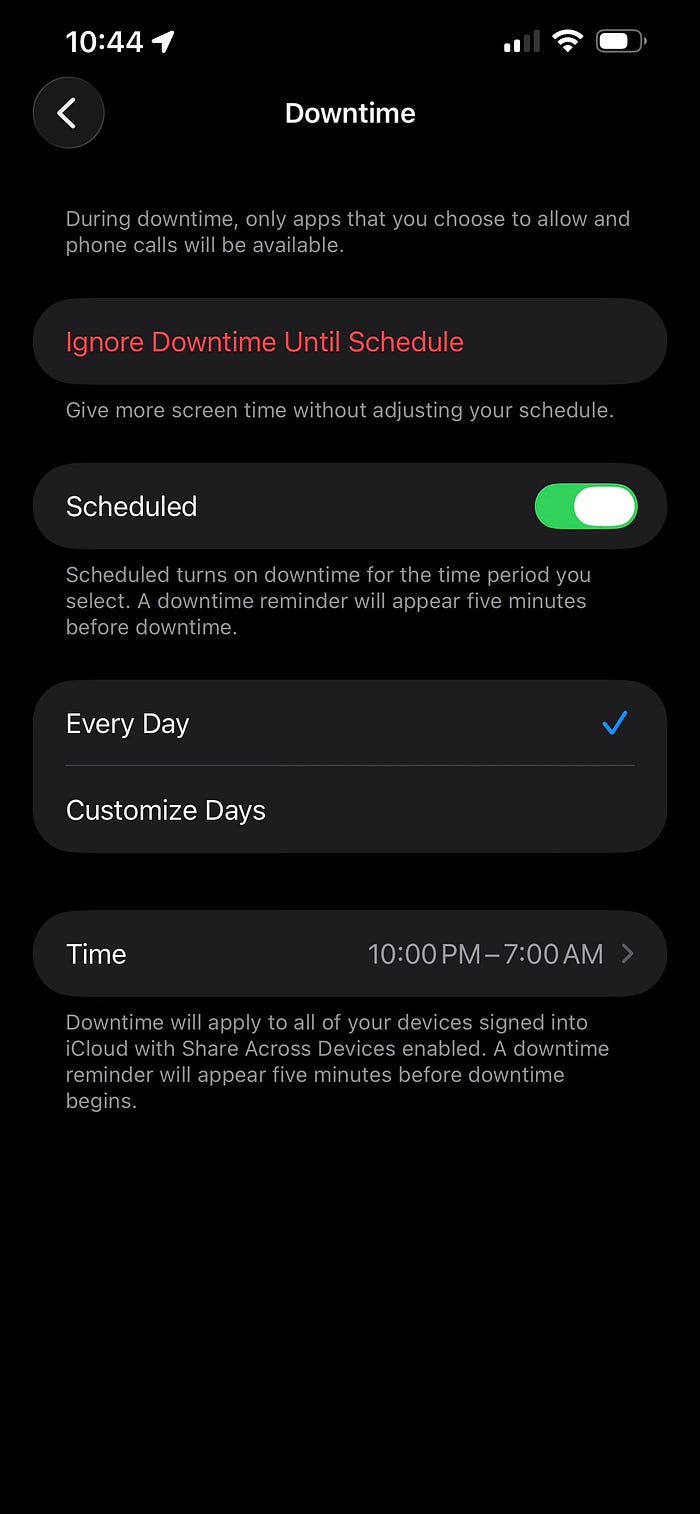
On top of this, I have also configured the Downtime mode on my iPhone to automatically enable after 10 pm every night during the week. This disables all apps on your iPhone, except for the most essential ones, such as the Phone and Messages apps.
This basically makes it as hard as possible for you to use your iPhone late at night, thereby improving your sleep quality and keeping you refreshed and focused the next day.
If you don't want to take such drastic measures, you can also try disabling notifications from certain apps where you feel most of your time is wasted. I mostly try to disable notifications from apps like Amazon, my food delivery app, Reddit, and all the news apps I use on my iPhone.
Whenever I open any of these apps from the notifications, I spend an unhealthy amount of time doomscrolling. It is wild how rampant the urge to check one more thing becomes once a single notification slips through.
Simply turning off notifications has successfully eliminated the trigger these apps use to entice me to use them. This alone has had the most significant impact on my productivity and focus, and I am sure you would feel the same once you try it.
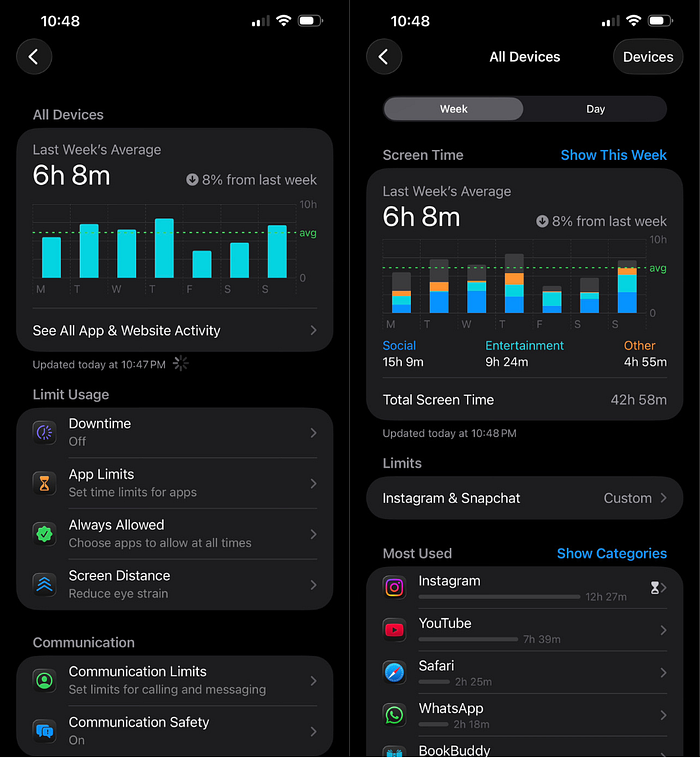
If you absolutely have no self-control, just like how I used to be a while ago, you can also set up the Screen Time feature and let someone else set the passcode for it, someone who wouldn't tell you the code even if you beg. This is probably a last resort, and I would recommend you try a combination of the above options first.
Shortcuts App + NFC.Cool — Automating the boring stuff
I use the Shortcuts app extensively to automate many of the standard tasks I do throughout the day, like turning off my lights and AC in the morning, sending a message to my partner when I leave the office, and playing my favorite playlist when I connect my AirPods.
While most of these things won't take much time to do yourself, the point of automating them is to ensure you don't forget them in the first place, and also, over time, these really do add up as a lot of time saved.
Another cool thing I recently started doing is using NFC tags whenever possible. I have a 20-pack of NFC tags and have stuck them around the house, even on my bike and my water bottle.
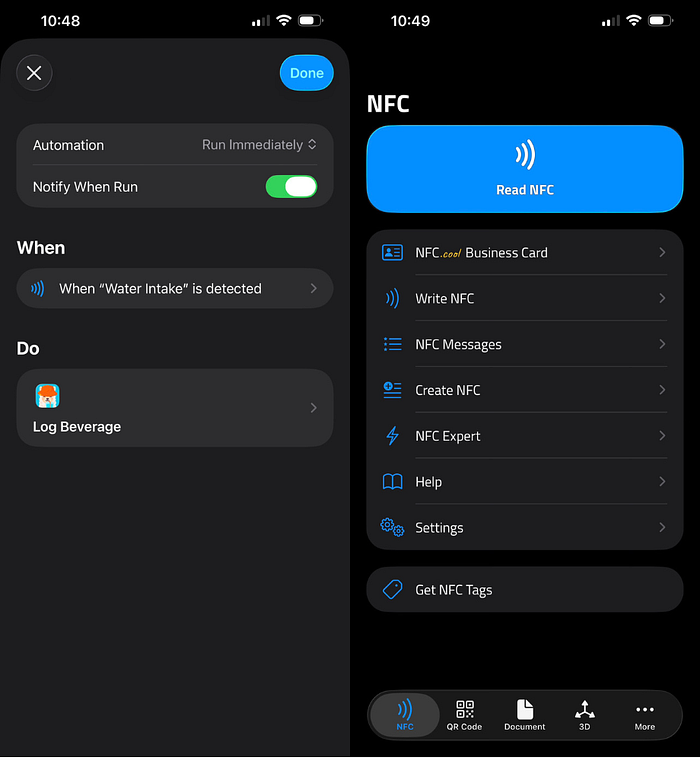
Whenever I want to do a repetitive task like logging my water intake, starting navigation, playing my playlist, or turning on my smart plug, I tap my iPhone on the NFC tag, and the preconfigured automation is triggered.
I use an app called NFC.cool to do this. The app lets you configure and reconfigure NFC tags with any action you want, and you can also connect them to your shortcuts to trigger them when you tap the tag.
Of course, you can do the same with the NFC automation in the Shortcuts app, but NFC.cool offers more configuration options and the ability to overwrite an NFC tag with a new automation.
Reddit Widget — Motivation Booster
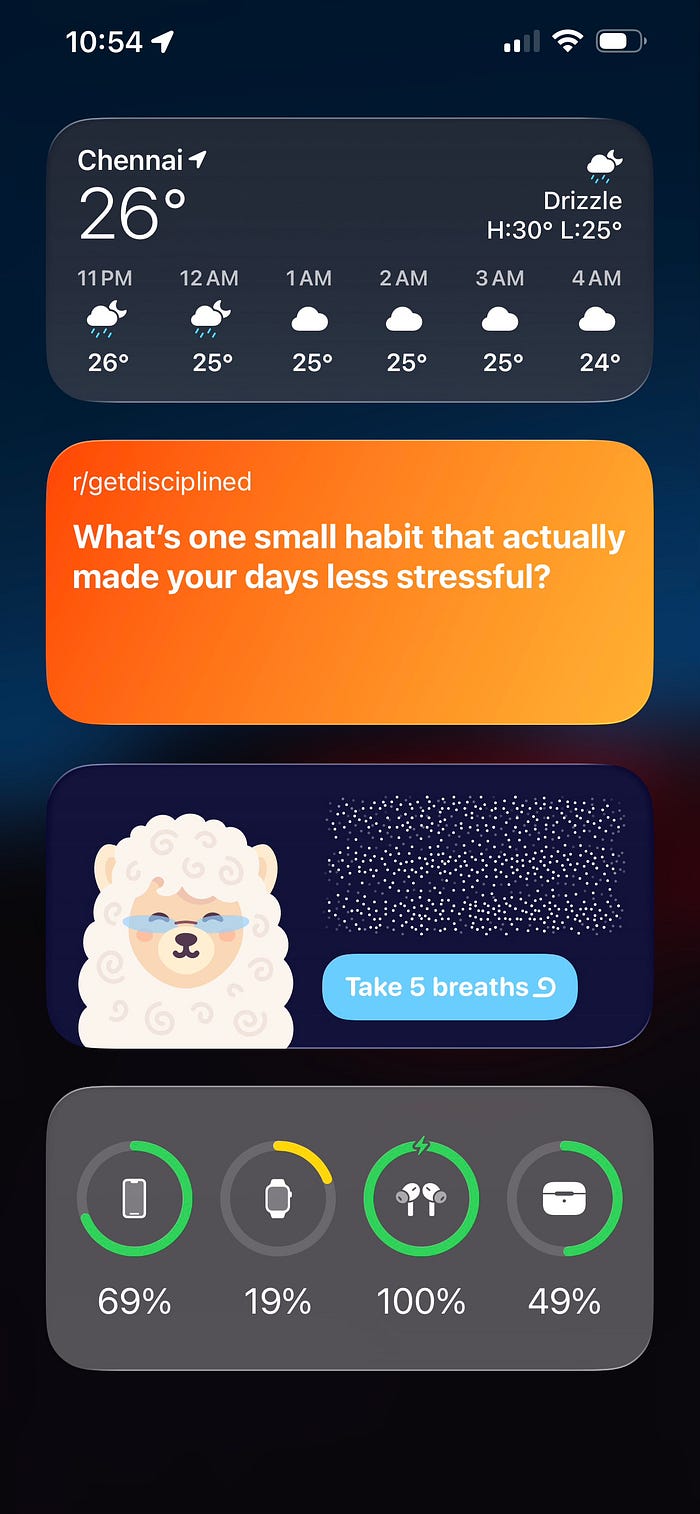
I have been a Reddit user for almost a decade now, and to be honest, I did not even know the app had a crazy useful widget until very recently.
I stumbled upon it while trying to figure out which widgets to add to my lock screen to make it as helpful as possible. It's basically a subreddit preview widget that shows the top post of a subreddit you select.
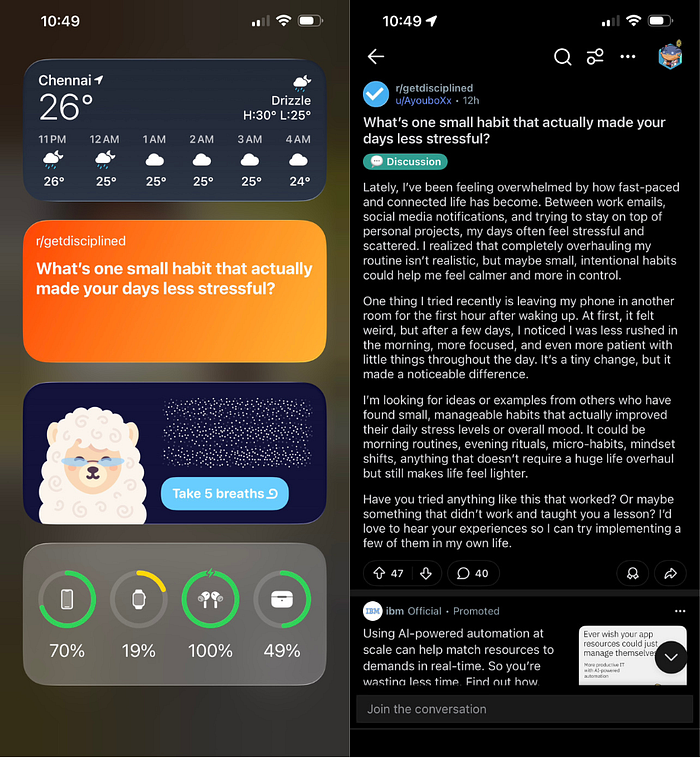
I have selected the GetDisciplined subreddit for the widget, and it cycles through the top posts throughout the day. Most of the time, it's a post offering tips and tricks to be more disciplined or productive, or someone asking for advice on the same topics. These posts often read like demotic wisdom written by ordinary people trying to be better.
I find this widget incredibly useful, as at random times during the day, I can swipe right on my iPhone lying on my desk and get quick nudges of motivation. I take a screenshot or save most of the posts I see, and it almost always improves my day.
Habits App — Keeping track of my daily routines
I use an app called Awesome Habits to track the habits that make up my daily routine. Some of them include reading daily, going for a walk, weighing myself, and drinking 3L of water every day.
I open the app multiple times throughout the day to log when I complete tasks in my daily routine, and it shows me my progress as I go.
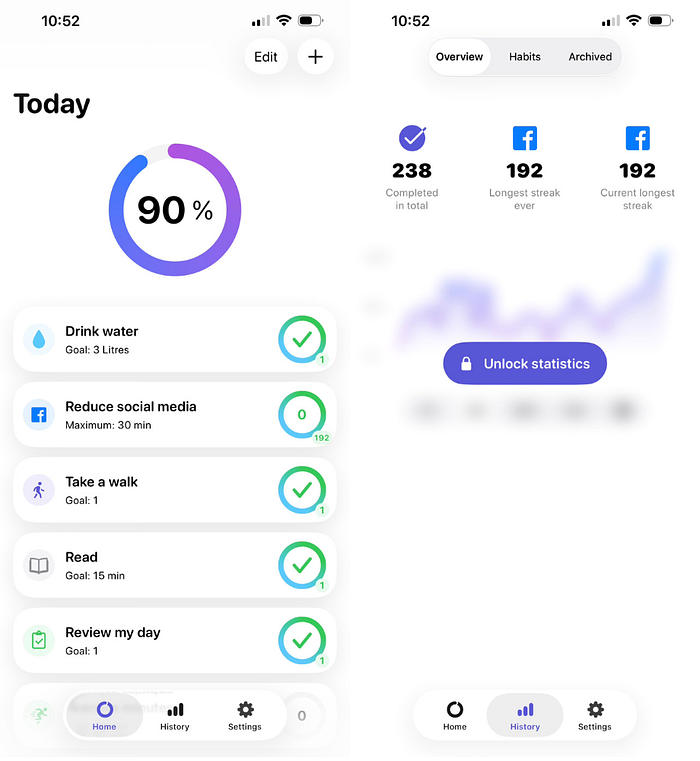
The app also has a feature called 'Vacation mode' that lets you pause your streak while you are on vacation, so you don't get demotivated.
I have always found gamification to help me be consistent with my habits. As a proud Snapchat Streak maintainer for years, the concept of maintaining a streak of your daily routines in the app has certainly helped me form healthy habits and avoid bad ones, like eating sugar or junk food.
Evening — Winding Down, Recharging, and Preparing for Rest (6:30 PM to 10:30 PM)
Two of my favorite ways to wind down after a busy, tiring day are to read a book and listen to calming music.
BookBuddy, Goodreads, Fable, Swell — Reading
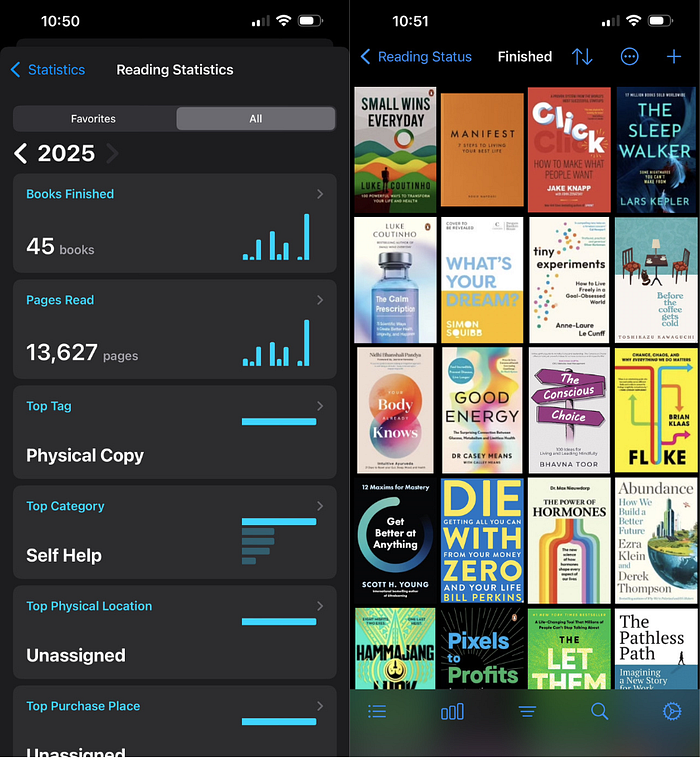
I have a bunch of apps to complement my book-reading ritual, including BookBuddy, which I use to keep track of and manage the 300+ books in my home library, Goodreads, and a few other apps called Fable and Swell, which are basically like Reddit for book lovers.
I start by going through Bookbuddy to pick a book from my TBR list, then play some calming nature or rain sounds at low volume on my HomePod. I usually read for 30–45 minutes, sometimes even an hour if I am in the mood.
Most of the time, I go through the reviews and discussions around the book I am reading, sometimes to see if I should keep reading it, and sometimes to know if I am the only one thinking 'xyz' about it.
I also like BookBuddy because it shows me great stats about the books I have finished, like how many pages I have read so far, which genre I read most, and which month I had a reading slump. Seeing the total number of pages I have read so far this year go up every time I mark a book as 'read' is a fun little bonus that motivates me to keep reading.
Expenses — Tracking what I spend
I also have a widget from an app called 'Expenses,' which, you guessed it, lets you keep track of your expenses on my home screen.
This is to both get mini panic attacks by quickly glancing at the widget to see how much I have spent so far this month (a constant, subdued reminder that maybe I should stop adding books to my cart) and also log the money I have paid during the day.
I also had it set up as a double-tap shortcut to quickly log any expense right after I spent the money by tapping the back of my iPhone twice. But I was accidentally triggering it a lot, so I disabled it, and now I mainly use the widget.
Suika Game+, Fruit Ninja — Cutting fruits, when I am not reading
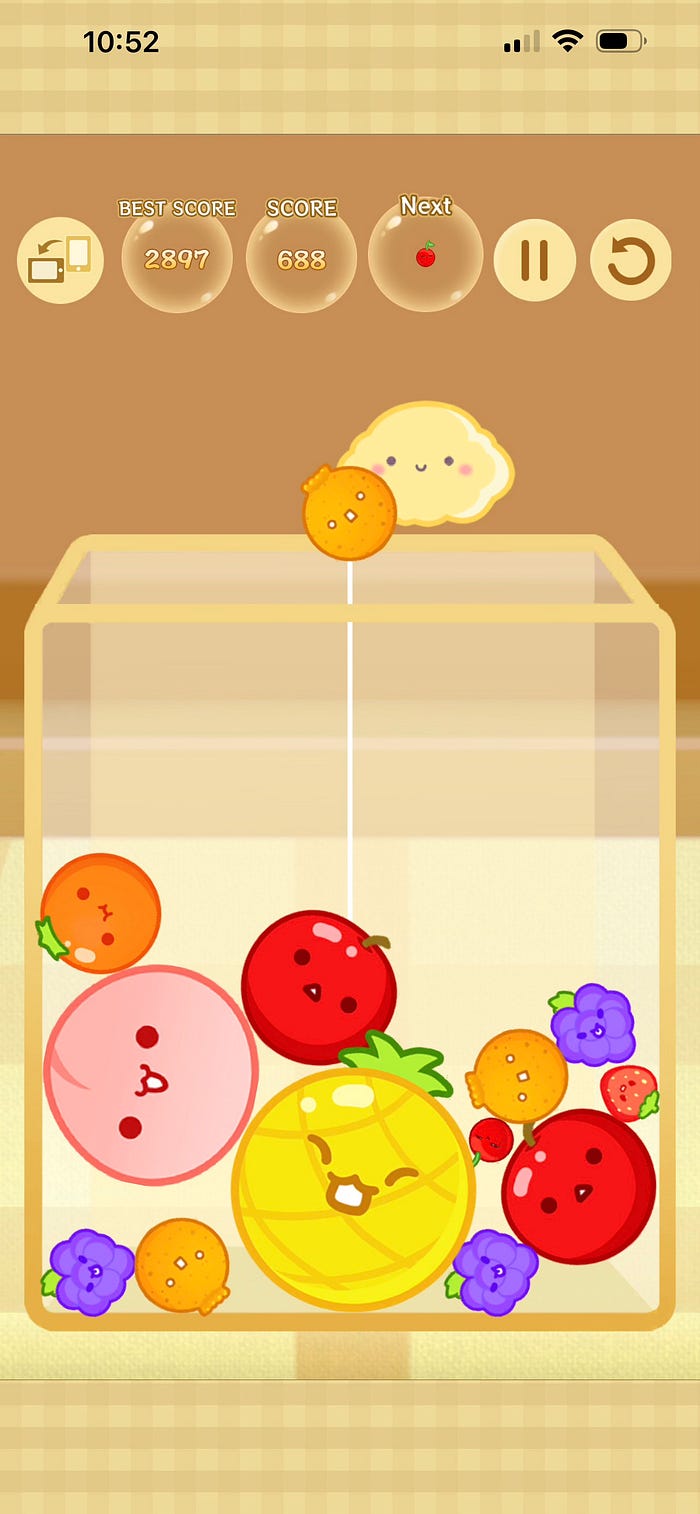
Some days I am just not in the mood to read or watch a movie, and in those days, before going to sleep, I play either Suika Game+ or Fruit Ninja on my iPhone in my bed. For reasons, cutting a bunch of fruits or growing a bunch of them seems to have a calming effect on me. (Please let me know if you know about any more fruit-based games in the comments.)
Battery Widget — Plugging in devices before I plug myself off
One final thing I do before I go to sleep is quickly glance at the battery widget on my lock screen to see if any of my devices need charging so that they don't give up on me when I wake up.
Well, that's it, that's my complete iPhone setup and how I use it from dawn till dusk to make my life better, one app and one setting at a time.
It's strange how a device once responsible for most of my distractions and wasted time is now the thing that helps me live more intentionally. The iPhone did not change, but I did, by deciding what I wanted it to do for me.
If you got inspired by any part of my setup and would like to try it on your iPhone as well, please let me know so that I can brag to my friends. If you have any apps or setups on your iPhone that would benefit me, please let me know that as well, so I can copy you.
Make sure to follow me if you liked this post. I have many such ones up my sleeve and plan to release them one by one in the coming days.