

HOME SCREEN 1 — Spatial Effect to wallpaper 2 — Clear icons 3 — Take iPad-style screenshots CAMERA & AIRPODS 4 — Lens Cleaning Hints 5 — Keep Audio with Headphones 6 — Camera Control using AirPods CELLULAR 7 — Six(+1) new ringtones 8 — Call Screening 9 — Hold Assist (And Detect Call Waiting) 10 — Use focus to silence SIM MESSAGES & PLAYGROUND 11 — Backgrounds (in Messages) 12 — New ChatGPT image styles in Playground LIVE TRANSLATION 13 — On FaceTime 14 — In Cellular calls 15 — In Messages MUSIC & PODCASTS 16 — AutoMix 17 — Wider playback speed range (Podcasts) 18 — Enhance Dialogue REMINDERS 19 — Create Reminders from Action Button (Control Center too) 20 — Auto Categorize 21 — Set time zone for due date ACCESSIBILITY 22 — New Background Sounds 23 — Customize Vehicle Motion Cues MISCELLANEOUS 24 — Adaptive Power (& Notifications) 25 — Custom Snooze Length 26 — Change folder icons (tint too) 27 — Compact-style tab in Safari
#1. Spatial Effect to wallpaper
The spatial scene feature for portrait wallpapers gives your 2D photos an immersive 3D effect — letting you relive the moment you snapped the picture.
To experience the magic yourself, attempt to set a portrait photo as your Lock Screen wallpaper. Then click this button which generates a Spatial Scene out of it.
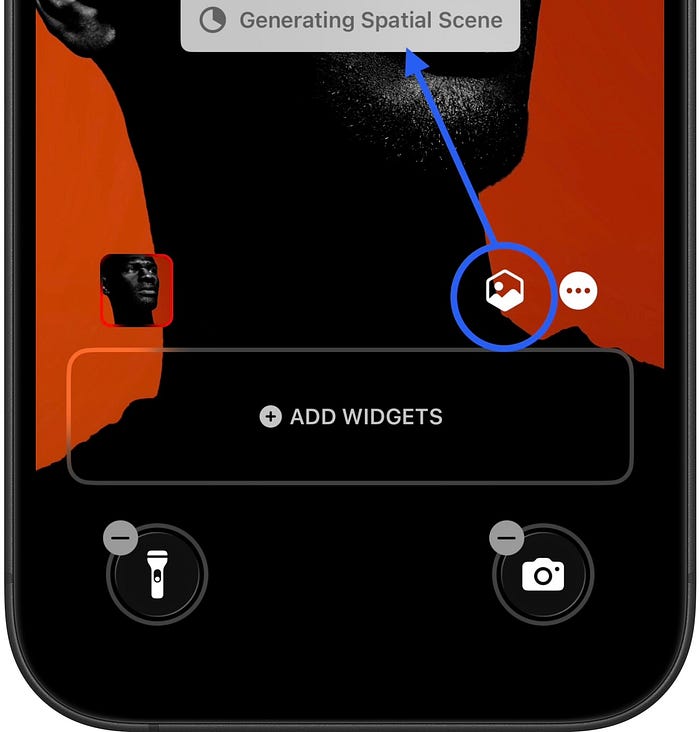
Apply the wallpaper and tilt your iPhone to see the wallpaper moving the other way — feels just like 3D.
This works thanks to some serious computer vision magic running on the neural engine. Thankfully, this isn't an Apple Intelligence feature. So this'll work even on an iPhone 12.
iPhone 11 can't do this tho. It even has a 8-core Neural Engine. Don't ask me why. I have no clue.
If you're not on iOS 26, here's a demo of how it works.#2. Clear icons
They are so clear that it feels like you're cleared all icons, lol.
If you want to push the Liquid Glass style even more glassy, try the brand-new 'Clear' style for your Home Screen app icons.
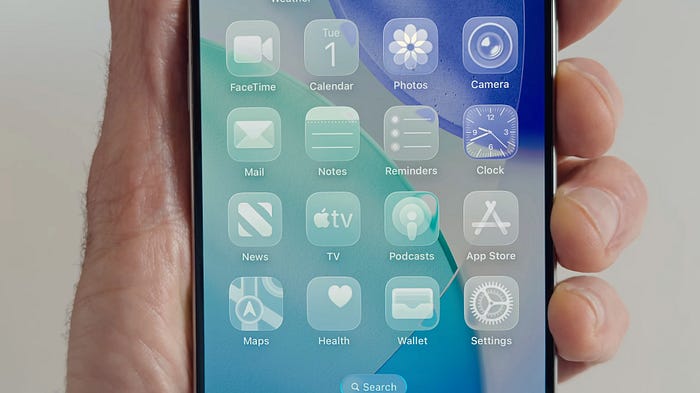
This makes them transparent and colorless like they're crafted from real glass.
Not everyone's gonna love this tho — especially app developers, since tons of color psychology goes into designing app icons and they can't afford losing that visual appeal.
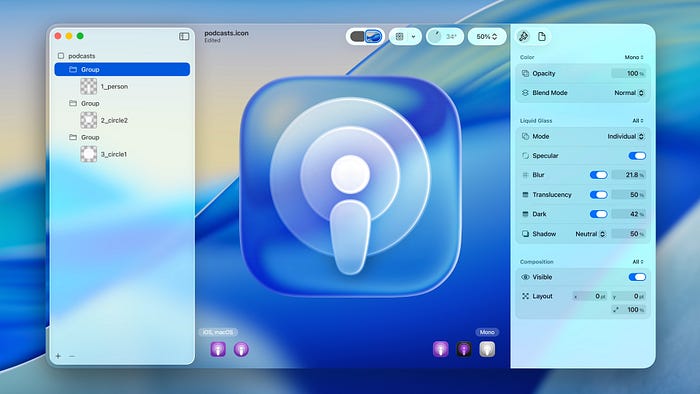
Your iPhone automatically generates clear icons locally, but if developers want to craft their own clear icon, Apple's got an Icon Composer tool.
#3. Take iPad-style screenshots
For the first time ever, "Screen Capture" gets its own dedicated menu in Settings ⚙️ < General ⚙️ < Screen Capture. Here's what it contains:
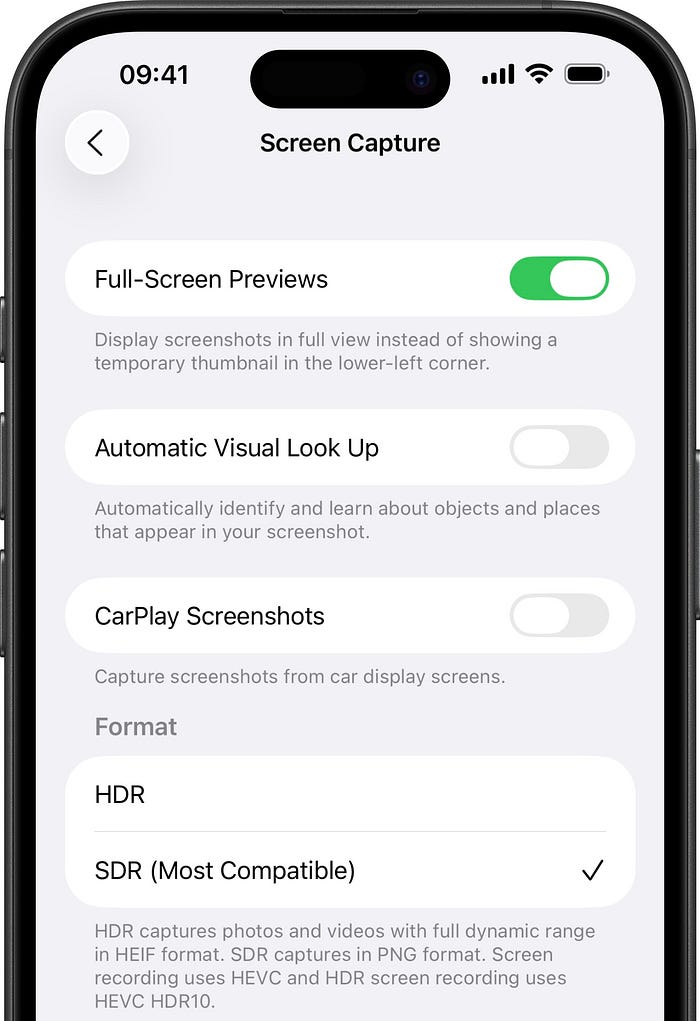
- Full-Screen previews: If toggled on, your screenshots will show up in full screen right after capturing (just like on an iPad) instead of appearing as a small thumbnail at the bottom-left corner.
- Automatic Visual Lookup: Lets your iPhone automatically identfy and learn about objects and places that appear in your screenshot. This helps with indexing your photos by what's actually in them.
- CarPlay screenshots: As the name suggests, lets you capture screenshots on CarPlay screens.
- Format: Choosing HDR captures your screenshots in PNG format and screen recordings in HEVC HDR10 format. Choosing SDR captures them in PNG and HEVC formats respectively.
What to choose for format? Go with HDR if you're using the captures for content creation. Pick SDR if you'll just keep it for yourself or share with a small group of friends.
#4. Lens Cleaning Hints
While you're on the go, it's easy to ignore the dust and oil smudges on your camera lens before taking a photo, then realize the shot came blurry because of that.
With this update, your iPhone can actually detect when there's stuff on your lens and automatically clean it up using a wiper.
Just kidding — it'll alert you and you gotta clean it yourself. Apple could totally slip in an ad and upsell their $19 cloth here — because, why not?
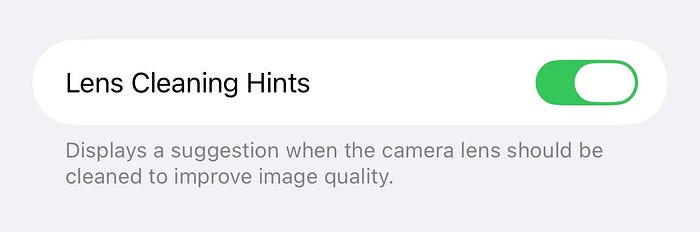
Find Lens Cleaning Hints in Settings ⚙️ < Camera 📷.
#5. Keep Audio with Headphones
The other day I was getting into the car while talking to my mom. As soon as I entered it, her voice BLASTED through the car speakers.
I l'ly sprinted out of the car — thought I'd gone deaf for a moment.
What actually happened?
My AirPods Max were in Transparency mode with no headphone safety set. As I entered the car, my iPhone connected to CarPlay, the output speaker switched to car's, and the phone call streamed in full volume.
But who set the car volume to 100%? Prolly Dave — he borrowed the car to attend a party last night. Now I get what he did with my car. DAVE!!
To prevent this from happening, I turned on Keep Audio with Headphones in Settings ⚙️ < General ⚙️ < AirPlay & Continuity 📺.
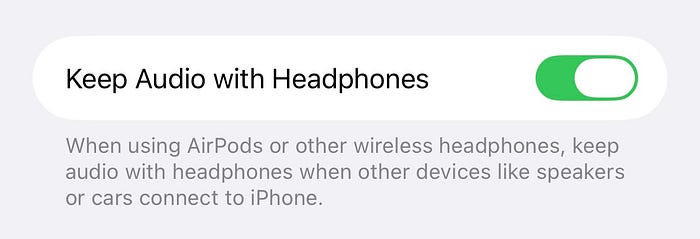
This works well when using AirPods or other wireless headphones when then connected to CarPlay or other wireless speakers.
Wait, how did you toggle the feature "the other day" when iOS 26 came just today? I was on Beta.
#6. Camera Control using AirPods
You can now use your AirPods 4 or AirPods Pro 2 to capture a photo or start and stop a video recording. Here's how:
Go to Settings ⚙️ < Your_AirPods_Name < Camera Remote and choose one of Press Once and Press and Hold.
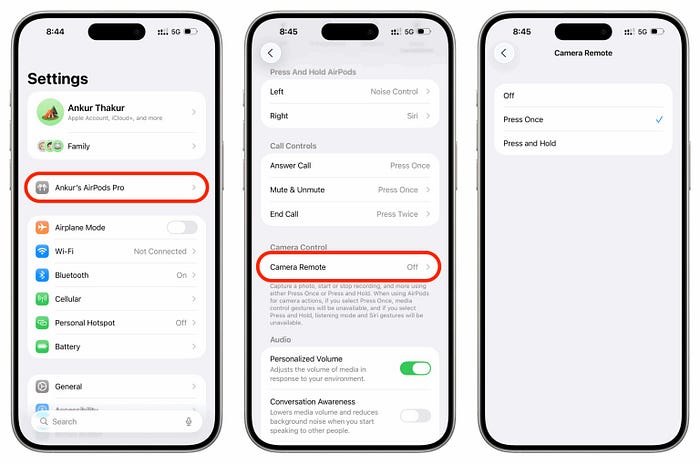
You don't need to worry about if this interferes with your regular AirPods Touch Controls. As Camera Control only works when you're in Camera.
Oh yeah, keep this in mind:
• If you select Press Once, media control gestures will be unavailable, when in Camera.
• If you select Press and Hold, listening mode and Siri gestures will be unavailable, when in Camera.
#7. Six(+1) new ringtones
With iOS 26, we get six new ringtones altogether. All of these are alternate versions of the original Reflections ringtone.
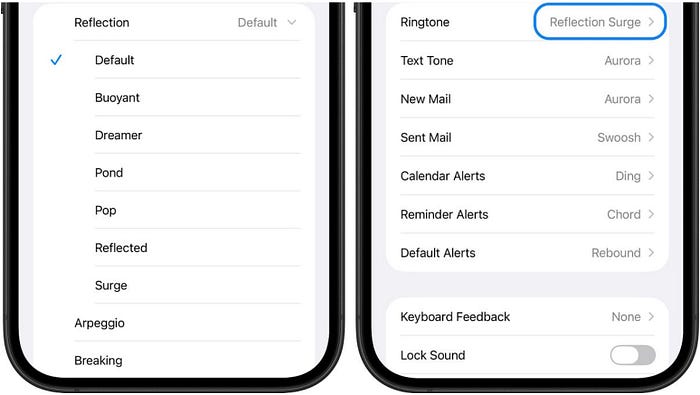
See? Choose Surge, and your ringtone's name would appear as Reflections Surge, in Settings ⚙️ < Sounds & Haptics 🔊R &t; Ringtone.
"Okay, but you said +1. What's the other ringtone?"
You can finally choose any music file on your iPhone as your ringtone — by sharing it to 'Use as Ringtone'.
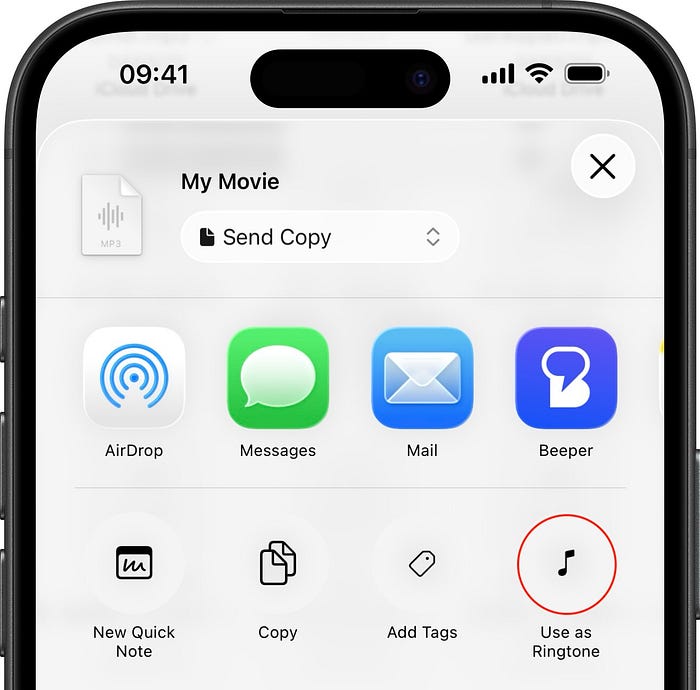
Why did Apple take 17 years to do this!?
Previously, you had to use one of the default system ringtones or pick a track from Apple Music as your ringtone, but that needed an active Apple Music subscription. 😩
#8. Call Screening
These days, telemarketers are getting smarter — especially here in India.
Before, they used to call with numbers starting with 011, 022, 040, 080, etc. that clearly showed they're landlines which most people don't use here and I'd prepare myself knowing it could be spam.
But lately they're calling from regular phone numbers and I'd think it's some important call from an unknown number, only to get annoyed by yet another spammer.
Here's how Apple's gonna help you deal with those irritating callers that keep interrupting your day — thanks to Call Screening (Settings ⚙️ < Apps < Phone 📞).
It builds on the Live Voicemail feature you already know, but works differently.
While Live Voicemail kicks in at the end when someone doesn't pick up (after the ringtone), Call Screening happens at the very beginning — before your iPhone even starts ringing.
When an unknown number calls you, Call Screening attends the call first and asks the caller to identify themselves and explain why they're calling. This all happens before you hear any ringtone.
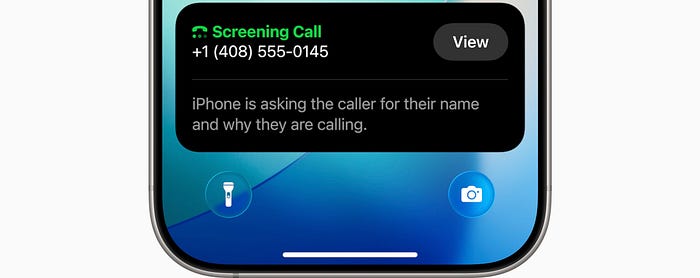
When they mention them, your iPhone starts playing your ringtone while showing what they said on the screen, giving you everything you need to decide whether you want to accept or decline the call.
Two benefits:
- Instead of staring at an unknown number wondering if it's important, you'll actually know who's calling before you decide to pickup.
- Spam calls and robocalls will likely hang up when asked to identify themselves so your iPhone won't even ring for these unwanted calls.
Call Screening currently supports callers speaking these languages
• Cantonese (China mainland, Hong Kong, Macao)
• English (U.S., Australia, Canada, India, Ireland, New Zealand, Puerto Rico, Singapore, South Africa, UK)
• French (Canada, France)
• German (Germany)
• Japanese (Japan)
• Korean (Korea)
• Mandarin Chinese (China mainland, Taiwan, Macao)
• Portuguese (Brazil)
• Spanish (U.S., Mexico, Puerto Rico, Spain)
That's about the option Ask Reason for Calling.
If you choose Silence, unknown callers will automatically be transferred to voicemail and displayed in Recents as missed calls.
#9. Hold Assist (And Detect Call Waiting)
Haven't we've all been there — stuck on hold for what feels like forever, waiting for a live agent while listening to terrible hold music?
iOS 26 finally gives that time back with Hold Assist. The feature's as useful as my car's hill hold assist.
Your iPhone can automatically detect when you're put on hold by recognizing music patterns and suggest turning on Hold Assist — or you can enable it manually too.
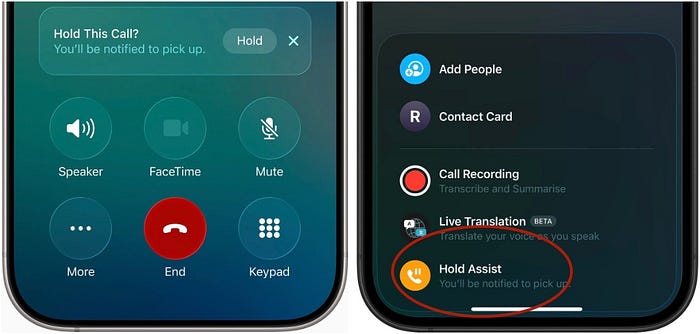
When it's on, the music stops, but the call stays connected. Now you can keep using your iPhone or even put it away and go about other chores.
Once a live agent becomes available, your iPhone rings to bring you back to the call and lets the agent know you'll be there in a sec.
How cool! It's the kind of feature that makes you wonder why no one thought of it sooner. Try it next time when you need to call customer service.
Hold Assist supports these languages
• English (U.S., Australia, Canada, India, Singapore, UK)
• French (France)
• Spanish (U.S., Mexico, Spain)
• German (Germany)
• Portuguese (Brazil)
• Japanese (Japan)
• Mandarin Chinese (mainland China)
#10. Use focus to silence SIM
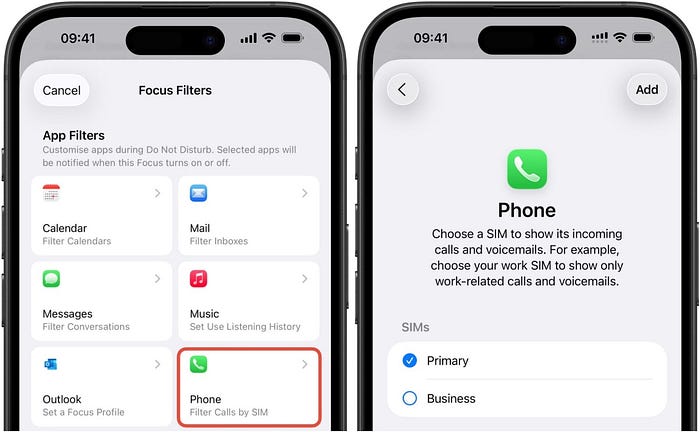
I personally use two SIMs on my iPhone. One's personal and one provided by our company for office calls.
When I'm OOO (Out of Office), I hate getting office calls. Vacation is vacation, right?
With iOS 26, I can directly block all calls that come to my SIM 2 instead of manually silencing individual office contacts in my Vacation focus mode — thanks to the new Phone focus filter.
You can do this in Settings ⚙️ < Focus 🌙R &t; preferred_focus < Add Filter.
#11. Backgrounds (in Messages)
Messages is getting way more personal with the ability to add Backgrounds.
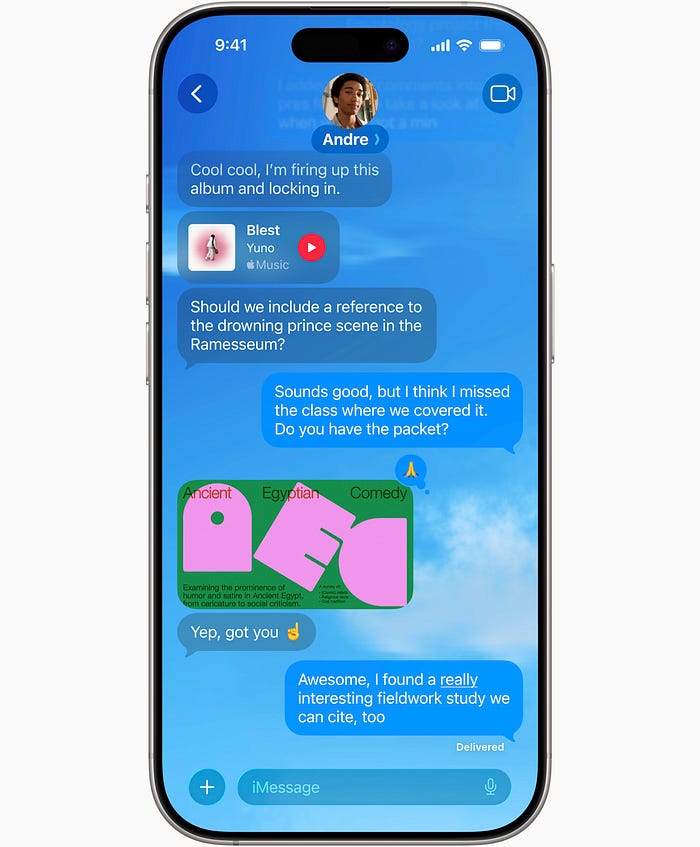
When you add a background, it shows up for everyone in the chat and everyone has the right to modify it.
You can choose from a variety of built-in backgrounds — like:
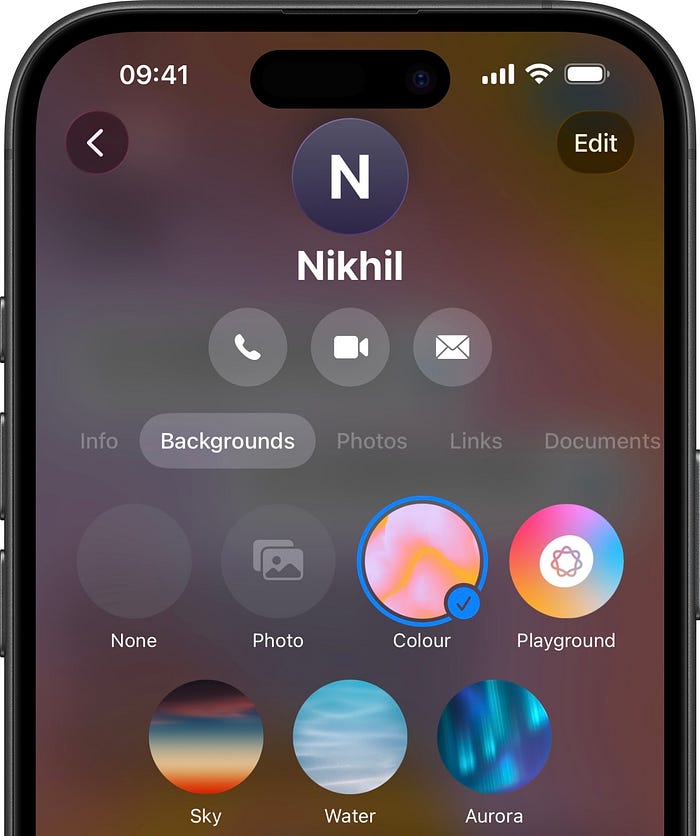
COLOR (DYNAMIC BACKGROUNDS)
• Mango
• Ice
• Plum
• Deep Sea
• Green Apple
• Cherry
• Bubblegum
• Tangerine
• Magenta
• Lime
• Silver
• Carbon
• Stone
SKY
• Dusk
• Haze
• Sunset
• Clear
• Sunrise
• Dawn
WATER
• Dark
• Light
AURORA
• Green
• Purple
• Pink
Or use one from your Photo Library or even create a new one using Image Playground.
I wish Apple Intelligence would automatically generate and update backgrounds based on what's being discussed in the group chat — like if everyone's planning a hike, mountains should appear.
#12. New ChatGPT image styles in Playground
Back in iOS 26, using Image Playground, you could create general images with prompt or your friends' personas in these styles, locally:
• Animation
• Illustration
• Sketch
But now you get these additional styles:
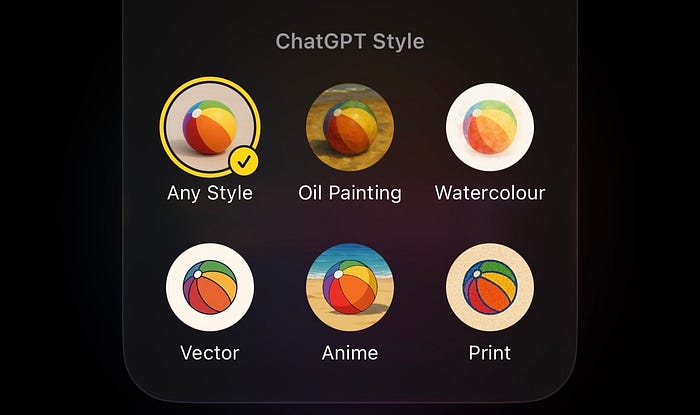
By 'Any Style', you give ChatGPT the freedom to pick a new style that isn't among the given options.Do you see the phrase "ChatGPT Style" above?
Appel Intelligence can't create images in these styles locally so it uploads your images and prompts to ChatGPT and sends back your image.
#13. Live Translation On FaceTime
You can now FaceTime anyone with confidence — even if they speak a different language, thanks to the real-time Live Translation feature.
Whether you speak any of the languages below and other person speaks a different one from the list:
• English (U.S., UK)
• French (France)
• German
• Portuguese (Brazil)
• Spanish (Spain)
you'll see live captions appear on your screen showing what they are saying translated into your language.
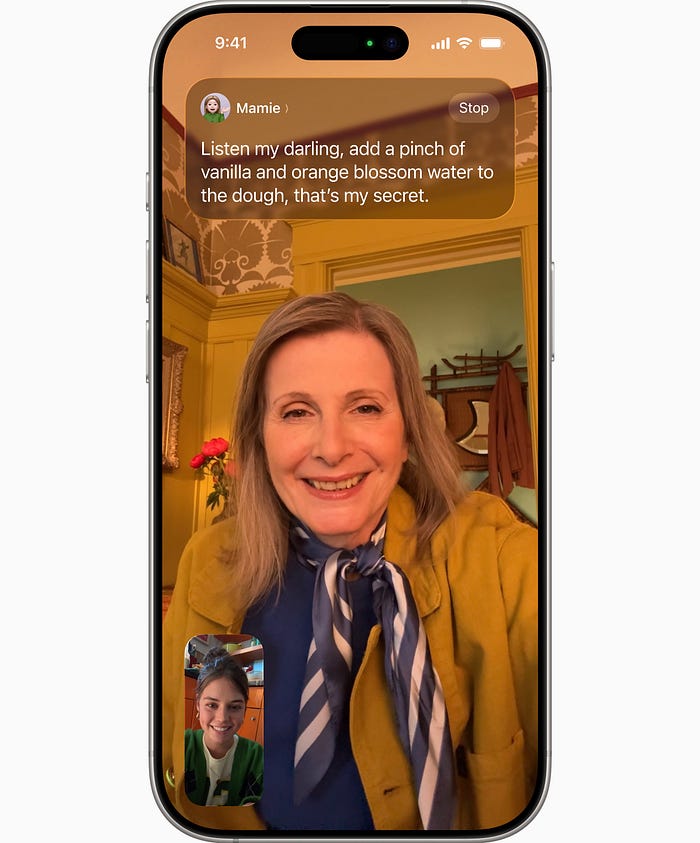
Though FaceTime requires internet, the translation model runs locally on your iPhone — giving you both privacy and speed.
Two limitations tho:
- This is an Apple Intelligence feature so it doesn't work on older iPhones
- This feature works for FaceTime calls between two people only and group calls aren't supported yet.
#14. Live Translation In Cellular calls
Live Translation also works during regular phone calls. Here's how.
As you talk, your speech gets translated into the other person's language and spoken aloud after you finish talking. When they respond, you hear a spoken translation of their voice back to you.
You'd also see a real-time transcript and translation of your conversation on the screen.
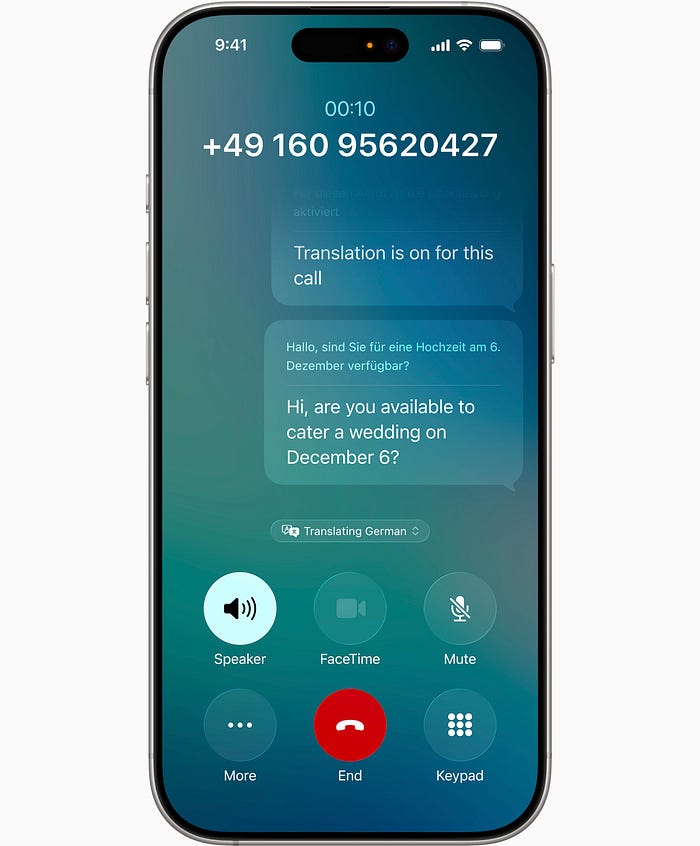
This not only helps when talking with new friends from different countries but also with businesses while traveling.
Note that
- This uses Apple-built models and run completely on your iPhone — so everything stays fast and private.
- The other person doesn't need to be using an iPhone for this feature to work on both sides.
The feature supports these languages:
• English (U.S., UK)
• French (France)
• German
• Portuguese (Brazil)
• Spanish (Spain)
#15. Live Translation In Messages
When you move to a new country and make friends, the first few days are brutal — that's when translation apps become lifesavers. But it's still a pain when texting because you have to copy stuff back and forth.
Apple's Live Translation feature in Messages makes these things way easier.
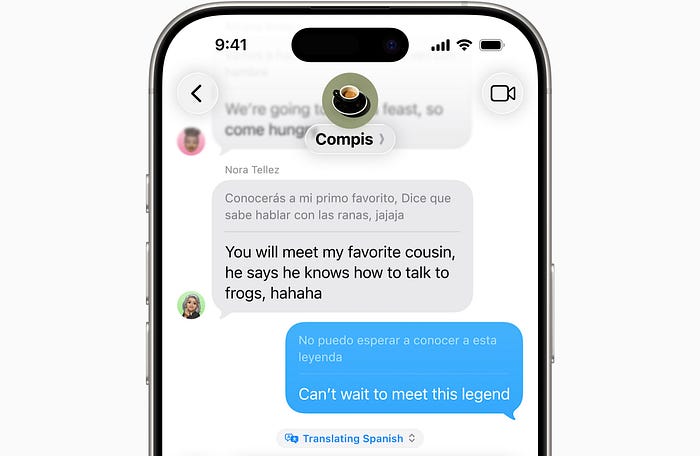
It translates your text messages and delivers them to the recipient in their preferred language. When they reply, each message gets instantly translated back for you.
Best part, the translation happens on-device in real-time as you're typing text — so you can see (and maybe learn) what's getting sent before hitting send.
LANGUAGES SUPPORTED:
• English (U.S., UK)
• French (France)
• German
• Italian
• Japanese
• Korean
• Portuguese (Brazil)
• Spanish (Spain)
• Chinese (Simplified)
Toggle this feature by toggling Automatically Translate in Messages 💬R <Contact/Group < click on their name above.
#16. AutoMix
AutoMix is Crossfade on steroids. Let me explain.
Crossfade was introduced with iOS 17 to make a smooth transition from a song to another by slowly fading out the current song and bringing up the next one toward the end.
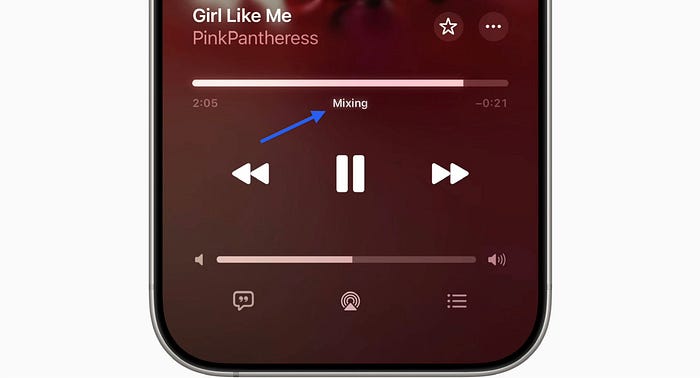
But AutoMix is an "intelligent" feature that would transition between songs like a pro DJ.
Note that this doesn't require Apple Intelligence, just needs an active Apple Music subscription.It analyzes the musical characteristics of both the songs to understand their tempos, keys, energy levels, and other audio elements.
Then it uses advanced audio techniques to match the beats and timing between songs, so transitions feel natural and within the flow.
You won't even notice how smoothly it jumps between tracks.
Toggle AutoMix in Settings ⚙️ < Apps < Music 🎵R &t; Song Transitions.
#17. Wider playback speed range (Podcasts)
The playback speed setting in Podcasts is such a lifesaver when your favorite podcaster talks too fast or too slow.
Back on iOS 18, you could adjust the speed from 0.75x to 2x in 0.25x jumps. But now you get a much wider range — 0.5x to 3x. You can tap on a specific speed or drag for more precise control.
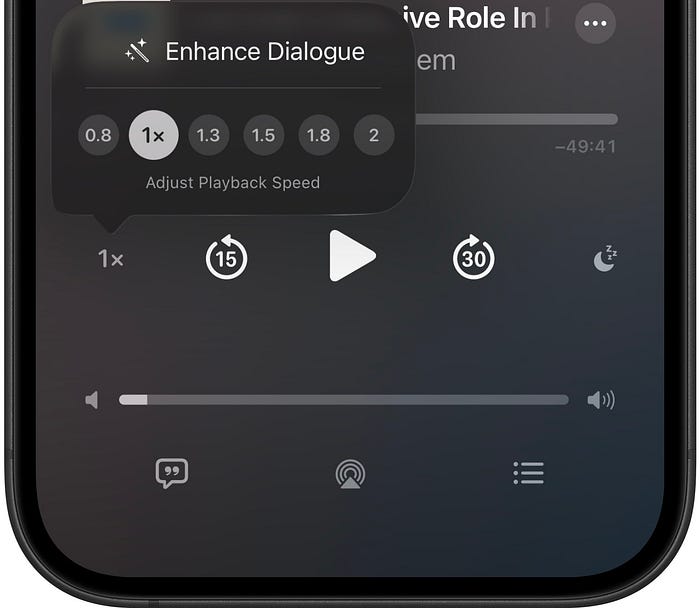
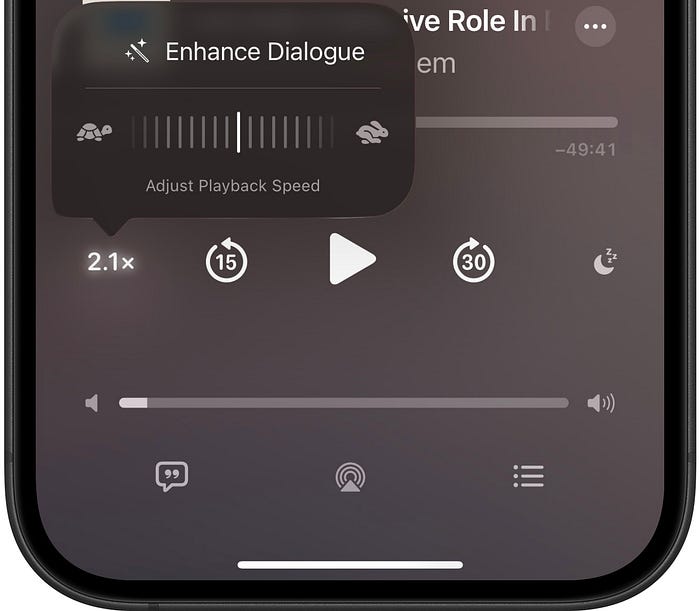
The speed can be saved per show so it won't mess with your other shows.
#18. Enhance Dialogue
It drives me crazy that some of the smartest podcasts are terribly recorded or have way too loud background music. It's difficult to hear them clearly when I'm stuck in traffic.
Apple's fixing this using the same 'Enhance Audio' feature that launched with iOS 18 to the Apple TV app. Now it's coming to the Podcasts app.
When you toggle it on (right above the playback speed controls), your iPhone uses on-device processing to isolate and enhance the speech in real-time.
This setting can be saved per show — so you don't have to keep turning it on and off for different podcasts.
#19. Create Reminders from Action Button (Control Center too)
The forgetful of us are getting this gift from Apple.
You can now create new reminders straight from the Action Button.
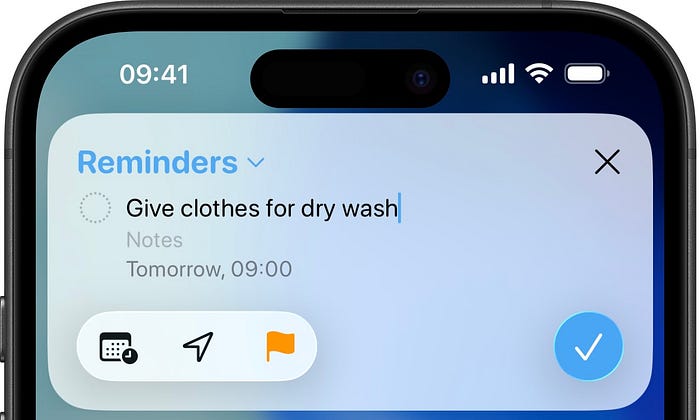
You can choose which folder you want to create the reminder in, set a due date, location, and flag it right over there.
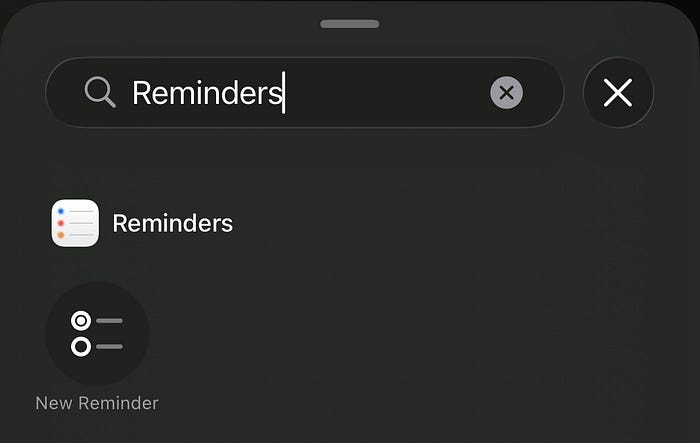
If setting that to the Action Button seems too prioritizing it, you can add it to the Control Center instead.
#20. Auto Categorize
This is such a useful feature you'll never want to disable.
When you turn on Auto-Categorize for a Reminders folder, all your (random, chaotic) reminders get sorted into appropriate categories using Apple Intelligence.
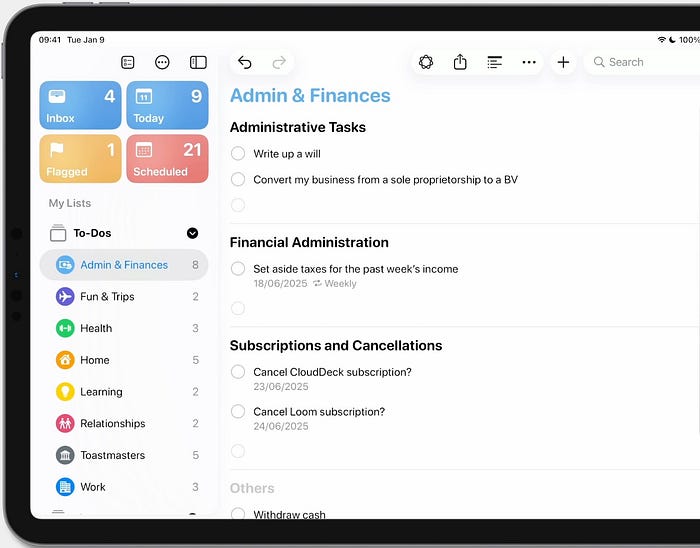
Since it stays enabled until you turn it off, any new reminder you create in the folder will move into any existing category or a new one gets created for it.
You don't need to fear toggling it off anytime. Your reminders won't be deleted. They'll just lose the categorization.
You can toggle this by clicking the three dot button at the top of the Reminders folder.
#21. Set time zone for due date
You already know this — or don't know.
You could set a specific time zone for your calendar events while creating them. But couldn't for your Reminders. They would just use whatever time zone you're currently in.
That wasn't comfortable. With iOS 26, thankfully, you can mention the time zone while creating a reminder too.
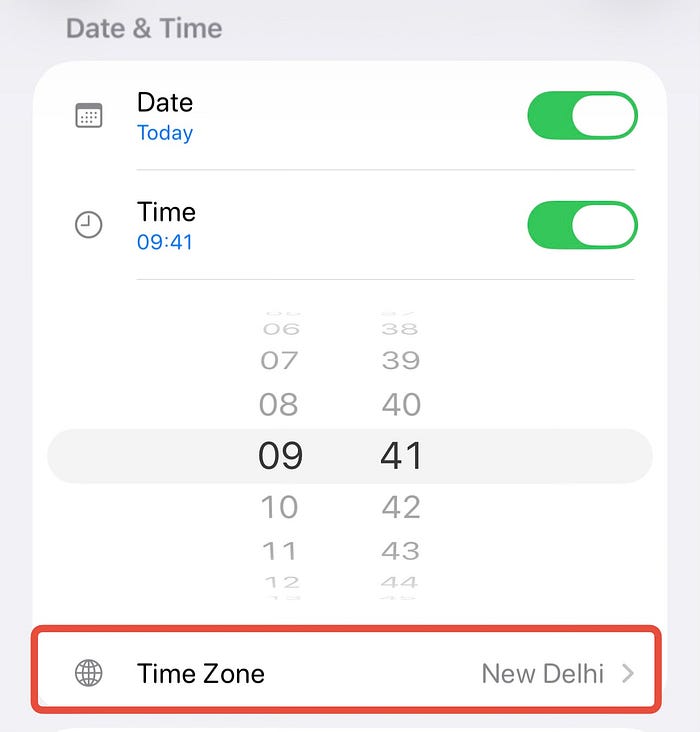
This helps big time if you want to send birthday wishes to your friend living in a different time zone exactly at 00:00.
#22. New Background Sounds
The Background Sounds feature is so underrated. I use it all the time to focus on whatever I'm doing.
There are already right background sounds to choose from.
• Balanced Noise
• Bright Noise
• Dark Noise
• Ocean
• Rain
• Stream
• Night
• Fire
But iOS 26 brings eight more!
• Babble
• Steam
• Aeroplane
• Boat
• Bus
• Train
• Rain on Roof
• Quiet Night
Find Background Sounds in Settings ⚙️ < Accessibility 🚹R < udio & Visual 🔈👁️.
#23. Customize Vehicle Motion Cues
Vehicle Motion Cues is one of those features you'd never want to use. It helps reduce motion sickness for iPhone users in moving vehicles.
When turned on, it shows animated dots on the edges of the screen that move in the opposite direction of the vehicle's acceleration — reducing sensory conflict.
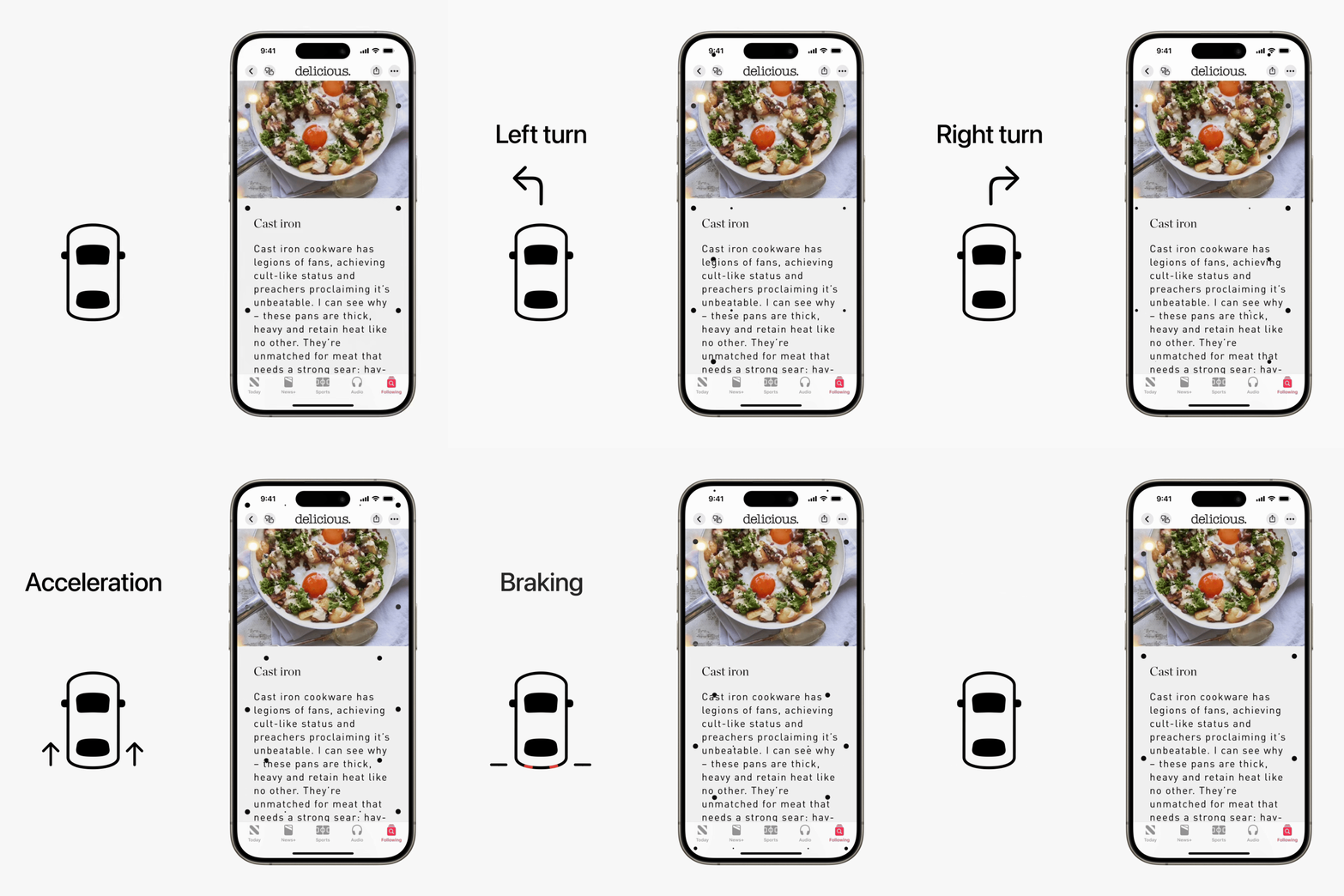
Until now, the feature only had one type of appearance like shown in the image above.
But now you can customize how it looks based on your preference.
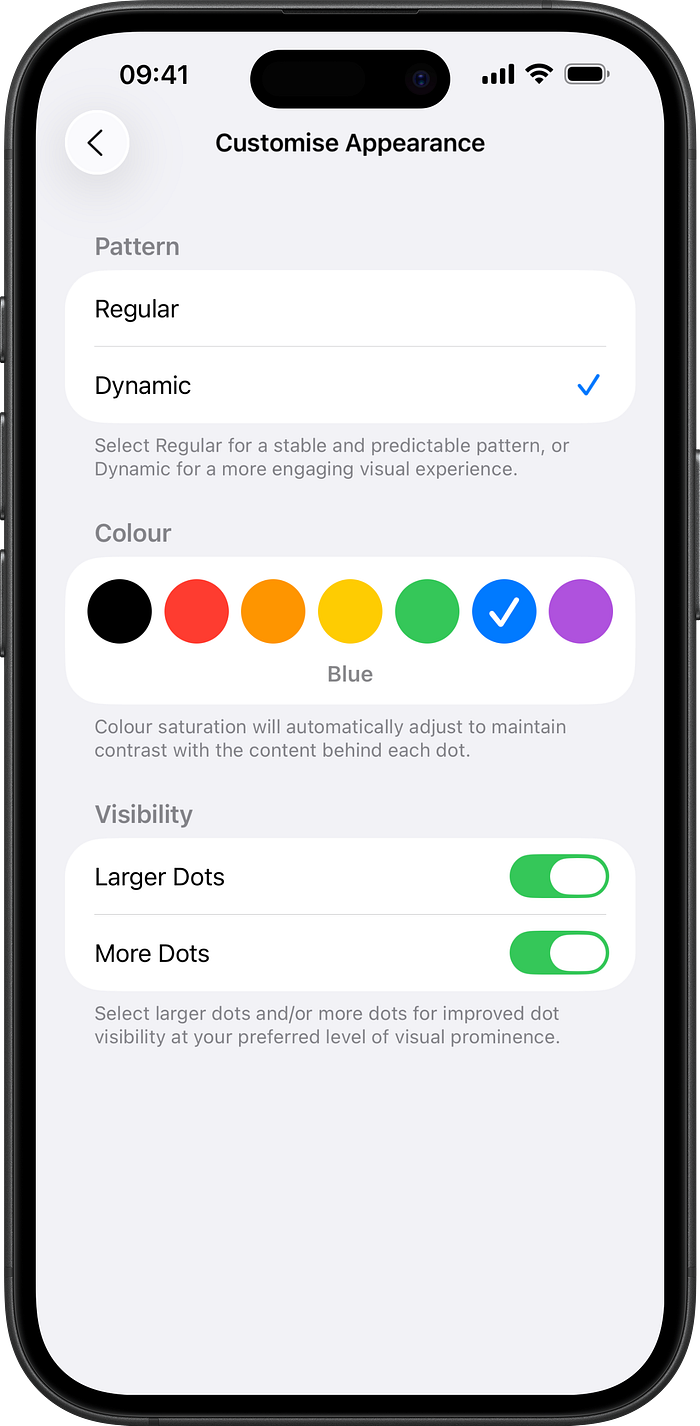
You can pick a dynamic pattern if you want a more engaging visual experience. You can choose the colour of the dots. You can also go with larger dots and even more dots on the screen.
Find this in Settings ⚙️ < Accessibility 🚹R &t; Motion < Vehicle Motion Cues < Customize Appearance.
#24. Adaptive Power (& Notifications)
The Low Power Mode was the only power option we had until now. With iOS 26, it's got smarter companion — 'Adaptive Power'.
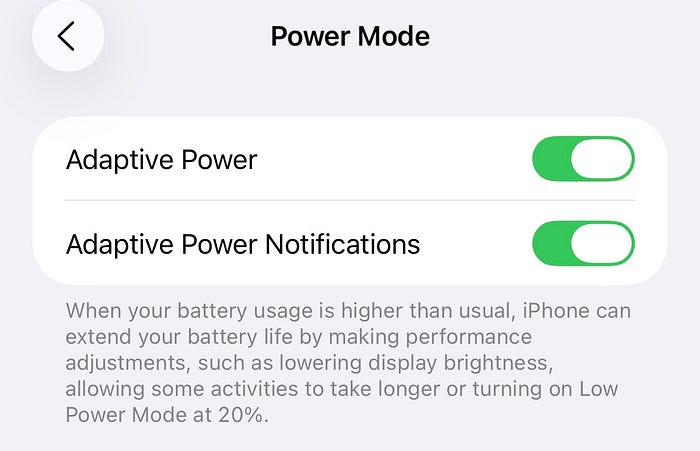
Find it in Settings ⚙️ < Battery 🔋R &t; Power Mode.
I'd recommend keeping this always enabled. When your battery usage is higher than usual, your iPhone dials down its performance slightly to stretch your battery life — like dimming the display brightness, refreshing Live Activities less often, etc.
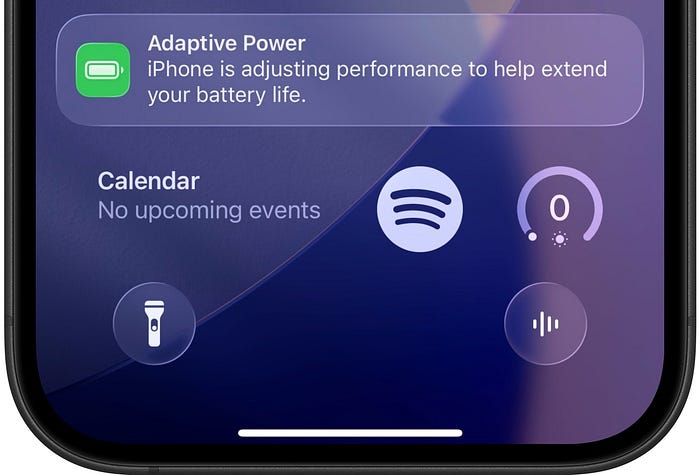
If you turn on the 'Adaptive Power Notifications' (optional), you will receive this notification whenever your iPhone adjusts performance to low power.
#25. Custom Snooze Length
Sleepers, wake up! Your dreams came true.
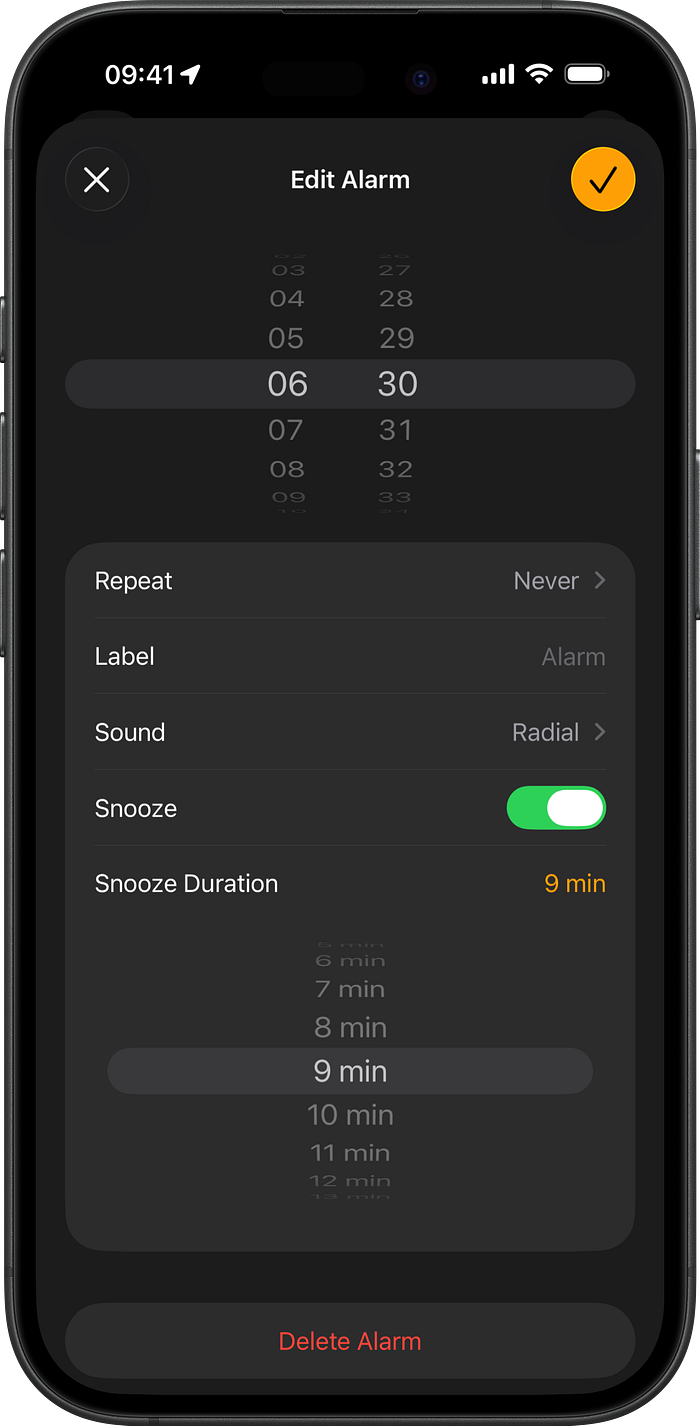
Since the iPhone launched, you could only snooze your alarms for 9 minutes. No other option. 😩
There's actually a scientific reason behind that. But who cares?
But Apple's now saying —
We're giving users the freedom to choose how much more they want to snooze One more minute or fifteen max No more rigid alarm attacks
#26. Change folder icons (tint too)
Managing folders on iOS just got easier.
You can now add icons to your folders for quicker identification.
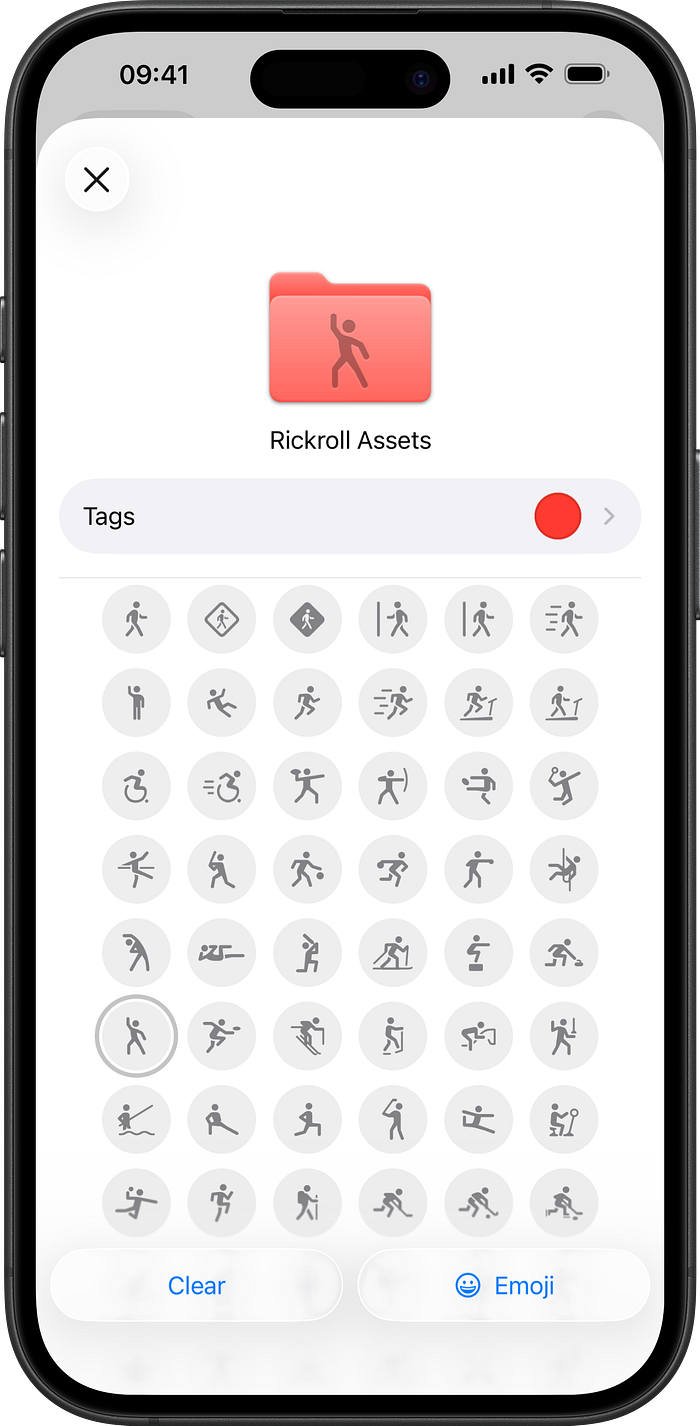
There are tons of icons to pick from or you can even use an emoji as your folder icon.
The tint color for Home Screen icons was introduced in iOS 18. Now that would automatically apply to folders in Files too.
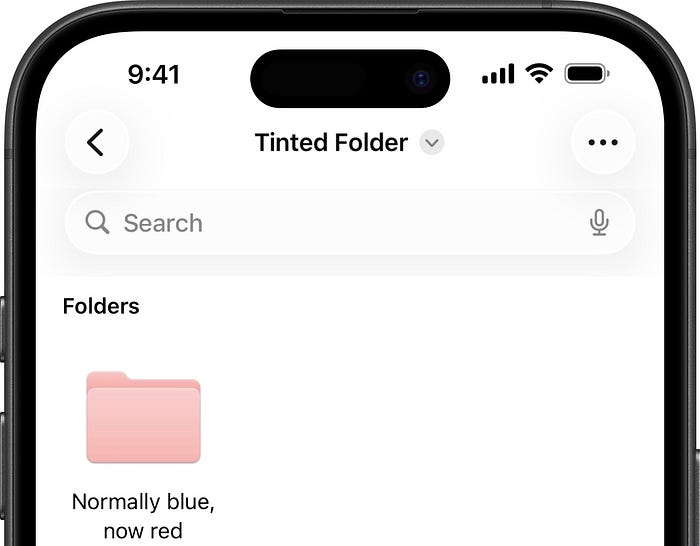
Reminds me of Windows.
Oh, wait — if your folder is tagged by a colour, the folder gets that colour, prioritized over the tint.
#27. Compact-style tab in Safari
Until now, you only had two tab layouts on Safari.
- Top: Shows the URL of the current page and other controls at the top.
- Bottom: Shows them at the bottom.
The bottom arrangement is handier since it's closer to your thumb and you can switch between tabs by swiping left or right.
You now get a new tab layout — Compact.
(Switch to it in Settings ⚙️ < Apps < Safari 🧭R &t; TABS)
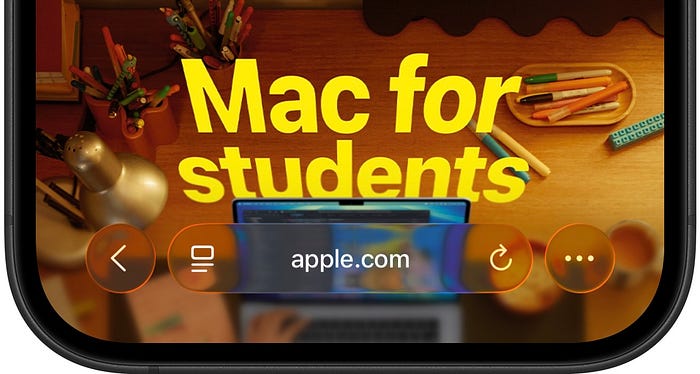
It feels like the Bottom layout, but it's more minimal so you see more of the webpage.
Isn't iOS 26 awesome?
100+ new features of iOS 26: A Compilation (Always Updated)
Finally,
If you love exploring new iOS & Mac apps (like me), consider subscribing to Setapp. You'll get access to a curated collection of 240+ amazing apps for just $9.99 a month, which rather cost hundreds of dollars if purchased individually.
- Use my affiliate link to start your Setapp journey! (It's free for 30 days)
- Get my free list of 100+ Ultimate macOS Apps on Setapp here.