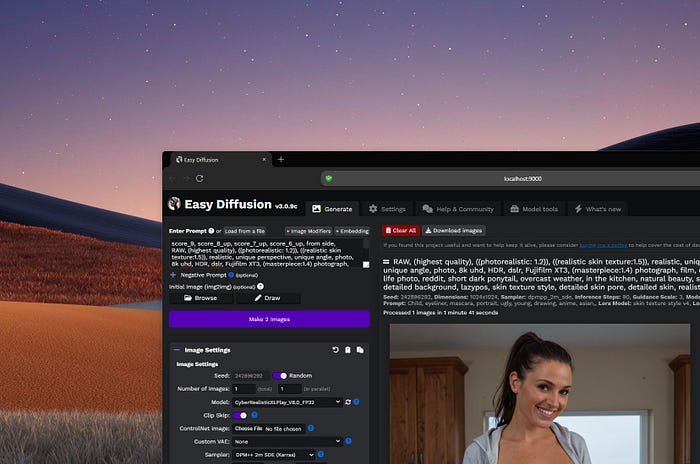

If you want to generate AI images for your content, but your budget is limited or zero, I have some good news: there are hundreds of free and open-source AI models that you can download for free, use them for generating unlimited images, and even use your outputs for commercial purposes.
Sounds good? Great.
Just a note: There aren't any affiliate links here. These tools are the ones that I'm using on a daily basis and highly recommend to everybody.
Before I begin, keep in mind that the biggest secret right now when it comes to AI tools is that the best tools aren't the ones charging you a subscription. They just offer more ease of use.
Sure, Midjourney, KlingAI, ChatGPT, Gemini, and all those AI tools are great, but they're behind closed doors. You basically pay rent for your images, and you don't own the generator (nor do they give you all the options that you may need).
The alternative is Local AI.
This means running the software on your own computer (provided you have a decent graphics card). It gives you total privacy, zero censorship, and costs $0 forever.
Some models are so lightweight that you can even run them on your laptop.
But to run these powerful models (like Flux.1 or Stable Diffusion), you need an interface.
This is where the following apps are here to save you: You just install them, configure the basic changes, and run them to generate as many AI images as you'd like.
1. Stability Matrix
If you are new to this world, start here.
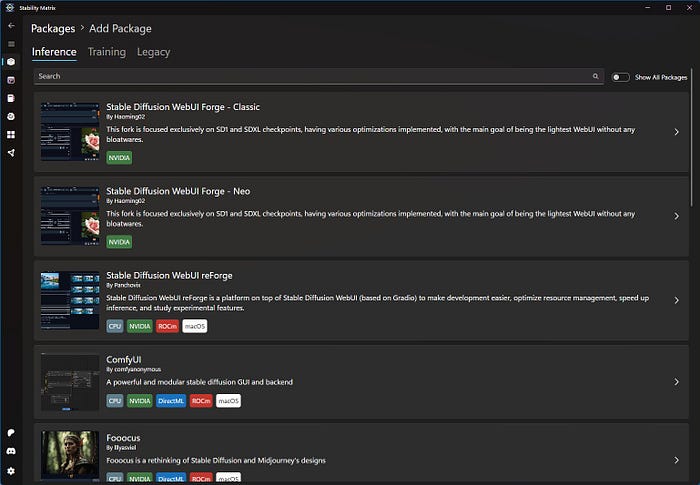
This is the perfect application for almost anyone who wants to test multiple different workflows and models with 1 click. Instead of living the nightmare of Python scripts, Git repositories, and constant commands, Stability Matrix fixes all of that.
Think of Stability Matrix as the "Steam" of games or the "App Store" of your phone, but for AI image generators. It is a portable, one-click installer that manages everything for you.
You can install any of the available 'Packages' or 'Workflows' with 1 click, and once they're downloaded, you can instantly use them. Every option to switch between the OpenArt Browser, Packages, etc., is placed on the left side panel.

Not happy with a workflow/model? No worries, just delete it and download another one. There are tons of free stuff that you can download.
Just a note: If you try to manually install Stability Matrix, Windows will prompt you with a window saying that this app is unknown and may not be safe. Just ignore it, click on the "More" option, and then "Install anyway".
Download Stability Matrix from Lykos.ai.
2. ComfyUI
This is, hands-down, my favorite tool right now. And although ComfyUI is not for the faint of heart, it is currently taking the AI world by storm.
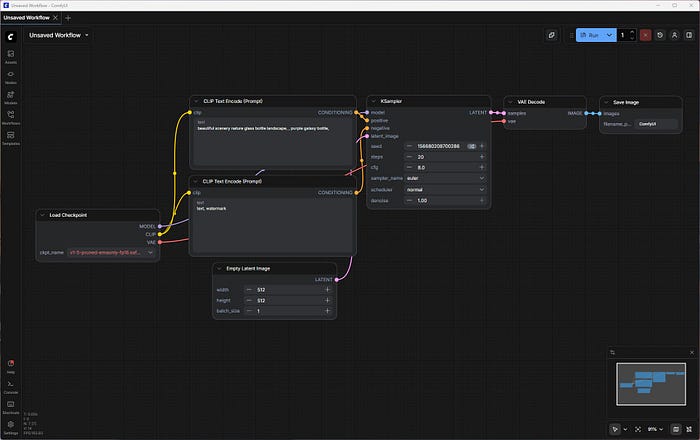
Unlike the others, which look like standard software with buttons and sliders, ComfyUI uses a "Node-based" workflow. You literally connect boxes with wires (connecting the "Load Model" box to the "Prompt" box), and then to the "Generate" box.
It looks intimidating, like you are defusing a bomb in an action movie. But because of this structure, it is incredibly fast and flexible. You can build complex "workflows" that automate entire processes (like "Generate an image, then upscale it, then fix the face, then save it").

Tip: You don't have to create your own custom workflows, though; you can just download one of the many pre-made workflows that ComfyUI offers.
Step-by-step instructions:
Download ComfyUI from Comfy.org.
3. Easy Diffusion
If you want the "Apple" experience, simple, clean, and it just works, Easy Diffusion is the answer.

As the name suggests, this project focuses entirely on ease of use. You don't need to install any complex dependencies.
You download the installer, run it, and you get a clean browser window where you type a prompt and get an image.
It doesn't have as many settings as the others, but that's the point. It's perfect for when you just want to generate a quick image for a blog post without tweaking 50 different options.
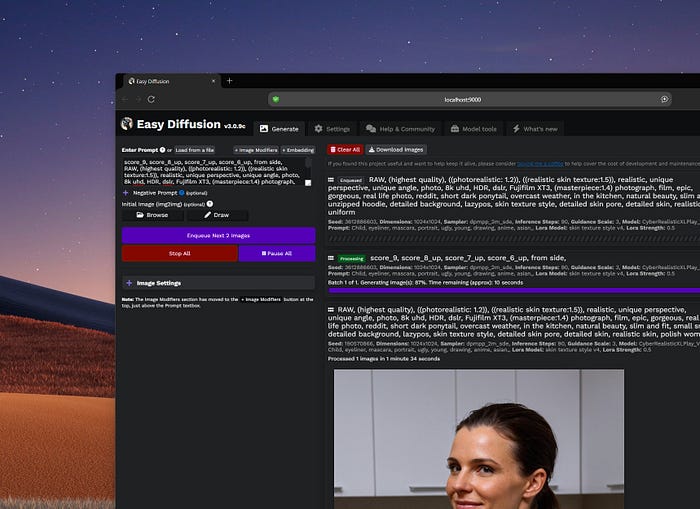
Step-by-step instructions:
Keep in mind that, due to the need for a lot of background services that are needed for Easy Diffusion to work, it may take some time to download and install everything (it does that automatically).
If you have a slow internet connection, just enjoy your coffee; it's going to take a while.
Download Easy Diffusion from its GitHub page.
4. Stable Diffusion + WebUI
For a few years, Stable Diffusion in combination with WebUI was the gold standard.
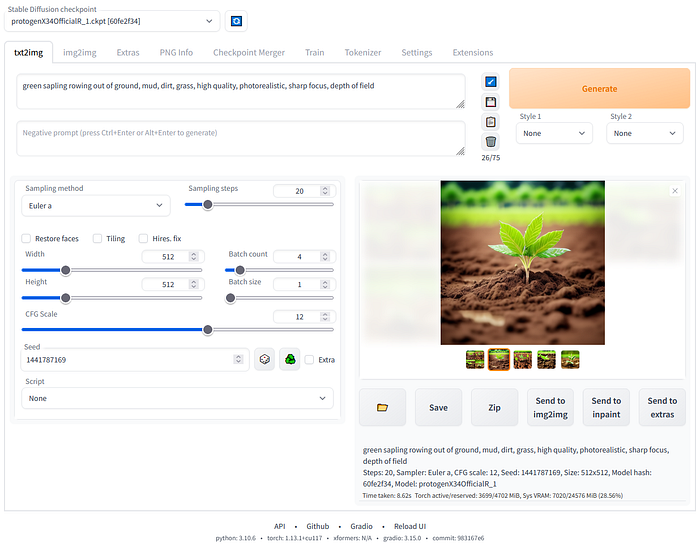
Now? I feel like there are many greater alternatives out there, which you saw already in this list, but still, it's a tool that's being used by thousands.
If you ever watched a YouTube tutorial on "How to make AI art," 90% of them will be using this interface (specifically the version known as "Automatic1111" or its faster cousin, "Forge").
I started with this one myself, and I used it many times to generate and upscale high-quality AI images. However, nowadays, ComfyUI, or Stability Matrix, can't be beaten.
The installation of Automatic1111's Stable Diffusion with WebUI is not exactly as friendly as the other apps in this list, and you may get a few errors in the command line that you'll have to manually fix. It sucks, but when it's installed, it works beautifully.
Download the Stable Diffusion WebUI from GitHub.
If you're new, I'd say start with Stability Matrix if you want something powerful yet very easy to use. Go with Easy Diffusion if you want quick results and a few (yet powerful) options.
ComfyUI is hands-down the king of all, and while it has a bigger learning curve, once you learn how to use it, you can't go back. It can also be used for upscaling, video and audio generation, and more.
You always need to read the license that you get from each model. While most of them will let you use your outputs for commercial purposes, others may not, so always take a quick look.
Free AI models can be found on Civitai.com and HuggingFace.co.
If you don't want nudity, some apps let you disable it from their settings page, while you can also use the 'Negative' prompts to disable them.
Let me know which app and model is your favorite one.