
How Iceberg Metadata Makes Your Data Lake Smarter and Easier to Manage
Not a member, read here: Iceberg Friend Link
When I started diving into Flink a couple of months ago, I was faced with numerous uncertainties — from creating catalogs and managing streaming metadata to storing data in Azure Blob Storage. I also had to figure out how to deploy Flink on Kubernetes and build the necessary Docker images. Although the scope of this exploration sometimes feels overwhelming, the learning curve has been incredibly rewarding.
So, I don't want to confuse the readers like I did, here are the things that I did to avoid the confusion and make the streaming pipeline work effectively.
I drew vaguely what I need to build, that is:
I need to read some kind of data from kafka (for simplicity, I used the datagen connector of Flink)using Flink, and use the Iceberg table format and store the data in the Azure blob storage. That gave the pieces that I needed to somehow join to make the things work.
So, to have the Flink and Iceberg related jars I built a Dockerfile which will fetch the latest Flink version and Iceberg version that just supports. I also need the Azure hadoop jar, so I just placed in the plugins directory of the Flink. I also need a hadoop related jars for creating the Iceberg catalogs. So my Dockerfile looks like:
# syntax=docker/dockerfile:1

# Base: Flink 2.0 with Scala 2.12 (recommended for Iceberg)
FROM --platform=linux/amd64 apache/flink:2.0.0-scala_2.12-java21

# Create plugin directory for Azure FS
RUN mkdir -p /opt/flink/plugins/azure-fs-hadoop

USER root
# Copy Azure FS plugin JAR
COPY flink-azure-fs-hadoop-2.0.0.jar /opt/flink/plugins/azure-fs-hadoop/
RUN chown flink:flink /opt/flink/plugins/azure-fs-hadoop/flink-azure-fs-hadoop-2.0.0.jar

# Copy Iceberg Flink runtime JAR
COPY iceberg-flink-runtime-2.0-1.10.1.jar /opt/flink/lib/
RUN chown flink:flink /opt/flink/lib/iceberg-flink-runtime-2.0-1.10.1.jar

# Download Hadoop binary distribution and copy all jars from common + hdfs
ADD https://archive.apache.org/dist/hadoop/common/hadoop-3.4.2/hadoop-3.4.2.tar.gz /tmp/
RUN tar -xzf /tmp/hadoop-3.4.2.tar.gz -C /tmp && \
    cp /tmp/hadoop-3.4.2/share/hadoop/common/*.jar /opt/flink/lib/ && \
    cp /tmp/hadoop-3.4.2/share/hadoop/common/lib/*.jar /opt/flink/lib/ && \
    cp /tmp/hadoop-3.4.2/share/hadoop/hdfs/*.jar /opt/flink/lib/ && \
    chown flink:flink /opt/flink/lib/*.jar && \
    rm -rf /tmp/hadoop-3.4.2 /tmp/hadoop-3.4.2.tar.gz

RUN chown -R flink:flink /opt/flink/


# Expose Flink Web UI
EXPOSE 8081

# Run as flink user
USER flink
I am using the hadoop dependencies for the Iceberg catalog creation, so packed up everything in the container. Once I have the docker container ready, the next step is to run the Flink on kubernetes:
apiVersion: flink.apache.org/v1beta1
kind: FlinkDeployment
metadata:
  name: basic-example
  namespace: analytics
spec:
  image: dev.azurecr.io/flink-test:flink_latest_version_updated
  flinkVersion: v2_0
  flinkConfiguration:
    taskmanager.numberOfTaskSlots: "2"
    # metrics.reporters: prom
    # metrics.reporter.prom.factory.class: org.apache.flink.metrics.prometheus.PrometheusReporterFactory
    # metrics.reporter.prom.port: 9250-9260
    flink.hadoop.fs.azure.account.auth.type.<storage-account-name>.dfs.core.windows.net: OAuth
    flink.hadoop.fs.azure.account.oauth.provider.type.<storage-account-name>.dfs.core.windows.net: org.apache.hadoop.fs.azurebfs.oauth2.MsiTokenProvider
    flink.hadoop.fs.azure.account.oauth2.msi.tenant.<storage-account-name>.dfs.core.windows.net: <tenant_id>
    flink.hadoop.fs.azure.account.oauth2.client.id.<storage-account-name>.dfs.core.windows.net: <client_id>

    # --- ADD THESE (For Flink Internal Filesystem Plugin) ---
    # Sometimes the plugin reads directly from Flink config without the 'flink.hadoop.' prefix
    fs.azure.account.auth.type.<storage-account-name>.dfs.core.windows.net: OAuth
    fs.azure.account.oauth.provider.type.<storage-account-name>.dfs.core.windows.net: org.apache.hadoop.fs.azurebfs.oauth2.MsiTokenProvider
    fs.azure.account.oauth2.msi.tenant.<storage-account-name>.dfs.core.windows.net: <tenant_id>
    fs.azure.account.oauth2.client.id.<storage-account-name>.dfs.core.windows.net: <client_id>

    fs.default-scheme: abfs
    fs.allowed-fallback-filesystems: hdfs;abfs;abfss;file
    fs.azure.data.blocks.buffer: bytebuffer
    execution.checkpointing.interval: "20s"
  serviceAccount: flink
  jobManager:
    resource:
      memory: "2048m"
      cpu: 1
    podTemplate:
      spec:
        securityContext:
          fsGroup: 9999
          runAsUser: 9999
        tolerations:
          - key: "flink"
            operator: "Equal"
            value: "true"
            effect: "NoSchedule"
  taskManager:
    resource:
      memory: "2048m"
      cpu: 1
    podTemplate:
      spec:
        securityContext:
          fsGroup: 9999
          runAsUser: 9999
        tolerations:
          - key: "flink"
            operator: "Equal"
            value: "true"
            effect: "NoSchedule"
Replace the storage‑account name with your actual Azure storage account name, and fill in the tenant ID and client ID. These are required to connect Flink using Managed Service Identities. We included these details in the manifest file so they are loaded when Flink starts up.
This is a simple Java application that uses the Iceberg Table API. The code consists of three main parts:
- Generating synthetic data using the Flink datagen connector
2. Creating Iceberg catalogs, databases, and tables in the Azure warehouse
3. Writing data to the Iceberg table
public class FlinkToIcebergExample {
    public static void main(String[] args) throws Exception {

        // 1. Setup Environment
        EnvironmentSettings settings = EnvironmentSettings.newInstance()
                .inStreamingMode()
                .build();
        TableEnvironment tEnv = TableEnvironment.create(settings);

        // 2. Defining the Iceberg Catalog (Azure)
        tEnv.executeSql("""
            CREATE CATALOG azure_iceberg WITH (
              'type' = 'iceberg',
              'catalog-type' = 'hadoop',
              'warehouse' = 'abfs://<container_name>@<storage_account>.dfs.core.windows.net/iceberg-warehouse',
              'property-version' = '1'
            )
        """);

        // 3. Switch Context
        tEnv.useCatalog("azure_iceberg");
        tEnv.executeSql("CREATE DATABASE IF NOT EXISTS demo");
        tEnv.executeSql("USE demo");

        // 4. Create the Destination Table (Iceberg)
        tEnv.executeSql("""
            CREATE TABLE IF NOT EXISTS events_iceberg (
              event_id BIGINT,
              user_id STRING,
              ts TIMESTAMP(3),
              payload STRING
            ) WITH (
              'format-version' = '2',
              'write.format.default' = 'parquet'
            )
        """);

        // 5. Create Source Table (DataGen for reliable K8s testing)
        tEnv.executeSql("""
            CREATE TEMPORARY TABLE src_events (
              event_id BIGINT,
              user_id  STRING,
              ts       TIMESTAMP(3),
              payload  STRING
            ) WITH (
              'connector' = 'datagen',
              'rows-per-second' = '1',
              'fields.event_id.min' = '1',
              'fields.event_id.max' = '10000',
              'fields.user_id.length' = '10',
              'fields.payload.length' = '20'
            )
        """);

        // 6. Create a Debug Sink (Print Connector)
        tEnv.executeSql("""
            CREATE TEMPORARY TABLE print_sink (
                user_id STRING,
                event_count BIGINT
            ) WITH (
                'connector' = 'print',
                'print-identifier' = 'DEBUG_AGG'
            )
        """);

        System.out.println("Submitting Streaming Job: DataGen -> Iceberg (ABFS) + Print Aggregations...");

        // 7. Use StatementSet to run BOTH inserts in one job
        StatementSet statementSet = tEnv.createStatementSet();

        // Add Iceberg Insert to insrting into the Iceberg table.
        statementSet.addInsertSql("INSERT INTO events_iceberg SELECT * FROM src_events");

        // Add Aggregation Print Insert
        // Note: In streaming, this will print Retract/Update messages (+I, -U, +U), undersanding the aggregation topic of the Flink
        statementSet.addInsertSql("""
            INSERT INTO print_sink
            SELECT
                user_id,
                COUNT(event_id) as event_count
            FROM src_events
            GROUP BY user_id
        """);

        // Executing the combined pipeline
        statementSet.execute().await();
    }
}
Now, Flink is running using the manifest file shown above, and I've set up port‑forwarding to 8080, opened the browser, and uploaded the JAR file built from the code I showed earlier.
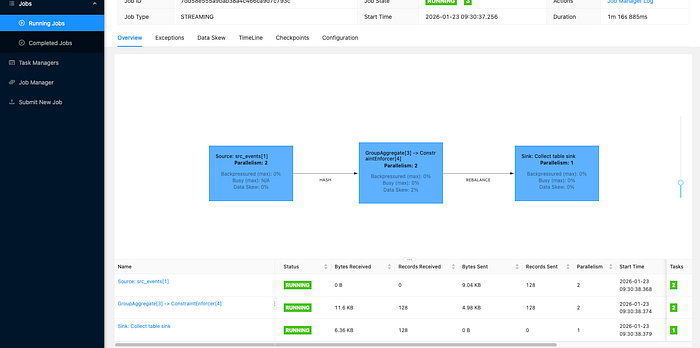
You can see that Flink is now up and running, with the TaskManager actively reading data generated by the datagen source and writing it to the Iceberg table we created as the sink. The Group Aggregate operator, running with a parallelism of 2, is producing some interesting aggregation results worth examining. Now it's time to check the data warehouse to confirm that Flink has successfully written both the data and the metadata we're expecting.

let's examine what happens at the storage layer. When data is written, Iceberg creates two key directories: a data folder containing the actual Parquet files, and a metadata folder located at the same level. The metadata folder is critical to Iceberg's functionality — let's dive into what it contains.
The metadata folder is the "brain" of an Iceberg table. It doesn't just store one type of file; it uses a hierarchy of three specific file types to manage your data efficiently.
metadata.json(The Table State): This is the entry point for the table. It stores the table's "current definition"—including the schema, partition information, and a history of every snapshot (version) of the table.- Manifest List (Avro): Every time a snapshot is created, a "Manifest List" file is generated. Think of this as a directory or menu for that specific version of the table; it lists all the "Manifest Files" that belong to that snapshot.
- Manifest Files (Avro): These are the detailed inventory lists. They track the actual path of every individual Parquet data file, along with column-level statistics (like min/max values) that make query pruning possible.
Let's look at a scenario where Iceberg simplifies our work:
If we have a table with five years of asset data and want to view data from three days ago, without Iceberg, we must scan hundreds to thousands of parquet files. With Iceberg,
- we check the latest schema and find the latest snapshot.
- we ignore all snapshots except the one from three days ago.
- we open the relevant manifest, check the stats, and provide about ten parquet files to the engine to fetch and output data, optimizing file pruning.
On a simple note using Iceberg's metadata layer, we ensure our streaming data is ACID-compliant, versioned, and ready for analytics in Databricks.
Takeaways:
- Using the Iceberg format unlocks a powerful feature called metadata, which brings several benefits such as time travel, versioning, and easier data discovery.
- In the pipeline, using aggregate and window operators — whether in streaming or batch mode — helps collect meaningful metrics that enable useful analysis.
- Flink handles the heavy lifting of processing while seamlessly moving data from the source to the sink.
If you'd like to learn more about Iceberg use cases, feel free to share your thoughts or questions in the comments below.