
It looks like overkill, but I tried it anyway. I wanted to see if these two AI coding tools could collaborate on one project, and the sheer speed of the build surprised me.
But not without some hitches, as you will see from the results at the end of this post, and then understand which of the two is more reliable in quick bug fixes.
I was in for a different view of what's possible when you combine the best terminal coding tool with the latest AI coding IDE.
I planned to leverage the strengths of each tool and pull them together to create the ultimate coding combo that would not only go fast but deliver meaningful results.
I shared this test on my this YouTube channel, where you can see the summary, while this article gives you more details.
At my disposal, I had access to the Gemini 3 Pro model on Google Antigravity and the Claude Sonnet 4.5 on Claude Code.
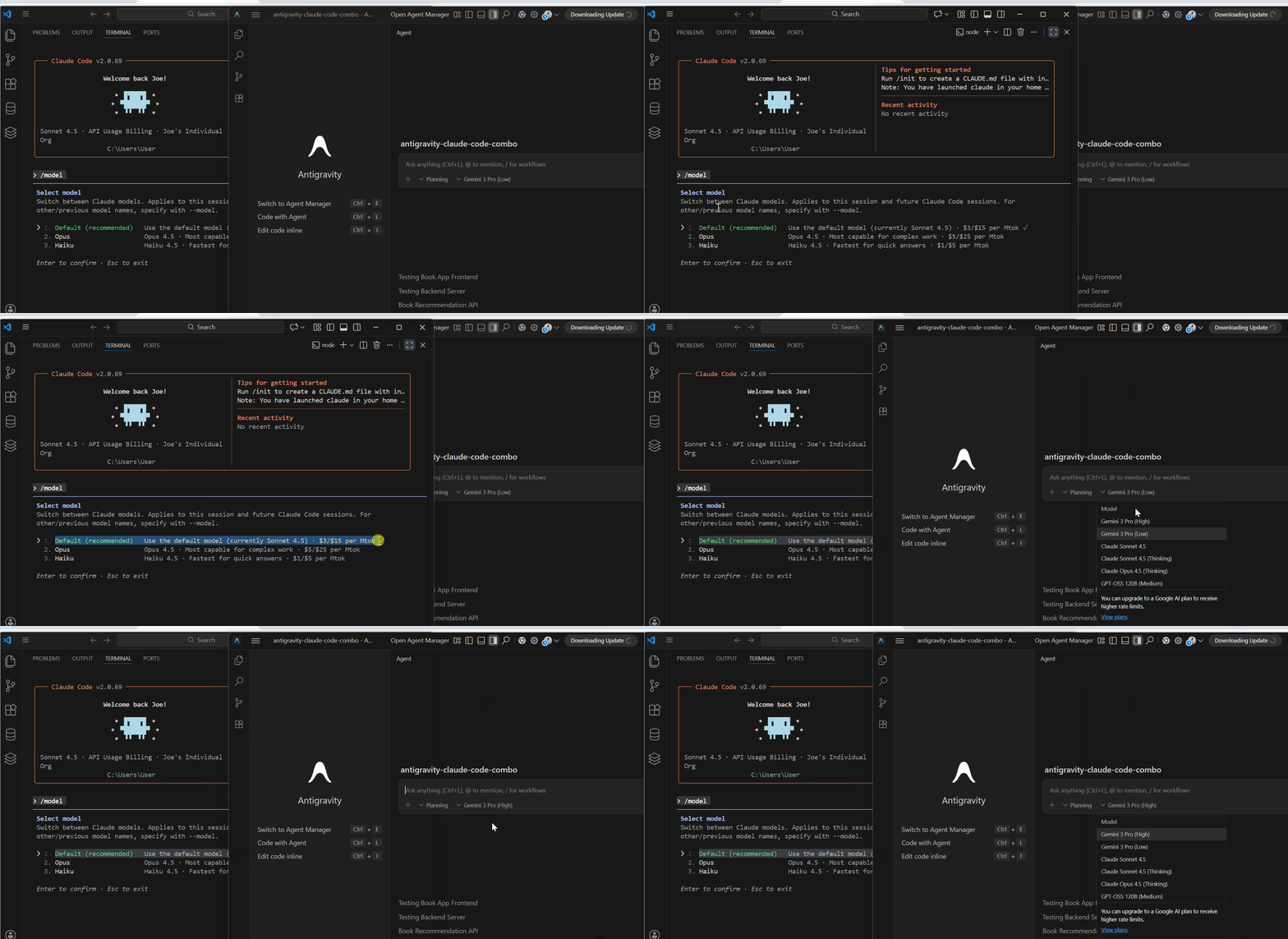
The idea came after testing Google Antigravity for nearly a week. If you've been following my content, you know I'm a big fan of Claude Code and use it daily in my workflow.
So why not use Claude Code inside Google Antigravity and make them collaborate on one project?
Google Antigravity running Gemini Pro would be ideal for backend work, while Claude Code running Sonnet 4.5 would handle the frontend build.
But there was a bigger question I wanted to answer.
Could I ditch VS Code for Google Antigravity since I use VS Code with Claude Code in most of my workflow?
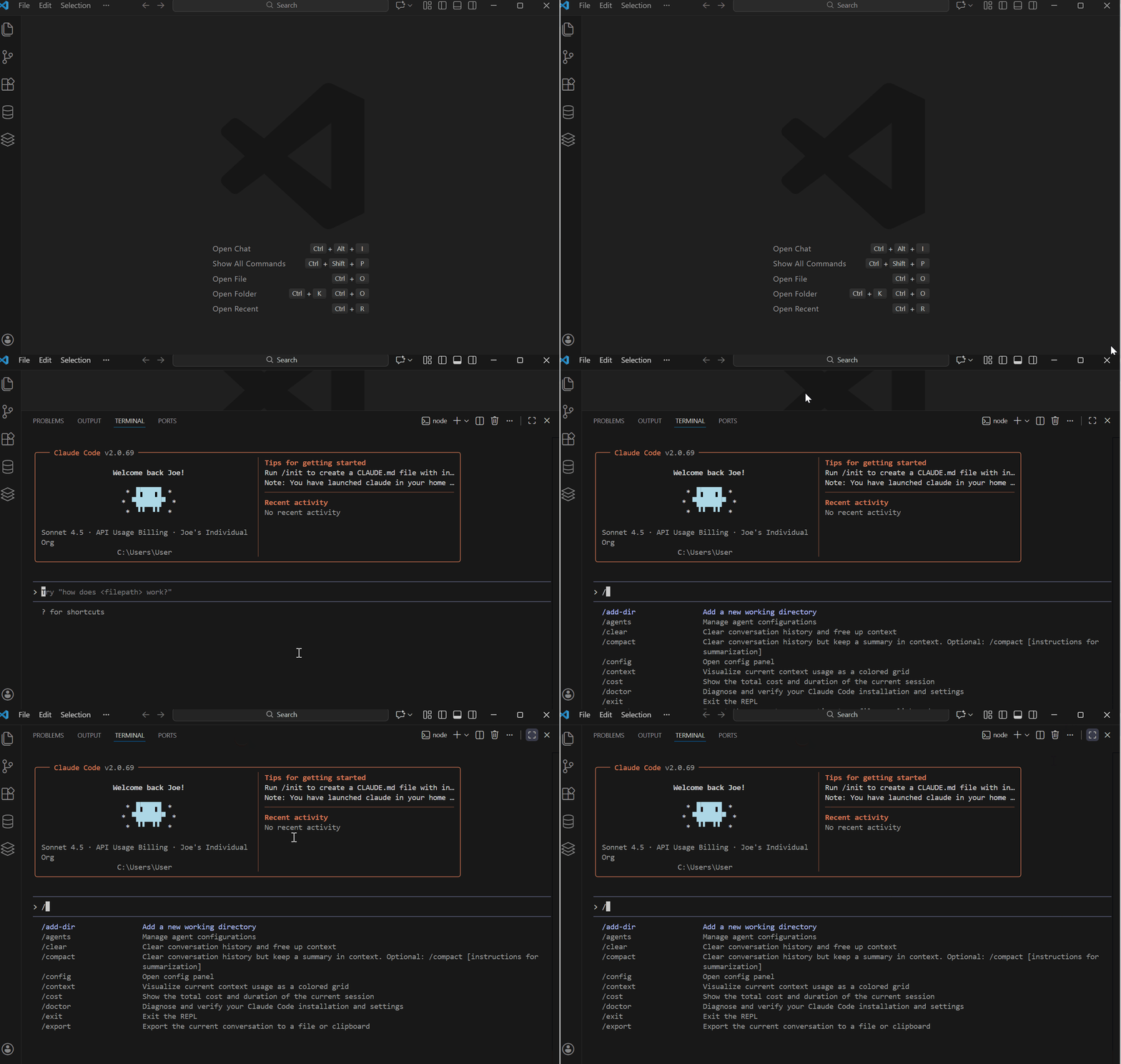
My Test Project — Book Recommendation App
To make this practical, I needed a real project to test both tools properly in a collaboration.
A good project would be a Book Recommendation App that uses the Gemini API.
Lately, I have been researching the best books to help you in your AI coding, and I have written these popular posts on the best AI Coding books.
A book recommendation app seemed a perfect project
- The backend would be a Node.js Express API using Gemini to generate book recommendations. One endpoint, simple input, JSON output.
- The frontend would be a clean HTML page with vanilla JavaScript and CSS. Text input for preferences, a button to get recommendations, and a display area for three books with titles, authors, and reasons.
Each tool would work in its own folder. Backend for Antigravity. Frontend for Claude Code.
Just parallel development on the same project.
As it turned out, this worked so well that it went beyond my initial skepticism, since Google Antigravity had been giving me a mixed experience during my first week of testing.
Let me show you what happened.
Setting Up The Workflow
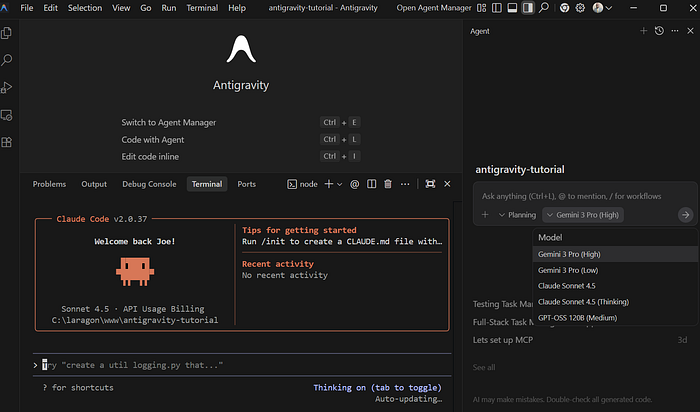
Google Antigravity's editor layout is clean and straightforward.
I opened the terminal and created a folder for the project antigravity-claude-code-combo.
If you are new to Google Antigravity, the editor layout shows three main areas. The coding area at the center, the agent panel on the far right, and the terminal at the bottom.
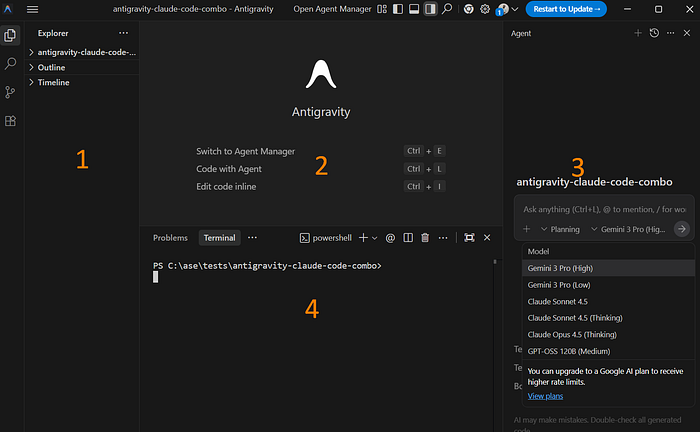
On the agent panel, you select your workspace, choose between planning mode or fast mode, and pick your model.
For this test on Google Antigravity, I went with Gemini 3 Pro.
Launching Claude Code Inside Antigravity
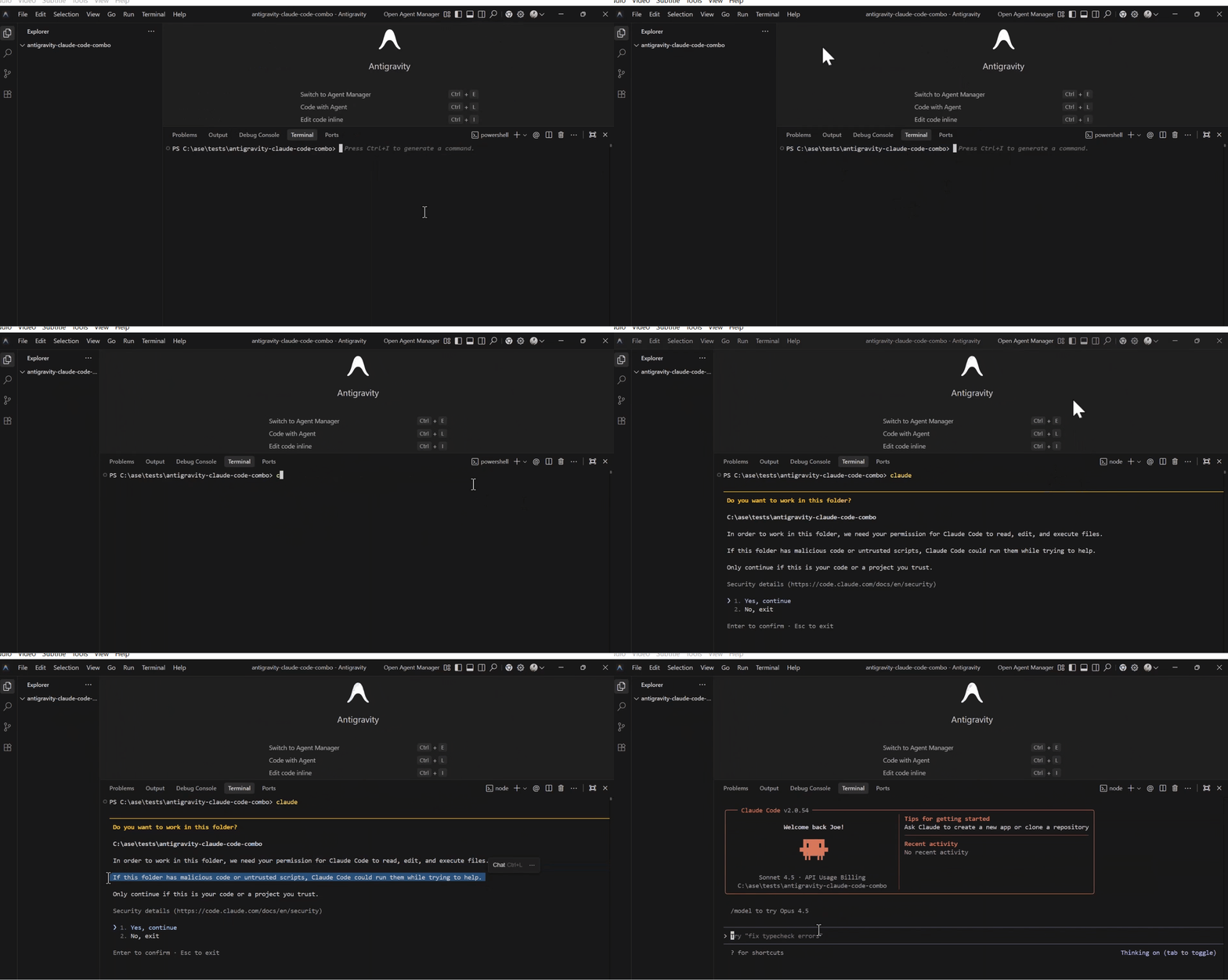
I was already inside the project folder in the terminal.
I launched Claude Code, and it loaded with the default warning asking if I wanted to work in this folder.
I clicked yes, and Claude Code loaded inside Google Antigravity.
A quick status check confirmed everything was running smoothly.
Claude Code showed version details, and the session ID, and the model being used was Claude Sonnet 4.5.
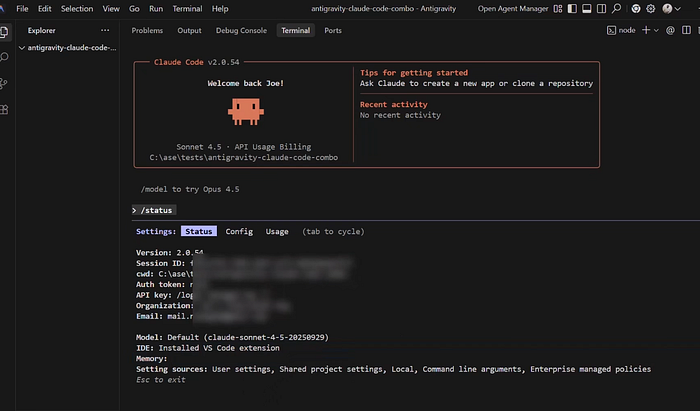
The similarity between Google Antigravity and VS Code became obvious at this point. Same layout, terminal experience, and controls since it's built on the foundation of Visual Studio Code.
Dividing The Coding Roles
The backend prompt for Google Antigravity was specific.
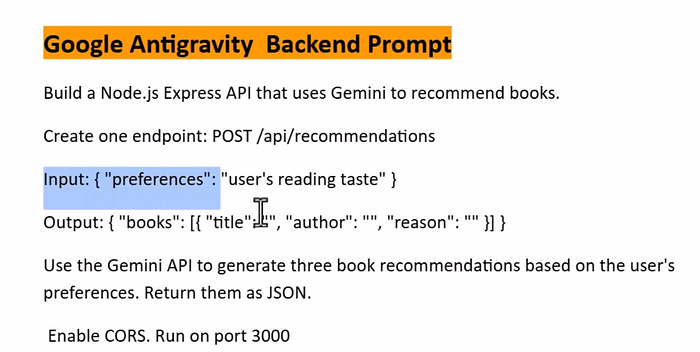
Build a Node.js Express API that uses Gemini to recommend books. Create one endpoint POST /api/recommendations that takes user preferences as input and outputs JSON data with three book recommendations.
Enable CORS and run on port 3000.
For Claude Code, the frontend prompt was clear.
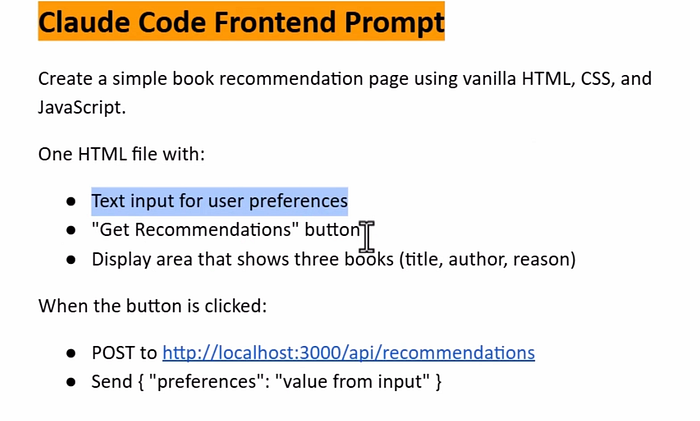
Create a simple book recommendation page using HTML, vanilla JavaScript, and CSS.
One HTML file with a text input for user preferences, a button for getting recommendations, and a display area for three books showing title, author, and reason.
When clicked, the button should make a POST request to the backend API and display the results.
Each tool would work in its own folder. Backend folder for Antigravity. Frontend folder for Claude Code.

I set the model on Claude Code /model and confirmed Sonnet 4.5 was selected.
On Google Antigravity, I selected Gemini 3 Pro and chose planning mode.
Creating The Project Structure
I created the main project folder ase-book-app from the sidebar.
Then I updated both prompts with specific instructions to let each tool work within its own folder.
For Google Antigravity: "Use the directory named AI-software-engineer-book-app inside this workspace and create a folder named backend for this project."
For Claude Code: "Use the directory named AI-software-engineer-book-app inside this workspace and create a folder named frontend for this project."
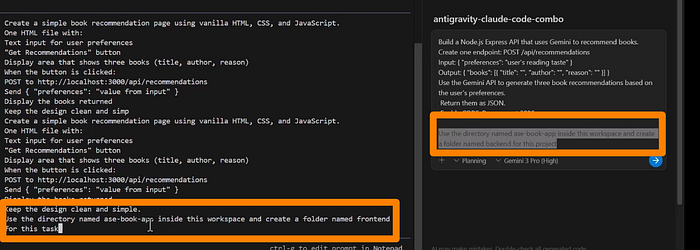
I sent both prompts simultaneously.
Claude Code immediately created the frontend folder while Google Antigravity went into thinking mode and generated an implementation plan with a detailed task list.
Building The Book Recommendation App
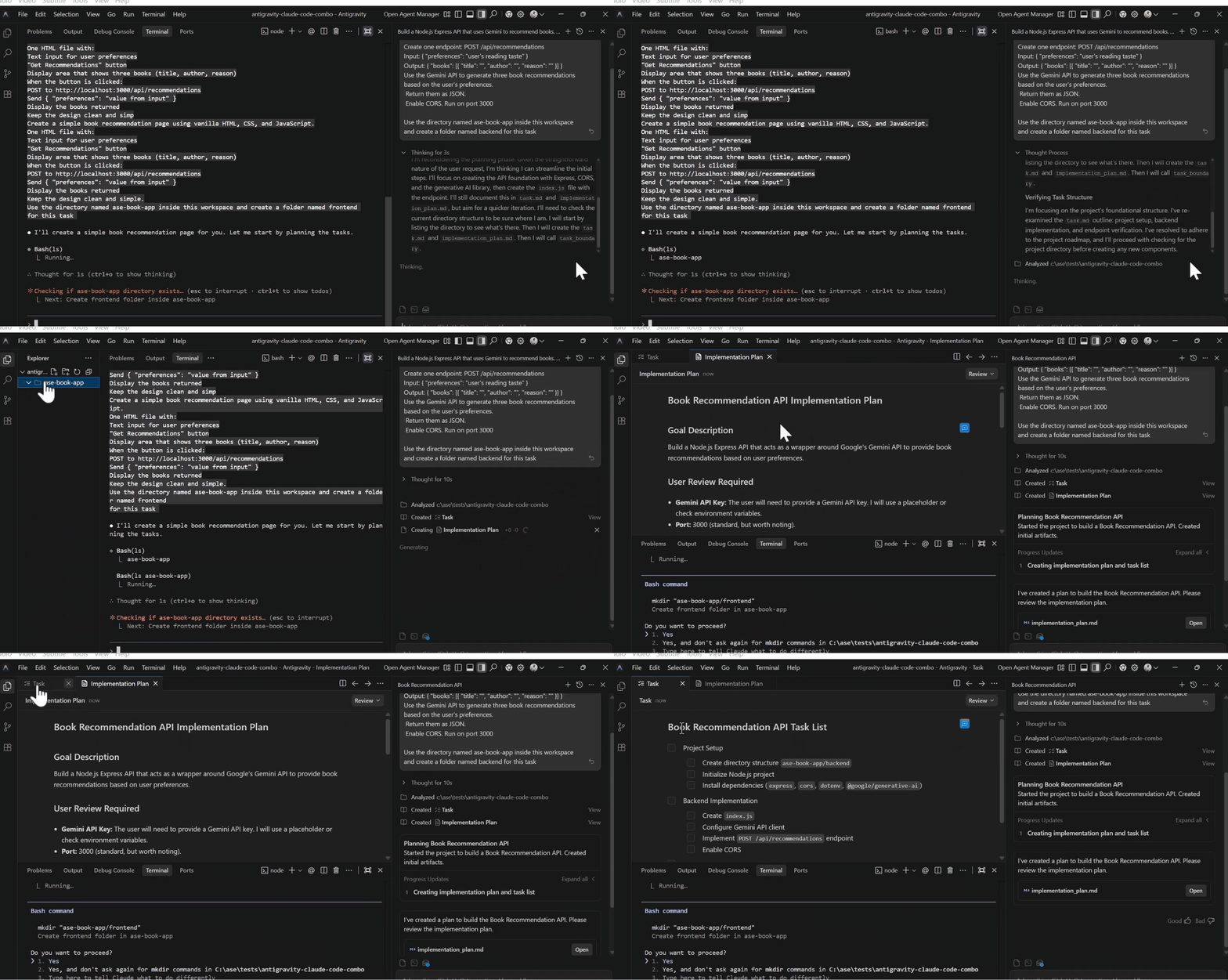
Claude Code moved fast.
Within seconds, it created the frontend folder and started generating the code. The terminal showed the process clearly as it built the HTML structure, added the JavaScript logic, and styled everything with CSS.
Google Antigravity took a different approach.
It first displayed the implementation plan, broke the tasks into a checklist, and then began execution. The planning mode meant I could see exactly what it would do before it started coding.
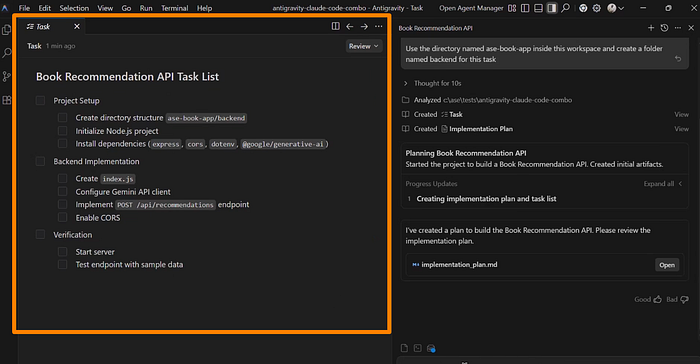
The task list included project setup, creating the Express server, implementing the Gemini API integration, adding the recommendations endpoint, and enabling CORS.
Frontend Development with Claude Code
Claude Code finished the frontend in minutes.
It created a single index.html file with everything embedded. Clean HTML structure, vanilla JavaScript for the fetch logic, and CSS for styling.
The code included a text input field for user preferences, a button labeled "Get Recommendations," and a display area for the three book results showing title, author, and reason.
When I opened the file to review, everything looked solid.
The JavaScript handled the POST request tohttp://localhost:3000/api/recommendations, sent the user's input as preferences, and displayed the response data.
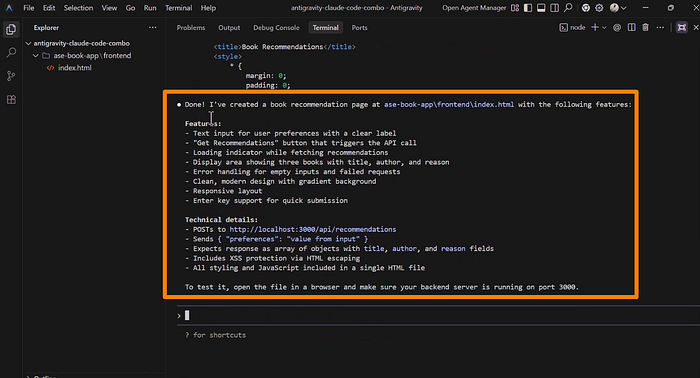
Claude Code gave me a message: "Done. I've created a book recommendation page at frontend/index.html. You can test it by opening it in a browser."
It even provided technical details about the features and how the fetch logic worked.
Backend Development with Google Antigravity
Back to Antigravity.
The checklist updated in real time. Project setup complete. Creating index.js file. Generating package.json. Installing Node.js modules.
I kept clicking accept as it created each file.
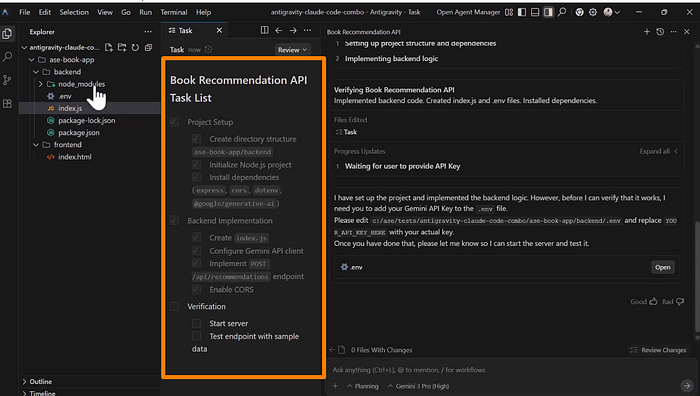
Within a few minutes, the backend implementation was done. The task list showed checkmarks across all items.
The Express server was configured. The Gemini API integration was ready. The /api/recommendations endpoint was implemented with proper error handling.
CORS was enabled. The server was set to run on port 3000.
Code Quality Check
I reviewed both codebases before testing.
The frontend code was clean and straightforward. No unnecessary complexity. Just what was needed to make the UI functional.
The backend code was well-structured. Environment variables for the API key, proper request validation, clear error messages, and a clean response format.
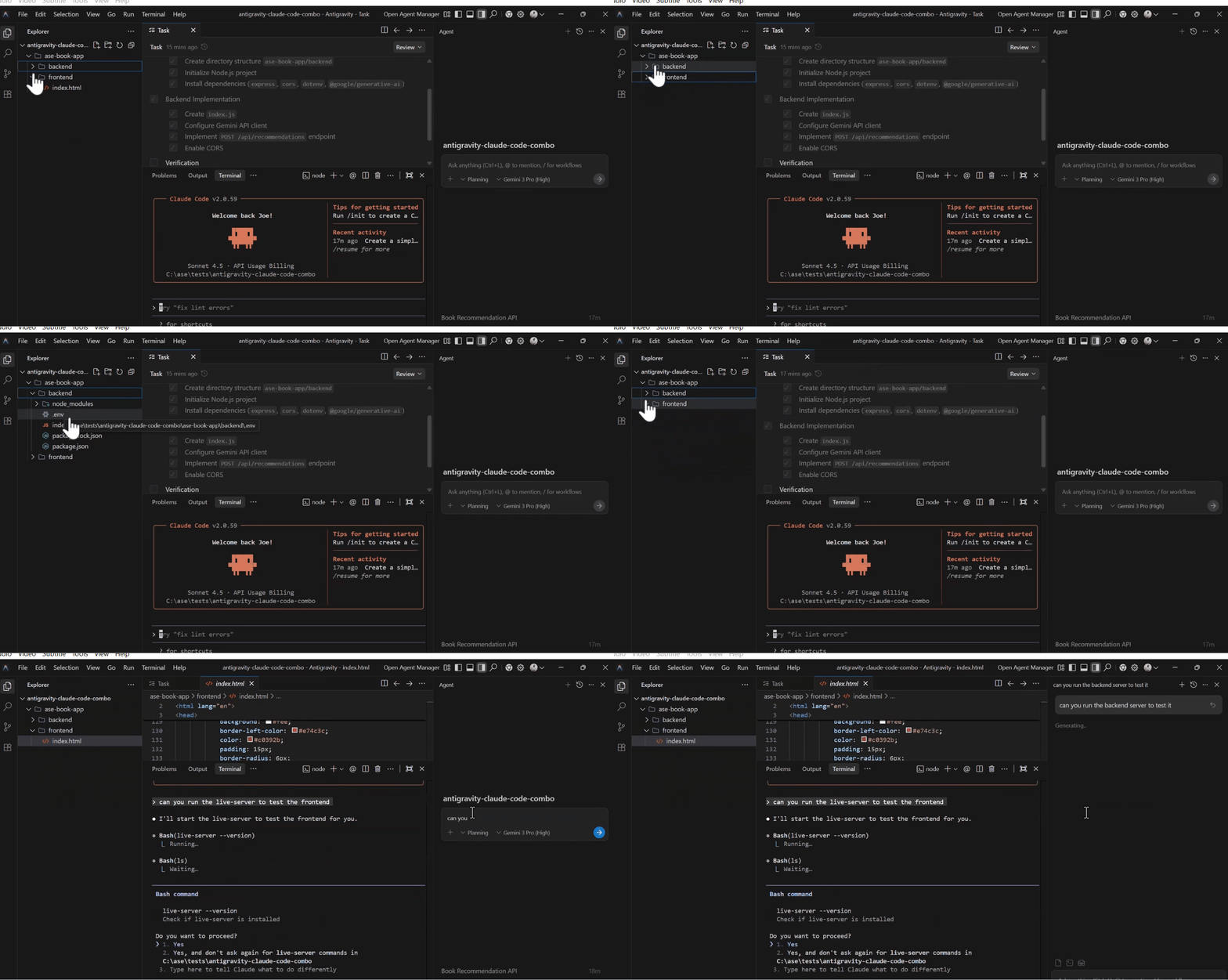
Both tools delivered production-ready code without any back-and-forth revisions.
Testing and Debugging
I started with the frontend.
I prompted Claude Code: "Can you run the live server to test the frontend?"
It immediately prepared the command and executed it. A small port conflict appeared first, but Claude Code caught it instantly and corrected it without me having to intervene.
The live server opened, and the app preview loaded.
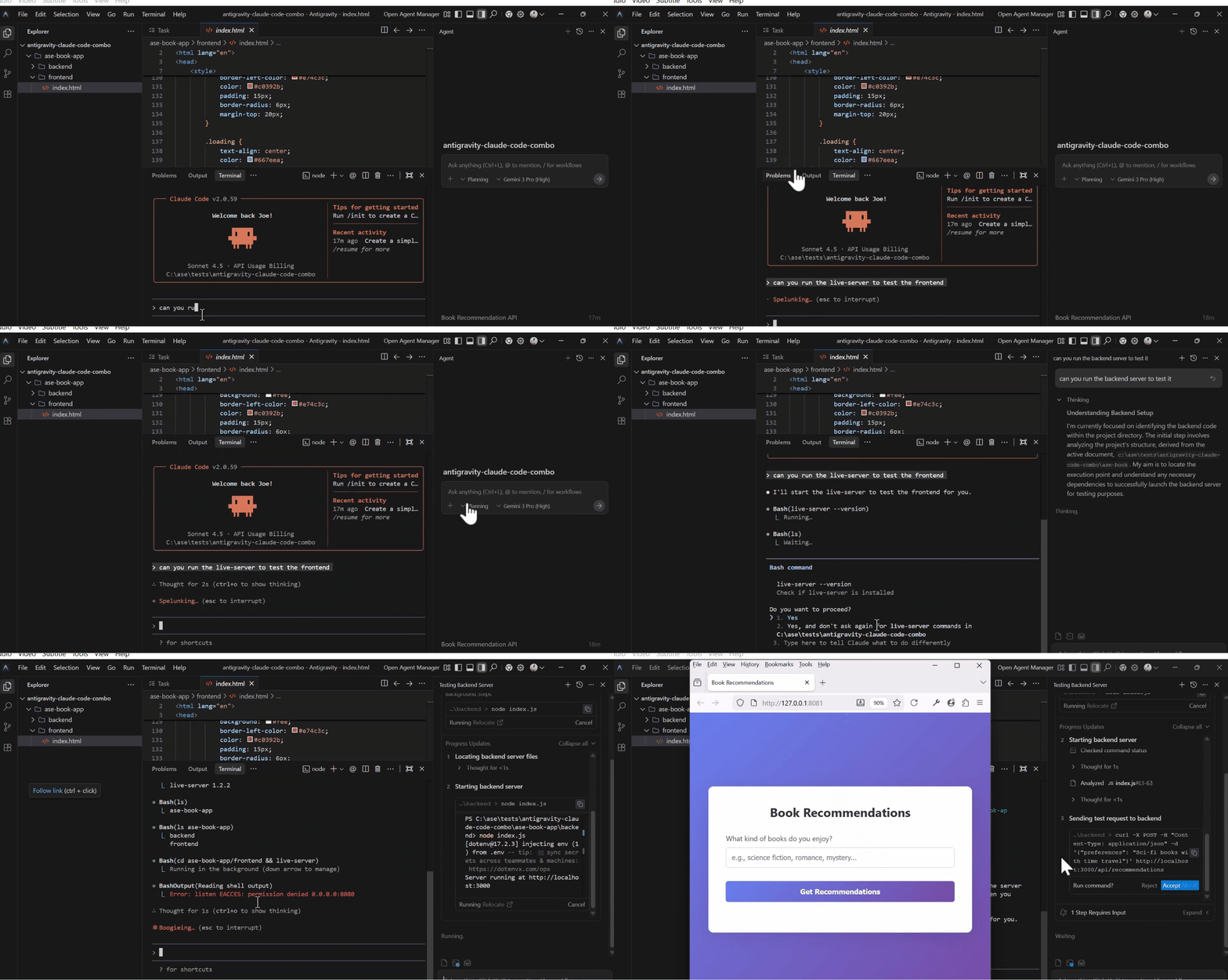
For the backend, I prompted Google Antigravity: "Can you run the backend server to test it?"
Antigravity began analyzing the backend files before starting the server.
It checked dependencies, verified the configuration, and then attempted to run the Express server.
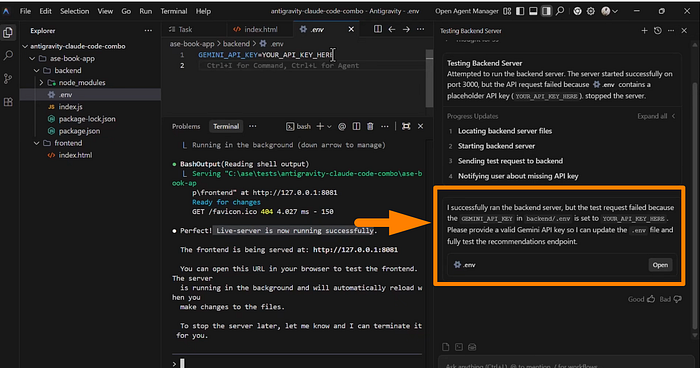
The server started. But the test request failed immediately.
API Key Problem
Google Antigravity gave me a clear message.
"I have successfully run the backend server, but the test request failed because the Gemini API key in the backend.env file is set to 'your_api_key_here.'"
The backend couldn't connect to Gemini without a real API key.
I needed to create one from Google AI Studio, get a project set up on Google Cloud Console, and update the .env file with the actual key.
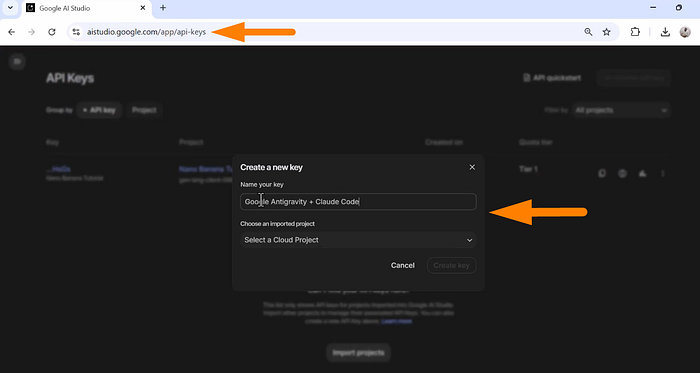
After generating the key and updating the file, I prompted Antigravity again: "I have updated my Gemini API key. Can you test again?"
Antigravity started switching between different Gemini models automatically. Gemini Pro. Gemini 2.0 Flash. Testing each one to find what was available.
After several attempts and model switches, it finally connected.
"The backend is up and running, and the test POST request was successful."
Both servers were now running. Frontend on live server. Backend on localhost port 3000.
Fixing Error Claude Code vs Google Antigravity
I went back to the app preview and typed "AI engineering" in the input field.
Clicked "Get Recommendations." The fetch request to the backend failed.
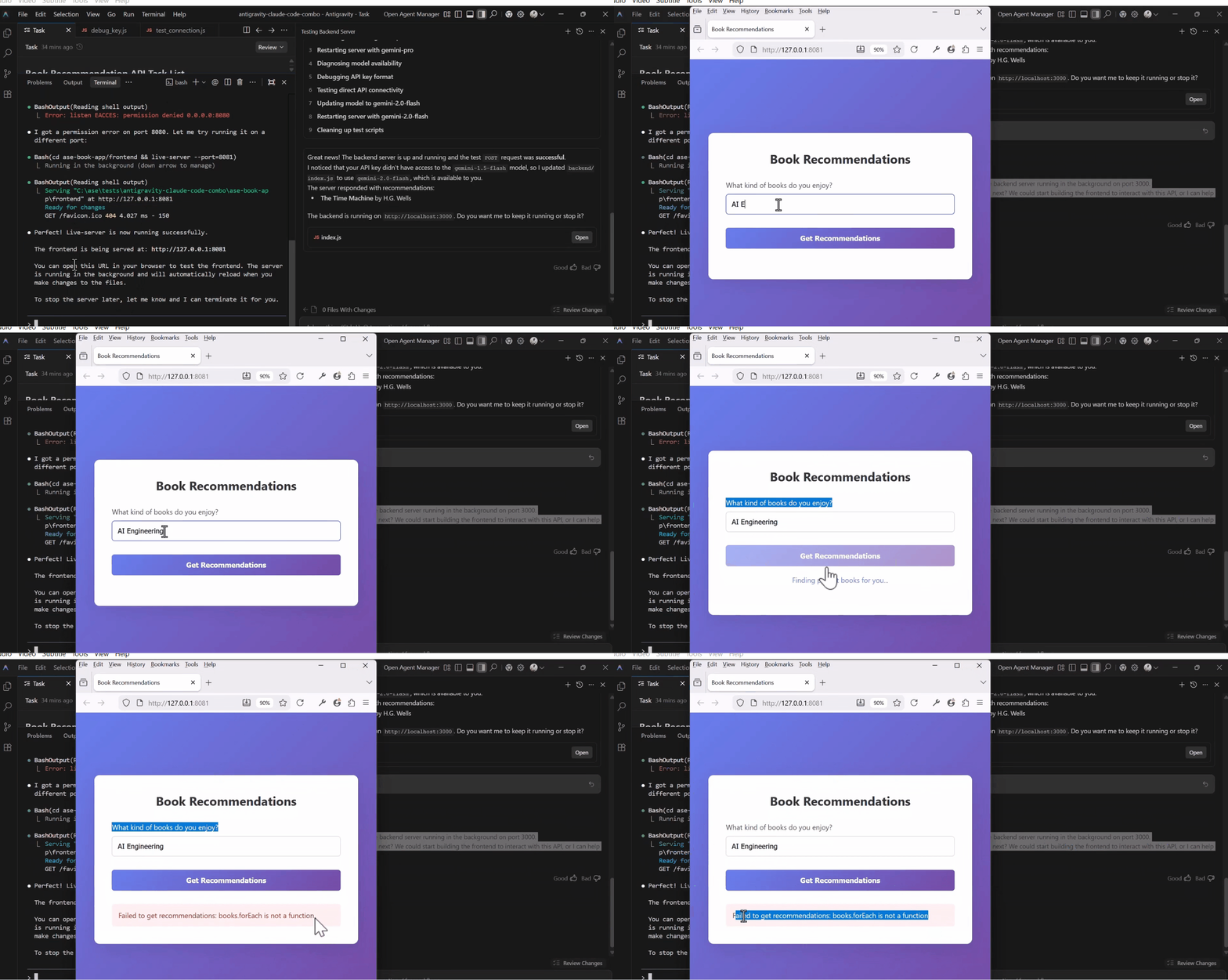
This is where Claude Code's debugging strength became obvious.
I took a screenshot of the error in the browser console and dragged it into Claude Code with the message: "Fetch fails in that function. Is it a backend or a frontend problem?"

Claude Code analyzed the screenshot immediately.
It gave me a detailed breakdown of the error, identified the exact issue in the fetch logic.
I also tested if Google Antigravity could help by copying the terminal error message and pasting it in the chat.
Antigravity analyzed it well and identified the problem correctly.
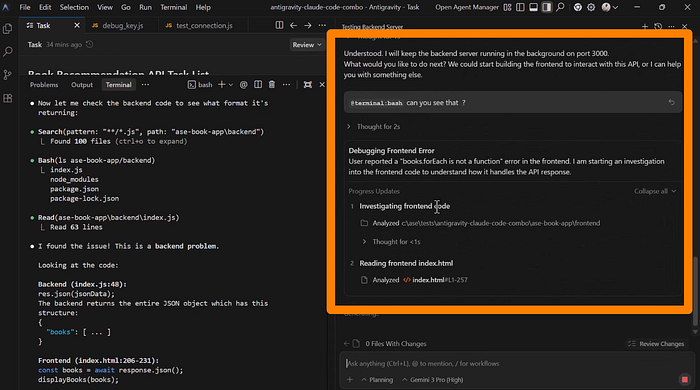
But I prefer Claude Code for debugging. It's more precise and gives actionable fixes faster.
I told Claude Code: "Fix this and update."
On the Antigravity side, I stopped any updates to avoid both tools working on the same issue at the same time.
Claude Code updated the file within seconds.
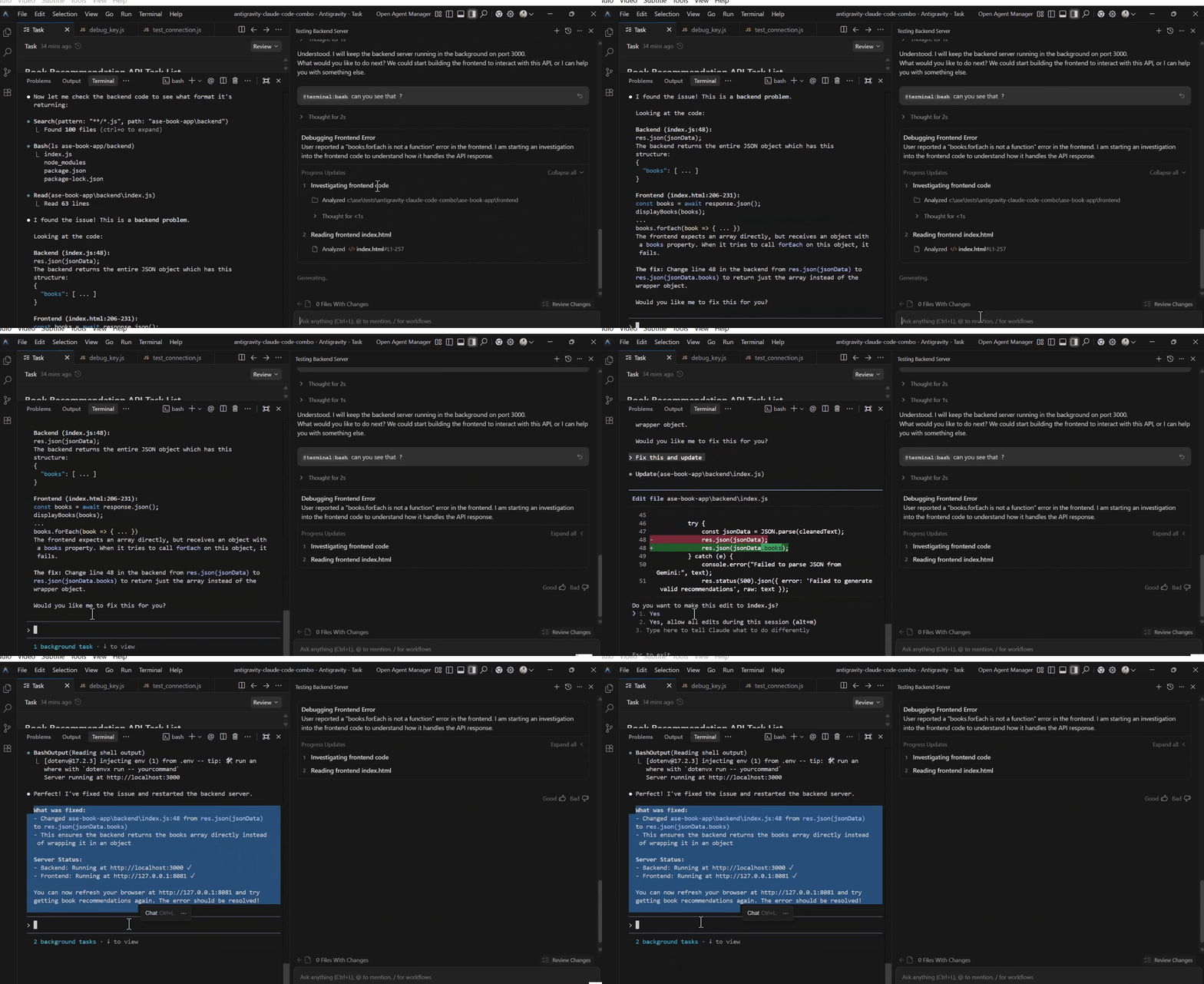
It gave me a clear message explaining where the problem was, what caused it, and how the fix worked.
After a few iterations, it sent another message: "Perfect. I've fixed the issue and restarted the backend server."
Claude Code had taken over both servers. The frontend and the backend were now running from Claude Code's terminal.
At the bottom of the editor, I could see two background task messages confirming that both servers were active.
I returned to the app preview. Typed "AI engineering" again. Clicked "Get Recommendations."

Three book recommendations appeared. The app was fully functional.
We built it using Google Antigravity and Claude Code, each working in its own folder, handling different roles, and delivering results in parallel.
Final Thoughts
The parallel development workflow is the standout feature here.
Google Antigravity is suitable for backend work. Claude Code is great for the frontend and debugging—fast execution, clean code, and surgical precision when fixing errors.
The planning mode breaks down complex tasks into manageable steps. You see the implementation plan before any code gets written.
For backend APIs, database integrations, and server-side logic, Antigravity with Gemini Pro delivers solid results.
The combination of Google Antigravity and Claude Code created a workflow that was faster and more efficient than using either tool alone.
The backend-frontend split played to each tool's strengths. Gemini Pro handled the server logic, while Claude Sonnet 4.5 built the interface and debugged issues.
Is it overkill for simple projects? Probably. If you're curious about pushing the boundaries of what's possible with AI coding tools, give this combo a try.
Share your thoughts in the comments below.
Let's Connect!
If you are new to my content, my name is Joe Njenga
Join thousands of other software engineers, AI engineers, and solopreneurs who read my content daily on Medium and on YouTube where I review the latest AI engineering tools and trends. If you are more curious about my projects and want to receive detailed guides and tutorials, join thousands of other AI enthusiasts in my weekly AI Software engineer newsletter
If you would like to connect directly, you can reach out here:
Follow me on Medium | YouTube Channel | X | LinkedIn