

Zero-Downtime Development: Run 2 Claude Code instances in parallel
Picture this: You're deep into a coding session, relying on Claude Code to help you navigate complex architecture decisions, when suddenly-boom-you hit your weekly token limit. Frustrating, especially when you're in the zone.
I've been there. Despite having Claude Code Max, I kept running into usage limits right when I needed AI assistance most. Around the same time, I had $55 in Minimax credits sitting idle and heard great things about Minimax M2's performance.
That's when I had a simple idea: What if I could run two Claude Code instances simultaneously-one using Claude Code Max on my host machine, and another running Minimax M2 inside a Docker container?
The result? Two fully functional Claude Code instances working in parallel, with zero action when switching between AI models.
Why This Matters
Running two instances gives you:
- Extended productivity by combining token limits from multiple AI services
- Redundancy when one service hits its quota or experiences downtime
- Comparison power to cross-reference solutions from different models
- Maximum value from your AI service credits
What You'll Need
- Docker installed
- Claude Code CLI access
- Minimax API key (sign up at minimax.com)
- 10 minutes of setup time
Step-by-Step Setup
Step 1: The docker-files Project
I created a collection of pre-configured Docker images to solve the eternal developer problem: setting up consistent development environments. Instead of configuring shells, editors, and dependencies every time you switch machines, you can use ready-made images.
We'll use the u2204dev image-a carefully crafted Ubuntu 22.04 development environment featuring:
- Oh-My-Zsh (omz) with custom theme and plugins
- Vim with vim-plug and useful plugins (fzf)
- Python 3.12 + pip and Node.js (LTS) + npm
- Essential tools: git, ripgrep, bat, btop
- JetBrains Mono Nerd Font and a welcome prompt
Full documentation is available in u2204dev/README.md.
Notes: You can use any docker container or VM which can run Claude Code and can access to the project that you want Claude to work on
Step 2: Get Your Minimax API Key
- Sign up at minimax.com
- Create a new API key in your dashboard
- Copy it somewhere safe
- Verify you have available credits
Step 3: Launch the Container
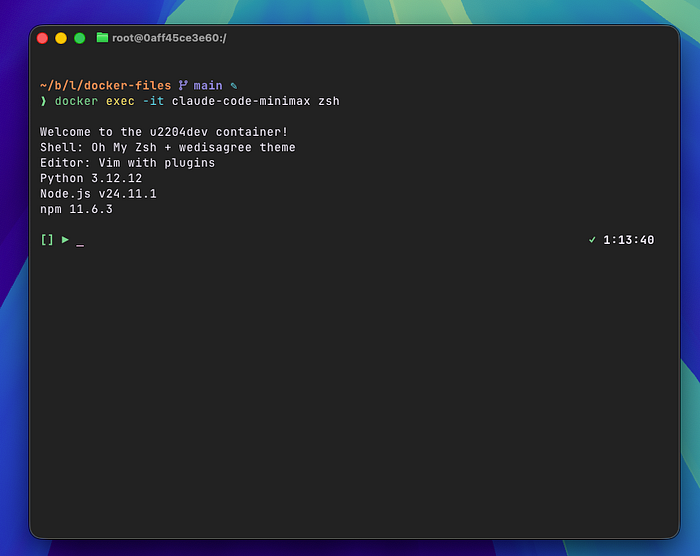
Open terminal and go to the location where you want Claude Code to access to your folder. Run this command to create your containerized environment:
docker run --name claude-code-minimax -it -v "$PWD":/workspace -p 3000:3000 luongnv89/u2204dev zshThis command:
- Names the container
claude-code-minimaxfor easy reference - Mounts your current directory to
/workspaceinside the container - Maps port 3000 for testing web services
- Uses the
luongnv89/u2204devimage with Oh-My-Zsh
You'll be dropped into a Zsh shell inside the container.
Step 4: Install Claude Code
Inside the container, install Claude Code:
# Install Claude Code CLI
npm install -g @anthropic-ai/claude-code

# Verify installation
claude --version
Step 5: Configure Minimax M2 — Official document
Edit or create the Claude Code configuration file located at ~/.claude/settings.json with the UPDATE_YOUR_MINIMAX_API_KEY with the Minimax API key that you have created earlier.
{
  "env": {
    "ANTHROPIC_BASE_URL": "https://api.minimax.io/anthropic",
    "ANTHROPIC_AUTH_TOKEN": "<UPDATE_YOUR_MINIMAX_API_KEY>",
    "API_TIMEOUT_MS": "3000000",
    "CLAUDE_CODE_DISABLE_NONESSENTIAL_TRAFFIC": 1,
    "ANTHROPIC_MODEL": "MiniMax-M2",
    "ANTHROPIC_SMALL_FAST_MODEL": "MiniMax-M2",
    "ANTHROPIC_DEFAULT_SONNET_MODEL": "MiniMax-M2",
    "ANTHROPIC_DEFAULT_OPUS_MODEL": "MiniMax-M2",
    "ANTHROPIC_DEFAULT_HAIKU_MODEL": "MiniMax-M2"
  }
}
Tip: after installing claude-code, there is no folder ~/.claude, you can just start claude and select anything, then quit Claude Code by Ctrl + C x 2 times. Now you have ~/.claude folder. Then from here you can create settings.json file
Step 6: Run Both Instances in Parallel
You now have two Claude Code instances:
Instance 1 (Host Machine)
- Uses Claude Code Max/Sonnet
- Your regular terminal setup
- For complex reasoning and large refactoring
Instance 2 (Docker Container)
- Uses Minimax M2
- Accessible via
docker exec -it claude-code-minimax zsh - For quick tasks, code reviews, or when your primary instance hits its limit
Attach to your container: Start Claude Code as normal
Both instances operate on the same workspace (your projects in ~/workspace), so changes made by either are immediately visible to both.

Using Both Instances
The beauty of this setup:
- Switch between models by opening a new terminal or attaching to the container
- Both instances share your codebase through the mounted workspace
- Zero coordination needed-you can use them interchangeably
- When one hits its limit, use the other
Example workflow:
- Use Claude Code Max on your host for initial architecture planning
- When you hit the limit, attach to the container and continue with Minimax M2
- Compare outputs or use different models for different tasks
- Switch back and forth as needed
Extending to Other Models
This Docker approach works with other AI models too:
GLM 4.6 from Z.AI — official document
Update ~/.claude/settings.json to configure the following environment variables
{
    "env": {
        "ANTHROPIC_AUTH_TOKEN": "your_zai_api_key",
        "ANTHROPIC_BASE_URL": "https://api.z.ai/api/anthropic",
        "API_TIMEOUT_MS": "3000000"
    }
}
Local LLMs with Ollama or LMStudio
- I'm working on a detailed guide for this
- Run powerful LLMs locally without API costs
- Perfect for privacy-sensitive work
- Check my previous post on the setup: LMStudio + litellm + Claude Code
Pro Tips
Port Binding
- Bind ports you need for testing:
-p 3000:3000for React dev servers,-p 8000:8000for Python apps - Document which ports you've mapped to avoid conflicts
Workspace Management
- Mount only the directories you need:
docker run -v "$(pwd)/my-project:/workspace" - The mounted workspace (
/workspace) is shared between your host and container
Quality Assurance
- Always verify AI outputs before executing them
- Compare results between models for critical tasks
- Use git to track changes from AI-generated code
Troubleshooting
Container won't start?
docker logs claude-code-minimaxAPI key issues?
# Verify the key is set
echo $MINIMAX_API_KEY

# Test directly
curl -H "Authorization: Bearer $MINIMAX_API_KEY" https://api.minimaxi.chat/v1/models
Port conflicts?
# Check what's using the port
lsof -i :3000

# See all active containers
docker ps
Can't attach to container?
# Check what's using the port
lsof -i :3000

# See all active containers
docker ps
Conclusion
Running two Claude Code instances in parallel is surprisingly simple and incredibly useful. With Docker for environment isolation and multiple AI services, you get extended productivity, redundancy, and better results through model comparison.
The setup takes about 10 minutes and pays dividends in productivity. You can work around limits, compare outputs, and get more value from your AI subscriptions.