

Vim/Zsh/Tmux, macOS Apps, Extensions for high productive development
Inspiration
Whenever I got a new laptop, it usually takes me up to 2 hours to re-setup everything again, and I start getting tired and annoyed.
Every time I set up my Mac again, I learned something new and cool things that improve my programming experience better.
So, I make a collection of setup and apps to share with you my personal guide of setting up a new Mac for software development.
1. System Preferences
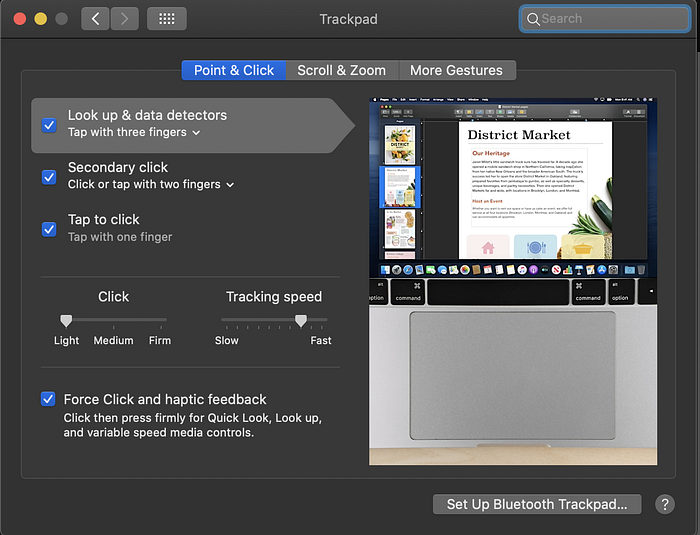
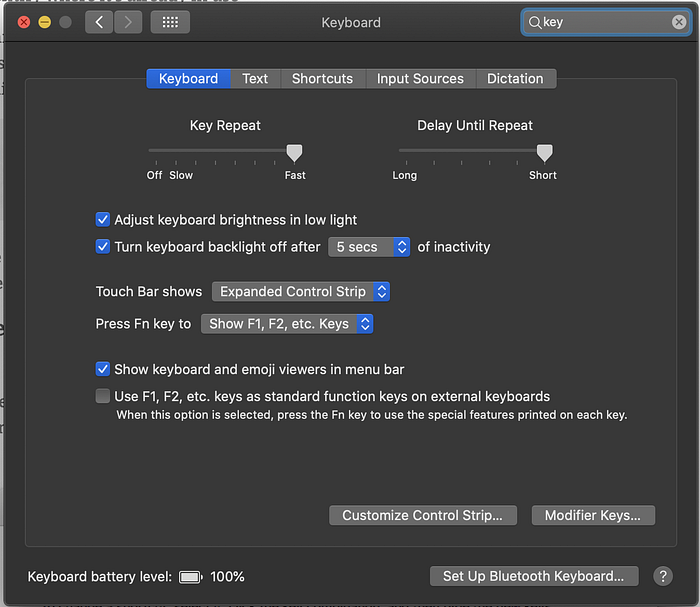
- System Preferences > Trackpad/Keyboard > set up as above images
- iCloud > login to your account
- Filevault: On
- Disable Ask Siri
- Location Services: On (Limited)
- Check software updates
- Messages app > add your Number + email
- App Store > install previously installed applications
2. Terminal
Alfred
It's a replacement to Spotlight because it's way much faster when it comes to search any files: brew cask install alfred
Brew
Install Xcode: $ xcode-select --install
Install Homebrew: $ /bin/bash -e "$(curl -fsSL https://raw.githubusercontent.com/Homebrew/install/master/install)"
brew cask install to install an application
iTerm2
A replacement to Terminal
Clovis wrote an awesome tutorial on how to set up more in-depth
A comparison: iTerm2 vs. Terminal
Install: brew cask install iterm2
ZSH/Tmux/Vim
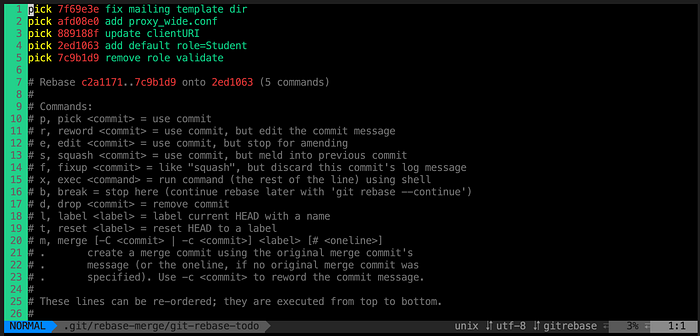
I used this awesome guy's repo as a template
After you follow the instruction in his README, do these steps below to ensure your Vim has a good look:
$ cd ~
$ sh -c "`curl -fsSL https://raw.githubusercontent.com/skwp/dotfiles/master/install.sh`"
# Setup vim for pretty look. Create 2 files and insert each line below to each individual file
$ vim ~/.vimrc.before
let g:yadr_using_unsolarized_terminal = 1

$ vim ~/.vimrc.after
let g:yadr_disable_solarized_enhancements = 1
colorscheme base16-twilight
3. Git
Git has become one of the main tools that every developer should know how to use it. The new Mac usually comes with Git pre-installed.
Install git: brew install git
Config git:
$ git config --global user.name "Your Name"
$ git config --global user.email "you@your-domain.com"
You will constantly be using Git daily, and SSH will allow you to pull and push to git without re-entering email and password every single time.
- Git already had an article on how to add SSH to your Mac
4. Install Mac Apps with command line
If you're a fan of command-line, and you don't want to install apps by going through each of them on Chrome. then you should try mas
Install mas for quick setup: $ brew install mas
Search for your app: $ mas search XCode . You will find the app ID for each app
Copy the App ID into 1 command line: $ mas install <app_id1> <app_id1> <app_id3>
Note: If these apps below don't have an app ID, then you have to install it from the browser. (Links included)
Work
- XCode: 497799835
- The Unarchiver: 425424353
- Microsoft Word: 462054704
- Excel: 462058435
- PowerPoint: 462062816
- VSCode
- Postman
- Docker
Communication
Entertainment
- Messenger: 1480068668
- WeChat: 836500024
- Line: 539883307
- Chrome
- Viber
- Spotify
- Open Spotify: This website lets you listen to Spotify music with NO Ads
5. Chrome Extension
You don't want to install many Chrome extensions unless you want it to "eat" a lot of your RAM or unless you have a powerful computer.
Here are the TOP 6 that I used daily:
- Adblock Plus: Block all the ads
- Grammarly: Used to check my grammar when I write essays, blogs, etc.
- Honey: To find me the best deals
- Rakuten: Give me cash back when I shop online
- Redux Dev Tool: For debugging with React
- JSON View: View JSON on the web browser prettier