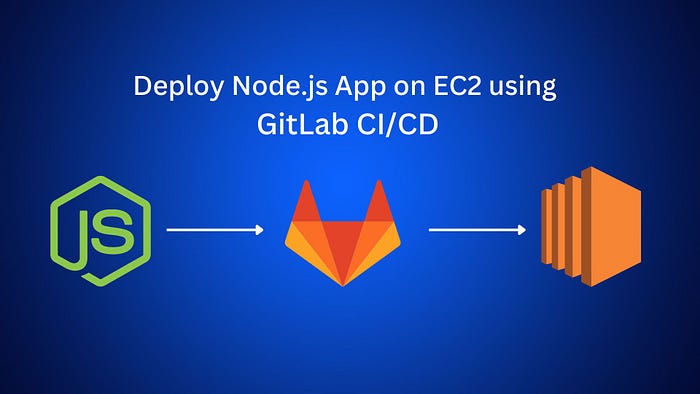


So many types of coding snippets & solutions with very less lines of code become trickier often and take hours to fix, pipelines are one of them.
At the time of writing this article, there are a bunch of tools and methodologies to automate the deployment of a Node.js app. It varies mostly based upon scalability, resiliency, and performance factors. But in this article you'll find a simple and smooth way to deploy your node.js app with minimum effort. And certainly, you can decor later on all the deployment flow with addition of performance, and security measures to make it production-ready CI/CD.
So let's break this process down , step by step:
Prerequisites:
- A Node.js, Express.js app placed in a gitlab repository
- An EC2 instance with port 22 enabled for inbound traffic
- SSH key that you launched your ec2 instance with
- Nginx installed, configured on the instance
- Node.js, npm, and pm2 installed on the instance
- GitLab Maintainer access
I'm skipping the Nginx setup here, and will be writing it in a separate article. So let's start configuring our Gitlab first to lay down the base for this deployment automation:
Setting Environment Variables
Note: you need Maintainer access to do this.
Environment variables are a way to store key-value pairs that can be accessed by your CI/CD jobs. In our case, we need to set up environment variables for the EC2 instance's host, username, and private key.
Here's how to set up environment variables in GitLab:
- Go to your GitLab project and click on "Settings" in the left-hand menu.
- From the dropdown, select "CI/CD".
- Expand the "Variables" section.
- Click on "Add Variable".
- Enter the key for your variable in the "Key" field and the corresponding value in the "Value" field.
- Click on "Add Variable" to save your changes.
You should set up the following environment variables:
EC2_HOST: The hostname or IP address of your EC2 instance.EC2_USERNAME: The username that you use to log into your EC2 instance.EC2_PRIVATE_KEY: The private key that you use to authenticate with your EC2 instance. Make sure to replace all line breaks in your private key with\n.
Selecting a Runner
Runners are agents that run your CI/CD jobs. You can use shared runners provided by GitLab, or you can set up your own specific runners.
To select a runner for your project:
- Go to your GitLab project and click on "Settings" in the left-hand menu.
- From the dropdown, select "CI/CD".
- Expand the "Runners" section.
- If you want to use shared runners, make sure "Enable shared runners" is checked.
- If you want to use specific runners, you'll see them listed under "Specific Runners". Click on "Enable for this project" next to the runner you want to use.
Now that we've set up our environment variables and selected a runner, we're ready to create our .gitlab-ci.yml and start using GitLab CI/CD.
Create .gitlab-ci.yml Now!
The .gitlab-ci.ym is the centerpiece of our deployment. It dictates to GitLab what tasks to perform during the CI/CD process. This should be in the root directory of your repository. Here's our complete file
stages:
  - deploy

deploy:
  stage: deploy
  script:
    - 'which ssh-agent || ( apt-get update -y && apt-get install openssh-client -y )'
    - eval $(ssh-agent -s)
    - echo "$EC2_PRIVATE_KEY" | tr -d '\r' | ssh-add - > /dev/null
    - mkdir -p ~/.ssh
    - chmod 700 ~/.ssh
    - ssh-keyscan $EC2_HOST >> ~/.ssh/known_hosts
    - chmod 644 ~/.ssh/known_hosts
    - scp -r ./* $EC2_USERNAME@$EC2_HOST:/home/ubuntu/node-api
    - ssh $EC2_USERNAME@$EC2_HOST "cd /home/ubuntu/node-api && npm install && pm2 startOrRestart ecosystem.config.js"
  only:
    - main
What's happening here?
- Stages: We define a single stage named
deploy. This means our CI/CD process consists of this sole deployment stage. - SSH Setup: Before we can deploy, we need to securely communicate with our EC2 instance. We achieve this using SSH. The commands under the
scriptsection set up this SSH communication. - File Transfer: The
scpcommand copies our app's files to the EC2 instance. It's like a remotecpcommand. - App Setup on EC2: Once our files are on the EC2 instance, we navigate to the app's directory, install any dependencies using
npm install, and then start (or restart) our app using PM2.
we can use either bash or shell script as well for this final App setup.
hint: Instead of pushing repo files through
scpwe can just trigger a bash, shell script placed on the instance and putting all the necessary git and app setup commands in the shell script. This is another way of doing this deployment
Now let me explain a bit about the pm2
PM2: The Node.js Guardian
PM2 is more than just a process manager for Node.js. It's a guardian that ensures our app always remains alive, even if it encounters errors. This file should also be in root directory of your repository.
Our PM2 configuration is stored in ecosystem.config.js
module.exports = {
  apps : [{
    name: "myapp",
    script: "src/server.js"
  }]
}
Here's the breakdown:
- name: This is the name of your application as it will appear in PM2's listings. This is unique for pm2. if you don't specify the app name, pm2 will always start a brand new api. That's why it's important to check for the existing pm2 app with the specific name, if it exists, simply restart instead of start.
- script: This points to the entry point of your application. In this case, I've assumed that your main server file is
src/server.js. Adjust the path accordingly if your main file is located elsewhere.
With this configuration, PM2 will simply use Node.js to run your server.js file.
Wrapping Up:
Deploying a Node.js, Express.js app to EC2 using GitLab CI/CD is a structured process. With a clear configuration and understanding, you can automate your deployments, ensuring a smooth and efficient release of your application.
Remember, the key to mastering deployment is understanding each step and the tools involved. With this guide, you're well on your way to becoming a deployment wizard!
Happy coding and deploying!
Thank you for reading until the end. Please consider following the writer and this publication. Visit Stackademic to find out more about how we are democratizing free programming education around the world.