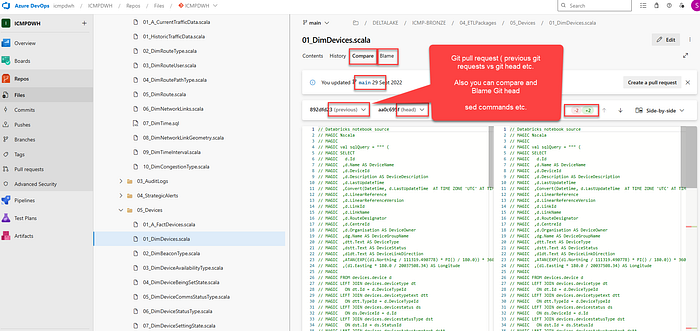

This is the second part of the series. In this series, we further investigate how to achieve CI/CD pipelines in Azure DevOps. ( Microsoft Fabric CI/CD pipelines or Databricks Delta Lake Azure Devops pipelines ).
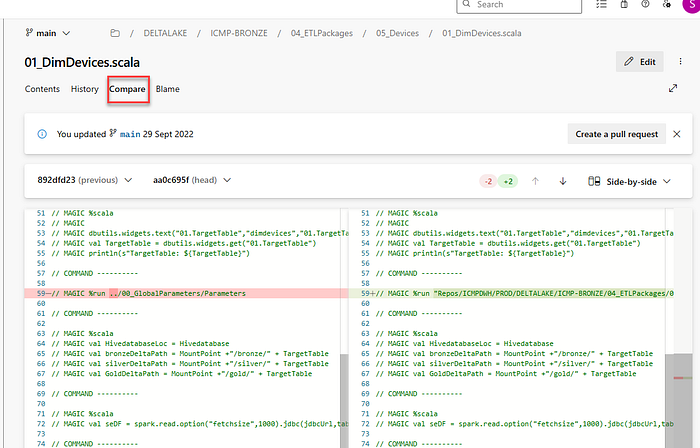
As we have seen, you can see History as well as contents of Git CI/CD Repos. Plus You can Compare and Blame of various Git CI/CD commands.
Also, You can create and send a pull requests using Git in Repos. Compare
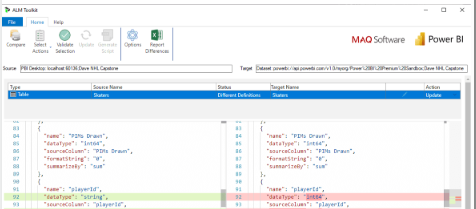
This is about Microsoft SQL Server Analysis Services in on premises single Windows server. Comparison to External Tools — ALM Toolkit in Power BI Desktop. Exactly similar to Compare commands in Repos in Azure Dev Ops in Databricks Delta Lake or Microsoft Fabric.
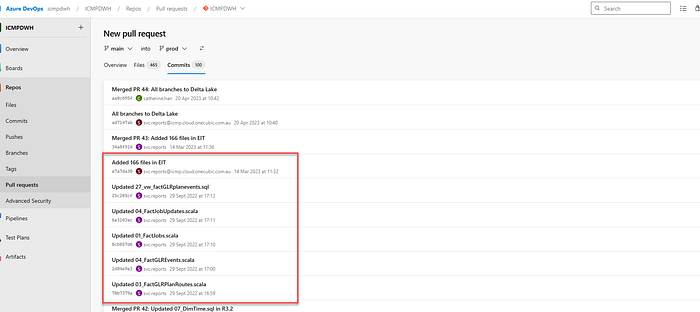
Now we are going to set up a pull requests from main branch to prod branch. ICMPDWH Projects in the top. Then create a pull requests to prod branch. All these are git commits. For example, Added 166 files in EIT, Updated to 27_vw_factGLRplanevents.sql, All branches to Delta Lake, as well as Merged PR 44 : All branches to Delta Lake.
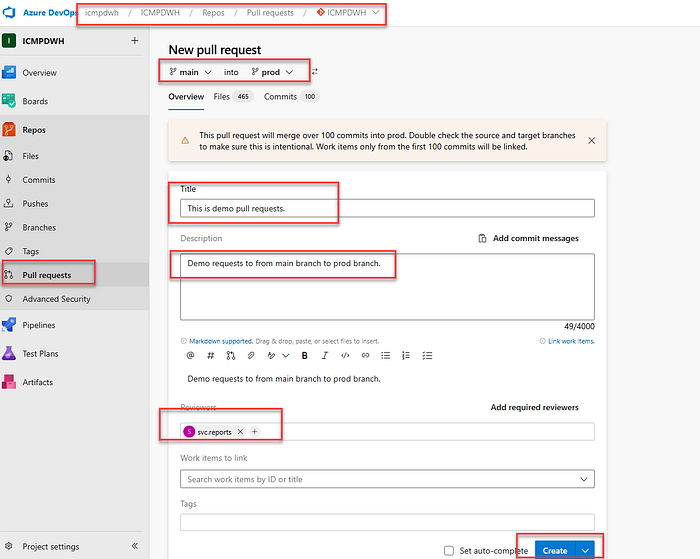
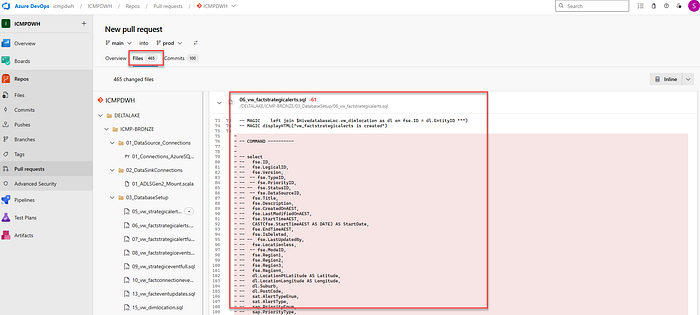
Also you can see the different Files (465 Files ).
Now we are finished with Repos in ICMPDWH project. Now we are going to move to ICMPDWH_CI_FULL Continuous Integration.
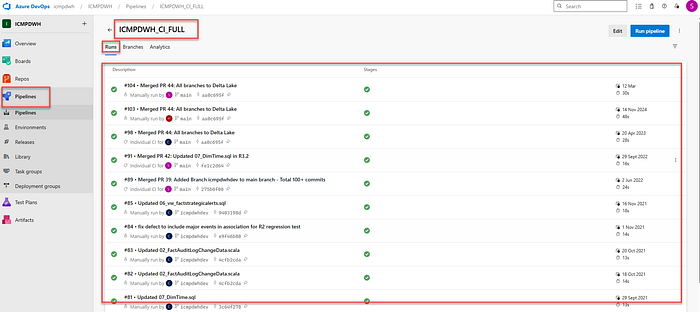
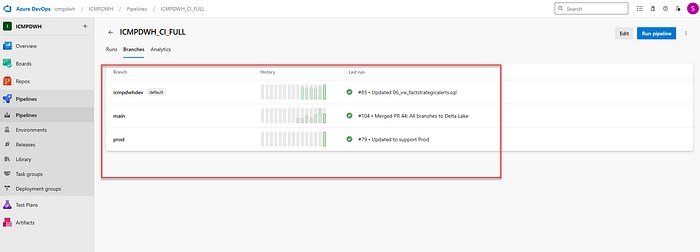
Now you can see the different Runs in Pipelines and you can see the branches in Azure DevOps Continuous Integration.
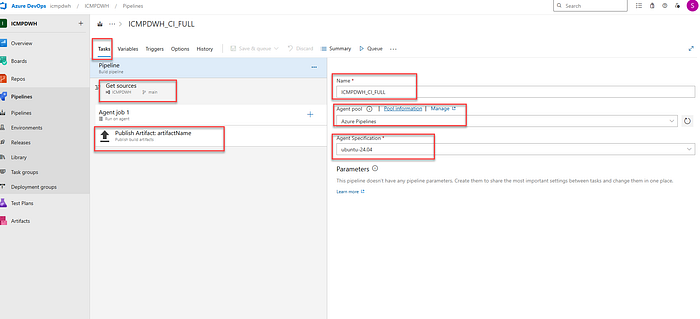
Also I created artifacts using Publish Artifact : artifactName and various ubuntu-24.04 machine ( Agent Specification ) and Agent Pool for Azure Pipelines. This is all in Pipelines in Continuous Integration of Azure Dev Ops.
From Repos → Azure Pipelines
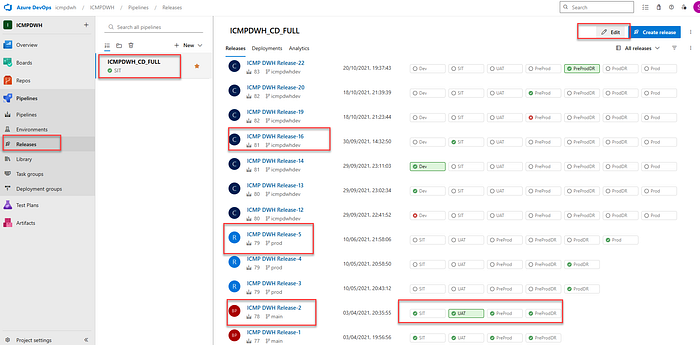
Also when you go to different releases in different branches ( for example, you can see main branch, prod branch as well as some of the dev branches as well ). I will edit the Releases now using Edit button.
Next week, I will publish Part 3 of Azure Dev Ops CI/CD in Databricks Delta Lake/ Microsoft Fabric automated CI/CD in UI.