

Robot Operating System (ROS) in Windows 10 — Publisher, and Subscriber using Python
We have seen how to install ROS in Windows in this article. Also, I've suggested you to go through this article to learn how to write HelloWorld using ROS and C++ in Windows.
In this article let us see how to create Publisher, and Subscriber using ROS and Python in Windows.
I hope you have installed Gedit (if you have gone through HelloWorld article: There the configuration of Gedit is given).

What is a Publisher?
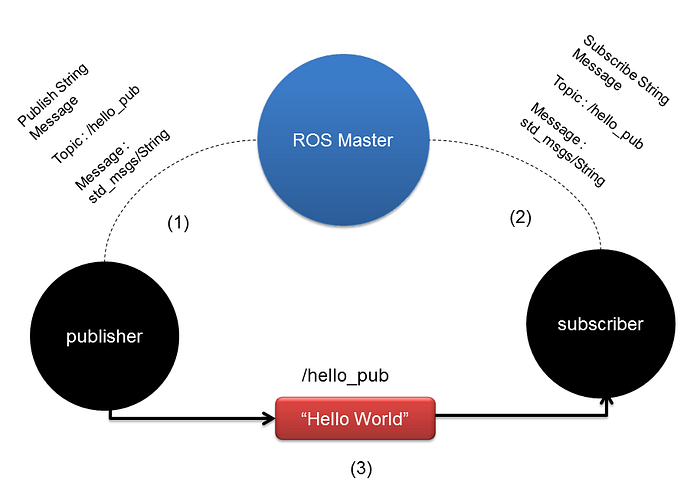
A ROS publisher is a ROS node that publishes a specific form of ROS message on a given ROS topic.
What is Subscriber?
It is also called as "Interested" node. This node can access the published ROS message on a given ROS topic.
In brief, Publisher, and Subscriber are two ROS nodes that interact in a unidirectional communication (from Publisher to Subscriber).
Let's create the package 1st. I hope you have already created the catkin workspace (if you have gone through HelloWorld article). Open the shortcut of ROS Command Prompt (ROS_Noetic as mentioned here). Go to the catkin workspace directory.
C:\Windows\System32>cd C:\opt\ros\noetic\catkin_wsIf you've practiced HelloWorld, inside of catkin workspace directory you can see \src directory along with \build and \devel directories. Or else, create it.
C:\opt\ros\noetic\catkin_ws>mkdir srcInside src directory create a new package.
C:\opt\ros\noetic\catkin_ws\src>catkin_create_pkg talker_listener std_msgs rospyHave you noticed that in HelloWorld article we've used roscpp and here we used rospy? We wrote the node in HelloWorld package using C++. In this article, we are going to use Python, so that we used rospy as a dependency. Note that we can also add any other dependencies if needed. The syntax to create a new package can be written in this way.
catkin_create_pkg [PACKAGE_NAME] [DEPENDENT_PACKAGE_1] ....[DEPENDENT_PACKAGE_N]Then the necessary files will be created inside \src like this.

Inside the package, in Windows, it will create \src. But in Python, we use \scripts in common. So we can create a new directory inside the package we created.
C:\opt\ros\noetic\catkin_ws\src\talker_listener>mkdir scriptsNow, we have to write the nodes inside \scripts. You can create a python file inside \scripts like this.
C:\opt\ros\noetic\catkin_ws\src\talker_listener\scripts>gedit talker.pyYou can ignore the texts that appear in ROS_Noetic command prompt. A new window will open in Gedit and you can write the talker node in it as follows.
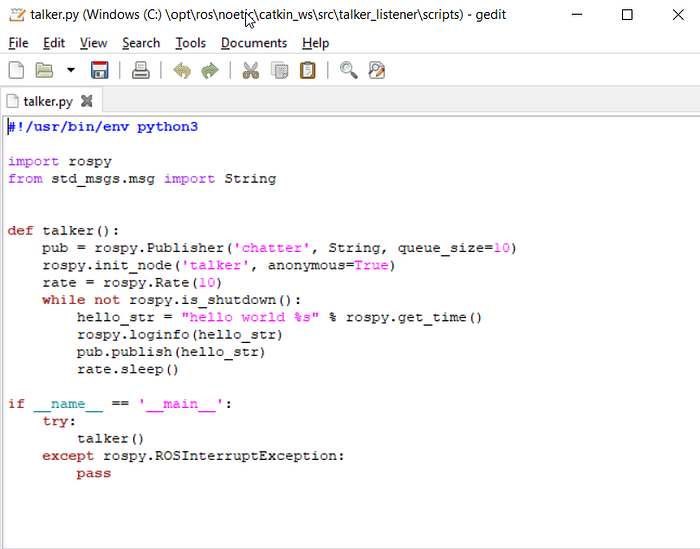
The very first line tells that the node will be executed as Python script. We will use this line in every Python nodes we write in ROS.
#!/usr/bin/env pythonIn C++
#include "ros/ros.h"(You can see all other conventions of C++ in HelloWorld article or any other documentation.)
Then we have to import rospy and std_msgs.msg. We import std_msgs_msg to use a simple string container std_msgs/String message for publishing.
import rospy
from std_msgs.msg import String
Then we define that this node is going to send String message type values to the chatter topic.
pub = rospy.Publisher('chatter', String, queue_size=10)The queue_size argument is new and used here to limit the amount of queued messages if any subscriber is not receiving them fast enough. You can simply avoid this in older versions.
Then we inform the name of our node to rospy.
rospy.init_node('talker', anonymous=True)Note that rospy won't be able to communicate with ROS master if it doesn't know this information. anonymous = True ensures that the node has a unique name by adding random numbers to the end of 'name'. Then we define the duration of each iteration along the loop.
rate = rospy.Rate(10)It means at each second, there will be iterations. Make sure that our processing time does not exceed 1/10th of a second.
Next, we have to construct our loop. We use is_shutdown() to check if your program should terminate/exit (e.g. if there is a Ctrl+C or otherwise).
while not rospy.is_shutdown():This ensures the loop continues until a termination happens as Ctrl+C or otherwise. Then we define the string message.
hello_str = "hello world %s" % rospy.get_time()Then we add
rospy.loginfo(hello_str)to perform 3 tasks.
- To print the message on the screen
- To write Node's log file
- To write in rosout
We publish the string to chatter topic like this.
pub.publish(hello_str)
The loop calls rate.sleep(), which sleeps just long enough to maintain the desired rate through the loop.
When we execute termination keys (Ctrl+C or otherwise) rospy.Rate.sleep() and rospy.sleep() can throw rospy.ROSInterruptException exception. So we use the following codes.
try:
  talker()
except rospy.ROSInterruptException:
  pass
So the complete code will be like this.
#!/usr/bin/env python3
import rospy
from std_msgs.msg import String
def talker():
  pub = rospy.Publisher('chatter', String, queue_size=10)
  rospy.init_node('talker', anonymous=True)
  rate = rospy.Rate(10)
  while not rospy.is_shutdown():
    hello_str = "hello world %s" % rospy.get_time()
    rospy.loginfo(hello_str)
    pub.publish(hello_str)
    rate.sleep()
if __name__ == '__main__':
  try:
    talker()
  except rospy.ROSInterruptException:
    pass
You can close the talker.py and just press enter in the same ROS_Noetic command prompt. Now we can write listener.py in the same way.
C:\opt\ros\noetic\catkin_ws\src\talker_listener\scripts>gedit listener.py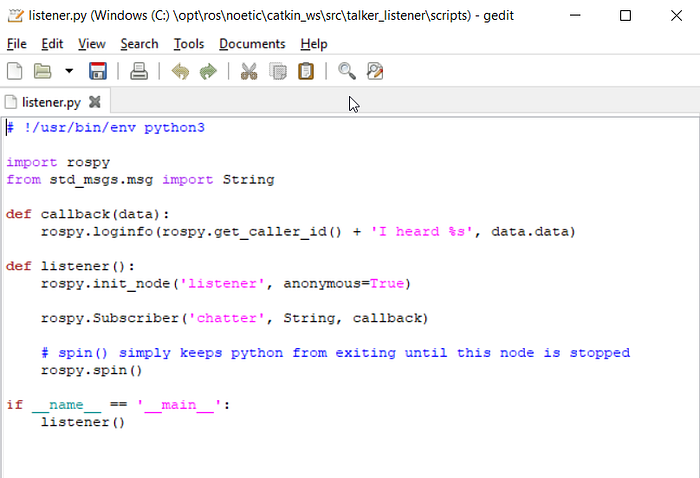
# !/usr/bin/env python3
import rospy
from std_msgs.msg import String
def callback(data):
  rospy.loginfo(rospy.get_caller_id() + 'I heard %s', data.data)
def listener():
  rospy.init_node('listener', anonymous=True)
  rospy.Subscriber('chatter', String, callback)
  rospy.spin()
if __name__ == '__main__':
  listener()
Now we have to edit our CMakeList.txt file inside the package.
C:\opt\ros\noetic\catkin_ws\src\talker_listener>gedit CMakeLists.txtIn CMakeList, go to the Install section and modify as follows (It may be commented, uncomment it, and edit).
catkin_install_python(PROGRAMS scripts/talker.py scripts/listener.py
  DESTINATION ${CATKIN_PACKAGE_BIN_DESTINATION}
)
You can edit the package.xml as needed.
C:\opt\ros\noetic\catkin_ws\src\talker_listener>gedit package.xmlAfter that go to catkin workspace directory and execute catkin make.
C:\opt\ros\noetic\catkin_ws>catkin_makeIt will take a few seconds, wait for the successful completion.
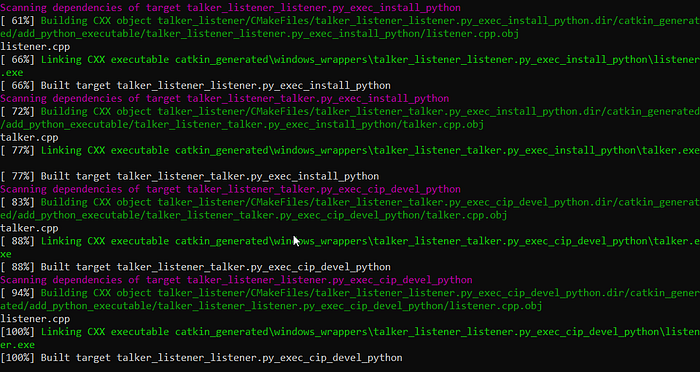
If you get an error, debug it, or delete \devel and \build and recreate the package and files as mentioned above. Open another ROS_Noetic command prompt and execute roscore;
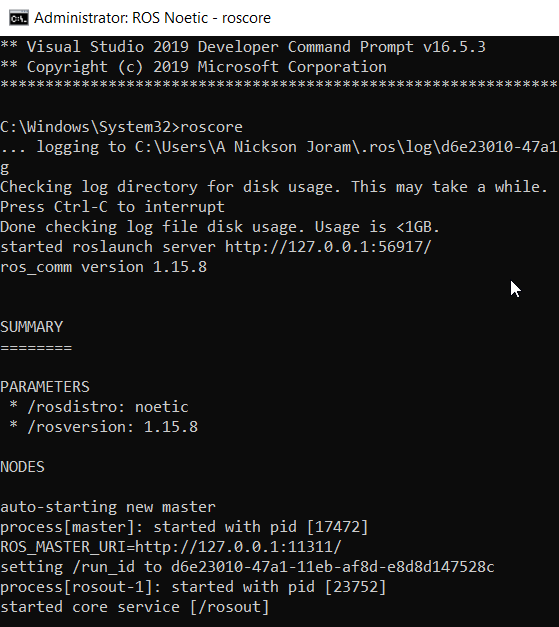
After that execute the following command.
C:\opt\ros\noetic\catkin_ws>rosrun talker_listener scripts/talker.pyYou may get an error as this.

You've to source the setup.bat. You might have seen this in HelloWorld article too. In Windows, we can source the setup.bat as this;
C:\opt\ros\noetic\catkin_ws>devel\setup.batExecute the rosrun again.
C:\opt\ros\noetic\catkin_ws>rosrun talker_listener scripts/talker.py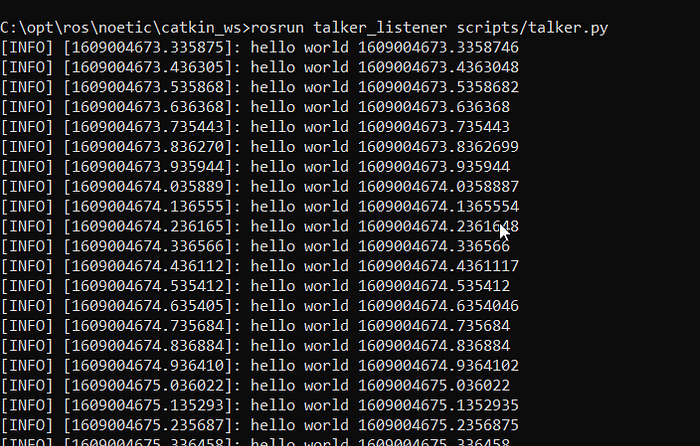
The publisher has started to publish the string to chatter topic. Now you have make the listener catch these messages. Open another ROS_Neotic command prompt, go to the catkin workspace and rosrun the listener as follows.
C:\opt\ros\noetic\catkin_ws>rosrun talker_listener scripts/listener.pyThere also, you may get an error for not sourcing.
Execute
C:\opt\ros\noetic\catkin_ws>devel\setup.batand rosrun the listener.py as follows;
C:\opt\ros\noetic\catkin_ws>rosrun talker_listener scripts/listener.pyYou can see the talker (in left here) is publishing and the same data accessed by listener (in right here).
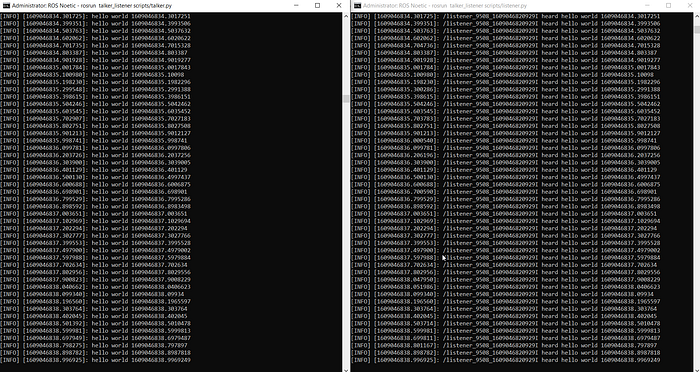
Note that if you stopped the listener (Subscriber node) the talker (Publisher node) won't stop publishing.
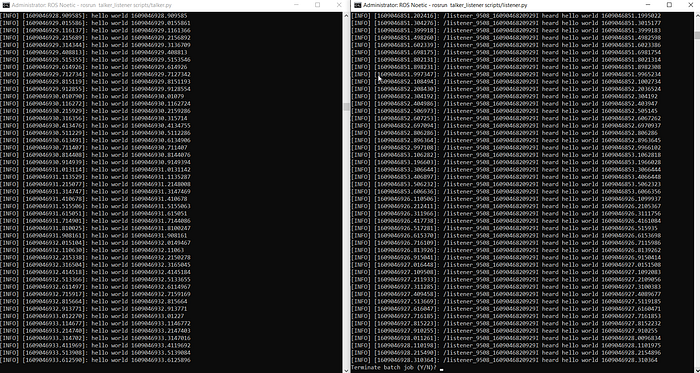
But if you stop publishing, the subscriber will also stop as it won't be able to receive any message from the publisher.
We have done Publisher and Subscriber nodes using ROS and Python in Windows successfully. If you want to do it in C++, refer this article.
Try to send and receive different data across the chatting topic.
Have fun with ROS in Windows 10!!