

Let me start with this:
if you're looking for a gentle introduction to macOS Sequoia, maybe with some calming background music and a polite voiceover telling you how to right-click… this ain't that.
I've been running Sequoia 15.1 on my Mac for over a month now. I've poked every menu, smashed every shortcut combo I could think of, and cursed out loud more than once at Apple's UI quirks.
But in all that poking and prodding,
I've found gold. Hidden settings, obscure keyboard shortcuts, productivity-enhancing gems — and a few things that are going to seriously annoy you if you don't fix them.
So this is a deep dive for folks who already know their way around macOS and want to unlock its full potential.
1. Window Tiling: Apple Gets with the Program
Let's talk about the most headline-worthy addition in macOS Sequoia:
true window tiling.
Yes, Apple has finally copied features from Magnet, Rectangle, and even Windows.
Drag a window to the side? It snaps. To the top? Full screen. Corners? Quarter size.
It's like macOS grew up and realized that multitasking isn't a four-letter word.
But here's a bit of a twist:
if you add a second window, a little "nipple" resizer shows up between them. (Yes, Apple, we're going to call it that now.) Drag that to resize both windows at once. Cool, right?

Well… almost. Out of the box, Apple adds an absurd amount of padding and margin between tiled windows. It is not subtle — it's distracting. To fix this:
- Head to System Settings → Desktop & Dock → Windows
- Disable "Tiled windows have margins"

Much better, now it behaves like a proper window manager.
2. Pro Window Shortcuts Apple Doesn't Advertise
Dragging windows is fine, but realistically speaking,
we're too efficient (read: lazy) for that. Hold Option, and macOS will highlight snap targets for fast placement.

Better yet, click the green traffic light button (the one next to the close button), hold Option, and you'll see options for top half, bottom half, quarters, and more.
Still not fast enough? You can make custom keyboard shortcuts for any of those window actions:

- Go to System Settings → Keyboard → Keyboard Shortcuts → App Shortcuts
- Add a shortcut like
Control + Option + Left - Match the exact name from the app's menu, e.g. "Top Left"
This works system-wide and gives you power over how windows behave, finally.
3. iPhone Mirroring: Impressive… and Frustrating
One of the more exciting new features is iPhone Mirroring, but it is a classic 1.0 Apple feature: full of promise, and kind of a pain in practice.

Every time you launch it, you need to authenticate with Touch ID or a password. Then you wait. Then it connects. Sometimes. If your iPhone screen times out or you touch it, the mirroring stops. Start over.
But there's a solution:
- Go to iPhone Mirroring Settings
- Change "Require Mac login to access iPhone" to auto-authenticate

Boom, it connects faster and without the dance.
Bonus: In Sequoia 15.1, you can drag and drop files between your Mac and the mirrored iPhone window. That's not possible in 15.0. This one small change makes the feature actually useful.
Also, quick tip: use hotkeys for navigation inside the mirrored iPhone:
Command + 1– HomeCommand + 2– App SwitcherCommand + 3– Spotlight
You're welcome.
4. Safari's Secret Superpowers
Safari in Sequoia is surprisingly powerful now. A few hidden tricks I love:
1. Video Viewer (Not Picture-in-Picture)
- Press
Shift + Command + Rwhile watching a video - It dims everything except the video — like theater mode in YouTube, but universal
2. Hide Distracting Items
Ever tired of news blocks on your homepage or a sidebar you never use?
- In Safari's toolbar, click the "Hide Distracting Items" button
- Click the part of the page you hate → it disappears
- Even on refresh, it stays gone
3. Web Apps Done Right
If you're tired of bloated Electron apps:
- Open any site in Safari
- Click Share → Add to Dock
- It creates a lightweight app with Safari's engine and full extension support

I made one for my to-do list app, and it's faster than the original app. Plus, it uses far less RAM.
5. Accessibility That's Actually Useful
1. Vocal Shortcuts
You can now trigger any system action or Shortcut with your voice.
Want to run a Shortcut that adds a task to your to-do list? Just say "New Task". Setup is easy:
- System Settings → Accessibility → Vocal Shortcuts
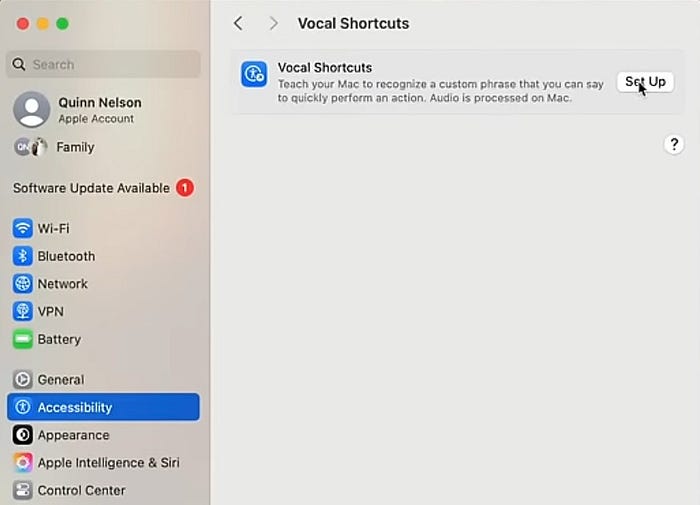
I synced mine with a Shortcut I use on my iPhone — and now I can add tasks while typing something else. Slick.
2. Background Sounds
This might be my favorite small feature. You can play ambient sounds like rain or a fireplace:
- Turn on in Accessibility → Audio → Background Sounds

- Add it to Control Center for quick toggling
It's like built-in white noise. No extra apps required.
6. Security, Finally Streamlined
1. Passwords App
No more digging into Safari's settings or Keychain Access. We finally have a real Passwords app.
- Built-in 2FA
- Passkey support
- Menu bar integration (enable in settings)
It's not 1Password yet — no password history or custom fields — but it's good enough that I'm switching.
2. Rotating MAC Addresses
To avoid being tracked on public Wi-Fi:
- Go to Wi-Fi → Network Details
- Enable Rotating Private Wi-Fi Address
Your Mac will now randomly change its identifier, making it harder for hotels, airports, and offices to track you.
8. Hidden Multimedia Goodies
If you use your Mac as a media center:
- Go to Apple Music or the TV app → Preferences → Playback
- Enable HDMI Passthrough
This unlocks Dolby Atmos support via HDMI. It works best with receivers or recent TVs and gives your movies and music way better sound.
9. Misc Power Tips
- Right-click from keyboard:
Control + Enteropens the context menu. No mouse needed. - iCloud Drive: You can now force files or folders to stay downloaded, even if you don't access them for months.
- Low Power Mode: Add it to Control Center under Battery Settings. It can massively extend your battery — especially on Apple Silicon.
10. Wallpaper Nerds, Rejoice
There's a new retro dynamic wallpaper called Macintosh — full of pixel art and early Mac vibes. It's adorable, nostalgic, and very much worth checking out under:
- System Settings → Wallpaper
Yes, Apple still knows how to have fun.
11. Apple Intelligence (AI) Sneak Peek
In macOS Sequoia 15.1, Apple Intelligence features are beginning to appear:
- Photos Cleanup Tool: Think Photoshop's content-aware fill. Select an object → gone.
- Writing Tools, Smart Replies, Siri Improvements — many of these are still rolling out or require supported hardware, but it's coming fast.
Final Thoughts
macOS Sequoia 15.1 isn't just a minor update — it's one of the most powerful, polished, and user-centric macOS versions in years. But most of its power is hidden behind modifier keys, buried in settings menus, or simply undocumented.
Apple still doesn't explain this stuff well — so we have to discover it ourselves.
Hopefully, this guide helped you uncover some gems that improve your daily workflow. I know my Mac feels faster, smarter, and far more capable now.
If you made it this far, thanks for reading — and hey, give that retro wallpaper a try. You've earned it.