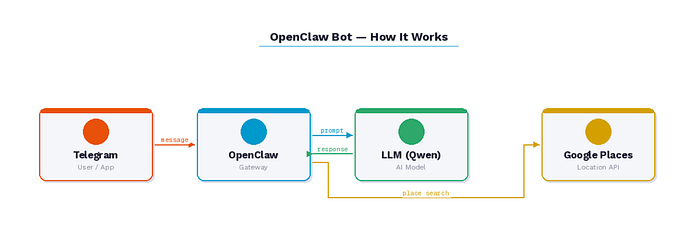
A step-by-step guide to deploying a self-hosted OpenClaw Agent, powering your Telegram bot with chat capability and location/web search, also it can be used on your browser as a chat console, it can help in coding, it can help in managing your files, can run your programs or commands on laptop/machine - brained by Qwen or GPT or Claude or any LLM provider.
There's something deeply satisfying about running your own AI assistant — one that lives on your machine, respects your privacy, and doesn't bill you per query. With OpenClaw, a self-hosted AI gateway, you can have exactly that: a fully functional local console with Telegram bot that chats naturally, finds real places near you, and runs 24/7 in the background of your Mac. It can run your programs, find and manage your files, can help in coding or run your project, can work as your own local system search engine, can chat like your personal assistant, etc etc..! Isn't it super interesting?
In this guide, we'll build one from scratch in 30 minutes. By the end, you'll have a bot that can answer questions, search for restaurants and ATMs, and optionally browse the web — all from your own hardware.
What You'll Need Before Starting
Just three things: a Mac, a Telegram account, and a Google account for the Places API. That's it.
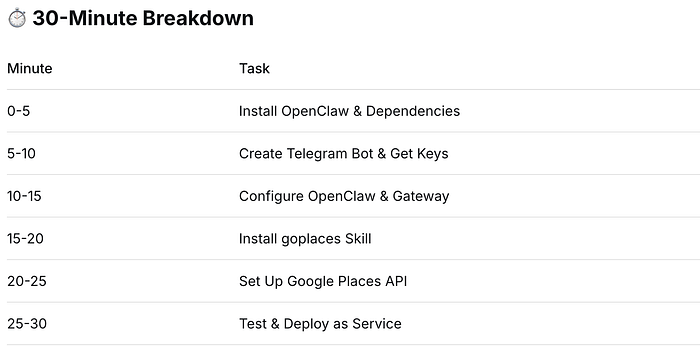
Step 1: Install OpenClaw (Minutes 0–5)
Everything begins with OpenClaw, the backbone of your setup. Open your terminal and run:
curl -fsSL https://openclaw.ai/install.sh | bashOnce it finishes, refresh your shell so the new command is recognized:
rehashOr simply open a new terminal window. Confirm the install worked:
openclaw --versionYou should see something like 2026.2.21-2. Now install Node.js and the goplaces CLI tool, which powers location search:
brew install node
brew install steipete/tap/goplaces
Step 2: Create Your Telegram Bot (Minutes 5–10)
Head to Telegram and search for @BotFather — the official bot factory. Send it /newbot, give your bot a display name (like My OpenClaw Assistant), then choose a username ending in bot (e.g., myopenclaw_bot).
BotFather will hand you a token — a long string like 1234567890:ABCdefGHIJkl... — copy it somewhere safe.
Next, search for @userinfobot, send /start, and note your numeric user ID. You'll need both.
Step 3: Configure OpenClaw (Minutes 10–15)
Open a terminal and start the gateway — this is the engine that routes messages between Telegram and your AI model:
openclaw gatewayKeep this terminal open and open a fresh one for everything else.
Now wire in your Telegram bot:
openclaw config set channels.telegram.botToken "YOUR_BOT_TOKEN_HERE"
openclaw config set channels.telegram.enabled true
openclaw config set channels.telegram.dmPolicy "pairing"
The pairing policy means only approved users can chat with your bot — a nice security layer for a personal assistant.
Configure your agent:
openclaw agent configure mainFollow the interactive prompts to pick a name, personality, and model. For the model, qwen/qwen3-235b-a22b is a strong free option. Then open the agent config to set the context window:
nano ~/.openclaw/agents/main/agent/config.jsonMake sure it includes:
{
  "model": "custom-integrate-api-nvidia-com/qwen/qwen3-235b-a22b",
  "systemPrompt": "You are a helpful AI assistant...",
  "contextWindow": 40960
}
Step 4: Add Location Search with goplaces (Minutes 15–20)
This is where your bot gets genuinely useful. Install the goplaces skill:
npx clawhub install goplaces
openclaw skills list | grep goplaces
You should see ✓ ready │ 📦 goplaces.
Now set up the Google Places API. Go to Google Cloud Console, create or select a project, enable Places API (New), and generate an API key under Credentials.
Add it to your environment:
echo 'export GOOGLE_PLACES_API_KEY="AIzaSyD-xxxxxxxxxxxxx"' >> ~/.zshrc
source ~/.zshrc
openclaw config set env.GOOGLE_PLACES_API_KEY "AIzaSyD-xxxxxxxxxxxxx"
Test that everything is working:
goplaces search "coffee shops" --location "Pune, Wakad" --limit 3If you see a list of real places come back, you're in great shape.
Step 5: Connect and Test (Minutes 20–25)
Restart the gateway to apply your changes:
openclaw gateway stop
openclaw gateway start
Now open Telegram, message your bot, and send anything — even just /start. It'll respond with a pairing code like P3GGKPF5. Back in your terminal:
openclaw pairing approve telegram P3GGKPF5You're paired. Try sending your bot:
find coffee shops near Wakad, Pune
You should get back something like:
☕ Coffea Wakad
📍 Gaurav Icon Tower
⭐ 4.7 (318 reviews)
🟢 Open now
If it returns Google Maps links instead of actual results, just tell the bot:
When I ask for places, use goplaces directly with this command: /opt/homebrew/bin/goplaces search "QUERY" — limit 5
It'll adapt.
Step 6: Make It Permanent (Minutes 25–30)
Right now the bot dies when you close your terminal. Fix that by installing the gateway as a background service:
openclaw gateway install
openclaw gateway start
openclaw gateway status
To make it survive reboots:
launchctl bootstrap gui/$UID ~/Library/LaunchAgents/ai.openclaw.gateway.plistRestart your Mac and run openclaw gateway status to confirm it's still running.
# Open it in browser
open http://127.0.0.1:18789
Bonus: Add Web Search
Want your bot to answer questions about current events? Sign up for a free Brave Search API key (2,000 queries/month free), then:
openclaw configure --section webPaste your key when prompted. Now you can ask the bot things like "what's the latest news in AI?" and get real answers.
What Your Bot Can Do Now
Location queries: "find pizza places in Pune", "ATMs open now in Kothrud", "hospitals near Shivajinagar"
General conversation: "help me organize my week", "explain quantum computing simply"
Web search (if configured): "what happened at the UN today?"
Quick Troubleshooting Reference
If openclaw isn't found after install, run rehash or open a new terminal. If the gateway won't start, kill any stuck processes with pkill -f openclaw-gateway and try again. If the API key isn't loading, verify with echo $GOOGLE_PLACES_API_KEY.
Wrapping Up
Self-hosting an AI assistant used to mean wrestling with Docker containers, GPU drivers, and cloud billing dashboards. OpenClaw makes it genuinely approachable — 30 minutes, a handful of commands, and you have a working Telegram bot and local browser chat console that's entirely yours.
The setup we've built here is just the starting point. OpenClaw's skill system means you can extend it with new capabilities as you need them. The bot is yours to shape.
Have questions or ran into a snag?